
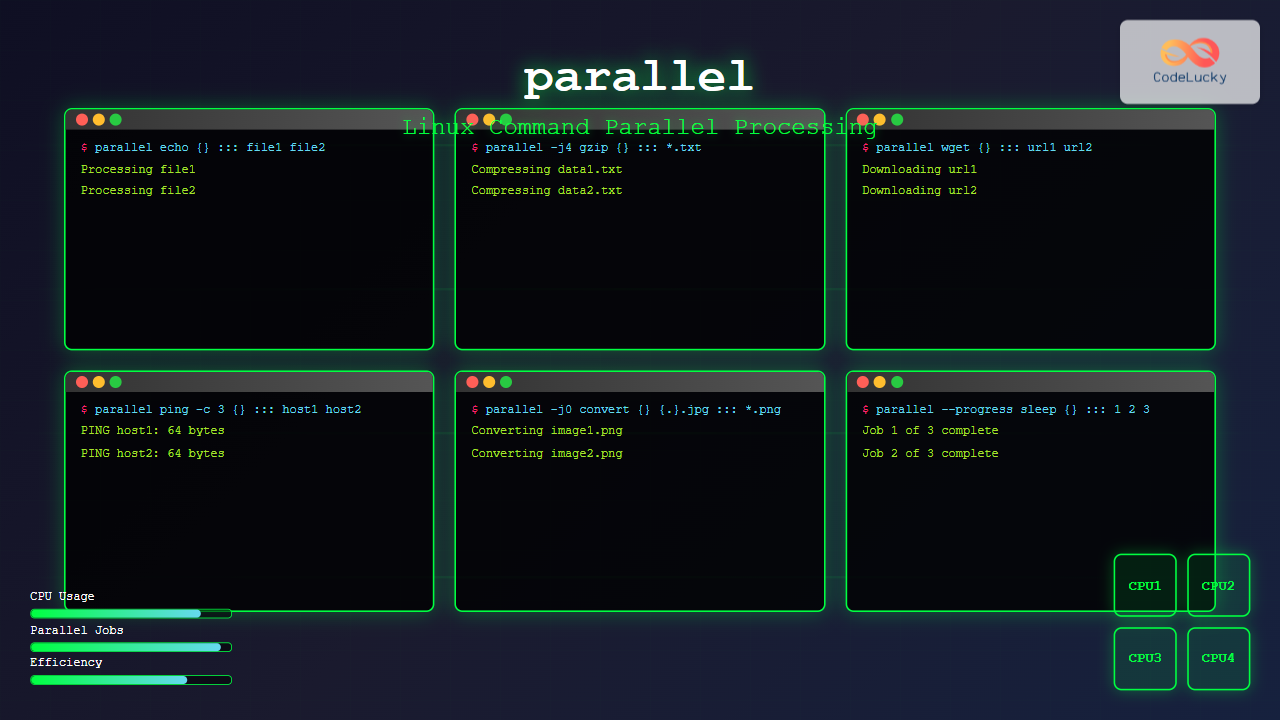
The parallel command in Linux is a powerful tool that allows you to execute multiple commands simultaneously, dramatically improving efficiency when processing large datasets or running repetitive tasks. GNU parallel transforms sequential operations into concurrent ones, making full use of your system’s processing capabilities.
What is the parallel Command?
GNU parallel is a shell tool for executing jobs in parallel using one or more computers. It can replace traditional loops in shell scripts and execute commands concurrently across multiple CPU cores or even different machines. This makes it invaluable for system administrators, data scientists, and developers who need to process large amounts of data efficiently.
Installing parallel Command
Before using parallel, you need to install it on your Linux system:
Ubuntu/Debian:
sudo apt update
sudo apt install parallel
CentOS/RHEL/Fedora:
sudo yum install parallel
# or for newer versions
sudo dnf install parallel
Arch Linux:
sudo pacman -S parallelBasic Syntax and Usage
The basic syntax of the parallel command is:
parallel [options] command ::: arguments
parallel [options] command :::: input-file
Simple Example
Let’s start with a basic example that demonstrates parallel execution:
parallel echo "Processing: {}" ::: file1.txt file2.txt file3.txtOutput:
Processing: file1.txt
Processing: file2.txt
Processing: file3.txt
This executes three echo commands simultaneously, rather than sequentially.
Common parallel Command Options
Control Number of Jobs
Use -j to specify the number of parallel jobs:
# Run maximum 2 jobs simultaneously
parallel -j2 sleep {} ::: 1 2 3 4 5
# Use all CPU cores
parallel -j0 command ::: argumentsVerbose Output
The -v option shows which commands are being executed:
parallel -v echo "Processing: {}" ::: file1 file2 file3Output:
echo Processing: file1
echo Processing: file2
echo Processing: file3
Processing: file1
Processing: file2
Processing: file3
Practical Examples
File Processing
Process multiple files concurrently with different commands:
# Convert multiple images simultaneously
parallel convert {} {.}.jpg ::: *.png
# Compress multiple files
parallel gzip {} ::: *.txtDirectory Operations
Perform operations on multiple directories:
# Create backups of multiple directories
parallel tar -czf {}.tar.gz {} ::: dir1 dir2 dir3
# Count lines in all text files
parallel wc -l {} ::: *.txtNetwork Operations
Test connectivity to multiple hosts:
# Ping multiple hosts simultaneously
parallel ping -c 3 {} ::: google.com github.com stackoverflow.com
# Download multiple files
parallel wget {} ::: \
http://example.com/file1.zip \
http://example.com/file2.zip \
http://example.com/file3.zipAdvanced Usage Patterns
Using Input Files
Read arguments from a file using :::::
# Create a file with URLs
echo -e "http://example.com/file1.zip\nhttp://example.com/file2.zip" > urls.txt

# Download all URLs in parallel
parallel wget {} :::: urls.txt
Multiple Argument Sources
Combine arguments from different sources:
# Process combinations of arguments
parallel echo "User: {} on Host: {}" ::: user1 user2 ::: server1 server2
Output:
User: user1 on Host: server1
User: user1 on Host: server2
User: user2 on Host: server1
User: user2 on Host: server2
Using Placeholders
Parallel provides several useful placeholders:
{}– The complete argument{.}– Argument without extension{/}– Basename of argument{//}– Directory of argument{/.}– Basename without extension
# Demonstrate placeholders
parallel echo "Full: {} Base: {/} No-ext: {.}" ::: /path/to/file.txt
Output:
Full: /path/to/file.txt Base: file.txt No-ext: /path/to/fileWorking with Pipes and Complex Commands
Shell Functions
Define complex operations as shell functions:
# Define a function
process_file() {
  echo "Processing $1"
  wc -l "$1"
  head -5 "$1"
}

# Export the function
export -f process_file

# Use it with parallel
parallel process_file ::: *.txt
Pipe Integration
Use parallel within pipe chains:
# Process find results in parallel
find . -name "*.log" | parallel gzip {}
# Process lines from stdin
cat hostlist.txt | parallel ssh {} "uptime"Performance Monitoring and Control
Progress Monitoring
Use --progress to monitor job completion:
parallel --progress sleep {} ::: 1 2 3 4 5Job Control Options
# Halt on first error
parallel --halt soon,fail=1 command ::: args

# Set timeout for jobs
parallel --timeout 30 command ::: args

# Retry failed jobs
parallel --retry-failed command ::: args
Real-World Scenarios
Log File Analysis
Analyze multiple log files simultaneously:
# Count error occurrences in multiple log files
parallel grep -c "ERROR" {} ::: /var/log/*.log
Database Operations
Run database queries in parallel:
# Execute SQL files simultaneously
parallel mysql -u user -p database \< {} ::: query1.sql query2.sql query3.sql
System Maintenance
Perform maintenance tasks across multiple systems:
# Update multiple servers simultaneously
parallel ssh {} "sudo apt update && sudo apt upgrade -y" ::: \
  server1.example.com \
  server2.example.com \
  server3.example.com
Best Practices and Tips
Resource Management
- Use
-jto limit concurrent jobs and prevent system overload - Monitor system resources when running CPU or memory-intensive tasks
- Consider disk I/O limitations when processing many files
Error Handling
# Keep going despite errors, but track them
parallel --keep-order --joblog joblog.txt command ::: args
Debugging
# Dry run to see what commands would be executed
parallel --dry-run command ::: args
Common Pitfalls and Solutions
Shell Escaping Issues
When using complex commands, properly escape special characters:
# Use quotes for complex commands
parallel "echo 'Processing: {}' && sleep 1" ::: file1 file2 file3
Memory Management
For memory-intensive tasks, limit concurrent jobs:
# Process large files with limited parallelism
parallel -j2 process_large_file {} ::: *.dat
Comparison with Other Methods
Traditional Loop vs parallel
Sequential (Traditional):
for file in *.txt; do
    wc -l "$file"
done
Parallel:
parallel wc -l {} ::: *.txtThe parallel version utilizes multiple CPU cores and completes much faster for large datasets.
Integration with Other Tools
Using with xargs
Replace xargs with parallel for better performance:
# Traditional xargs
find . -name "*.jpg" | xargs -I {} convert {} {}.thumbnail.jpg

# With parallel
find . -name "*.jpg" | parallel convert {} {.}.thumbnail.jpg
Combining with find
# Process files found by find command
find /path/to/files -type f -name "*.log" | parallel gzip {}
Conclusion
The parallel command is an essential tool for Linux users who need to maximize system efficiency and reduce processing time. By executing commands concurrently rather than sequentially, you can significantly speed up repetitive tasks, data processing operations, and system administration duties.
Key benefits of using parallel include:
- Improved performance through concurrent execution
- Better resource utilization across multiple CPU cores
- Simplified syntax compared to manual threading
- Built-in job control and error handling
- Flexibility to work with various input sources
Start incorporating parallel into your daily Linux workflow to experience dramatic improvements in productivity and system efficiency. Whether you’re processing log files, managing remote servers, or handling data transformation tasks, parallel provides the concurrent processing power you need.
Related Posts

Python Multiprocessing: Parallel Processing for Performance
In today's world of big data and complex computations, the ability to process tasks quickly and efficiently is crucial. Python,...
jobs Command Linux: Complete Guide to Managing Background Jobs in Terminal
The jobs command is an essential tool for Linux users who need to manage multiple processes running in the background....
Multithreading in Operating Systems: Benefits, Challenges, and Implementation Guide
What is Multithreading in Operating Systems? Multithreading is a fundamental concept in modern operating systems that allows a single process...

C++ Futures and Promises: Asynchronous Programming
In today's fast-paced world of software development, efficient and responsive applications are crucial. C++ offers powerful tools for asynchronous programming...
pipe Command Linux: Complete Guide to Connecting Commands with Pipes
The pipe command in Linux is one of the most powerful and fundamental concepts that allows you to connect multiple...
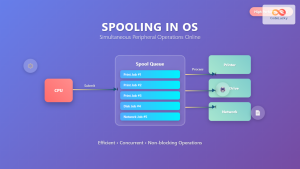
Spooling in OS: Complete Guide to Simultaneous Peripheral Operations Online
What is Spooling in Operating System? Spooling (Simultaneous Peripheral Operations Online) is a fundamental technique in operating systems that enables...

NumPy Parallel: Utilizing Multiple Cores
NumPy, the cornerstone of numerical computing in Python, is renowned for its efficiency. But what if we could push its...

Python Multithreading: Concurrent Execution in Python
Python multithreading is a powerful technique that allows developers to execute multiple threads concurrently within a single program. This approach...
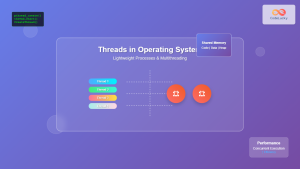
Thread in Operating System: Lightweight Processes and Multithreading Explained
What are Threads in Operating Systems? A thread is the smallest unit of execution within a process that can be...
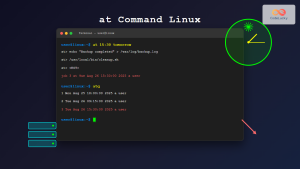
at Command Linux: Complete Guide to Schedule One-time Tasks with Examples
The at command in Linux is a powerful utility for scheduling one-time tasks to run at specific times in the...

PHP Multithreading: Concurrent Execution in PHP
In the world of modern web development, performance is king. As applications grow more complex and user expectations soar, developers...

C Thread Programming: Introduction to Multithreading
In the world of modern computing, efficiency is key. As processors become more powerful and capable of handling multiple tasks...





