The Excel SORT function is a powerful dynamic array formula introduced in Excel 365 that allows you to sort data ranges automatically without modifying the original dataset. This comprehensive guide will walk you through everything you need to know about the SORT function, from basic syntax to advanced applications.
What is the Excel SORT Function?
The SORT function is a dynamic array function that returns a sorted version of a range or array. Unlike traditional sorting methods that modify your original data, the SORT function creates a new sorted array while keeping your source data intact. This makes it perfect for creating dynamic reports and dashboards that automatically update when your source data changes.
SORT Function Syntax
The SORT function follows this syntax structure:
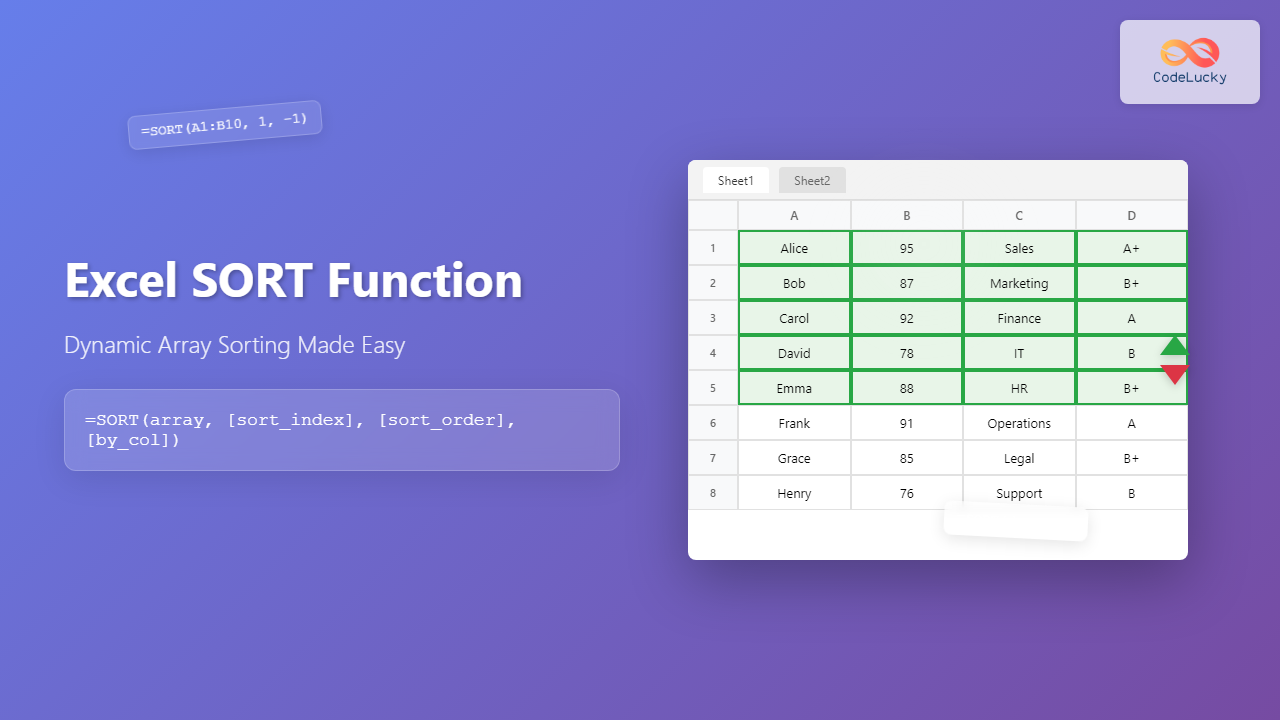
=SORT(array, [sort_index], [sort_order], [by_col])Parameter Breakdown
- array (required): The range or array you want to sort
- sort_index (optional): The column or row number to sort by (default is 1)
- sort_order (optional): 1 for ascending (default), -1 for descending
- by_col (optional): TRUE to sort by columns, FALSE to sort by rows (default)
Basic SORT Function Examples
Simple Ascending Sort
To sort a range A1:B10 by the first column in ascending order:
=SORT(A1:B10)This formula will return the entire range sorted alphabetically or numerically based on column A values.
Descending Sort
To sort the same range in descending order:
=SORT(A1:B10, 1, -1)The third parameter (-1) specifies descending order, while 1 indicates we’re sorting by the first column.
Sort by Specific Column
To sort a range by the second column instead of the first:
=SORT(A1:C10, 2)This sorts the three-column range based on values in column B (the second column).
Advanced SORT Function Techniques
Multi-Level Sorting
For complex sorting scenarios, you can combine multiple SORT functions or use array constants. To sort by multiple criteria, you can nest SORT functions:
=SORT(SORT(A1:C10, 2), 1)This first sorts by column 2, then by column 1, creating a two-level sort hierarchy.
Sorting with Array Constants
You can also sort using array constants for more complex multi-column sorting:
=SORT(A1:D10, {1,2}, {1,-1})This sorts first by column 1 ascending, then by column 2 descending.
Dynamic Range Sorting
Combine SORT with dynamic range functions for truly flexible solutions:
=SORT(A:A)This sorts the entire column A, automatically including new data as it’s added.
Working with Different Data Types
Text Data
The SORT function handles text data alphabetically by default. For case-sensitive sorting, you might need to combine it with other functions:
=SORT(A1:A10)This will sort text values from A to Z, treating uppercase and lowercase letters equally.
Numeric Data
Numbers are sorted in mathematical order:
=SORT(B1:B10, 1, -1)This sorts numbers from largest to smallest.
Date and Time Data
Dates and times are sorted chronologically:
=SORT(C1:C10)This sorts dates from earliest to latest by default.
Error Handling and Troubleshooting
Common SORT Function Errors
#SPILL! Error: This occurs when the SORT function cannot output its results because cells in the spill range are not empty. Clear the cells where the sorted array should appear.
#VALUE! Error: This happens when parameters are incorrectly specified, such as using text where numbers are expected for sort_index or sort_order.
#N/A Error: This can occur when the array parameter is empty or invalid.
Best Practices
Always ensure your spill range has enough empty cells to accommodate the sorted output. Use absolute references ($A$1:$B$10) when you don’t want the range to change when copying the formula.
SORT Function vs. Traditional Sorting
Advantages of SORT Function
- Preserves original data
- Creates dynamic, updateable results
- Can be combined with other functions
- Works as part of larger formulas
When to Use Traditional Sort
Use Excel’s built-in Sort feature when you want to permanently rearrange your data or when working with very large datasets where performance is a concern.
Real-World Applications
Sales Ranking Dashboard
Create a dynamic top performers list:
=SORT(A1:B100, 2, -1)This automatically shows your sales data ranked by performance, updating as new sales are recorded.
Inventory Management
Sort products by stock levels:
=SORT(Products!A:C, 3, 1)This helps identify low-stock items that need reordering.
Student Grade Reports
Automatically rank students by grades:
=SORT(StudentData!A1:D50, 4, -1)This creates an honor roll that updates automatically when grades change.
Combining SORT with Other Functions
SORT with FILTER
Create sorted, filtered results:
=SORT(FILTER(A1:C100, C1:C100>50), 2, -1)This filters for values greater than 50 in column C, then sorts by column B in descending order.
SORT with UNIQUE
Get a sorted list of unique values:
=SORT(UNIQUE(A1:A100))This removes duplicates and sorts the remaining unique values.
Performance Considerations
The SORT function recalculates whenever the source data changes, which can impact performance with very large datasets. Consider using manual calculation mode for workbooks with extensive SORT formulas, or limit the range to only necessary data.
Compatibility and Requirements
The SORT function is available in:
- Excel 365 (Windows and Mac)
- Excel 2021
- Excel Online
It’s not available in older versions of Excel, so consider compatibility when sharing workbooks with users who might have earlier versions.
Conclusion
The Excel SORT function revolutionizes how we handle data sorting by providing dynamic, formula-based solutions that automatically update with changing data. Whether you’re creating dashboards, reports, or analytical tools, mastering the SORT function will significantly enhance your Excel capabilities and productivity.
By understanding its syntax, parameters, and advanced applications, you can create sophisticated spreadsheet solutions that maintain data integrity while providing powerful sorting functionality. Practice with different data types and scenarios to fully leverage this versatile function in your Excel workflows.
Related Posts

Excel SORTBY Function: Master Dynamic Array Sorting with Advanced Custom Commands
The Excel SORTBY function revolutionizes how we handle data sorting by providing dynamic array functionality that automatically updates when source...
Excel FILTER Function: Complete Guide to Dynamic Array Filtering
The Excel FILTER function is one of the most powerful dynamic array functions introduced in Excel 365 and Excel 2021....

Excel RANK Function: Complete Guide to Value Ranking with Syntax Examples
What is the Excel RANK Function? The Excel RANK function is a powerful statistical tool that determines the rank of...

Excel OFFSET Function: Dynamic Reference Formula for Advanced Data Management
The Excel OFFSET function is one of the most powerful yet underutilized tools for creating dynamic references in spreadsheets. This...

Excel TABLE Function: Complete Guide to Structured Data Management and Advanced Formulas
What is the Excel TABLE Function? The Excel TABLE function is a powerful feature that converts regular cell ranges into...
Excel LARGE Function: Find Nth Largest Value with Complete Syntax Guide
What is the Excel LARGE Function? The LARGE function in Microsoft Excel is a powerful statistical function that returns the...
Excel Dynamic Array Formulas: Complete Spill Range Syntax and Functions Guide
Excel's dynamic array formulas revolutionized spreadsheet calculations by automatically expanding results across multiple cells. These powerful functions eliminate the need...

Excel TRANSPOSE Function: Complete Guide to Array Transposition with Examples
The TRANSPOSE function in Microsoft Excel is a powerful array function that allows you to convert rows to columns and...
Excel COLUMNS Function: Master Column Counting with Practical Examples
The Excel COLUMNS function is a powerful built-in tool that counts the number of columns in a specified range or...
Excel INDEX Function: Complete Guide to Array Position Lookup with Practical Examples
The Excel INDEX function is one of the most powerful and versatile lookup functions available in Microsoft Excel. Unlike other...

Excel ROWS Function: Complete Guide to Count Rows with Formula Syntax Examples
What is the Excel ROWS Function? The ROWS function in Microsoft Excel is a built-in lookup and reference function that...

Excel SEQUENCE Function: Complete Guide to Dynamic Number Sequences
What is the Excel SEQUENCE Function? The Excel SEQUENCE function is a powerful dynamic array function introduced in Excel 365...