You finish building an app, it runs perfectly on your laptop, and then a teammate clones the repo and it crashes instantly. The infamous “but it works on my machine” problem has wasted more developer hours than almost any other issue in software. Docker for beginners exists precisely to kill that headache for good, and learning it in 2026 is one of the highest-leverage skills you can pick up as a developer.
By the end of this guide, you will understand what containers actually are, why they matter, and you will have packaged a real working application into a portable container that runs the same way everywhere. No prior DevOps experience required.
What Is Docker and Why Should Beginners Care?
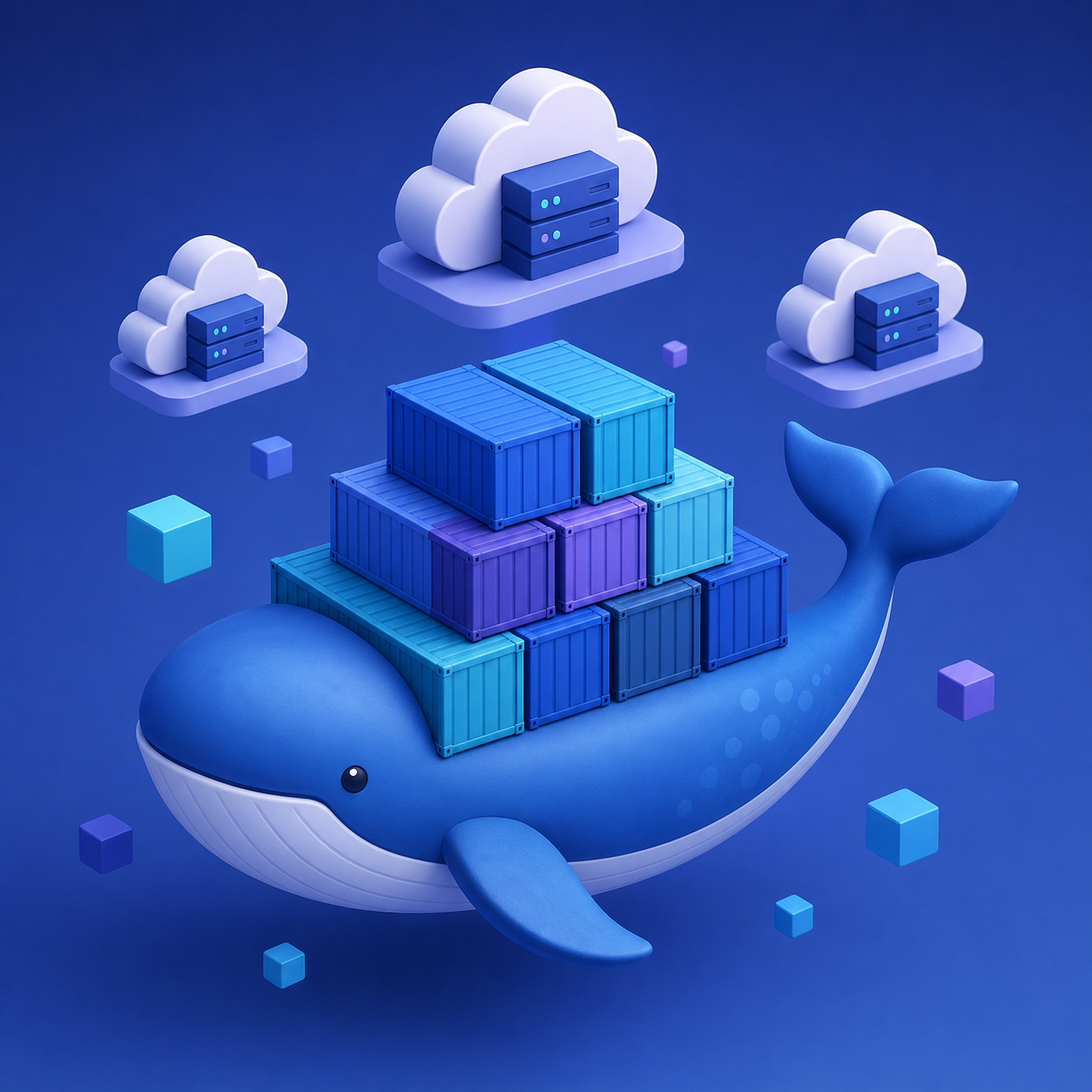
Docker is an open-source platform that packages an application together with everything it needs to run — code, runtime, system libraries, and configuration — into a single isolated unit called a container. That container behaves identically whether it runs on your laptop, a colleague’s machine, or a production server in the cloud.
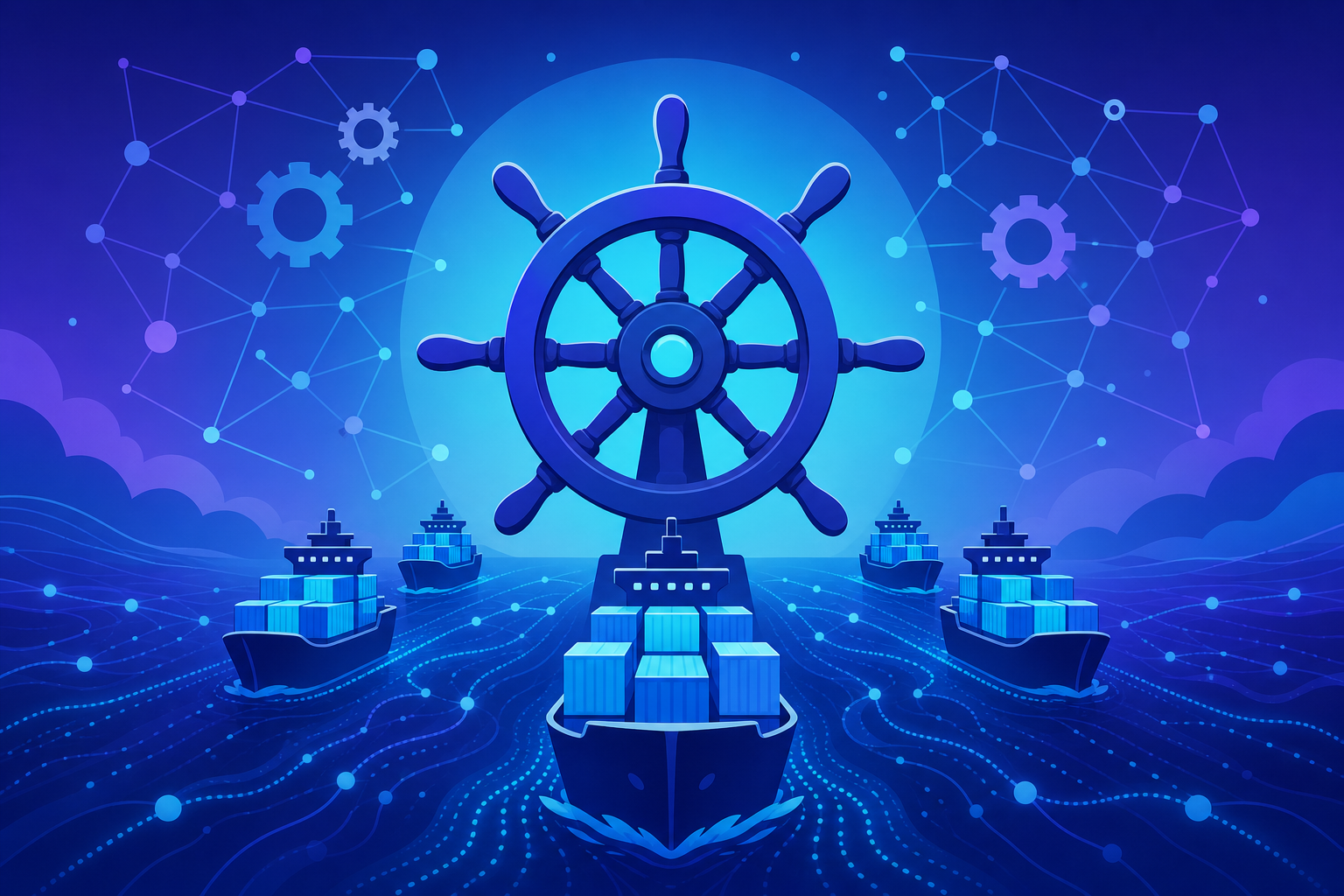
Think of a container like a shipping container in global trade. Before standardized containers, loading a ship was chaos — every item had a different shape and needed special handling. Once everything fit into identical steel boxes, any crane, truck, or ship could move any container without caring what was inside. Docker does the same for software.
This portability is why Docker has become a backbone of modern DevOps. It removes environment drift, speeds up onboarding, and makes deployments predictable. You can read more on the official Docker getting started documentation as you progress.
Containers vs Virtual Machines: The Key Difference
Beginners often confuse containers with virtual machines (VMs). Both isolate applications, but they work very differently. A VM virtualizes an entire operating system, including its own kernel, which makes it heavy. A container shares the host operating system’s kernel and isolates only the application layer, which makes it lightweight and fast.
| Aspect | Docker Container | Virtual Machine |
|---|---|---|
| Startup time | Seconds or less | Minutes |
| Size | Megabytes | Gigabytes |
| Resource overhead | Low (shares host kernel) | High (full guest OS) |
| Isolation level | Process-level | Hardware-level |
| Best for | Microservices, CI/CD, fast deploys | Running different OS kernels |
In short, you can run dozens of containers on hardware that would struggle with a handful of VMs. That efficiency is a big reason containers dominate cloud-native development today.
Core Docker Concepts You Need to Know
Before you containerize anything, get comfortable with four building blocks. Everything else in Docker builds on these.
- Image — a read-only blueprint that contains your app and its dependencies. Think of it as a class in programming.
- Container — a running instance of an image. If the image is a class, the container is an object created from it.
- Dockerfile — a plain text file with step-by-step instructions for building an image.
- Registry — a storage and distribution system for images, such as Docker Hub, where you can pull official images or push your own.
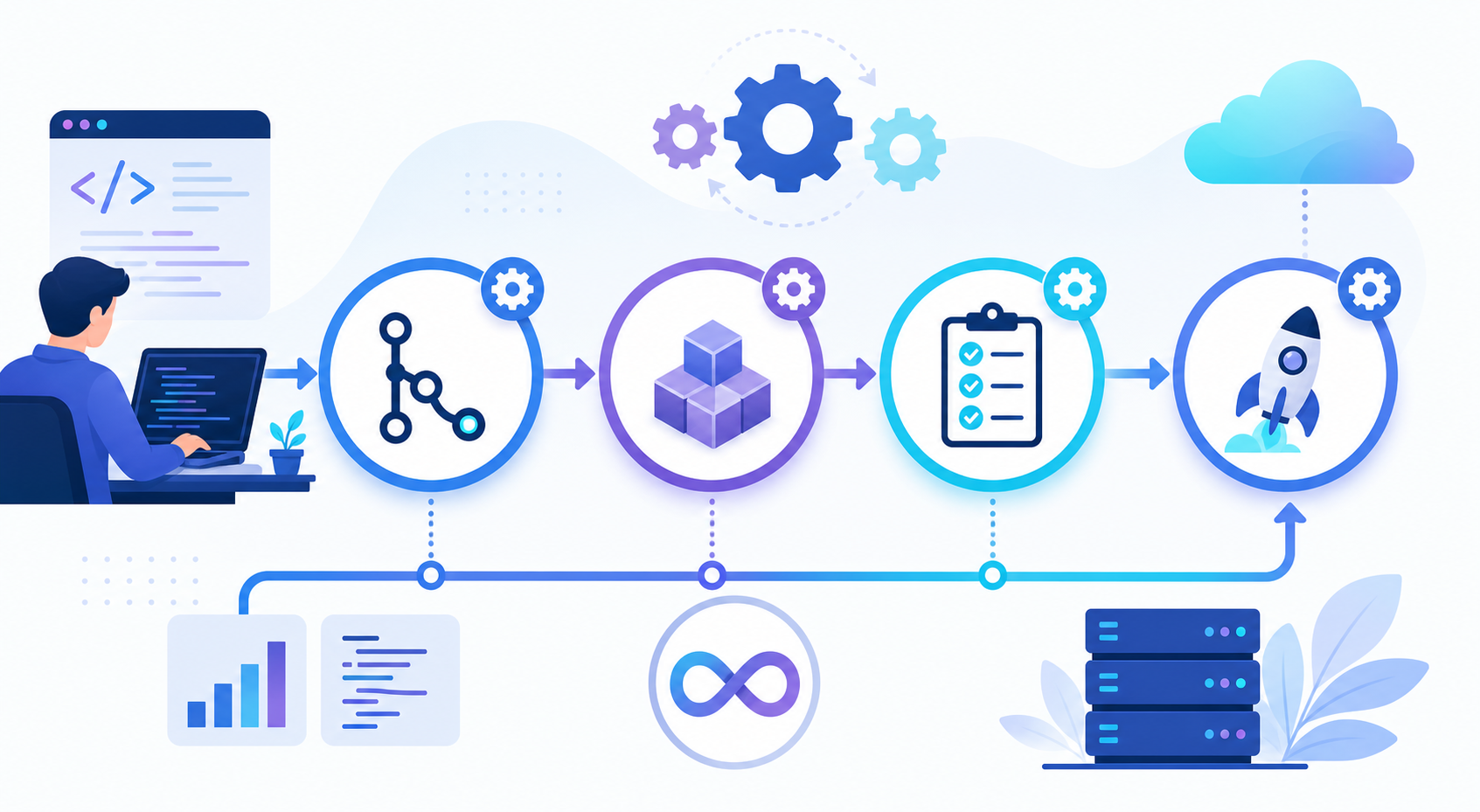
The workflow is simple to remember: you write a Dockerfile, build it into an image, then run that image as one or more containers. Let’s install Docker and put this into practice.
Installing Docker on Your Machine in 2026
The easiest path for any operating system is Docker Desktop, which bundles the Docker engine, the command-line interface, and a graphical dashboard. Download it from the official Docker download page for Windows, macOS, or Linux.
Once it’s installed and running, confirm everything works by opening your terminal and checking the version:
# Check that the Docker CLI is installed and responding
docker --version

# Run a tiny test container that prints a welcome message
docker run hello-world
The hello-world command pulls a small test image from Docker Hub and runs it. If you see a confirmation message, your installation is healthy and you are ready to containerize your first app.
Containerize Your First App: A Step-by-Step Guide
You’ll build a minimal Node.js web server and package it into a container. The same principles apply to Python, Java, Go, or any other stack, so don’t worry if Node isn’t your language.
Step 1: Create the Application
Make a new folder, then create a file named app.js with this code:
const express = require('express');
const app = express();

// Read the port from an environment variable, with a sensible default
const PORT = process.env.PORT || 3000;

app.get('/', (req, res) => {
  res.send('Hello from inside a Docker container!');
});

app.listen(PORT, () => {
  console.log(`Server running on port ${PORT}`);
});
This is a standard Express server that returns a greeting on the home route. Reading the port from an environment variable is a small but important habit — it keeps your app configurable without changing code, which matters once it runs in different environments.
Step 2: Define Dependencies
Next, create a package.json so Docker knows what to install:
{
  "name": "docker-first-app",
  "version": "1.0.0",
  "main": "app.js",
  "scripts": {
    "start": "node app.js"
  },
  "dependencies": {
    "express": "^4.19.2"
  }
}
This file lists your single dependency, Express, and a start script. Docker will use it to install exactly the right packages inside the image, so the container never depends on what happens to be on your host machine.
Step 3: Write the Dockerfile
Now the heart of the process. Create a file named Dockerfile (no extension) in the same folder:
# Start from an official, lightweight Node.js base image
FROM node:22-alpine

# Set the working directory inside the container
WORKDIR /app

# Copy dependency manifests first to take advantage of layer caching
COPY package*.json ./

# Install only production dependencies
RUN npm install --omit=dev

# Copy the rest of the application source code
COPY . .

# Document which port the container listens on
EXPOSE 3000

# Define the command that starts the app when the container runs
CMD ["node", "app.js"]
Each line is an instruction that creates a cached layer. Copying package*.json before the rest of the code is a deliberate optimization: as long as your dependencies don’t change, Docker reuses the cached npm install layer on future builds, making them dramatically faster.
Step 4: Add a .dockerignore File
Create a .dockerignore file to keep junk out of your image:
node_modules
npm-debug.log
.git
.env
This works like .gitignore. It prevents bulky or sensitive files from being copied into the image, which keeps the image small and avoids accidentally leaking secrets like a .env file into a shared registry.
Step 5: Build and Run Your Container
From your project folder, build the image and run it:
# Build an image and tag it with a readable name
docker build -t my-first-app .

# Run a container, mapping host port 3000 to container port 3000
docker run -p 3000:3000 my-first-app
The -t flag names your image, and the trailing . tells Docker to use the current directory as the build context. The -p 3000:3000 flag maps a port on your computer to a port inside the container — without it, the container would be running but unreachable. Open http://localhost:3000 in your browser, and you’ll see your greeting served from inside a container. You just containerized your first app.
Essential Docker Commands Every Beginner Should Memorize
You’ll use a handful of commands constantly. Keep this short reference handy until they become muscle memory.
docker ps— list running containers (add-ato see stopped ones too).docker images— list the images stored on your machine.docker stop <container-id>— gracefully stop a running container.docker rm <container-id>— remove a stopped container.docker rmi <image-id>— delete an image you no longer need.docker logs <container-id>— view a container’s output for debugging.docker exec -it <container-id> sh— open an interactive shell inside a running container.
The docker exec command is especially valuable when something misbehaves. It drops you inside the container so you can inspect files and processes exactly as your app sees them.
Going Further: Docker Compose for Multi-Container Apps
Real applications rarely run alone. Your web server might need a database, a cache, and a background worker. Running each with separate docker run commands gets messy fast. Docker Compose lets you define an entire multi-container setup in one declarative file.
services:
  web:
    build: .
    ports:
      - "3000:3000"
    environment:
      - PORT=3000
    restart: unless-stopped
  cache:
    image: redis:7-alpine
    restart: unless-stopped
Save this as compose.yaml, then run docker compose up to start every service at once. Compose handles networking between containers automatically, so your web service can reach the cache by its service name. This is the natural next step after you master single containers.
Start small. Containerize one app well before reaching for orchestration tools like Kubernetes — you’ll understand the abstractions far better when the fundamentals are solid.
Common Pitfalls to Avoid When Learning Docker
Most beginner frustration comes from a few repeat offenders. Knowing them in advance saves hours.
- Forgetting port mapping. A container without
-pruns in isolation. If you can’t reach your app, this is the first thing to check. - Bloated images. Using a full
nodebase image instead of analpinevariant can balloon your image size. Smaller images build faster and have a smaller attack surface. - Ignoring layer caching. Copying all source code before installing dependencies forces a reinstall on every code change. Order your
Dockerfilefrom least to most frequently changing. - Storing data inside containers. Containers are ephemeral — when one is removed, its internal data vanishes. Use volumes for anything that must persist, such as database files.
- Running as the root user. By default containers run as root, which is a security risk. Add a non-root user in production images.
That last point deserves emphasis. A simple security improvement is adding a USER node instruction near the end of your Dockerfile so the app runs with reduced privileges.
Docker for Beginners: Frequently Asked Questions
Do I need to know Linux to use Docker?
No, but basic familiarity helps. Most official images are Linux-based, and commands like ls or cd are useful when you shell into a container. You can be productive with Docker on day one and pick up Linux basics gradually.
Is Docker free to use?
The Docker Engine and CLI are free and open source. Docker Desktop is free for personal use, education, and small businesses, while larger organizations need a paid subscription. Always check the current licensing terms on Docker’s official site.
What is the difference between a Docker image and a container?
An image is a static, read-only template. A container is a live, running instance created from that image. You can launch many containers from a single image, just as you create many objects from one class in programming.
Can Docker replace virtual machines entirely?
Not entirely. Containers share the host kernel, so they suit most web apps and microservices brilliantly. VMs are still the right choice when you need to run a different operating system kernel or require stronger hardware-level isolation.
Where are Docker images stored?
Built images live locally on your machine until you push them to a registry. Public registries like Docker Hub host official and community images, while teams often run private registries for proprietary code.
How do I keep my containers updated and secure?
Pin specific base image versions instead of latest, rebuild regularly to pull in patched dependencies, and scan images for vulnerabilities using built-in tools like docker scout. Treat your images as something you rebuild, not edit in place.
Conclusion: Your Docker for Beginners Journey Starts Now
You’ve moved from “what even is a container?” to building a real Dockerfile, creating an image, and running a live application inside an isolated container. That’s the exact workflow professional teams use every single day to ship software reliably across environments.
The core takeaways are worth repeating: images are blueprints, containers are running instances, and a well-ordered Dockerfile with a .dockerignore keeps your builds fast and clean. Mind the common pitfalls — port mapping, image size, persistent data, and security — and you’ll sidestep most beginner trouble.
Docker for beginners is really about a mindset shift: package once, run anywhere, and never debug an environment mismatch again. Practice by containerizing a small project of your own, then explore Docker Compose and volumes when you’re ready. The “works on my machine” era is over — now everything just works, everywhere.