
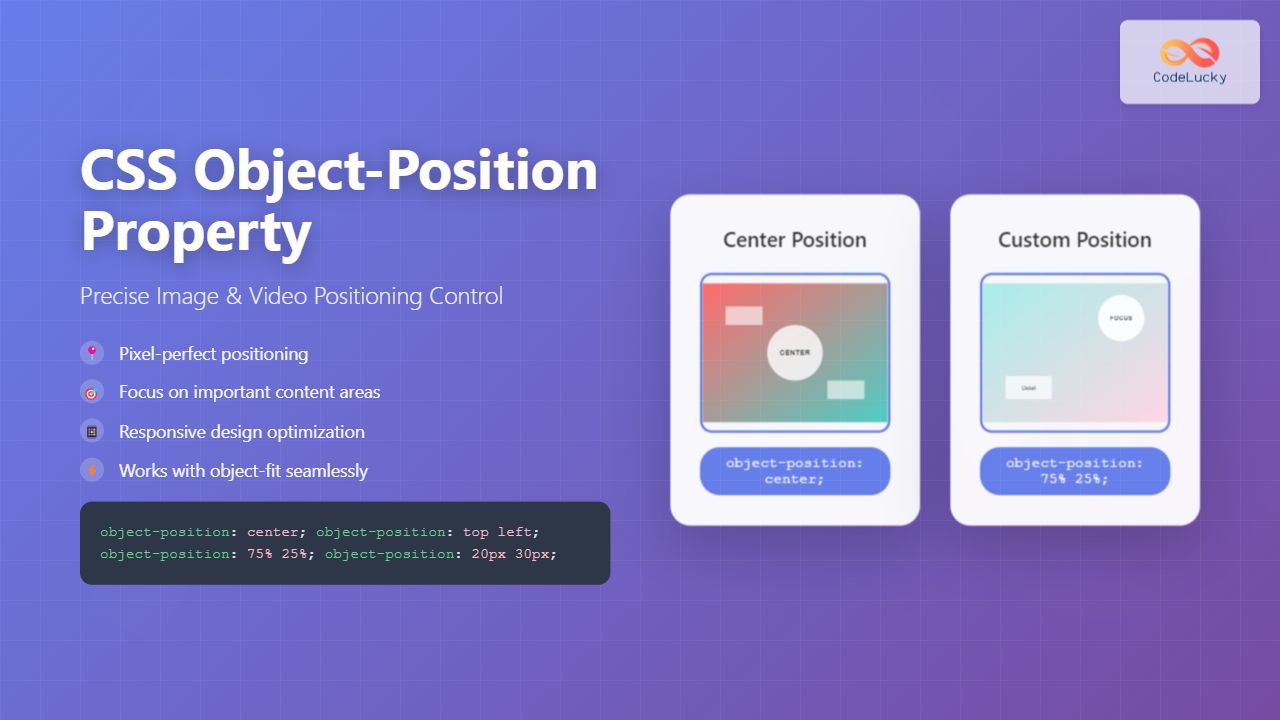
The CSS object-position property is a powerful tool that allows developers to precisely control how images, videos, and other replaced elements are positioned within their containers. Working hand-in-hand with the object-fit property, it provides fine-grained control over visual presentation in responsive web design.
What is CSS Object-Position?
The object-position property specifies the alignment of replaced elements (like images and videos) inside their content box. It’s particularly useful when the aspect ratio of the content doesn’t match the container, allowing you to choose which part of the content to display prominently.
Basic Syntax
object-position: <position>;

/* Examples */
object-position: center;
object-position: top right;
object-position: 50% 25%;
object-position: 10px 20px;
Understanding Object-Position Values
The object-position property accepts various types of values that determine how content is positioned within its container.
Keyword Values
CSS provides several predefined keywords for common positioning scenarios:
- center – Centers the content both horizontally and vertically
- top – Aligns content to the top edge
- bottom – Aligns content to the bottom edge
- left – Aligns content to the left edge
- right – Aligns content to the right edge
Percentage Values
Percentage values offer precise control over positioning. The first percentage represents horizontal position, the second represents vertical position:
Length Values
You can use absolute units (px, em, rem) or relative units to specify exact positioning distances from the top-left corner of the container.
Practical Examples with Visual Demonstrations
Example 1: Basic Image Positioning
Here’s how different object-position values affect image display:

object-position: center;
object-position: top left;
object-position: bottom right;
Complete CSS Code
.image-container {
  width: 300px;
  height: 200px;
  border: 2px solid #ddd;
  overflow: hidden;
}

.positioned-image {
  width: 100%;
  height: 100%;
  object-fit: cover;
}

/* Different positioning examples */
.center { object-position: center; }
.top-left { object-position: top left; }
.bottom-right { object-position: bottom right; }
.custom-percent { object-position: 75% 25%; }
.custom-pixels { object-position: 20px 10px; }
Interactive Object-Position Demo
Try Different Positioning Values

Current: center
Choose Position:
Working with Object-Fit and Object-Position
The object-position property works best when combined with object-fit. Here’s how different object-fit values interact with positioning:
object-fit: cover

Scales and crops to fill container
object-fit: contain

Scales to fit entirely within container
Real-World Use Cases
1. Portrait Image in Landscape Container
When displaying portrait images in landscape containers, object-position helps focus on the subject:
.portrait-in-landscape {
  width: 400px;
  height: 200px;
  object-fit: cover;
  object-position: center top; /* Focus on the top portion */
}

/* For face-focused cropping */
.face-focus {
  object-position: 50% 25%; /* Horizontal center, upper quarter */
}
2. Video Thumbnails
Video thumbnails often need precise positioning to show the most relevant frame:
.video-thumbnail {
  width: 300px;
  height: 169px; /* 16:9 aspect ratio */
  object-fit: cover;
  object-position: center;
  border-radius: 8px;
}

/* For action scenes, focus on center-right */
.action-thumbnail {
  object-position: 60% center;
}
3. Responsive Image Cards
In card layouts, images need consistent positioning across different screen sizes:
.image-card {
  width: 100%;
  height: 250px;
  object-fit: cover;
  object-position: center;
}

@media (max-width: 768px) {
  .image-card {
    height: 200px;
    object-position: center 30%; /* Adjust for mobile viewing */
  }
}
Advanced Techniques and Tips
Dynamic Positioning with CSS Custom Properties
You can create dynamic positioning systems using CSS custom properties (variables):
:root {
  --img-pos-x: 50%;
  --img-pos-y: 50%;
}

.dynamic-image {
  object-position: var(--img-pos-x) var(--img-pos-y);
  transition: object-position 0.3s ease;
}

/* JavaScript can update these values */
.dynamic-image.focus-left {
  --img-pos-x: 25%;
}

.dynamic-image.focus-top {
  --img-pos-y: 25%;
}
Accessibility Considerations
When using object-position, consider these accessibility best practices:
- Alt text – Ensure alt text describes the visible portion of the image</li
Related Posts
CSS object-position Property: CSS Object Position
CSS object-position Property: Mastering Object Positioning The object-position property in CSS provides a way to specify the alignment of a...
CSS Object-Fit Property: Complete Guide to Image and Video Sizing Control
The CSS object-fit property is a powerful tool that controls how replaced elements like images and videos are resized to...
CSS object-fit Property: Mastering Image and Video Scaling
Understanding the CSS object-fit Property: A Comprehensive Guide The CSS object-fit property specifies how the content of a replaced element,...
CSS Background-Position: Complete Guide to Precise Background Image Positioning
The CSS background-position property is a fundamental tool for controlling exactly where background images appear within their containers. Whether you're...
CSS Relative Positioning: Master Element Offset and Layout Control
Understanding CSS Relative Positioning CSS relative positioning is a fundamental layout technique that allows you to move elements from their...
CSS Style backgroundPosition Property: CSS Background Position
CSS background-position Property: Mastering Background Image Placement The CSS background-position property allows you to precisely control the initial position of...
CSS Position Property: Complete Guide to Static, Relative, Absolute, Fixed & Sticky Positioning
The CSS position property is one of the most powerful tools for controlling element layout and creating sophisticated web designs....
CSS Absolute Positioning: Master Element Placement with Containing Blocks
CSS absolute positioning is one of the most powerful tools for creating precise layouts and complex designs. Understanding how absolutely...
CSS Static Positioning: Understanding Default Document Flow and Layout Fundamentals
CSS positioning is one of the fundamental concepts every web developer must master. Among the various positioning methods available, static...
CSS position Property: Mastering Layouts in CSS
Understanding the CSS position Property: A Comprehensive Guide The position property in CSS is a fundamental tool for controlling the...
CSS Style right Property: CSS Right
Understanding the CSS right Property The CSS right property plays a crucial role in positioning elements within a web page....
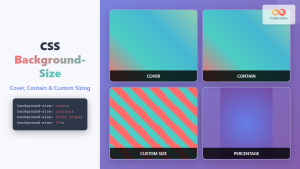
CSS Background-Size: Master Cover, Contain and Custom Sizing Techniques
The CSS background-size property is a powerful tool that controls how background images are sized within their containers. Whether you're...





