
What is the Excel DGET Function?
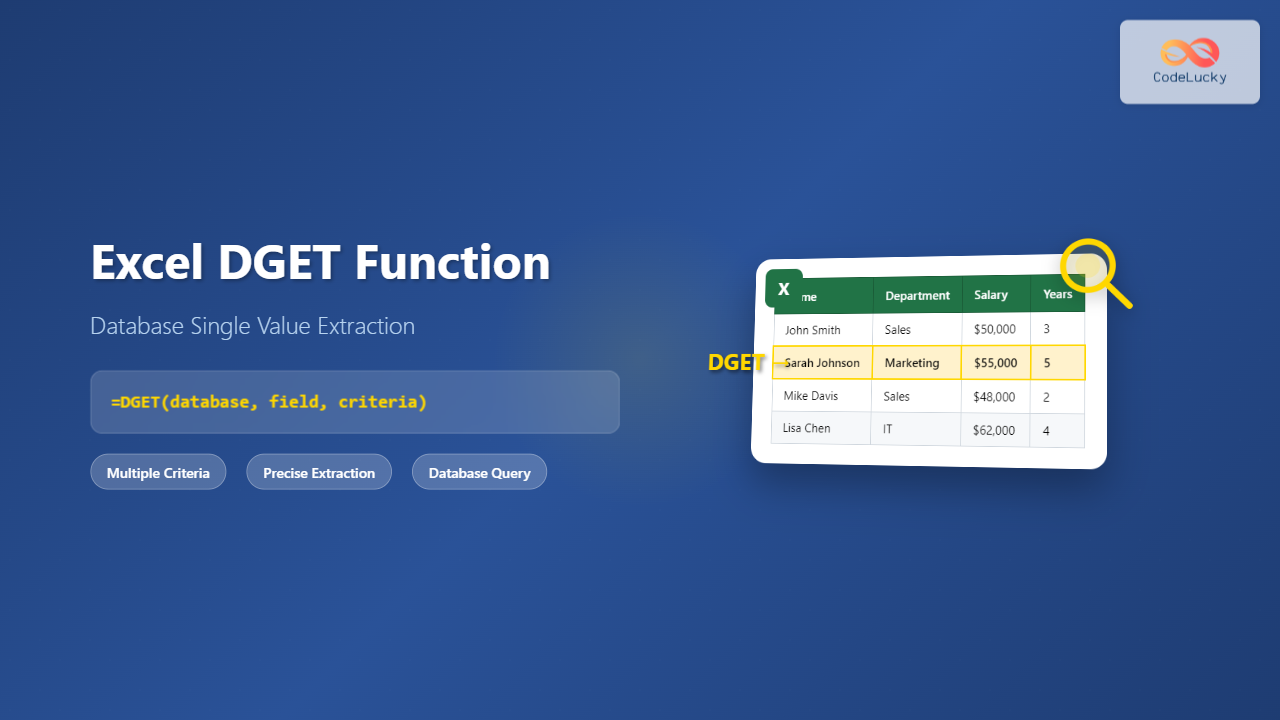
The DGET function in Microsoft Excel is a powerful database function designed to extract a single value from a database or data range based on specified criteria. As part of Excel’s database function family, DGET stands for “Database Get” and serves as your go-to tool when you need to retrieve one specific value from a larger dataset.
Unlike other lookup functions like VLOOKUP or INDEX/MATCH, DGET is specifically designed to work with database-style data structures where you have column headers and multiple rows of related information. It’s particularly valuable when you need to extract data based on multiple criteria or when working with complex database queries.
DGET Function Syntax and Parameters
The DGET function follows this syntax structure:
=DGET(database, field, criteria)Parameter Breakdown
- Database: The range of cells that contains your database, including column headers in the first row
- Field: The column from which you want to extract the value (can be column header text in quotes or column number)
- Criteria: The range containing your search conditions, including headers and criteria values
How DGET Function Works: Step-by-Step Process
Understanding how DGET processes your data helps you use it more effectively:
- Database Identification: DGET first identifies your database range and recognizes the column headers
- Field Selection: It locates the specific column (field) from which to extract the value
- Criteria Matching: The function searches through all rows, comparing each against your specified criteria
- Value Extraction: When exactly one row matches all criteria, DGET returns the corresponding value from the specified field
- Error Handling: If zero matches or multiple matches are found, DGET returns an error
Basic DGET Function Examples
Simple Single Criteria Example
Let’s start with a basic employee database:
| Name | Department | Salary | Years |
|---|---|---|---|
| John Smith | Sales | 50000 | 3 |
| Sarah Johnson | Marketing | 55000 | 5 |
| Mike Davis | Sales | 48000 | 2 |
To find John Smith’s salary, you would set up criteria like this:
| Name |
|---|
| John Smith |
The DGET formula would be:
=DGET(A1:D4, "Salary", F1:F2)This returns 50000, John Smith’s salary from the database.
Multiple Criteria Example
For more complex searches, you can use multiple criteria. To find the salary of a Sales employee with exactly 3 years of experience:
| Department | Years |
|---|---|
| Sales | 3 |
Formula: =DGET(A1:D4, "Salary", F1:G2)
This returns 50000, matching John Smith who meets both criteria.
Advanced DGET Function Techniques
Using Column Numbers Instead of Headers
Instead of using column header text, you can specify the field using column numbers:
=DGET(A1:D4, 3, F1:F2)Here, 3 represents the third column (Salary) in the database range.
Dynamic Criteria with Cell References
Make your DGET functions more flexible by referencing cells for criteria values:
| Department | Years |
|---|---|
| =H1 | =H2 |
Where H1 contains “Sales” and H2 contains “3”. This allows you to change criteria without modifying the formula.
OR Conditions in DGET
To implement OR logic, place criteria in separate rows:
| Department |
|---|
| Sales |
| Marketing |
This criteria range will match records from either Sales OR Marketing departments.
Common DGET Function Errors and Solutions
#NUM! Error
Cause: Multiple records match your criteria, or no records match.
Solution: Refine your criteria to return exactly one match, or verify your data contains matching records.
#VALUE! Error
Cause: Invalid field reference or improperly structured criteria range.
Solution: Ensure field names match exactly (case-sensitive) and criteria range includes proper headers.
#NAME? Error
Cause: Field name in quotes doesn’t match any column header in the database.
Solution: Double-check spelling and case of field names in your formula.
DGET vs Other Excel Lookup Functions
DGET vs VLOOKUP
- DGET: Handles multiple criteria naturally, works with any column position
- VLOOKUP: Single criteria only, requires lookup column to be leftmost
DGET vs INDEX/MATCH
- DGET: Built for database-style queries with multiple criteria
- INDEX/MATCH: More flexible for various lookup scenarios but requires nested functions for multiple criteria
Real-World DGET Function Applications
Sales Data Analysis
Extract specific sales figures based on region, product, and time period criteria simultaneously.
Inventory Management
Retrieve current stock levels for products matching specific categories and suppliers.
Employee Records
Find individual employee information based on multiple identifying factors like department, role, and location.
Financial Reporting
Extract specific financial metrics from comprehensive datasets based on account codes, periods, and cost centers.
Performance Tips for DGET Function
Optimize Database Range
Keep your database range as compact as possible. Avoid including empty rows or columns that aren’t necessary for your analysis.
Use Named Ranges
Create named ranges for your database and criteria to make formulas more readable and maintainable:
=DGET(EmployeeData, "Salary", SearchCriteria)Structure Criteria Efficiently
Place your most selective criteria first to improve processing speed, especially with large datasets.
Troubleshooting DGET Function Issues
Verify Data Types
Ensure data types in your criteria match those in your database. Numbers stored as text won’t match properly with actual numbers.
Check for Extra Spaces
Leading or trailing spaces in text fields can cause matching failures. Use TRIM function to clean data if necessary.
Case Sensitivity
DGET is case-sensitive for text comparisons. “Sales” and “sales” are treated as different values.
Advanced DGET Scenarios
Combining DGET with Other Functions
Enhance DGET’s power by combining it with other Excel functions:
=IFERROR(DGET(A1:D100, "Salary", F1:G2), "No match found")This combination provides user-friendly error handling.
Dynamic Database Ranges
Use dynamic ranges that automatically expand as you add data:
=DGET(OFFSET(A1,0,0,COUNTA(A:A),4), "Salary", F1:F2)Best Practices for DGET Function
- Always include headers in both database and criteria ranges
- Test with simple criteria first before building complex conditions
- Document your criteria logic for future reference and troubleshooting
- Use consistent data formatting throughout your database
- Consider alternatives like pivot tables for complex multi-value extractions
Conclusion
The Excel DGET function is an invaluable tool for precise database value extraction. Its ability to handle multiple criteria simultaneously makes it superior to basic lookup functions when working with complex datasets. By mastering DGET’s syntax, understanding its error conditions, and applying best practices, you can efficiently retrieve single values from large databases with confidence.
Whether you’re analyzing sales data, managing inventory, or processing employee records, DGET provides the precision and flexibility needed for professional data analysis tasks. Practice with simple examples first, then gradually incorporate more complex criteria and combinations to unlock DGET’s full potential in your Excel workflow.
Related Posts

Excel LOOKUP Function: Complete Guide to Basic Search Commands and Advanced Techniques
The LOOKUP function in Microsoft Excel is a powerful search tool that allows you to find specific values within your...

Excel XLOOKUP Function: Complete Guide to Modern Lookup Formulas
Excel's XLOOKUP function represents a revolutionary advancement in spreadsheet lookup capabilities, offering a modern alternative to traditional VLOOKUP and HLOOKUP...
Excel DMAX Function: Complete Database Maximum Command Reference
The Excel DMAX function is a powerful database function that returns the maximum value from a field in a database...
Excel DAVERAGE Function: Complete Guide to Database Average Calculations
The DAVERAGE function in Microsoft Excel is a powerful database function that calculates the average of values in a database...
Excel DMIN Function: Complete Guide to Database Minimum Formula with Examples
What is the Excel DMIN Function? The DMIN function in Microsoft Excel is a powerful database function that returns the...

Excel TABLE Function: Complete Guide to Structured Data Management and Advanced Formulas
What is the Excel TABLE Function? The Excel TABLE function is a powerful feature that converts regular cell ranges into...
Excel VLOOKUP Function: Complete Syntax and Formula Guide
The VLOOKUP function is one of Excel's most powerful and frequently used lookup functions, enabling users to search for specific...
Excel INFO Function: Complete Guide to System Information Retrieval
The Excel INFO function is a powerful built-in function that retrieves system information about your current operating environment, Excel application,...
Excel INDEX Function: Complete Guide to Array Position Lookup with Practical Examples
The Excel INDEX function is one of the most powerful and versatile lookup functions available in Microsoft Excel. Unlike other...
Excel MATCH Function: Complete Position Finding Formula Guide with Examples
The MATCH function in Microsoft Excel is a powerful lookup formula that finds the relative position of a value within...
Excel COLUMNS Function: Master Column Counting with Practical Examples
The Excel COLUMNS function is a powerful built-in tool that counts the number of columns in a specified range or...
Excel DSUM Function: Complete Database Sum Formula Guide with Examples
The DSUM function in Microsoft Excel is a powerful database function that calculates the sum of values in a database...





