
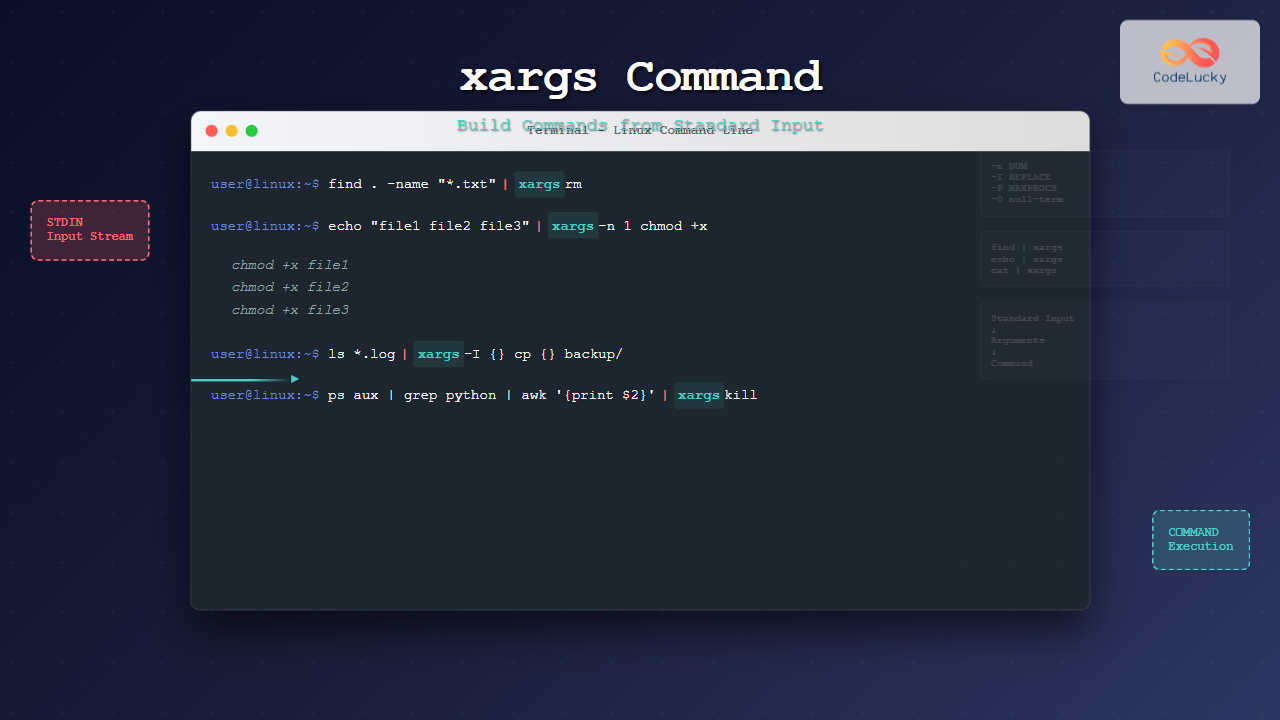
The xargs command is one of Linux’s most powerful utilities for building and executing commands from standard input. It bridges the gap between commands that produce output and those that expect arguments, making it an essential tool for shell scripting and system administration tasks.
What is xargs Command?
xargs (extended arguments) reads items from standard input and executes a specified command with those items as arguments. It’s particularly useful when dealing with commands that don’t accept input from pipes directly or when you need to process large lists of files or data efficiently.
Basic Syntax
xargs [OPTIONS] [COMMAND [INITIAL-ARGS]]If no command is specified, xargs defaults to using echo.
How xargs Works
The xargs command operates by:
- Reading input from standard input (stdin)
- Splitting the input into arguments based on whitespace or specified delimiters
- Building command lines with these arguments
- Executing the constructed commands
Basic xargs Examples
Simple Echo Example
$ echo "file1 file2 file3" | xargs
file1 file2 file3
Since no command is specified, xargs uses echo by default.
Using xargs with ls
$ echo "file1.txt file2.txt file3.txt" | xargs ls -l
-rw-r--r-- 1 user user 1024 Aug 25 10:30 file1.txt
-rw-r--r-- 1 user user 2048 Aug 25 10:31 file2.txt
-rw-r--r-- 1 user user 1536 Aug 25 10:32 file3.txt
Common xargs Options
-n: Limit Arguments per Command
The -n option limits the number of arguments passed to each command execution:
$ echo "1 2 3 4 5 6" | xargs -n 2 echo
1 2
3 4
5 6
-I: Replace String
Use -I to specify a replace string that gets substituted with input arguments:
$ echo "file1.txt file2.txt" | xargs -I {} cp {} {}.backup
# This creates file1.txt.backup and file2.txt.backup
-d: Custom Delimiter
By default, xargs uses whitespace as a delimiter. Use -d to specify a custom delimiter:
$ echo "apple,banana,cherry" | xargs -d ',' -n 1 echo
apple
banana
cherry
-0: Null Delimiter
When working with filenames that might contain spaces, use -0 with null-terminated input:
$ find . -name "*.txt" -print0 | xargs -0 ls -l-p: Interactive Mode
The -p option prompts before executing each command:
$ echo "file1 file2" | xargs -p rm
rm file1 file2 ?...y
# Files will be removed after confirmation
-t: Verbose Mode
Use -t to display the command before executing it:
$ echo "hello world" | xargs -t echo "Message:"
echo Message: hello world
Message: hello world
Practical xargs Use Cases
File Operations
Finding and Deleting Files
$ find /tmp -name "*.tmp" -print0 | xargs -0 rm -fThis safely removes temporary files, handling filenames with spaces correctly.
Changing File Permissions
$ find . -name "*.sh" | xargs chmod +xMakes all shell scripts executable.
Creating Backup Copies
$ ls *.txt | xargs -I {} cp {} backup/Text Processing
Searching in Multiple Files
$ find . -name "*.log" | xargs grep "ERROR"Searches for “ERROR” in all log files.
Counting Lines in Files
$ ls *.txt | xargs wc -l
  10 file1.txt
  25 file2.txt
  15 file3.txt
  50 total
System Administration
Process Management
$ ps aux | grep "python" | awk '{print $2}' | xargs killWarning: This kills all Python processes. Use with caution.
Archive Creation
$ find . -name "*.log" -mtime +30 | xargs tar czf old_logs.tar.gzArchives log files older than 30 days.
Advanced xargs Techniques
Parallel Processing with -P
Use -P to run commands in parallel:
$ echo "file1 file2 file3 file4" | xargs -n 1 -P 2 gzipThis compresses files using 2 parallel processes.
Maximum Command Line Length
Use -s to limit the maximum command line length:
$ find . -name "*.txt" | xargs -s 1000 ls -lHandling Empty Input
Use -r to prevent execution when input is empty:
$ find . -name "*.nonexistent" | xargs -r rmThis prevents rm from running when no files are found.
xargs vs Other Methods
xargs vs Command Substitution
Command substitution has limitations with long argument lists:
# May fail with "Argument list too long"
$ rm $(find . -name "*.tmp")

# Better approach with xargs
$ find . -name "*.tmp" | xargs rm
xargs vs while read
While loops are slower for simple operations:
# Slower
$ find . -name "*.txt" | while read file; do chmod 644 "$file"; done

# Faster
$ find . -name "*.txt" | xargs chmod 644
Common Pitfalls and Solutions
Filenames with Spaces
Problem: Filenames with spaces break argument parsing.
Solution: Use null-terminated input:
$ find . -name "*.txt" -print0 | xargs -0 ls -lSpecial Characters in Filenames
Problem: Special characters can cause command injection.
Solution: Use -I with proper quoting:
$ find . -name "*.txt" | xargs -I {} mv {} "processed/{}"Empty Input Handling
Problem: Commands run even with empty input.
Solution: Use the -r option:
$ find . -name "*.nonexistent" | xargs -r echo "Found files:"Performance Considerations
Batch Size Optimization
Adjust batch sizes for optimal performance:
# Process 100 files at a time
$ find . -name "*.log" | xargs -n 100 gzip
Memory Usage
For very large datasets, consider streaming approaches:
$ find /large/directory -name "*.data" -print0 | xargs -0 -n 10 process_dataIntegration with Other Commands
With find Command
# Find and process files modified in last 7 days
$ find /var/log -mtime -7 -name "*.log" | xargs grep "WARNING"
With grep Command
# Search for pattern in multiple files from a list
$ cat file_list.txt | xargs grep -l "search_term"
With cut and awk
# Extract second column and process with xargs
$ cat data.csv | cut -d',' -f2 | xargs -I {} echo "Processing: {}"
Debugging xargs Commands
Using echo for Testing
Test your command construction with echo:
$ find . -name "*.txt" | xargs echo rm
rm file1.txt file2.txt file3.txt
Verbose Output
Use -t to see exactly what’s being executed:
$ echo "a b c" | xargs -t -n 1 echo "Item:"
echo Item: a
Item: a
echo Item: b
Item: b
echo Item: c
Item: c
Best Practices
- Always handle spaces: Use
-0withfind -print0for filenames - Test first: Use
echoor-pto verify commands before execution - Use appropriate batch sizes: Balance between efficiency and resource usage
- Handle empty input: Use
-rto prevent unintended command execution - Consider parallel processing: Use
-Pfor CPU-intensive tasks - Quote properly: Use
-Iwith proper quoting for complex operations
Conclusion
The xargs command is an indispensable tool for Linux users and system administrators. It efficiently bridges the gap between commands that produce output and those that consume arguments, enabling powerful one-liners and automation scripts. By understanding its options and best practices, you can leverage xargs to handle complex file operations, text processing, and system administration tasks with ease.
Whether you’re processing thousands of files, searching through logs, or automating system maintenance tasks, xargs provides the flexibility and power needed to handle large-scale operations efficiently. Master this command, and you’ll find yourself writing more elegant and efficient shell scripts.
Related Posts
pipe Command Linux: Complete Guide to Connecting Commands with Pipes
The pipe command in Linux is one of the most powerful and fundamental concepts that allows you to connect multiple...
read Command Linux: Complete Guide to Reading User Input in Shell Scripts
The read command is one of the most fundamental tools in Linux shell scripting for creating interactive programs that capture...

echo Command in Linux: Complete Guide to Print Text and Variables in Terminal
The echo command is one of the most fundamental and frequently used commands in Linux and Unix-like operating systems. It...

bash Command Linux: Start New Shell Sessions and Execute Scripts Efficiently
The bash command is one of the most fundamental tools in Linux systems, serving as both a command-line interpreter and...
source Command Linux: Execute Scripts and Load Functions Efficiently
The source command in Linux is a powerful built-in shell command that executes commands from a file within the current...

C Command Line Arguments: argc and argv
In the world of C programming, command line arguments provide a powerful way to make your programs more flexible and...

cat Command in Linux: Complete Guide to Display and Concatenate Files
The cat command is one of the most fundamental and frequently used commands in Linux and Unix-like operating systems. Short...
sh Command Linux: Complete Guide to Shell Script Execution and Commands
The sh command is one of the most fundamental tools in Linux and Unix-like systems, serving as the standard shell...
stdin stdout stderr Linux: Complete Guide to Standard Streams and Redirection
Linux standard streams form the foundation of command-line communication, enabling programs to receive input and send output in a structured...

ar Command Linux: Complete Guide to Archive File Management
The ar command in Linux is a powerful archiving utility primarily used for creating and managing archive files, especially static...
type Command Linux: Complete Guide to Display Command Type and Location
The type command is an essential Linux utility that helps you identify the nature and location of commands in your...
redirect Command Linux: Complete Input Output Redirection Guide
Linux redirection is a powerful feature that allows you to control where command input comes from and where output goes....





