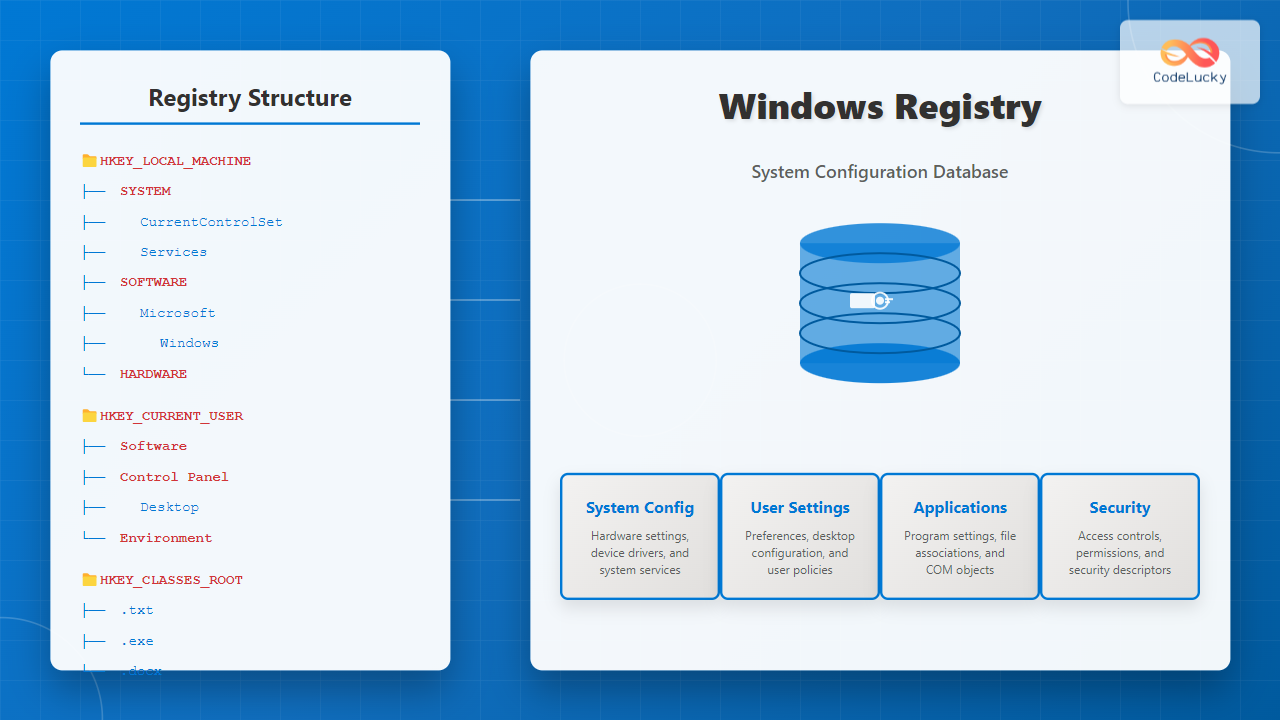
The Windows Registry serves as the backbone of Microsoft Windows operating systems, functioning as a centralized hierarchical database that stores low-level settings for the OS and applications. Understanding the Registry is crucial for system administrators, developers, and power users who need to configure, troubleshoot, or optimize Windows systems.
What is the Windows Registry?
The Windows Registry is a system-defined database where Windows and applications store and retrieve configuration data. Introduced with Windows 95, it replaced the scattered INI files used in earlier Windows versions, providing a unified location for system and application settings.

Key Functions of the Registry
- System Configuration: Stores hardware profiles, device driver settings, and system policies
- User Management: Maintains user-specific settings, preferences, and security information
- Application Data: Houses program configurations, file associations, and component registrations
- Security Settings: Contains access control lists (ACLs) and security descriptors
Registry Structure and Hierarchy
The Registry follows a hierarchical structure similar to a file system, with keys acting as folders and values as files containing data.

Registry Root Keys (Hives)
The Registry is organized into five main root keys, each serving specific purposes:
HKEY_CLASSES_ROOT (HKCR)
Contains file association and COM object registration information. This key merges data from HKEY_LOCAL_MACHINE\SOFTWARE\Classes and HKEY_CURRENT_USER\SOFTWARE\Classes.
HKEY_CLASSES_ROOT
├── .txt
│   └── (Default) = "txtfile"
├── .docx
│   └── (Default) = "Word.Document.12"
└── txtfile
    └── shell
        └── open
            └── command
                └── (Default) = "notepad.exe %1"
HKEY_CURRENT_USER (HKCU)
Stores configuration information for the currently logged-in user, including desktop settings, environment variables, and application preferences.
HKEY_LOCAL_MACHINE (HKLM)
Contains machine-specific configuration data affecting all users on the system, including hardware information, installed software, and system services.
HKEY_USERS (HKU)
Houses settings for all user profiles on the system. HKEY_CURRENT_USER is actually a link to the current user’s section within this key.
HKEY_CURRENT_CONFIG (HKCC)
Contains information about the current hardware profile being used by the system.
Registry Data Types
The Registry supports various data types to accommodate different kinds of configuration information:
| Data Type | Description | Example |
|---|---|---|
| REG_SZ | String value | “Hello World” |
| REG_DWORD | 32-bit number | 0x00000001 |
| REG_QWORD | 64-bit number | 0x0000000000000001 |
| REG_BINARY | Binary data | 01 00 14 00 1E 00 |
| REG_MULTI_SZ | Multiple strings | [“String1”, “String2”] |
| REG_EXPAND_SZ | Expandable string | “%SystemRoot%\System32” |
Working with Registry Editor (regedit)
Registry Editor is the built-in tool for viewing and modifying the Registry. Access it by typing regedit in the Run dialog (Windows + R).
Registry Editor Interface
The Registry Editor interface consists of:
- Left Pane: Hierarchical tree view of Registry keys
- Right Pane: Values within the selected key
- Menu Bar: Options for navigation, editing, and importing/exporting
Common Registry Operations
Creating a New Key
- Navigate to the parent key
- Right-click and select “New” → “Key”
- Enter the key name
Adding a New Value
- Select the target key
- Right-click in the right pane
- Choose “New” and select the appropriate data type
- Enter the value name and data
Modifying Existing Values
- Locate the value in the right pane
- Double-click the value
- Edit the data in the dialog box
- Click OK to save changes
Command Line Registry Operations
Windows provides command-line tools for Registry manipulation, useful for automation and scripting.
REG Command
The REG command offers comprehensive Registry operations from the command prompt:
# Query a Registry key
reg query "HKLM\SOFTWARE\Microsoft\Windows\CurrentVersion"

# Add a new value
reg add "HKCU\Software\MyApp" /v "Setting1" /t REG_SZ /d "Value1"

# Delete a value
reg delete "HKCU\Software\MyApp" /v "Setting1"

# Export Registry section
reg export "HKCU\Software\MyApp" C:\backup\myapp.reg

# Import Registry file
reg import C:\backup\myapp.reg
PowerShell Registry Operations
PowerShell provides Registry access through the Registry provider:
# Navigate to Registry
Set-Location HKLM:\SOFTWARE\Microsoft\Windows\CurrentVersion

# Read Registry value
Get-ItemProperty -Path "HKCU:\Control Panel\Desktop" -Name "Wallpaper"

# Create new Registry key
New-Item -Path "HKCU:\Software\MyApplication"

# Set Registry value
Set-ItemProperty -Path "HKCU:\Software\MyApplication" -Name "Version" -Value "1.0"

# Remove Registry key
Remove-Item -Path "HKCU:\Software\MyApplication" -Recurse
Registry Security and Permissions
The Registry implements security through Access Control Lists (ACLs), controlling who can read, write, or delete Registry keys and values.

Permission Levels
- Full Control: Complete access including permission modification
- Read: View keys and values only
- Write: Modify existing values and create new ones
- Special Permissions: Granular control over specific operations
Viewing and Modifying Permissions
- Right-click a Registry key in regedit
- Select “Permissions”
- View current permissions or click “Advanced” for detailed settings
- Modify permissions as needed (requires administrative privileges)
Registry Backup and Restoration
Regular Registry backups are essential for system recovery and change management.
Creating System Restore Points
Windows automatically creates Registry backups through System Restore:
# Create restore point via PowerShell
Checkpoint-Computer -Description "Before Registry Changes" -RestorePointType "MODIFY_SETTINGS"
Exporting Registry Sections
Export specific Registry sections for targeted backups:
# Export entire Registry (not recommended for regular use)
reg export HKLM C:\backup\hklm_backup.reg

# Export specific key
reg export "HKLM\SOFTWARE\MyApplication" C:\backup\myapp_backup.reg
Registry Restoration Methods
- System Restore: Restore entire system to previous state
- Registry Import: Import previously exported .reg files
- Backup Software: Use third-party tools for comprehensive backup
- Windows Recovery Environment: Access Registry from WinRE
Common Registry Modifications
Performance Optimizations
Several Registry tweaks can improve system performance:
# Disable Windows Search indexing for specific locations
[HKEY_LOCAL_MACHINE\SOFTWARE\Microsoft\Windows Search\Gather\Windows\SystemIndex\Sites]
"LocalSystem"=dword:00000000

# Adjust visual effects for performance
[HKEY_CURRENT_USER\Control Panel\Desktop]
"MenuShowDelay"="0"
"DragFullWindows"="0"
Security Enhancements
# Disable automatic USB device installation
[HKEY_LOCAL_MACHINE\SOFTWARE\Policies\Microsoft\Windows\DeviceInstall\Restrictions]
"DenyUnspecified"=dword:00000001

# Enable UAC for standard users
[HKEY_LOCAL_MACHINE\SOFTWARE\Microsoft\Windows\CurrentVersion\Policies\System]
"EnableLUA"=dword:00000001
User Interface Customizations
# Hide specific items from This PC
[HKEY_LOCAL_MACHINE\SOFTWARE\Microsoft\Windows\CurrentVersion\Explorer\FolderDescriptions\{f86fa3ab-70d2-4fc7-9c99-fcbf05467f3a}\PropertyBag]
"ThisPCPolicy"="Hide"

# Customize Windows taskbar
[HKEY_CURRENT_USER\Software\Microsoft\Windows\CurrentVersion\Explorer\Advanced]
"TaskbarGlomLevel"=dword:00000002
Registry Troubleshooting

Common Registry Problems
- Corrupted Keys: Invalid or damaged Registry entries
- Missing Values: Required settings accidentally deleted
- Permission Issues: Incorrect access rights preventing modifications
- Orphaned Entries: Leftover data from uninstalled programs
Diagnostic Tools
Windows includes several tools for Registry diagnosis:
- Event Viewer: Monitor Registry-related errors
- System File Checker (sfc): Verify system file integrity
- Registry Checker: Automated Registry validation
- Windows Memory Diagnostic: Check for memory-related corruption
Recovery Procedures
Safe Mode Registry Editing
- Boot Windows in Safe Mode
- Run regedit with administrative privileges
- Make necessary corrections
- Restart normally and test
Windows Recovery Environment
- Boot from Windows installation media
- Select “Repair your computer”
- Open Command Prompt
- Load Registry hives and make corrections
Registry Best Practices
Safety Guidelines
- Always Backup: Create backups before making changes
- Use Standard Tools: Prefer Registry Editor over third-party utilities
- Test Changes: Implement modifications in test environments first
- Document Changes: Keep records of Registry modifications
- Understand Impact: Research Registry changes thoroughly
Performance Considerations
- Minimize Size: Remove unnecessary entries regularly
- Defragment Registry: Use built-in tools periodically
- Monitor Growth: Track Registry size over time
- Limit Depth: Avoid deeply nested key structures
Security Recommendations
- Restrict Access: Limit Registry permissions appropriately
- Monitor Changes: Audit Registry modifications
- Regular Scans: Check for unauthorized modifications
- Update Security: Keep security patches current
Advanced Registry Programming
Registry APIs in Development
Developers can access Registry functionality through various APIs:
// C# Registry access example
using Microsoft.Win32;

// Read Registry value
string value = (string)Registry.GetValue(
    @"HKEY_CURRENT_USER\Software\MyApp",
    "Setting1",
    "DefaultValue");

// Write Registry value
Registry.SetValue(
    @"HKEY_CURRENT_USER\Software\MyApp",
    "Setting1",
    "NewValue",
    RegistryValueKind.String);
Registry Monitoring
Applications can monitor Registry changes in real-time:
// PowerShell Registry monitoring
Register-WmiEvent -Query "SELECT * FROM RegistryKeyChangeEvent WHERE Hive='HKEY_LOCAL_MACHINE'" -Action {
    Write-Host "Registry change detected: $($Event.SourceEventArgs.NewEvent.KeyPath)"
}
Future of Windows Registry
While the Registry remains central to Windows configuration, Microsoft is gradually moving toward:
- Modern Apps: UWP applications use alternative configuration methods
- Cloud Configuration: Cloud-based settings synchronization
- Containerization: Isolated application environments
- Declarative Management: Infrastructure as Code approaches
Conclusion
The Windows Registry serves as the foundational configuration database for Windows systems, providing centralized storage for system settings, user preferences, and application data. Understanding Registry structure, manipulation techniques, and best practices is essential for effective Windows administration and troubleshooting.
Whether you’re a system administrator optimizing performance, a developer integrating applications with Windows, or a power user customizing your system, mastering Registry operations enables deeper control over the Windows environment. Remember to always prioritize safety through backups and testing, as Registry modifications can significantly impact system stability and functionality.
As Windows continues evolving, the Registry remains a critical component, though its role may shift with emerging technologies and configuration paradigms. Staying current with Registry best practices ensures effective system management in both traditional and modern Windows environments.
Related Posts
Windows Operating System: Complete Guide to Architecture and Core Components
The Windows Operating System stands as one of the most widely used operating systems globally, powering billions of devices from...

Windows Services: Complete Guide to Background Process Management and Administration
Windows Services form the backbone of the Windows operating system, running silently in the background to provide essential functionality that...
Windows Process Management: Complete Guide to Task Manager and Services
Windows process management is a fundamental aspect of system administration that every IT professional and power user should master. At...
localectl Command Linux: Complete Guide to System Locale Management
The localectl command is a powerful system administration tool in Linux that allows users to query and modify system locale...
Windows File System: Complete NTFS Features and Implementation Guide
Introduction to NTFS File System NTFS (New Technology File System) is the default file system for modern Windows operating systems,...

MySQL Windows Installation: A Comprehensive Guide
Installing MySQL on Windows is a crucial first step in your database journey. Whether you're a beginner or an experienced...

Directory Structure: Single-level, Two-level, and Tree Structure in Operating Systems
Understanding Directory Structures in Operating Systems Directory structures are fundamental components of file systems that organize and manage files in...

SQL CREATE DATABASE Statement: Setting Up Your Database
In the world of database management, creating a new database is often the first step in building a robust data...

MySQL System Variables: Configuration Parameters & Dynamic Updates
MySQL system variables are the heart of your server's configuration. They control everything from how the server handles connections to...

CSSStyleDeclaration cssText Property: CSS Text
CSSStyleDeclaration cssText Property: CSS Text The cssText property of the CSSStyleDeclaration interface in CSS allows you to get or set...

chkconfig Command Linux: Complete Guide to System Service Management
The chkconfig command is a powerful system administration tool in Red Hat-based Linux distributions that allows you to configure system...

SQL Stored Procedures: Reusable Code Blocks
Stored procedures are the unsung heroes of database management, offering a powerful way to encapsulate and reuse SQL code. These...