
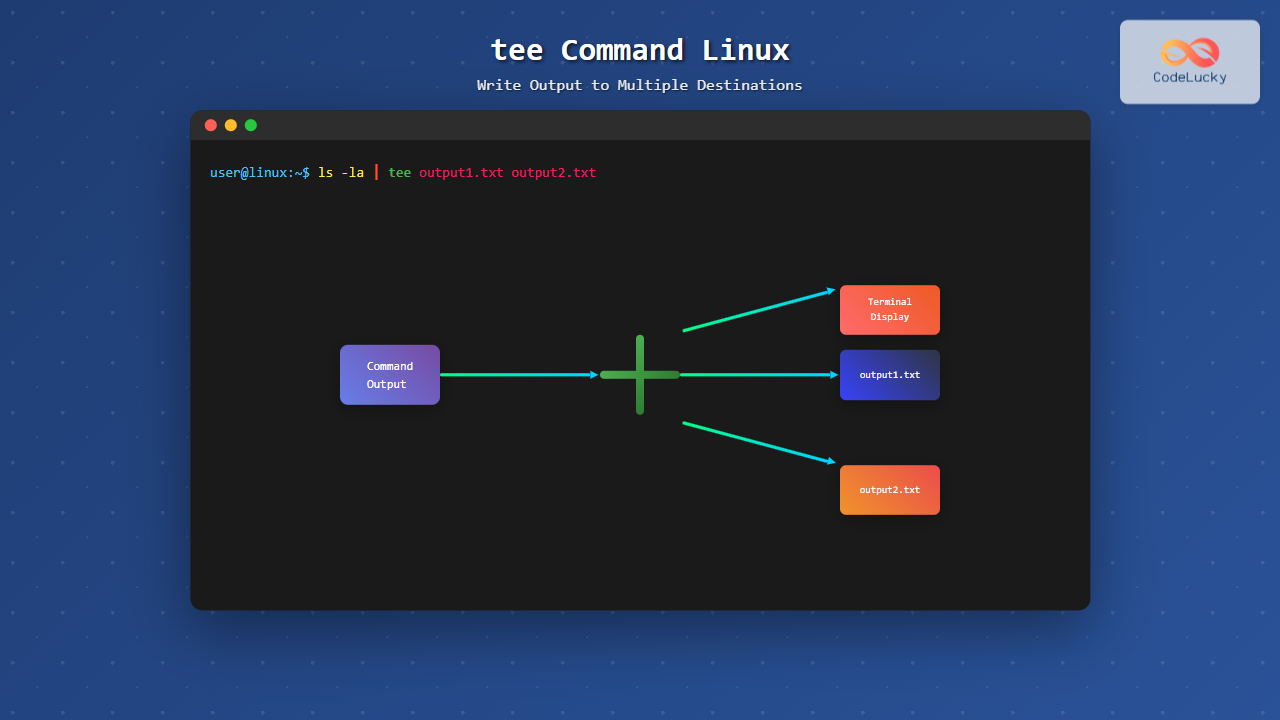
The tee command in Linux is a powerful utility that reads from standard input and writes the output to both standard output and one or more files simultaneously. Named after the T-shaped pipe fitting in plumbing, it allows you to “split” the flow of data, making it an essential tool for system administrators, developers, and power users who need to capture command output while still viewing it on the terminal.
Understanding the tee Command Syntax
The basic syntax of the tee command is straightforward:
command | tee [OPTIONS] [FILE...]Where:
- command: Any Linux command whose output you want to capture
- OPTIONS: Various flags to modify tee’s behavior
- FILE: One or more files where the output will be written
Basic tee Command Usage
Simple Output Redirection
Let’s start with a basic example of capturing command output:
ls -la | tee file_list.txtOutput:
total 24
drwxr-xr-x 3 user user 4096 Aug 25 05:25 .
drwxr-xr-x 5 user user 4096 Aug 25 05:20 ..
-rw-r--r-- 1 user user  220 Aug 25 05:25 .bash_logout
-rw-r--r-- 1 user user 3771 Aug 25 05:25 .bashrc
-rw-r--r-- 1 user user  807 Aug 25 05:25 .profile
-rw-r--r-- 1 user user    0 Aug 25 05:25 file_list.txt
This command displays the directory listing on your terminal while simultaneously writing the same output to file_list.txt.
Writing to Multiple Files
One of tee’s most powerful features is writing to multiple files at once:
date | tee current_date.txt backup_date.txt log_date.txtOutput:
Mon Aug 25 05:25:30 IST 2025This creates three files, each containing the current date and time, while also displaying it on the terminal.
Essential tee Command Options
Append Mode (-a)
By default, tee overwrites existing files. Use the -a flag to append instead:
echo "First entry" | tee log.txt
echo "Second entry" | tee -a log.txt
echo "Third entry" | tee -a log.txt
Contents of log.txt:
First entry
Second entry
Third entry
Ignore Interrupts (-i)
The -i option makes tee ignore interrupt signals, useful for long-running processes:
ping google.com | tee -i ping_results.txtThis ensures that even if you press Ctrl+C, the output captured so far remains in the file.
Advanced tee Command Examples
Combining with sudo for System Files
When you need to write to system files that require root privileges:
echo "127.0.0.1 test.local" | sudo tee -a /etc/hostsThis appends a new host entry to the system’s hosts file, which is a common administrative task.
Logging Command Output with Timestamps
Create detailed logs with timestamps:
ps aux | tee >(cat > "processes_$(date +%Y%m%d_%H%M%S).log")This creates a timestamped file containing the current process list.
Real-time Log Monitoring
Monitor log files while saving specific entries:
tail -f /var/log/syslog | tee important_events.logThis displays real-time system logs while capturing them to a separate file for later analysis.
Practical Use Cases and Scenarios
System Administration Tasks
Backup Operations with Logging:
rsync -av /home/user/documents/ /backup/documents/ | tee backup.logThis performs a backup while maintaining a detailed log of the operation.
System Updates with Documentation:
sudo apt update && sudo apt upgrade -y | tee system_update.logDevelopment and Debugging
Compilation Output Capture:
make build 2>&1 | tee build.logThis captures both standard output and error messages from the build process.
Test Results Documentation:
pytest tests/ -v | tee test_results.txtData Processing Pipelines
Processing Large Datasets:
cat large_dataset.csv | grep "error" | tee error_entries.csv filtered_output.csvThis filters data while saving results to multiple files for different purposes.
Creative tee Command Combinations
Multiple Processing Streams
Use process substitution for complex data flow:
cat access.log | tee >(grep "404" > errors_404.log) >(grep "200" > success_200.log)This splits web server logs into separate files based on HTTP status codes.
Conditional Output Routing
Combine with conditional statements:
if command_status; then
    echo "Success" | tee success.log
else
    echo "Failed" | tee error.log
fi
Performance Considerations
Memory Usage
When processing large amounts of data, tee uses minimal memory as it operates as a stream processor:
find / -name "*.log" 2>/dev/null | tee large_file_list.txtThis command can process millions of files without significant memory overhead.
Disk I/O Optimization
For high-throughput scenarios, consider using unbuffered output:
command | stdbuf -o0 tee output.txtError Handling and Troubleshooting
Capturing Error Messages
Redirect both stdout and stderr through tee:
command 2>&1 | tee complete_output.logHandling Permission Issues
When tee cannot write to a file due to permissions:
echo "data" | tee /path/to/restricted/file.txt
# Error: Permission denied

# Solution:
echo "data" | sudo tee /path/to/restricted/file.txt
Integration with Other Linux Commands
Combining with awk and sed
ps aux | awk '{print $1, $11}' | tee user_commands.txtThis extracts specific columns from process output and saves them.
Working with xargs
find . -name "*.txt" | tee file_list.txt | xargs wc -lThis creates a file list while simultaneously counting lines in each file.
Best Practices and Tips
File Naming Conventions
Use descriptive, timestamped filenames:
command | tee "output_$(hostname)_$(date +%Y%m%d).log"Combining with Compression
For large outputs, compress on-the-fly:
command | tee >(gzip > output.gz)Rotating Log Files
Implement simple log rotation:
command | tee >(split -b 1M - "logfile_part_")Common Pitfalls and Solutions
Overwriting Important Files
Problem: Accidentally overwriting existing files
Solution: Always use the -a flag when appending or check file existence first:
[ ! -f important.txt ] && command | tee important.txt || command | tee -a important.txtMissing Error Output
Problem: Error messages not captured
Solution: Redirect stderr to stdout before piping:
command 2>&1 | tee complete_log.txtConclusion
The tee command is an indispensable tool in the Linux command-line arsenal, offering elegant solutions for output management and logging. Its ability to split data streams makes it perfect for scenarios where you need to monitor processes in real-time while maintaining permanent records. Whether you’re performing system administration tasks, debugging applications, or processing data pipelines, mastering tee will significantly enhance your command-line productivity.
By understanding its various options and creative applications, you can build more robust scripts and workflows that provide better visibility into your system operations. Remember to consider file permissions, use appropriate flags for your use case, and combine tee with other commands to create powerful data processing pipelines.
Related Posts
pipe Command Linux: Complete Guide to Connecting Commands with Pipes
The pipe command in Linux is one of the most powerful and fundamental concepts that allows you to connect multiple...
redirect Command Linux: Complete Input Output Redirection Guide
Linux redirection is a powerful feature that allows you to control where command input comes from and where output goes....
stdin stdout stderr Linux: Complete Guide to Standard Streams and Redirection
Linux standard streams form the foundation of command-line communication, enabling programs to receive input and send output in a structured...

Pipes in Operating System: Complete Guide to Anonymous and Named Pipes
Pipes are one of the most fundamental and widely used Inter-Process Communication (IPC) mechanisms in Unix-like operating systems. They provide...

cat Command in Linux: Complete Guide to Display and Concatenate Files
The cat command is one of the most fundamental and frequently used commands in Linux and Unix-like operating systems. Short...
sed Advanced Linux: Stream Editor Advanced Techniques for Text Processing
The sed (Stream Editor) command stands as one of the most powerful text processing tools in Linux systems. While basic...

echo Command in Linux: Complete Guide to Print Text and Variables in Terminal
The echo command is one of the most fundamental and frequently used commands in Linux and Unix-like operating systems. It...

PHP Output Control: Buffering and Flushing Output
PHP's output control functions provide developers with powerful tools to manage how and when content is sent to the browser....
paste Command Linux: Complete Guide to Merging Lines from Multiple Files
The paste command in Linux is a powerful text processing utility that allows you to merge lines from multiple files...
sed Command Linux: Complete Guide to Stream Editor for Text Manipulation
The sed (Stream Editor) command is one of the most powerful text processing utilities in Linux and Unix systems. It...
tail Command Linux: Complete Guide to Display Last Lines and Follow Logs in Real-Time
The tail command is one of the most essential tools in Linux for displaying the last lines of files and...

C++ Stream Methods: I/O Stream Operations
C++ provides powerful stream classes for input and output operations. These classes offer a wide range of methods to manipulate...





