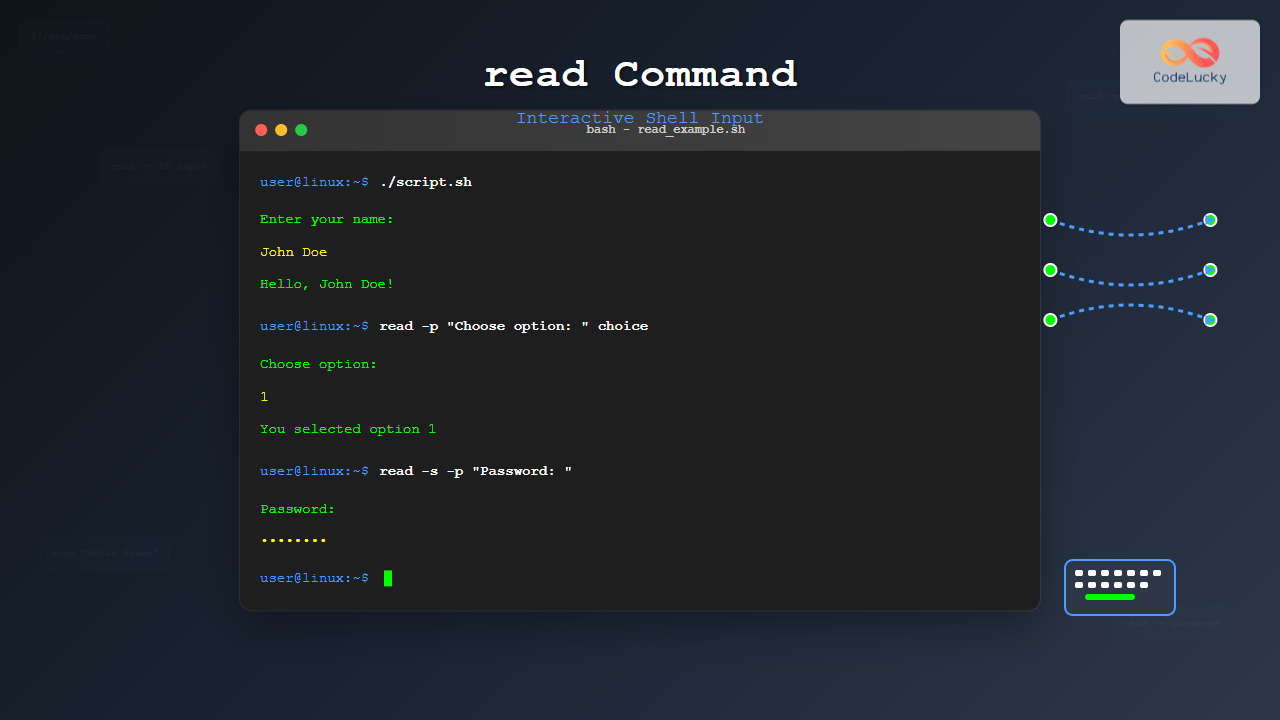
The read command is one of the most fundamental tools in Linux shell scripting for creating interactive programs that capture user input. Whether you’re building configuration scripts, data collection tools, or user-friendly automation, mastering the read command is essential for any Linux administrator or developer.
What is the read Command?
The read command is a built-in shell utility that reads input from standard input (stdin) and assigns it to one or more variables. It’s primarily used in shell scripts to make them interactive by allowing users to provide data during script execution.
Basic Syntax
read [options] [variable_name]If no variable name is specified, the input is stored in the default variable REPLY.
Simple read Command Examples
Basic Input Reading
Let’s start with the simplest form of the read command:
#!/bin/bash
echo "What's your name?"
read name
echo "Hello, $name!"
Output:
What's your name?
John
Hello, John!
Using Default REPLY Variable
When no variable is specified, input is stored in REPLY:
#!/bin/bash
echo "Enter your favorite color:"
read
echo "Your favorite color is: $REPLY"
Output:
Enter your favorite color:
Blue
Your favorite color is: Blue
read Command Options and Flags
-p (Prompt Option)
The -p option allows you to display a prompt message without using a separate echo command:
#!/bin/bash
read -p "Enter your age: " age
echo "You are $age years old."
Output:
Enter your age: 25
You are 25 years old.
-s (Silent Mode)
The -s option hides the input, making it perfect for password entry:
#!/bin/bash
read -s -p "Enter your password: " password
echo
echo "Password entered successfully!"
Output:
Enter your password:
Password entered successfully!
-t (Timeout Option)
The -t option sets a timeout for input, useful for automated scripts:
#!/bin/bash
if read -t 5 -p "Enter your choice (5 seconds): " choice; then
    echo "You entered: $choice"
else
    echo "Timeout! Using default option."
fi
-n (Character Limit)
The -n option limits the number of characters to read:
#!/bin/bash
read -n 1 -p "Press any key to continue..." key
echo
echo "Key pressed: $key"
-r (Raw Mode)
The -r option prevents backslash interpretation:
#!/bin/bash
read -r -p "Enter a path with backslashes: " path
echo "Path entered: $path"
Reading Multiple Variables
You can read multiple values into different variables in a single command:
#!/bin/bash
read -p "Enter your first and last name: " first_name last_name
echo "First name: $first_name"
echo "Last name: $last_name"
Output:
Enter your first and last name: John Doe
First name: John
Last name: Doe
Reading into Arrays
The read command can populate arrays using the -a option:
#!/bin/bash
read -a words -p "Enter multiple words: "
echo "Number of words: ${#words[@]}"
for i in "${!words[@]}"; do
    echo "Word $((i+1)): ${words[i]}"
done
Output:
Enter multiple words: Linux is awesome
Number of words: 3
Word 1: Linux
Word 2: is
Word 3: awesome
Advanced read Command Techniques
Input Validation Loop
Create robust scripts with input validation:
#!/bin/bash
while true; do
    read -p "Enter a number between 1 and 10: " number
    if [[ $number =~ ^[1-9]$|^10$ ]]; then
        echo "Valid number: $number"
        break
    else
        echo "Invalid input. Please try again."
    fi
done
Menu System with read
Build interactive menu systems:
#!/bin/bash
while true; do
    echo "=== Main Menu ==="
    echo "1. View files"
    echo "2. Check disk space"
    echo "3. Exit"

    read -p "Select an option (1-3): " choice

    case $choice in
        1)
            echo "Listing files..."
            ls -la
            ;;
        2)
            echo "Checking disk space..."
            df -h
            ;;
        3)
            echo "Goodbye!"
            exit 0
            ;;
        *)
            echo "Invalid option. Please try again."
            ;;
    esac

    read -p "Press Enter to continue..."
done
Reading from Files
Use read to process file content line by line:
#!/bin/bash
filename="users.txt"
while IFS= read -r line; do
    echo "Processing user: $line"
done < "$filename"
Best Practices and Tips
Always Use -r for Literal Input
Unless you specifically need backslash interpretation, always use -r:
read -r -p "Enter file path: " filepathSet IFS for Custom Delimiters
Control how input is split using the Internal Field Separator (IFS):
#!/bin/bash
IFS=':' read -r username password uid gid <<< "john:secret:1001:1001"
echo "Username: $username"
echo "UID: $uid"
Handle Empty Input Gracefully
#!/bin/bash
read -p "Enter your name (default: Anonymous): " name
name=${name:-Anonymous}
echo "Hello, $name!"
Error Handling and Edge Cases
Checking read Command Exit Status
The read command returns different exit codes:
#!/bin/bash
if read -t 3 -p "Enter something: " input; then
    echo "Input received: $input"
else
    exit_code=$?
    case $exit_code in
        1)
            echo "Error: End of file reached"
            ;;
        142)
            echo "Error: Timeout occurred"
            ;;
        *)
            echo "Error: Unknown error (code: $exit_code)"
            ;;
    esac
fi
Handling Special Characters
#!/bin/bash
echo "Enter text with special characters:"
read -r text
printf "You entered: %q\n" "$text"
Real-World Use Cases
Configuration Script
#!/bin/bash
# Database configuration script
echo "=== Database Configuration ==="

read -p "Database host [localhost]: " db_host
db_host=${db_host:-localhost}

read -p "Database port [3306]: " db_port
db_port=${db_port:-3306}

read -p "Database name: " db_name
while [[ -z "$db_name" ]]; do
    echo "Database name cannot be empty!"
    read -p "Database name: " db_name
done

read -s -p "Database password: " db_password
echo

# Save configuration
cat > config.ini << EOF
[database]
host=$db_host
port=$db_port
name=$db_name
password=$db_password
EOF

echo "Configuration saved to config.ini"
Interactive Backup Script
#!/bin/bash
echo "=== Backup Utility ==="

read -p "Source directory: " source_dir
if [[ ! -d "$source_dir" ]]; then
    echo "Error: Directory does not exist!"
    exit 1
fi

read -p "Backup destination: " backup_dir
read -n 1 -p "Include hidden files? (y/N): " include_hidden
echo

if [[ "$include_hidden" =~ ^[Yy]$ ]]; then
    rsync_options="-av"
else
    rsync_options="-av --exclude='.*'"
fi

echo "Starting backup..."
rsync $rsync_options "$source_dir/" "$backup_dir/"
echo "Backup completed!"
Performance Considerations
When processing large amounts of data, consider these optimization tips:
- Use
read -rto avoid unnecessary backslash processing - Set appropriate timeouts to prevent hanging scripts
- Use
while IFS= read -r linefor efficient file processing - Consider using
mapfilefor reading entire files into arrays
Troubleshooting Common Issues
Input Not Being Read
Ensure stdin is available and not already consumed by another command:
#!/bin/bash
# Wrong way
cat file.txt | while read line; do
    read -p "Process $line? (y/n): " answer  # Won't work
done

# Correct way
while read line; do
    read -p "Process $line? (y/n): " answer < /dev/tty
done < file.txt
Whitespace Issues
Use proper IFS handling for preserving whitespace:
while IFS= read -r line; do
    echo "Line with preserved whitespace: '$line'"
done < file.txt
Security Considerations
When using read in security-sensitive contexts:
- Always use
-sfor password input - Validate and sanitize all input
- Set appropriate timeouts to prevent DoS attacks
- Use
-rto prevent code injection through backslash sequences
Conclusion
The read command is an essential tool for creating interactive shell scripts in Linux. From simple user input collection to complex configuration utilities, mastering its various options and best practices will significantly enhance your shell scripting capabilities. Remember to always validate input, handle edge cases gracefully, and follow security best practices when building production scripts.
Whether you’re automating system administration tasks or building user-friendly command-line tools, the read command provides the foundation for creating engaging, interactive Linux applications that respond to user needs effectively.
Related Posts

echo Command in Linux: Complete Guide to Print Text and Variables in Terminal
The echo command is one of the most fundamental and frequently used commands in Linux and Unix-like operating systems. It...

bash Command Linux: Start New Shell Sessions and Execute Scripts Efficiently
The bash command is one of the most fundamental tools in Linux systems, serving as both a command-line interpreter and...
Python input() Function: Reading User Input
The input() function is a powerful tool in Python that allows your programs to interact with users by gathering information...

Linux Commands Tutorial: Complete Beginner’s Guide to Terminal Basics
The Linux terminal is a powerful command-line interface that gives you direct control over your operating system. While it might...
redirect Command Linux: Complete Input Output Redirection Guide
Linux redirection is a powerful feature that allows you to control where command input comes from and where output goes....
sh Command Linux: Complete Guide to Shell Script Execution and Commands
The sh command is one of the most fundamental tools in Linux and Unix-like systems, serving as the standard shell...

C User Input: Getting Input with scanf()
In the world of C programming, interacting with users is a fundamental skill. One of the most common ways to...
pipe Command Linux: Complete Guide to Connecting Commands with Pipes
The pipe command in Linux is one of the most powerful and fundamental concepts that allows you to connect multiple...
expect Command Linux: Complete Guide to Automate Interactive Programs
The expect command is a powerful automation tool in Linux that allows you to automate interactive programs that normally require...

C++ User Input: Using cin and getline
In the world of C++ programming, user input is a crucial aspect that allows for dynamic and interactive applications. Two...
env Command Linux: Complete Guide to Display Environment Variables
Environment variables are crucial components of any Linux system, storing configuration data and system information that applications and processes rely...
set Command Linux: Display and Configure Shell Options for Advanced Terminal Control
The set command is one of the most powerful built-in commands in Linux shells, allowing you to display and modify...