
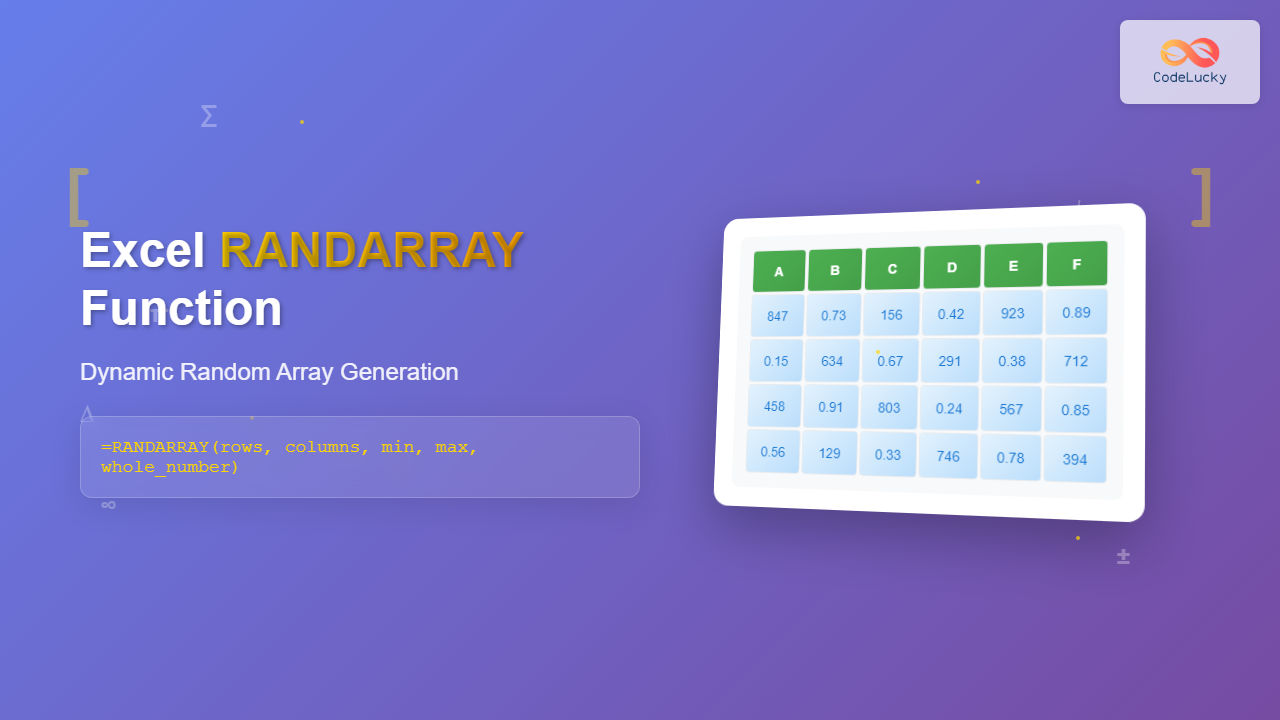
What is the Excel RANDARRAY Function?
The RANDARRAY function is a powerful dynamic array function in Microsoft Excel that generates an array of random numbers. Introduced in Excel 365 and Excel 2021, this function allows you to create multi-dimensional arrays of random values with precise control over size, range, and decimal places.
Unlike the traditional RAND() and RANDBETWEEN() functions that generate single random values, RANDARRAY can populate entire ranges with random numbers in a single formula, making it invaluable for data modeling, statistical analysis, and simulation scenarios.
RANDARRAY Function Syntax
The complete syntax for the RANDARRAY function is:
=RANDARRAY([rows], [columns], [min], [max], [whole_number])Function Parameters Explained
- [rows] (Optional): Number of rows in the array. Default is 1.
- [columns] (Optional): Number of columns in the array. Default is 1.
- [min] (Optional): Minimum value for random numbers. Default is 0.
- [max] (Optional): Maximum value for random numbers. Default is 1.
- [whole_number] (Optional): TRUE for integers, FALSE for decimals. Default is FALSE.
Basic RANDARRAY Examples
Simple Random Number Generation
Generate a single random decimal between 0 and 1:
=RANDARRAY()Create a 3×3 array of random decimals:
=RANDARRAY(3,3)Generate random integers between 1 and 100:
=RANDARRAY(5,2,1,100,TRUE)Customizing Random Value Ranges
Create random numbers between specific values:
=RANDARRAY(4,3,10,50,FALSE)This formula generates a 4×3 array of decimal numbers between 10 and 50.
Advanced RANDARRAY Applications
Statistical Sampling and Analysis
RANDARRAY excels in creating sample datasets for statistical analysis. You can generate normal distributions, create test data, and simulate various scenarios:
=RANDARRAY(100,1,0,1000,TRUE)This creates 100 random integers between 0 and 1000, perfect for testing statistical functions or creating sample sales data.
Monte Carlo Simulations
For financial modeling and risk analysis, RANDARRAY can generate multiple scenarios simultaneously:
=RANDARRAY(1000,10,0.8,1.2,FALSE)This generates 1000 rows of 10 random multipliers between 0.8 and 1.2, useful for sensitivity analysis.
Random Sampling with Decimals
Control decimal precision by combining RANDARRAY with ROUND:
=ROUND(RANDARRAY(5,3,0,100,FALSE),2)This creates random numbers between 0 and 100 with exactly 2 decimal places.
Combining RANDARRAY with Other Functions
Dynamic Range Selection
Use RANDARRAY with INDEX to randomly select from existing data:
=INDEX(A1:A10,RANDARRAY(5,1,1,10,TRUE))This randomly selects 5 values from the range A1:A10.
Conditional Random Generation
Combine with IF statements for conditional random values:
=IF(RANDARRAY(10,1,0,1,FALSE)>0.5,1,0)This creates a binary array based on random probability.
Random Dates and Times
Generate random dates within a specific period:
=DATE(2024,1,1)+RANDARRAY(10,1,0,365,TRUE)This creates 10 random dates throughout 2024.
Practical Use Cases for RANDARRAY
Testing and Quality Assurance
Generate test datasets for software testing, formula validation, and system performance evaluation. RANDARRAY can quickly populate large ranges with realistic test data.
Financial Modeling
Create multiple scenario analyses, risk assessments, and probability distributions for investment decisions and financial planning.
Educational Applications
Generate random problem sets, create practice datasets for students, and demonstrate statistical concepts with dynamic examples.
Game Development and Simulations
Build random number generators for games, lottery simulations, and probability experiments within Excel.
Common RANDARRAY Errors and Solutions
#SPILL! Error
This error occurs when the output range is blocked by existing data. Ensure the target area is clear or use dynamic ranges that can accommodate the array size.
#VALUE! Error
Check that all parameters are valid numbers and that min is less than max. Negative row or column values will trigger this error.
#NAME? Error
RANDARRAY is only available in Excel 365 and Excel 2021. Older versions will show this error. Use RAND() or RANDBETWEEN() as alternatives.
Performance Considerations
Large RANDARRAY formulas can impact worksheet performance, especially with frequent recalculation. Consider these optimization strategies:
- Limit array size to necessary dimensions
- Use manual calculation mode for large datasets
- Convert results to values when static data is needed
- Avoid nested RANDARRAY functions in complex formulas
RANDARRAY vs. Traditional Random Functions
| Feature | RANDARRAY | RAND()/RANDBETWEEN() |
|---|---|---|
| Array Output | Yes – Multiple values | No – Single value |
| Dynamic Arrays | Supported | Not supported |
| Excel Version | 365/2021 only | All versions |
| Formula Efficiency | High for arrays | Lower for multiple cells |
Best Practices for RANDARRAY
To maximize the effectiveness of RANDARRAY in your spreadsheets:
- Plan your array size: Determine exact dimensions before implementing to avoid spill errors
- Use meaningful ranges: Set appropriate min/max values that reflect real-world scenarios
- Document your formulas: Add comments explaining the purpose and parameters of complex RANDARRAY implementations
- Consider recalculation: Remember that RANDARRAY recalculates with each worksheet change
- Test with small arrays: Validate logic with smaller datasets before scaling up
Conclusion
The Excel RANDARRAY function revolutionizes random number generation in spreadsheets by providing dynamic array capabilities with precise control over output characteristics. Whether you’re conducting statistical analysis, building financial models, or creating test datasets, RANDARRAY offers the flexibility and power needed for modern data analysis workflows.
By mastering the syntax, understanding the parameters, and applying the practical techniques covered in this guide, you can harness RANDARRAY’s full potential to enhance your Excel productivity and analytical capabilities. Remember to consider performance implications for large datasets and always validate your random generation logic with appropriate testing.
Related Posts

Excel RANDBETWEEN Function: Generate Random Numbers Within Any Range
What is the Excel RANDBETWEEN Function? The RANDBETWEEN function in Microsoft Excel is a powerful built-in formula that generates random...
Excel RAND Function: Complete Guide to Random Number Generation in Spreadsheets
The RAND function in Microsoft Excel is a powerful built-in function that generates random decimal numbers between 0 and 1....
Excel MAX Function: Complete Guide to Finding Maximum Values in Spreadsheets
The MAX function in Microsoft Excel is one of the most fundamental and widely-used statistical functions that helps you quickly...
Excel Dynamic Array Formulas: Complete Spill Range Syntax and Functions Guide
Excel's dynamic array formulas revolutionized spreadsheet calculations by automatically expanding results across multiple cells. These powerful functions eliminate the need...
Excel INDEX Function: Complete Guide to Array Position Lookup with Practical Examples
The Excel INDEX function is one of the most powerful and versatile lookup functions available in Microsoft Excel. Unlike other...

Excel ROWS Function: Complete Guide to Count Rows with Formula Syntax Examples
What is the Excel ROWS Function? The ROWS function in Microsoft Excel is a built-in lookup and reference function that...
Excel AVERAGE Function: Complete Guide to Mean Calculation with Syntax Examples
The Excel AVERAGE function is one of the most fundamental and widely-used statistical functions in Microsoft Excel. This powerful function...

Excel MDETERM Function: Complete Matrix Determinant Formula Guide
What is the Excel MDETERM Function? The MDETERM function in Microsoft Excel calculates the determinant of a square matrix. This...

Excel SEQUENCE Function: Complete Guide to Dynamic Number Sequences
What is the Excel SEQUENCE Function? The Excel SEQUENCE function is a powerful dynamic array function introduced in Excel 365...

Excel TRANSPOSE Function: Complete Guide to Array Transposition with Examples
The TRANSPOSE function in Microsoft Excel is a powerful array function that allows you to convert rows to columns and...

Excel TABLE Function: Complete Guide to Structured Data Management and Advanced Formulas
What is the Excel TABLE Function? The Excel TABLE function is a powerful feature that converts regular cell ranges into...

Excel COLUMNS Function: Master Column Counting with Practical Examples
The Excel COLUMNS function is a powerful built-in tool that counts the number of columns in a specified range or...





