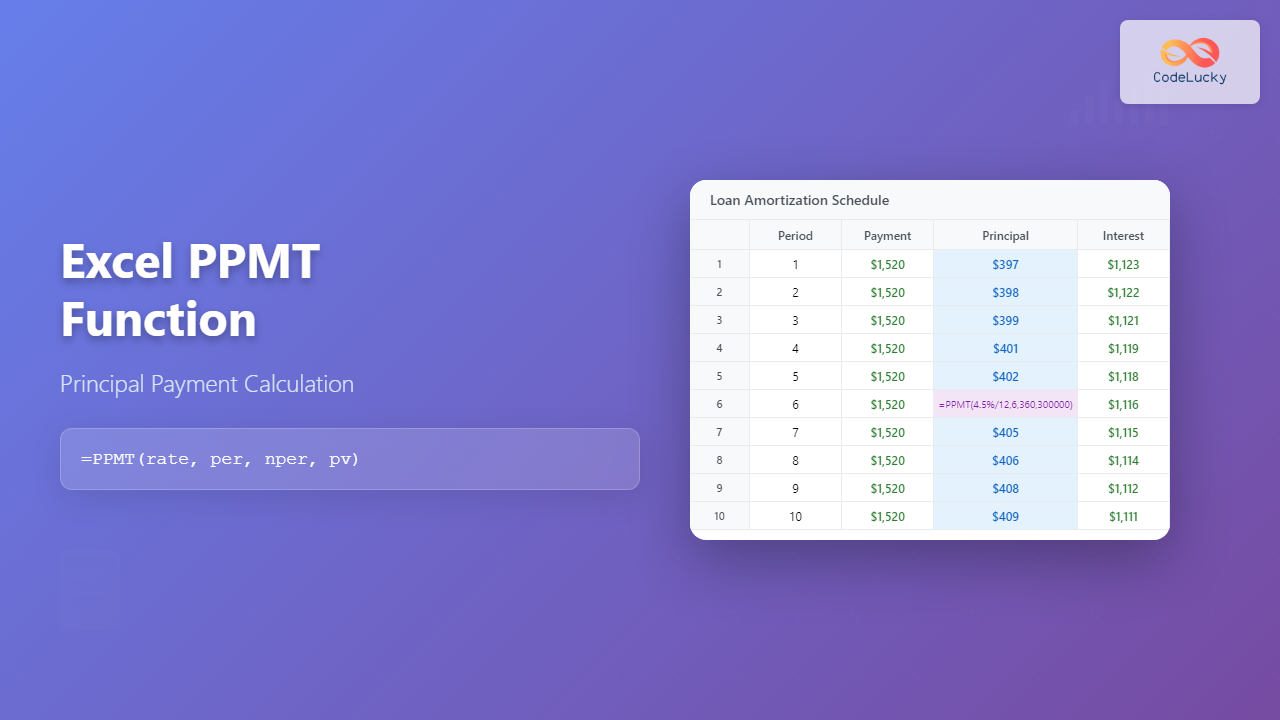
The PPMT function in Microsoft Excel is a powerful financial tool that calculates the principal payment for a specific period of a loan or investment. Whether you’re managing personal finances, creating loan amortization schedules, or analyzing investment returns, understanding the PPMT function is essential for accurate financial modeling.
What is the Excel PPMT Function?
PPMT stands for “Principal Payment” and is one of Excel’s built-in financial functions. It calculates the principal portion of a payment for a given period in a loan or annuity, based on constant payments and a constant interest rate. This function is particularly useful when you need to separate the principal component from the total payment amount.
The principal payment is the portion of your loan payment that goes toward reducing the actual loan balance, excluding interest charges. As you progress through a loan’s payment schedule, the principal portion typically increases while the interest portion decreases.
PPMT Function Syntax
The syntax for the PPMT function is:
=PPMT(rate, per, nper, pv, [fv], [type])Required Parameters:
- rate: The interest rate per period
- per: The specific period for which you want to calculate the principal payment (must be between 1 and nper)
- nper: The total number of payment periods
- pv: The present value or principal amount of the loan
Optional Parameters:
- fv: The future value or cash balance after the final payment (defaults to 0)
- type: When payments are due (0 for end of period, 1 for beginning of period; defaults to 0)
Understanding PPMT Function Parameters
Interest Rate (rate)
The interest rate must be consistent with the payment period. If you have an annual interest rate but make monthly payments, divide the annual rate by 12. For example, a 6% annual rate becomes 0.06/12 = 0.005 for monthly calculations.
Period (per)
This specifies which payment period you’re analyzing. For a 30-year mortgage with monthly payments, period 1 represents the first month, period 12 represents the first year’s final payment, and period 360 represents the final payment.
Number of Periods (nper)
The total number of payments over the loan’s life. For a 30-year mortgage with monthly payments, this would be 30 × 12 = 360 periods.
Present Value (pv)
The initial loan amount or principal. This should be entered as a negative value since it represents money you owe, or as a positive value if you’re calculating from the lender’s perspective.
Basic PPMT Function Examples
Example 1: Monthly Mortgage Payment
Let’s calculate the principal payment for the first month of a $300,000 mortgage at 4.5% annual interest over 30 years:
=PPMT(4.5%/12, 1, 30*12, 300000)This returns approximately -$397.07, indicating that $397.07 of the first payment goes toward principal reduction.
Example 2: Car Loan Principal Payment
For a $25,000 car loan at 3.9% annual interest over 5 years, the principal payment in month 24 would be:
=PPMT(3.9%/12, 24, 5*12, 25000)This returns approximately -$395.83 for the 24th month’s principal payment.
Advanced PPMT Applications
Creating Loan Amortization Schedules
The PPMT function is essential for building comprehensive amortization schedules. Combined with the IPMT function (which calculates interest payments), you can create detailed payment breakdowns:
| Period | Total Payment | Principal | Interest | Balance |
|---|---|---|---|---|
| 1 | =PMT(rate,nper,pv) | =PPMT(rate,1,nper,pv) | =IPMT(rate,1,nper,pv) | =pv+PPMT(rate,1,nper,pv) |
Calculating Cumulative Principal Payments
To find the total principal paid over multiple periods, use the CUMPRINC function in combination with PPMT:
=CUMPRINC(rate, nper, pv, start_period, end_period, type)Common PPMT Function Errors and Solutions
#NUM! Error
This error occurs when:
- The period (per) is less than 1 or greater than nper
- The interest rate makes the calculation impossible
Solution: Verify that your period value falls within the valid range and that your interest rate is reasonable.
#VALUE! Error
This happens when non-numeric values are used in numeric parameters.
Solution: Ensure all parameters contain valid numbers or cell references to numeric values.
PPMT vs Related Functions
PPMT vs PMT
While PMT calculates the total payment amount, PPMT specifically returns only the principal portion. The relationship is: PMT = PPMT + IPMT
PPMT vs IPMT
IPMT calculates the interest portion of a payment, while PPMT calculates the principal portion. Together, they sum to the total payment amount.
Practical PPMT Use Cases
Refinancing Analysis
Use PPMT to compare principal payments between your current loan and potential refinancing options. Higher principal payments mean faster equity building.
Extra Payment Impact
Calculate how additional principal payments affect your loan timeline by analyzing how extra payments change the principal reduction pattern.
Investment Analysis
For annuity investments, PPMT helps determine how much of each payment contributes to the principal accumulation versus interest earnings.
Tips for Using PPMT Effectively
Consistency in Units
Always ensure your rate and nper parameters use consistent time periods. Annual rates require annual periods, monthly rates require monthly periods.
Sign Conventions
Excel uses negative values for outgoing cash flows and positive values for incoming cash flows. Be consistent with your sign conventions throughout your calculations.
Rounding Considerations
Financial calculations can produce very precise decimal results. Consider using the ROUND function to match real-world payment scenarios:
=ROUND(PPMT(rate, per, nper, pv), 2)Building Dynamic PPMT Models
Using Cell References
Instead of hardcoding values, use cell references to create flexible models:
=PPMT($B$2/12, A10, $B$3*12, $B$1)Where B1 contains loan amount, B2 contains annual rate, B3 contains loan term in years, and A10 contains the period number.
Data Tables for Scenario Analysis
Create data tables to analyze how different interest rates or loan terms affect principal payments across various periods.
PPMT Function Limitations
The PPMT function assumes:
- Constant payment amounts throughout the loan term
- Fixed interest rates
- Regular payment intervals
For variable rate loans or irregular payment schedules, you’ll need more complex modeling approaches.
Integration with Other Excel Features
Conditional Formatting
Apply conditional formatting to highlight periods where principal payments exceed certain thresholds or to visualize the changing principal-to-interest ratio over time.
Charts and Graphs
Create visual representations of principal payments over time using Excel’s charting features. Line charts effectively show how principal payments increase throughout a loan’s life.
Best Practices for PPMT Implementation
- Always validate your inputs before applying the PPMT function
- Use absolute cell references for loan parameters that don’t change
- Include error handling using IFERROR to manage potential calculation errors
- Document your assumptions clearly in your spreadsheet
- Test your calculations with known values to ensure accuracy
Conclusion
The Excel PPMT function is an indispensable tool for financial analysis and loan management. By understanding its syntax, parameters, and applications, you can create sophisticated financial models that provide valuable insights into loan structures and payment schedules. Whether you’re a financial professional, business analyst, or individual managing personal finances, mastering the PPMT function will enhance your ability to make informed financial decisions.
Remember to always verify your calculations and consider the real-world implications of your financial models. The PPMT function provides the mathematical foundation, but sound financial judgment ensures practical application of the results.
Related Posts
Excel IPMT Function: Calculate Interest Payments with Precision
The IPMT function in Microsoft Excel is a powerful financial tool that calculates the interest payment for a specific period...
Excel PMT Function: Complete Guide to Payment Calculations
The PMT function in Microsoft Excel is one of the most powerful financial tools for calculating periodic payments for loans,...
Excel NPER Function: Master Payment Period Calculations with Complete Syntax Guide
What is the Excel NPER Function? The NPER function in Microsoft Excel is a powerful financial function that calculates the...
Excel PV Function: Master Present Value Calculations with Complete Formula Guide
The Excel PV function is one of the most powerful financial tools available in Microsoft Excel, enabling users to calculate...

Excel RATE Function: Complete Guide to Interest Rate Calculations
The Excel RATE function is a powerful financial tool that calculates the interest rate per period for an annuity or...
Excel FV Function: Complete Guide to Future Value Calculations
The Excel FV (Future Value) function is a powerful financial tool that calculates the future value of an investment based...
Excel DDB Function: Complete Guide to Double Declining Balance Depreciation
What is the Excel DDB Function? The DDB function in Microsoft Excel calculates the depreciation of an asset using the...
Excel SLN Function: Complete Guide to Straight Line Depreciation Calculations
The SLN function in Excel is a powerful financial tool that calculates straight-line depreciation for assets over their useful life....
Excel MIRR Function: Complete Guide to Modified Internal Rate of Return Calculations
The MIRR (Modified Internal Rate of Return) function in Excel is a powerful financial tool that provides a more realistic...
Excel SLOPE Function: Complete Guide to Linear Regression Analysis
The Excel SLOPE function is a powerful statistical tool that calculates the slope of a linear regression line through a...
Excel AGGREGATE Function: Complete Guide to Advanced Statistical Calculations
Excel's AGGREGATE function is one of the most powerful and versatile statistical functions available in Microsoft Excel. Unlike traditional statistical...
Excel IRR Function: Complete Guide to Internal Rate of Return Analysis
The Excel IRR function is one of the most powerful financial analysis tools available in Microsoft Excel, designed to calculate...