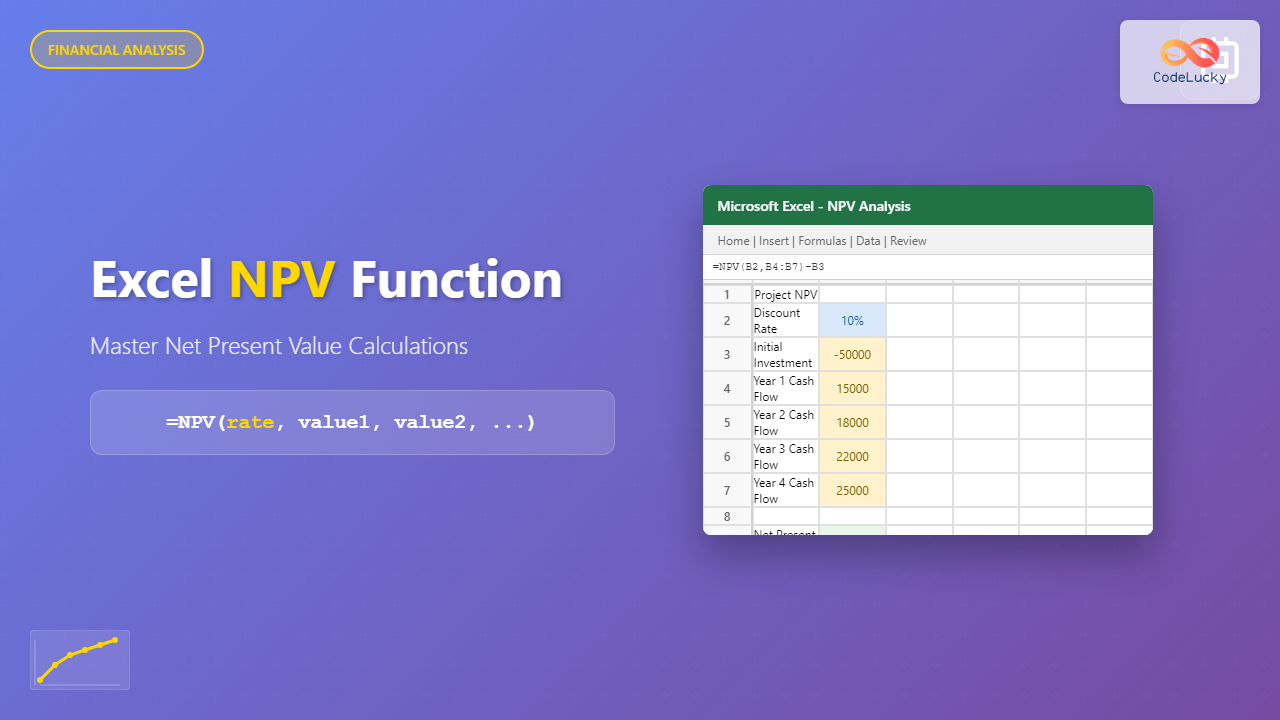
The Excel NPV (Net Present Value) function is one of the most powerful financial tools available in Microsoft Excel, enabling users to evaluate investment opportunities and make informed financial decisions. This comprehensive guide will walk you through everything you need to know about the NPV function, from basic syntax to advanced applications.
What is the NPV Function in Excel?
The NPV function calculates the net present value of an investment based on a series of periodic cash flows and a discount rate. Net Present Value represents the difference between the present value of cash inflows and outflows over a period of time, helping determine whether an investment will be profitable.
The function is essential for:
- Investment analysis and decision-making
- Capital budgeting processes
- Project evaluation and comparison
- Financial planning and forecasting
Excel NPV Function Syntax
The basic syntax for the NPV function is:
=NPV(rate, value1, [value2], [value3], ...)
Parameters Explained
- rate (required): The discount rate per period, expressed as a decimal or percentage
- value1 (required): The first cash flow value, typically occurring at the end of the first period
- value2, value3… (optional): Additional cash flow values for subsequent periods
Important NPV Function Rules and Limitations
Key Points to Remember
- The NPV function assumes cash flows occur at the end of each period
- Cash flows must be equally spaced in time
- The function can accept up to 254 value arguments
- Negative values represent cash outflows (investments)
- Positive values represent cash inflows (returns)
Initial Investment Consideration
The NPV function does not include the initial investment (Period 0) in its calculation. If you have an initial investment, you must subtract it separately from the NPV result:
=NPV(rate, cash_flows) - initial_investment
Step-by-Step NPV Calculation Examples
Example 1: Basic NPV Calculation
Let’s calculate the NPV for a project with the following details:
- Initial investment: $10,000
- Discount rate: 8%
- Year 1 cash flow: $3,000
- Year 2 cash flow: $4,000
- Year 3 cash flow: $5,000
Formula:
=NPV(0.08, 3000, 4000, 5000) - 10000
Result: This would return approximately $361.25, indicating a profitable investment.
Example 2: Using Cell References
For better spreadsheet management, use cell references:
| Cell | Description | Value |
|---|---|---|
| A1 | Discount Rate | 8% |
| A2 | Initial Investment | -10000 |
| A3:A5 | Cash Flows (Years 1-3) | 3000, 4000, 5000 |
Formula:
=NPV(A1, A3:A5) + A2
Advanced NPV Applications
Comparing Multiple Investment Options
Use NPV to compare different investment opportunities. The project with the higher NPV is generally more attractive:
| Project | NPV Formula | Result |
|---|---|---|
| Project A | =NPV(10%, B2:B6) – B1 | $2,845 |
| Project B | =NPV(10%, C2:C6) – C1 | $3,120 |
Sensitivity Analysis
Create a data table to analyze how changes in the discount rate affect NPV:
- Set up your base NPV formula
- Create a column with different discount rates
- Use Excel’s Data Table feature to calculate NPV for each rate
- Visualize results with a chart
Common NPV Function Errors and Solutions
#VALUE! Error
Cause: Non-numeric values in cash flow arguments
Solution: Ensure all cash flow values are numbers, not text
#NUM! Error
Cause: Invalid discount rate (usually negative rates that are too large)
Solution: Check that your discount rate is reasonable and properly formatted
Incorrect Results
Cause: Forgetting to account for initial investment
Solution: Remember to subtract initial investment from NPV result
NPV vs IRR: Understanding the Difference
While NPV gives you the dollar value of an investment’s profitability, IRR (Internal Rate of Return) provides the rate of return. Use both functions together for comprehensive investment analysis:
- NPV > 0: Investment is profitable at the given discount rate
- NPV = 0: Investment breaks even
- NPV < 0: Investment loses money at the given discount rate
Best Practices for Using Excel NPV Function
1. Choose Appropriate Discount Rates
Use rates that reflect:
- Cost of capital
- Risk level of the investment
- Inflation expectations
- Alternative investment opportunities
2. Organize Your Data Clearly
- Label your cash flows by period
- Use consistent time intervals
- Clearly separate inflows and outflows
- Document assumptions and sources
3. Perform Sensitivity Analysis
- Test different discount rates
- Vary cash flow assumptions
- Create scenario models
- Use data tables for multiple variables
Real-World NPV Applications
Business Investment Decisions
- Equipment purchases
- Facility expansions
- Technology upgrades
- Market entry strategies
Personal Finance
- Real estate investments
- Education financing decisions
- Retirement planning
- Major purchase evaluations
Excel NPV Function Tips and Tricks
Dynamic NPV Models
Create flexible models using named ranges and data validation:
=NPV(INDIRECT("DiscountRate"), INDIRECT("CashFlows")) - INDIRECT("InitialInvestment")
Array Formulas for Complex Scenarios
Use array formulas to handle irregular cash flows or multiple scenarios simultaneously.
Conditional NPV Calculations
Combine NPV with IF statements for scenario-based analysis:
=IF(MarketCondition="Good", NPV(LowRate, CashFlows), NPV(HighRate, CashFlows))
Conclusion
The Excel NPV function is an indispensable tool for financial analysis and investment decision-making. By understanding its syntax, limitations, and best practices, you can leverage this powerful function to make informed financial decisions and conduct thorough investment analyses.
Remember that NPV is just one metric in investment analysis. Always consider it alongside other financial indicators like IRR, payback period, and profitability index for comprehensive evaluation. With practice and proper application, the NPV function will become an essential part of your Excel financial toolkit.
Start implementing these NPV techniques in your own financial models, and you’ll quickly discover how this function can enhance your investment analysis capabilities and support better business decisions.
Related Posts

Excel FV Function: Complete Guide to Future Value Calculations
The Excel FV (Future Value) function is a powerful financial tool that calculates the future value of an investment based...

Excel PV Function: Master Present Value Calculations with Complete Formula Guide
The Excel PV function is one of the most powerful financial tools available in Microsoft Excel, enabling users to calculate...

Excel NPER Function: Master Payment Period Calculations with Complete Syntax Guide
What is the Excel NPER Function? The NPER function in Microsoft Excel is a powerful financial function that calculates the...
Excel IRR Function: Complete Guide to Internal Rate of Return Analysis
The Excel IRR function is one of the most powerful financial analysis tools available in Microsoft Excel, designed to calculate...

Excel PMT Function: Complete Guide to Payment Calculations
The PMT function in Microsoft Excel is one of the most powerful financial tools for calculating periodic payments for loans,...

NumPy Finance: Time Value of Money Calculations
NumPy, the fundamental package for scientific computing in Python, provides powerful tools for financial analysis. This article explores NumPy's capabilities...
Excel MIRR Function: Complete Guide to Modified Internal Rate of Return Calculations
The MIRR (Modified Internal Rate of Return) function in Excel is a powerful financial tool that provides a more realistic...

Excel RATE Function: Complete Guide to Interest Rate Calculations
The Excel RATE function is a powerful financial tool that calculates the interest rate per period for an annuity or...

Excel GROWTH Function: Complete Guide to Exponential Growth Calculations
The Excel GROWTH function is a powerful statistical tool that calculates exponential growth by fitting data to an exponential curve....

Excel DB Function: Complete Guide to Declining Balance Depreciation Calculations
The Excel DB function is a powerful financial tool that calculates the depreciation of an asset using the declining balance...

Excel FORECAST Function: Complete Guide to Linear Prediction Formula
The Excel FORECAST function is a powerful statistical tool that enables users to predict future values based on existing linear...

Excel SLN Function: Complete Guide to Straight Line Depreciation Calculations
The SLN function in Excel is a powerful financial tool that calculates straight-line depreciation for assets over their useful life....