The Excel COLUMN function is a fundamental lookup and reference function that returns the column number of a specified cell reference. Whether you’re building dynamic formulas, creating automated reports, or need to reference column positions programmatically, understanding the COLUMN function is essential for advanced Excel proficiency.
What is the Excel COLUMN Function?
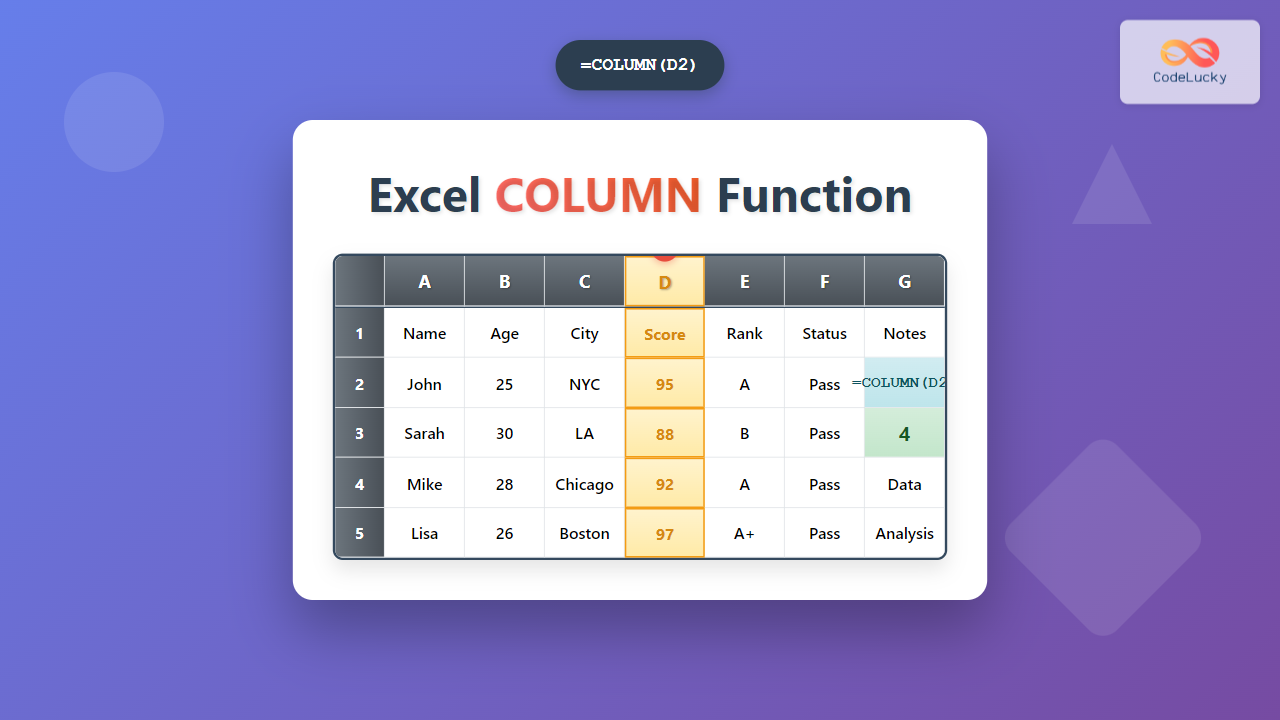
The COLUMN function returns the column number of a given cell reference or the current cell if no reference is provided. Column numbers correspond to Excel’s column structure where column A equals 1, column B equals 2, and so forth. This function proves invaluable when you need to determine a cell’s column position for calculations, conditional formatting, or dynamic formula construction.
COLUMN Function Syntax
The syntax for the COLUMN function is straightforward:
=COLUMN([reference])Parameters Explained
- reference (optional): The cell or range of cells for which you want the column number. If omitted, Excel returns the column number of the cell containing the COLUMN function.
Basic COLUMN Function Examples
Simple Column Number Retrieval
To get the column number of cell D5:
=COLUMN(D5)This formula returns 4 because column D is the fourth column in Excel’s column structure.
Current Cell Column Number
When you enter the formula =COLUMN() in any cell, it returns that cell’s column number. For example, placing this formula in cell F10 returns 6.
Column Numbers for Cell Ranges
When applied to a range, COLUMN returns an array of column numbers. The formula =COLUMN(B2:E2) returns the array {2,3,4,5}, representing columns B through E.
Advanced COLUMN Function Applications
Dynamic Column References with INDIRECT
Combine COLUMN with INDIRECT for dynamic cell references:
=INDIRECT("R1C" & COLUMN(A1), FALSE)This formula creates a reference to row 1 in the same column as the formula’s location, useful for creating headers that automatically adjust.
Creating Sequential Column Numbers
Generate a series of column numbers across a row:
=COLUMN(A:A)When copied across multiple columns, this creates a sequence: 1, 2, 3, 4, and so on.
Conditional Formatting Based on Column Position
Use COLUMN in conditional formatting rules to format cells based on their column position. For example, to highlight every third column:
=MOD(COLUMN(),3)=0Practical Use Cases for the COLUMN Function
Dynamic Array Formulas
Create dynamic formulas that adapt to column positions. This example creates a running total across columns:
=SUM(INDIRECT("A1:" & ADDRESS(1,COLUMN())))Building Dynamic VLOOKUP Column Index
Use COLUMN to create dynamic VLOOKUP formulas where the column index adjusts automatically:
=VLOOKUP(A2,DataTable,COLUMN(B:B),FALSE)Creating Column-Based Calculations
Calculate values based on column position, such as weights or multipliers that change by column:
=A1 * COLUMN() * 0.1COLUMN Function with Array Formulas
Multi-Column Operations
Process multiple columns simultaneously using COLUMN with array formulas:
=SUM((COLUMN(B1:F1)<=3) * (B1:F1))This formula sums values in columns B through D (columns 2, 3, and 4) only.
Column-Based Conditional Logic
Implement logic that varies by column position:
=IF(MOD(COLUMN(),2)=0, A1*2, A1*3)This multiplies values by 2 in even-numbered columns and by 3 in odd-numbered columns.
Common COLUMN Function Errors and Solutions
#VALUE! Error
This error occurs when the reference parameter contains invalid cell references. Ensure your cell references use proper Excel notation (e.g., A1, B2:D5).
#REF! Error
References to deleted columns or invalid ranges cause this error. Verify that referenced columns exist and use valid range syntax.
Array Formula Considerations
When using COLUMN with ranges in older Excel versions, you may need to enter formulas as array formulas using Ctrl+Shift+Enter. Excel 365 and Excel 2021 handle dynamic arrays automatically.
COLUMN Function vs Related Functions
COLUMN vs ROW
While COLUMN returns column numbers, the ROW function returns row numbers. Both functions accept similar parameters and can be used together for complete cell position identification.
COLUMN vs COLUMNS
The COLUMNS function returns the count of columns in a range, while COLUMN returns the actual column number(s). Use COLUMNS to count columns and COLUMN to identify positions.
Performance Tips and Best Practices
Optimize Formula Calculations
When using COLUMN in large datasets, consider these optimization strategies:
- Use absolute references when the column reference shouldn't change during copying
- Combine COLUMN with other functions efficiently to reduce calculation overhead
- Consider using named ranges with COLUMN for better formula readability
Formula Auditing
Use Excel's formula auditing tools to trace COLUMN function dependencies, especially in complex worksheets with multiple COLUMN-based calculations.
Real-World Examples and Case Studies
Financial Modeling
In financial models, use COLUMN to create dynamic month-based calculations:
=B$1 * (1 + $A2)^(COLUMN()-2)This formula calculates compound growth where the exponent increases with each column.
Data Validation Lists
Create column-dependent validation lists:
=OFFSET(ValidationData,0,COLUMN()-1,10,1)Reporting Automation
Build automated reports that adjust based on column positions, reducing manual updates when adding or removing data columns.
Compatibility and Version Considerations
The COLUMN function is available in all Excel versions, including Excel 365, Excel 2021, Excel 2019, Excel 2016, and earlier versions. However, array formula behavior differs between versions, with newer versions offering dynamic array support that eliminates the need for Ctrl+Shift+Enter in many scenarios.
Troubleshooting COLUMN Function Issues
Formula Not Updating
If COLUMN functions aren't recalculating, check Excel's calculation settings. Press F9 to force recalculation or verify that automatic calculation is enabled in Formula Options.
Unexpected Results in Copied Formulas
When copying formulas containing COLUMN functions, pay attention to relative vs. absolute references. Use $ symbols appropriately to control how references adjust during copying.
Advanced Integration Techniques
COLUMN with MATCH and INDEX
Create powerful lookup combinations:
=INDEX(DataRange,MATCH(LookupValue,LookupRange,0),COLUMN()-StartColumn)COLUMN in Conditional Formatting
Apply sophisticated formatting rules based on column positions, creating visual patterns that enhance data readability and analysis.
Conclusion
The Excel COLUMN function is a versatile tool that enhances formula flexibility and automation capabilities. From simple column number retrieval to complex dynamic array operations, mastering COLUMN opens possibilities for more efficient and maintainable spreadsheet solutions. Whether you're building financial models, creating automated reports, or developing sophisticated data analysis tools, the COLUMN function provides the foundation for column-aware calculations that adapt to your spreadsheet's structure.
By understanding the syntax, exploring practical applications, and following best practices outlined in this guide, you'll be equipped to leverage the full power of Excel's COLUMN function in your data analysis and spreadsheet automation projects.
Related Posts
Excel ROW Function: Complete Guide to Row Number Formula and Syntax
The Excel ROW function is one of the most fundamental yet powerful functions in Microsoft Excel, designed to return the...

Excel COLUMNS Function: Master Column Counting with Practical Examples
The Excel COLUMNS function is a powerful built-in tool that counts the number of columns in a specified range or...
Excel ADDRESS Function: Complete Guide to Dynamic Cell Reference Creation
The Excel ADDRESS function is a powerful text function that creates cell references as text strings based on row and...

Excel CELL Function: Complete Guide to Cell Information Formula Syntax
The CELL function in Microsoft Excel is a powerful information function that returns specific details about the formatting, location, or...

Excel OFFSET Function: Dynamic Reference Formula for Advanced Data Management
The Excel OFFSET function is one of the most powerful yet underutilized tools for creating dynamic references in spreadsheets. This...

Excel INDIRECT Function: Complete Guide to Dynamic Cell Reference Creation
The INDIRECT function in Microsoft Excel is a powerful reference function that allows you to create dynamic cell references from...

Excel TABLE Function: Complete Guide to Structured Data Management and Advanced Formulas
What is the Excel TABLE Function? The Excel TABLE function is a powerful feature that converts regular cell ranges into...
Excel Structured References: Complete Table Formula Syntax Guide
Excel structured references revolutionize how you work with tables by replacing traditional cell references with intuitive, readable formula syntax. Instead...
Excel AREAS Function: Complete Guide to Count Reference Areas in Formulas
The Excel AREAS function is a powerful reference function that counts the number of areas (separate ranges) within a given...

Excel ROWS Function: Complete Guide to Count Rows with Formula Syntax Examples
What is the Excel ROWS Function? The ROWS function in Microsoft Excel is a built-in lookup and reference function that...
Excel INDEX Function: Complete Guide to Array Position Lookup with Practical Examples
The Excel INDEX function is one of the most powerful and versatile lookup functions available in Microsoft Excel. Unlike other...

Excel MATCH Function: Complete Position Finding Formula Guide with Examples
The MATCH function in Microsoft Excel is a powerful lookup formula that finds the relative position of a value within...