
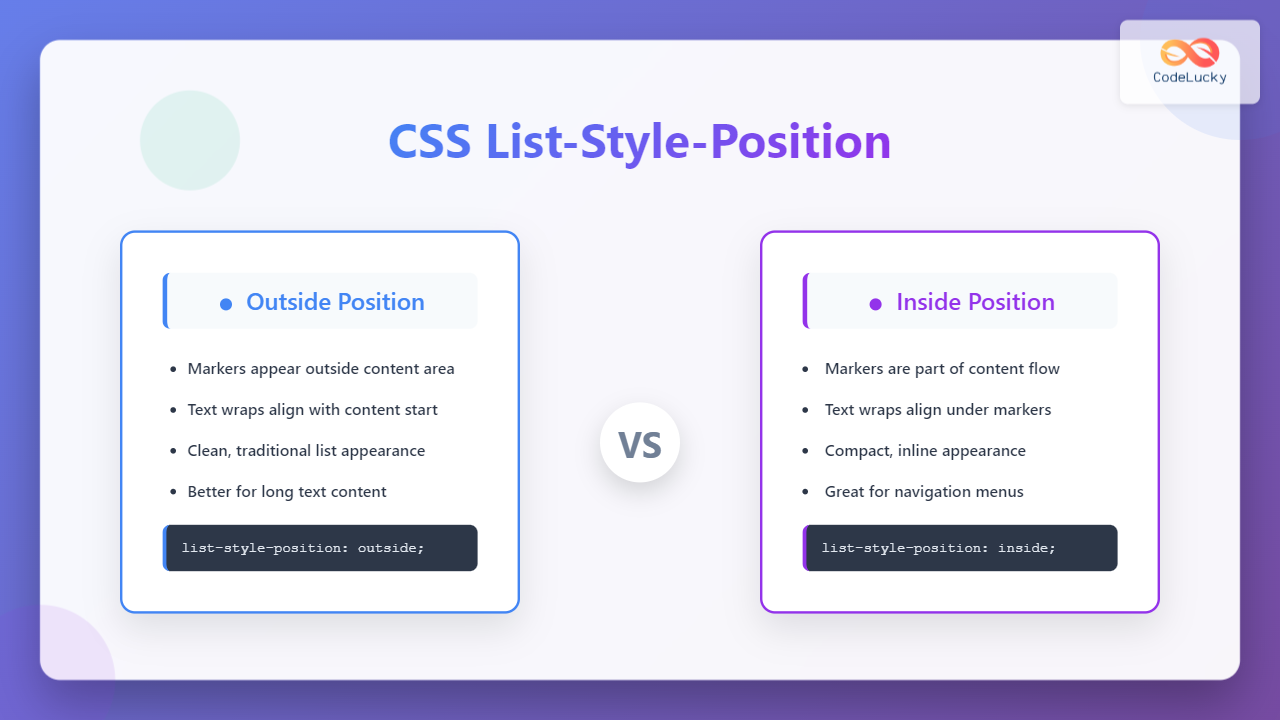
The list-style-position property in CSS determines where list markers (bullets, numbers, or custom markers) are positioned relative to the list item’s content. This seemingly simple property can significantly impact your layout and text alignment, making it crucial for creating well-structured lists.
Understanding CSS List-Style-Position
The list-style-position property accepts two main values that control marker placement:
- outside (default): Places markers outside the content area
- inside: Places markers inside the content area
This positioning affects how text wraps around markers and influences the overall visual hierarchy of your lists.
Basic Syntax and Usage
The syntax for list-style-position is straightforward:
list-style-position: outside | inside | inherit | initial | unset;You can apply this property to any list element (ul, ol) or individual list items (li).
Outside Positioning (Default Behavior)
When set to outside, list markers appear in the margin area, separate from the content flow. This is the default behavior for most browsers.
Example: Outside Positioning
CSS Code:
.list-outside {
  list-style-position: outside;
  list-style-type: disc;
  padding-left: 20px;
  margin: 10px 0;
}
Visual Output:
- This is the first list item with outside positioning
- Notice how the bullet points appear outside the content area
- When text wraps to multiple lines, it aligns with the start of the text, not the marker
- This creates a clean, indented appearance that’s easy to read
Inside Positioning
With inside positioning, markers become part of the content flow, appearing within the content area itself.
Example: Inside Positioning
CSS Code:
.list-inside {
  list-style-position: inside;
  list-style-type: disc;
  margin: 10px 0;
}
Visual Output:
- This is the first list item with inside positioning
- The bullet points are now part of the content flow
- When text wraps, it aligns directly under the marker
- This creates a more compact layout but can affect readability
Interactive Comparison
Here’s an interactive example that lets you switch between inside and outside positioning to see the difference:
Interactive Demo
- First item: This is a longer text that will wrap to multiple lines to demonstrate the positioning difference clearly
- Second item: Another long text example that shows how list markers behave with different positioning values
- Third item: Notice the alignment changes when you toggle between inside and outside positioning
Practical Use Cases
When to Use Outside Positioning
Outside positioning works best for:
- Traditional content: Articles, blog posts, and documentation
- Long list items: When items span multiple lines
- Improved readability: Clean separation between markers and content
- Consistent indentation: Maintains visual hierarchy
When to Use Inside Positioning
Inside positioning is ideal for:
- Compact layouts: When space is limited
- Navigation menus: Inline list styling
- Short list items: Single-line entries
- Special design requirements: Custom styling needs
Advanced Examples with Different List Types
Ordered Lists Comparison
Outside (Default)
- Step one involves preparing your development environment
- Step two requires configuring the necessary dependencies
- Step three includes testing your implementation thoroughly
Inside
- Step one involves preparing your development environment
- Step two requires configuring the necessary dependencies
- Step three includes testing your implementation thoroughly
Custom Markers with Positioning
CSS Code:
.custom-list-outside {
  list-style-position: outside;
  list-style-type: '→ ';
}

.custom-list-inside {
  list-style-position: inside;
  list-style-type: '✓ ';
}
Custom Outside
- Custom arrow markers positioned outside
- Clean alignment for wrapped text
Custom Inside
- Checkmark markers positioned inside
- Compact inline presentation
Browser Support and Compatibility
The list-style-position property enjoys excellent browser support across all modern browsers:
- Chrome: Full support since version 1.0
- Firefox: Full support since version 1.0
- Safari: Full support since version 1.0
- Edge: Full support since version 12.0
- Internet Explorer: Supported from IE 4.0
Best Practices and Tips
Accessibility Considerations
When choosing between inside and outside positioning, consider:
- Screen readers: Both positions work well with assistive technology
- Text scaling: Outside positioning handles zoom better
- Color contrast: Ensure markers meet accessibility guidelines
- Focus indicators: Consider keyboard navigation patterns
Performance Considerations
The list-style-position property has minimal performance impact, but consider:
- Avoid frequent JavaScript changes to positioning
- Use CSS classes instead of inline styles
- Consider using CSS custom properties for dynamic theming
Common Issues and Solutions
Alignment Problems
If your list markers appear misaligned:
/* Fix alignment issues */
ul {
  list-style-position: outside;
  padding-left: 1.5em; /* Adjust based on marker width */
  margin-left: 0;
}

/* For inside positioning */
ul.inside {
  list-style-position: inside;
  padding-left: 0;
  text-indent: 0;
}
Text Wrapping Issues
For better text wrapping with inside positioning:
li {
  list-style-position: inside;
  text-indent: -1em;
  padding-left: 1em;
}
Conclusion
Understanding the difference between inside and outside list-style-position values is essential for creating well-designed lists. Outside positioning offers better readability and traditional formatting, while inside positioning provides compact layouts and unique design possibilities.
Choose outside positioning for content-heavy lists with long items, and inside positioning for navigation elements, compact designs, or when you need markers to be part of the content flow. Always test your choice across different devices and screen sizes to ensure optimal user experience.
Remember that the choice between inside and outside positioning can significantly impact your layout’s visual hierarchy and accessibility, so consider your content’s context and your users’ needs when making this decision.
Related Posts
CSS list-style-position Property: CSS List Style Position
CSS list-style-position Property: Controlling List Marker Placement The list-style-position property in CSS determines the position of the list marker (like...
CSS List-Style-Type: Complete Guide to Custom Bullet Points and Numbering
The list-style-type property in CSS is a powerful tool that allows developers to customize the appearance of list markers in...
CSS list-style Property: CSS List Style
Understanding the CSS list-style Property The list-style property in CSS is a shorthand property used to set the appearance of...
CSS list-style-type Property: CSS List Style Type
CSS list-style-type Property: A Comprehensive Guide The list-style-type property in CSS allows you to control the appearance of the markers...
CSS List-Style-Image: Complete Guide to Custom List Markers with Images
The CSS list-style-image property allows you to replace the default bullet points or numbers in HTML lists with custom images....
CSS list-style-image Property: CSS List Style Image
CSS list-style-image Property: Styling Lists with Images The list-style-image property in CSS allows you to replace the standard list markers...
HTML List Item: The <li> Tag
HTML <li> Tag The <li> tag represents a list item. It is used to define individual items within an ordered...
HTML Unordered Lists: The `<ul>` Tag Explained
HTML <ul> Tag The <ul> tag in HTML defines an unordered list. An unordered list is a collection of items...
HTML Ol type Property: Ordered List Type
HTML <ol> type Property: Ordered List Type Explained The type attribute of the HTML <ol> (ordered list) element specifies the...
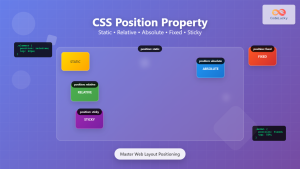
CSS Position Property: Complete Guide to Static, Relative, Absolute, Fixed & Sticky Positioning
The CSS position property is one of the most powerful tools for controlling element layout and creating sophisticated web designs....
CSS Relative Positioning: Master Element Offset and Layout Control
Understanding CSS Relative Positioning CSS relative positioning is a fundamental layout technique that allows you to move elements from their...
HTML Lists: Mastering Ordered, Unordered, and Description Lists
Introduction Lists are fundamental to organizing information on the web. Whether you're creating a navigation menu, displaying steps in a...





