
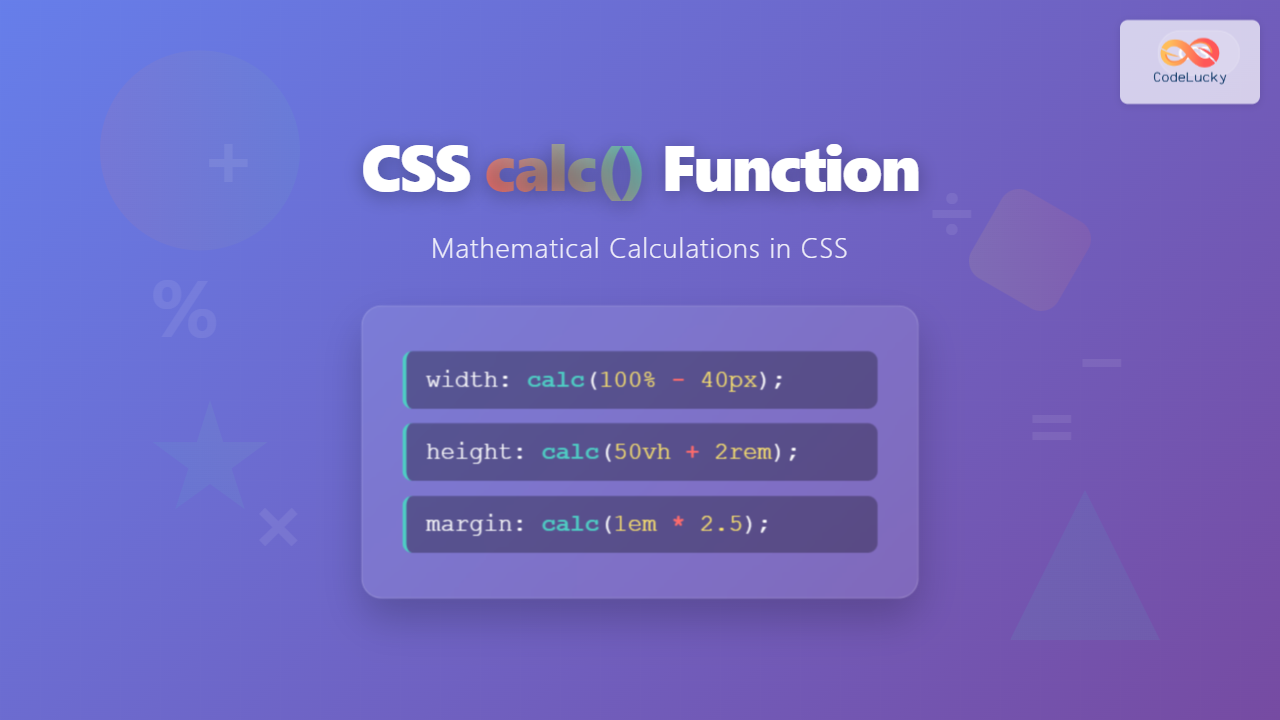
The CSS calc() function is one of the most powerful and versatile tools in modern CSS, allowing developers to perform mathematical calculations directly within CSS property values. This dynamic function enables responsive designs, flexible layouts, and complex positioning that would otherwise require JavaScript or preprocessors.
What is the CSS Calc() Function?
The calc() function performs mathematical calculations to determine CSS property values. It accepts mathematical expressions using addition (+), subtraction (-), multiplication (*), and division (/) operators, making it possible to mix different units and create dynamic layouts.
calc(expression)Basic Syntax and Usage
The calc() function follows specific syntax rules that must be adhered to for proper functionality:
Syntax Rules
- Spaces are required around + and – operators
- Spaces are optional around * and / operators
- Division by zero results in an error
- Parentheses can be used to establish precedence
Basic Examples
✅ Correct Usage
width: calc(100% - 20px);
height: calc(50vh + 2rem);
margin: calc(1em * 2.5);
❌ Incorrect Usage
width: calc(100%-20px);
height: calc(50vh+2rem);
margin: calc(1em*2.5);
Supported Mathematical Operations
The calc() function supports four basic mathematical operations, each with specific use cases and behaviors:
Addition (+)
Combines values of compatible units or mixes different units.
/* Adding same units */
width: calc(50px + 30px); /* Results in 80px */

/* Adding different units */
height: calc(50% + 20px); /* 50% of parent + 20px */
margin-top: calc(2rem + 10px); /* 2rem + 10px */
Subtraction (-)
Subtracts the second value from the first value.
/* Creating gutters and spacing */
width: calc(100% - 40px); /* Full width minus padding */
left: calc(50% - 150px); /* Center a 300px element */
Multiplication (*)
Multiplies values, where one value must be a unitless number.
/* Scaling values */
font-size: calc(1rem * 1.5); /* 1.5 times base font size */
width: calc(25% * 3); /* 75% width */
Division (/)
Divides the first value by the second, where the divisor must be a unitless number.
/* Creating proportional layouts */
width: calc(100% / 3); /* One-third width */
height: calc(100vh / 4); /* Quarter viewport height */
Working with Different Units
One of the most powerful features of calc() is its ability to mix different CSS units in a single calculation. This flexibility enables responsive designs that adapt to various screen sizes and user preferences.
Mixing Units Example
.mixed-unit-container {
  width: calc(100% - 40px); /* Full width minus fixed margins */
  height: calc(50vh - 2rem); /* Viewport height minus rem units */
  margin: calc(1em + 5px) auto; /* Em units plus pixels */
  padding: calc(2% + 10px); /* Percentage plus pixels */
}
Practical Examples and Use Cases
1. Creating Responsive Layouts
Use calc() to create flexible layouts that adapt to different screen sizes while maintaining fixed gutters:
Width: calc(50% – 15px)
Width: calc(50% – 15px)
.responsive-grid {
  display: grid;
  grid-template-columns: repeat(auto-fit, minmax(250px, 1fr));
  gap: calc(2% + 10px); /* Responsive gap */
}

.grid-item {
  width: calc(50% - 15px); /* 50% width minus half of gap */
  padding: calc(1rem + 5px); /* Flexible padding */
}
2. Perfect Centering
Center elements precisely using calc() without flexbox or grid:
.centered-element {
  position: absolute;
  left: calc(50% - 75px); /* 50% minus half width (150px/2) */
  top: calc(50% - 25px);  /* 50% minus half height (50px/2) */
  width: 150px;
  height: 50px;
}
3. Dynamic Font Sizing
Create responsive typography that scales with viewport size:
Responsive Heading
This text scales with viewport size
.responsive-heading {
  font-size: calc(1.5rem + 2vw); /* Base size + viewport scaling */
}

.responsive-text {
  font-size: calc(1rem + 0.5vw); /* More subtle scaling */
  line-height: calc(1.4 + 0.2vw); /* Responsive line height */
}
4. Container with Sidebar Layout
Create layouts where content adjusts to sidebar width:
.layout-container {
  display: flex;
  height: 100vh;
}

.sidebar {
  width: 200px; /* Fixed width */
  background: #343a40;
}

.main-content {
  width: calc(100% - 200px); /* Remaining space */
  padding: calc(1rem + 2vw); /* Responsive padding */
}
Advanced Calc() Techniques
Nested Calculations
Combine multiple calc() functions and use parentheses for complex calculations:
/* Complex nested calculations */
width: calc((100% - 60px) / 3 - 20px);
height: calc(100vh - (50px + 2rem + 10px));

/* Multiple operations with precedence */
margin: calc((100% - 80px) * 0.25 + 10px) auto;
Using CSS Custom Properties (Variables)
Combine calc() with CSS custom properties for maintainable, dynamic styles:
:root {
  --base-spacing: 20px;
  --container-width: 1200px;
  --sidebar-width: 300px;
}

.container {
  max-width: var(--container-width);
  padding: calc(var(--base-spacing) * 2);
  margin: calc(var(--base-spacing) / 2) auto;
}

.content-area {
  width: calc(100% - var(--sidebar-width) - var(--base-spacing));
}
Responsive Grid with Calc()
Create responsive grids that maintain consistent gutters:
.responsive-calc-grid {
  display: grid;
  grid-template-columns: repeat(3, calc((100% - 40px) / 3));
  gap: 20px;
}

/* For mobile: single column */
@media (max-width: 768px) {
  .responsive-calc-grid {
    grid-template-columns: calc(100% - 20px);
    gap: 15px;
  }
}
Browser Support and Compatibility
The CSS calc() function enjoys excellent browser support across modern browsers:
✅ Full Support:
- Chrome: 19+ (March 2012)
- Firefox: 16+ (October 2012)
- Safari: 6+ (July 2012)
- Edge: 12+ (July 2015)
- Internet Explorer: 9+ (partial), 11+ (full)
Fallback Strategies
For older browsers, provide fallback values before calc() declarations:
.element {
  width: 90%; /* Fallback for older browsers */
  width: calc(100% - 60px); /* Modern browsers */

  /* Using @supports for feature detection */
  @supports (width: calc(100% - 60px)) {
    width: calc(100% - 60px);
    padding: calc(1rem + 5px);
  }
}
Common Pitfalls and Troubleshooting
1. Missing Spaces Around Operators
❌ Common Mistake:
width: calc(100%-20px); /* Missing spaces */✅ Correct Usage:
width: calc(100% - 20px); /* Proper spacing */2. Invalid Unit Combinations
- Multiplication: One value must be unitless
- Division: Divisor must be unitless
- Addition/Subtraction: Compatible units only
3. Order of Operations
Use parentheses to ensure correct calculation order:
/* Without parentheses - may not work as expected */
width: calc(100% - 20px * 2);

/* With parentheses - clearer intention */
width: calc(100% - (20px * 2));

/* Complex calculation with clear precedence */
height: calc((100vh - 80px) / 2 - 1rem);
Performance Considerations
While calc() is powerful, consider these performance aspects:
Static vs Dynamic Calculations
- Static calculations (using only absolute units) are computed once
- Dynamic calculations (using %, vh, vw) recalculate on resize/scroll
- Use CSS custom properties to avoid repeating complex calculations
Optimization Tips
- Prefer simple calculations over complex nested ones
- Use CSS custom properties for repeated values
- Consider using CSS Grid or Flexbox for complex layouts
- Test performance on lower-end devices
Real-World Applications
1. Responsive Card Layout
Responsive Card
Minimum width with calc() ensures cards don’t get too narrow.
Another Card
Gap adjusts with viewport size for better spacing.
.card-container {
  display: grid;
  grid-template-columns: repeat(auto-fit, minmax(calc(300px - 2rem), 1fr));
  gap: calc(1rem + 1vw); /* Responsive gap */
  padding: calc(1rem + 2vw);
}
2. Navigation with Dynamic Spacing
.navigation {
  display: flex;
  justify-content: space-between;
  padding: calc(0.5rem + 1vw) calc(1rem + 2vw);
}

.nav-link {
  padding: calc(0.5rem + 0.5vw);
  margin: 0 calc(0.25rem + 0.25vw);
}
Comparison with Alternatives
Calc() vs CSS Grid
CSS Calc()
- Mathematical precision
- Works with any property
- Broader browser support
- Can mix units
CSS Grid
- Better for complex layouts
- Automatic responsive behavior
- More semantic
- Built-in alignment features
When to Use Each
- You need precise mathematical calculations
- Working with mixed units (%, px, rem, etc.)
- Creating dynamic spacing or sizing
- Building layouts that need specific proportions
Use CSS Grid when:
- Creating complex, multi-dimensional layouts
- You need automatic responsive behavior
- Working primarily with grid-based designs
- Alignment and positioning are crucial
Future of CSS Calculations
CSS calculations continue to evolve with new features on the horizon:
Upcoming Features
- CSS Math Functions: min(), max(), clamp() for more advanced calculations
- Container Queries: Responsive design based on container size
- CSS Typed OM: Better JavaScript integration with CSS calculations
/* Already supported in modern browsers */
font-size: clamp(1rem, 2.5vw, 2rem);
width: min(90vw, 1200px);
height: max(300px, 50vh);
Conclusion
The CSS calc() function is an essential tool for modern web development, enabling precise mathematical calculations that create flexible, responsive designs. By mastering calc(), you can:
- Create layouts that adapt to different screen sizes and user preferences
- Mix different units seamlessly for dynamic spacing and sizing
- Reduce dependency on JavaScript for layout calculations
- Build more maintainable and predictable CSS architectures
Whether you’re creating responsive grids, perfect centering solutions, or dynamic typography, calc() provides the mathematical precision needed for modern web interfaces. As CSS continues to evolve, calc() remains a fundamental building block for creating exceptional user experiences across all devices and screen sizes.
- Always include spaces around + and – operators
- Leverage unit mixing for responsive designs
- Use CSS custom properties with calc() for maintainable code
- Consider performance implications of dynamic calculations
- Test across different browsers and devices
Start implementing calc() in your projects today to create more flexible, responsive, and mathematically precise CSS layouts that enhance user experience across all platforms.
Related Posts

CSS Percentage Units: Complete Guide to Parent-Relative Sizing
CSS percentage units are fundamental building blocks for creating responsive, flexible layouts that adapt to different screen sizes and container...

CSS Grid fr Unit: Master Fractional Units for Responsive Web Layouts
The CSS Grid fr unit (fractional unit) is a powerful tool that revolutionizes how we create flexible and responsive web...

CSS Transition-Timing-Function: Master Easing and Animation Curves for Smooth Web Animations
The transition-timing-function property in CSS is a powerful tool that controls how intermediate values are calculated during a transition. It...

CSS Aspect-Ratio Property: Complete Guide to Maintaining Perfect Width/Height Ratios
The CSS aspect-ratio property revolutionizes how we maintain consistent width-to-height ratios in responsive web design. Instead of relying on complex...
CSS Preprocessors: Sass Variables and Nesting – Complete Guide for Modern Web Development
CSS preprocessors have revolutionized how developers write and maintain stylesheets. Among the most popular preprocessors, Sass (Syntactically Awesome StyleSheets) stands...
CSS Syntax: Complete Guide to Rules, Selectors, Properties and Values
CSS (Cascading Style Sheets) is the cornerstone of web design, transforming plain HTML into visually stunning websites. Understanding CSS syntax...

CSS Animation Timing Function: Complete Guide to Animation Easing Functions
The animation-timing-function property in CSS controls how an animation progresses through its duration, determining the acceleration and deceleration patterns that...

CSS Custom Properties: Complete Guide to CSS Variables and Dynamic Styling
CSS Custom Properties, commonly known as CSS Variables, revolutionize how we write and maintain stylesheets by introducing dynamic values that...

CSS Style transform Property: CSS Transform
CSS transform Property: A Comprehensive Guide The CSS transform property is a powerful tool that allows you to modify the...

CSS Architecture: Atomic CSS Utility-First Approach – Complete Guide to Modern CSS Design
CSS architecture has evolved significantly over the years, and one of the most revolutionary approaches is Atomic CSS with a...

CSS PostCSS: Complete Guide to Modern Plugin-Based CSS Processing
PostCSS has revolutionized how developers write and process CSS by providing a powerful, plugin-based ecosystem that transforms your stylesheets with...

CSS Width and Height: Complete Guide to Element Dimensions
Understanding how to control element dimensions is fundamental to creating well-structured web layouts. CSS width and height properties give you...





