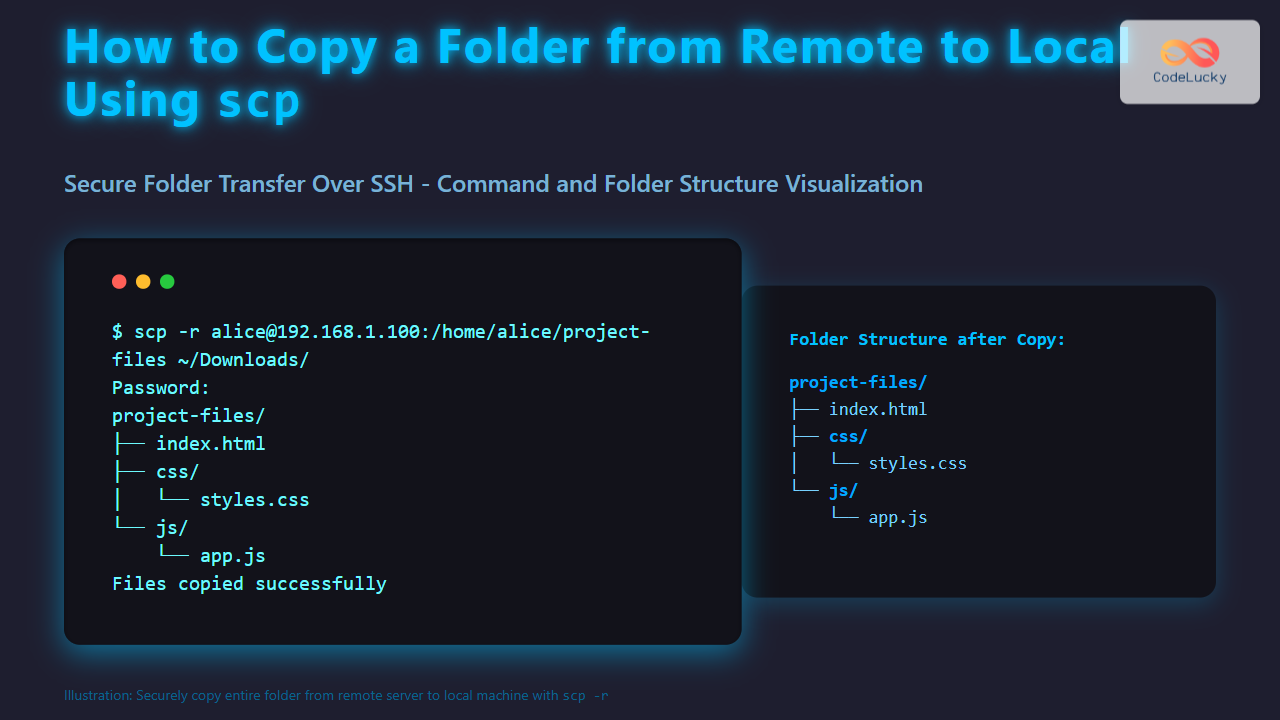
Copying folders from a remote server to your local machine is a common task for developers, system administrators, and tech enthusiasts. The scp (secure copy) command is a powerful tool based on SSH (Secure Shell) that enables secure file transfer between hosts over a network. This article dives deep into how to copy folders from remote to local using scp, with detailed explanations, examples, and useful visual diagrams to solidify your understanding.
What is scp and Why Use It?
scp stands for Secure Copy Protocol. It securely transfers files and directories between remote and local hosts by leveraging SSH encryption, ensuring that your data is protected from eavesdropping or tampering during transit. Unlike plain cp, which works locally, scp works over a network using the same authentication and security as SSH.
Basic Syntax of scp for Copying a Folder
To copy a folder from a remote machine to a local machine, the command syntax is:
scp -r [user@]remote_host:/path/to/remote/folder /path/to/local/destination-r: Recursively copy entire directories.user@remote_host: The remote system SSH login username and hostname or IP address.:/path/to/remote/folder: Absolute or relative path of the remote folder you want to copy./path/to/local/destination: Local directory path where the remote folder will be copied.
Step-by-Step Example
Suppose you want to copy a folder named project-files from a remote server with IP 192.168.1.100, logged in as user alice, to your local machine’s ~/Downloads directory.
scp -r [email protected]:/home/alice/project-files ~/Downloads/When you run this command, you might be prompted for alice‘s password or your SSH key passphrase. Once authenticated, the folder project-files and all its contents will be copied recursively to your local Downloads folder.
Visual Breakdown of the Process

What Happens Behind the Scenes?
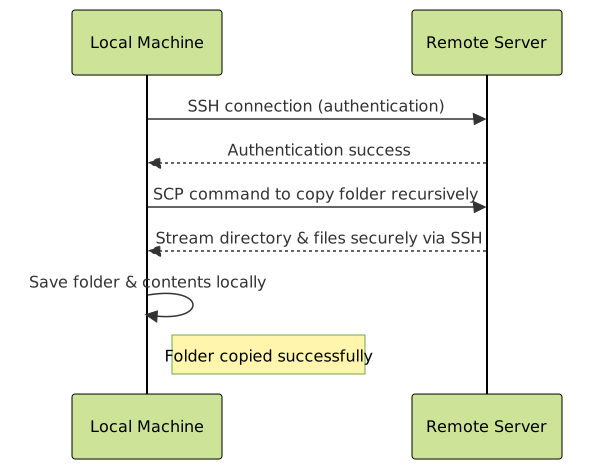
The scp command establishes an SSH connection from your local machine to the remote server using the specified credentials. Upon successful authentication, it uses SSH’s encrypted channel to securely transfer the entire folder with its directory structure intact. The -r flag enables recursive copying, which means all subfolders and files are included.
Additional Useful scp Options
-P port: Specify a non-default SSH port if the server listens on a port other than 22. Example:scp -P 2222 -r user@host:/remote/folder /local/dir-v: Verbose mode to see detailed progress and debug information—helpful for troubleshooting.-C: Enable compression during transfer, which can speed up copying large folders over slow networks.
Example with Custom Port and Compression
scp -r -P 2222 -C [email protected]:/home/alice/project-files ~/Downloads/This copies the folder securely over SSH port 2222 with compression enabled.
Interactive Visual Flow of SCP Folder Copy
Common Errors and How to Fix Them
- Permission denied: Ensure you have the correct SSH credentials and proper read permissions on the remote folder.
- Connection refused: Check if SSH service is running on the remote host and correct port is used.
- No such file or directory: Verify the remote path spelling and existence.
Summary and Best Practices
Using scp with the recursive -r option is the simplest way to securely transfer entire folders from a remote server to your local machine. Remember to specify the correct username, host, remote path, and local destination. Using the -v flag helps diagnose issues, and -P is essential if SSH runs on a custom port.
Mermaid Diagram Summary of Best Practice Workflow

Additional Tips
- For large folder transfers, consider using
rsyncover SSH for faster incremental copying and resuming interrupted transfers. - Ensure your local destination has enough free disk space for the folder being copied.
- For frequent transfers, set up SSH key authentication for passwordless login, making
scpautomation easier.
Conclusion
Mastering scp to copy folders from remote to local machines is essential for managing files securely across networks. The recursive flag -r makes it straightforward to transfer entire directories intact, while options like compression and port specification add flexibility. With the examples and visual aids provided, confidently use scp to accomplish file transfer tasks efficiently and securely.