Windows process management is a fundamental aspect of system administration that every IT professional and power user should master. At the heart of Windows process management lie two critical tools: Task Manager and the Services management console. These tools provide comprehensive control over running processes, system performance monitoring, and service lifecycle management.
Understanding how to effectively use these tools can mean the difference between a smoothly running system and one plagued by performance issues, resource conflicts, and stability problems. This comprehensive guide will walk you through everything you need to know about Windows process management, from basic task termination to advanced service configuration and troubleshooting.
Understanding Windows Processes
Before diving into the tools, it’s essential to understand what processes are in the Windows ecosystem. A process is an instance of a running program that contains the program code and its current activity. Each process has its own memory space, system resources, and execution context.

Windows processes can be categorized into three main types:
- User Processes: Applications launched by users, such as web browsers, text editors, and games
- System Processes: Core Windows components essential for system operation
- Service Processes: Background processes that provide system functionality
Windows Task Manager: Your Process Control Center
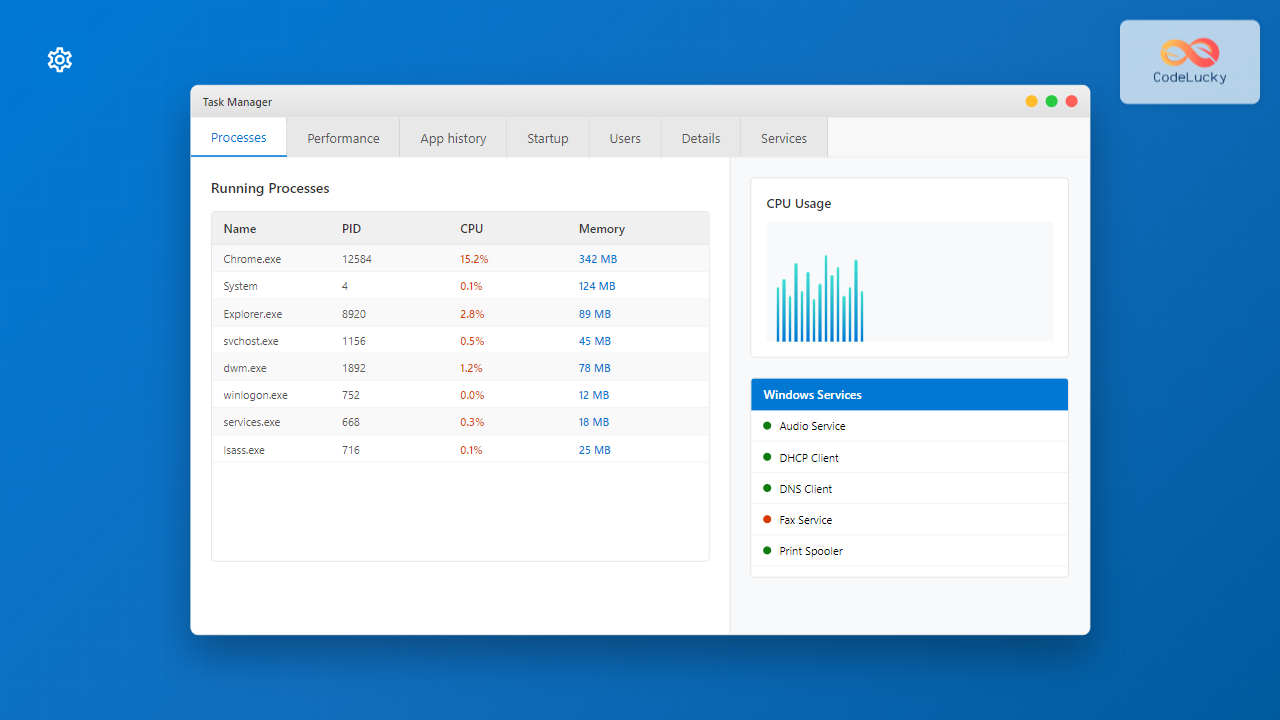
Task Manager is Windows’ built-in process management tool that provides real-time information about running processes, system performance, and resource utilization. Launched by pressing Ctrl + Shift + Esc or Ctrl + Alt + Del, Task Manager offers multiple tabs for different management functions.
Accessing Task Manager
There are several ways to open Task Manager:
- Ctrl + Shift + Esc – Direct shortcut
- Ctrl + Alt + Del then select “Task Manager”
- Right-click on the taskbar and select “Task Manager”
- Press Windows + R, type
taskmgr, and press Enter - Search for “Task Manager” in the Start menu
Task Manager Interface Overview
Modern versions of Task Manager (Windows 10/11) feature a tabbed interface with the following sections:
Processes Tab
The Processes tab is your primary view for managing running applications and background processes. It displays:
- Apps: User-facing applications currently running
- Background processes: System and application processes running in the background
- Windows processes: Core system processes
Each process entry shows resource utilization including CPU, Memory, Disk, and Network usage. You can sort by any column to identify resource-intensive processes.
Performance Tab
The Performance tab provides real-time system monitoring with detailed graphs and metrics for:
- CPU: Processor utilization, speed, and core count
- Memory: RAM usage, available memory, and memory composition
- Disk: Disk activity, read/write speeds for each drive
- Network: Network adapter utilization and throughput
- GPU: Graphics processor utilization (Windows 10/11)

App History Tab
This tab tracks resource usage over time for Microsoft Store apps, helping you identify applications that consume excessive resources even when not actively used.
Startup Tab
The Startup tab manages programs that launch automatically when Windows starts. It shows:
- Program names and publishers
- Startup impact (High, Medium, Low, None)
- Status (Enabled/Disabled)
You can disable unnecessary startup programs to improve boot time and reduce system resource usage.
Users Tab
For systems with multiple user accounts, this tab shows resource usage per user session, allowing administrators to identify which users are consuming system resources.
Details Tab
The Details tab provides comprehensive information about all running processes, including:
- Process ID (PID)
- Process name and description
- CPU and memory usage
- Process priority
- Process architecture (32-bit or 64-bit)
Services Tab
This tab provides a quick view of Windows services, showing service names, PIDs, descriptions, and status. While useful for basic service management, the full Services console offers more comprehensive control.
Common Task Manager Operations
Ending Processes
To terminate a problematic process:
- Select the process in the Processes tab
- Click “End Task” or press Delete
- Confirm the action if prompted
Warning: Ending system processes can cause system instability or crashes. Only terminate processes you’re certain are safe to end.
Setting Process Priority
To adjust process priority for better performance:
- Go to the Details tab
- Right-click on the target process
- Select “Set Priority”
- Choose from: Low, Below Normal, Normal, Above Normal, High, or Realtime
Note: Setting process priority to “Realtime” can make the system unresponsive and should be used with extreme caution.
Creating Dump Files
For debugging crashed applications:
- Right-click on the process in the Details tab
- Select “Create dump file”
- Choose the location to save the dump file
Windows Services Management
Windows Services are background processes that provide system functionality without requiring user interaction. They can start automatically with Windows, run continuously, and operate even when no user is logged in.
Accessing Services Management
The Services management console can be accessed through several methods:
- Press Windows + R, type
services.msc, and press Enter - Open Control Panel → Administrative Tools → Services
- Right-click “This PC” → Manage → Services and Applications → Services
- Search for “Services” in the Start menu
Understanding Service Properties
Each service has several key properties that determine its behavior:
Service Status
- Running: Service is currently active
- Stopped: Service is not running
- Paused: Service is temporarily suspended
- Starting: Service is in the process of starting
- Stopping: Service is in the process of stopping
Startup Type
- Automatic: Starts automatically when Windows boots
- Automatic (Delayed Start): Starts automatically but after other automatic services
- Manual: Starts only when specifically requested
- Disabled: Cannot be started

Critical Windows Services
Understanding key Windows services is crucial for effective system management:
Essential System Services
| Service Name | Description | Startup Type |
|---|---|---|
| Windows Audio | Manages audio for Windows-based programs | Automatic |
| DHCP Client | Manages network configuration via DHCP | Automatic |
| DNS Client | Resolves and caches DNS names | Automatic |
| Windows Firewall | Protects computer from network threats | Automatic |
| Print Spooler | Manages print jobs and printer communication | Automatic |
| Windows Update | Downloads and installs Windows updates | Manual |
Service Management Operations
Starting and Stopping Services
To control service execution:
- Open the Services console
- Locate the target service
- Right-click and select the desired action:
- Start
- Stop
- Pause
- Resume
- Restart
Configuring Service Properties
To modify service configuration:
- Double-click the service name
- In the Properties dialog, configure:
- General tab: Startup type, service status
- Log On tab: Service account settings
- Recovery tab: Actions to take if service fails
- Dependencies tab: Services this service depends on
- Apply changes and restart the service if necessary
Service Recovery Options
The Recovery tab allows you to configure automatic responses to service failures:
- Take No Action: Do nothing when service fails
- Restart the Service: Automatically restart the failed service
- Run a Program: Execute a specific program or script
- Restart the Computer: Reboot the system (use with caution)
Advanced Process and Service Management
Command Line Tools
Windows provides several command-line utilities for advanced process and service management:
Tasklist Command
The tasklist command displays running processes:
# List all running processes
tasklist

# List processes with detailed information
tasklist /v

# Filter processes by name
tasklist /fi "imagename eq notepad.exe"

# List services for each process
tasklist /svc
Taskkill Command
The taskkill command terminates processes:
# Kill process by name
taskkill /im notepad.exe

# Kill process by PID
taskkill /pid 1234

# Force kill unresponsive process
taskkill /f /im problematic_app.exe

# Kill all processes matching criteria
taskkill /f /fi "memusage gt 100000"
SC Command
The sc (Service Control) command manages Windows services:
# Query service status
sc query "Windows Audio"

# Start a service
sc start "Print Spooler"

# Stop a service
sc stop "Windows Update"

# Configure service startup type
sc config "Print Spooler" start= disabled

# Query all services
sc query type= service state= all
PowerShell Process and Service Management
PowerShell provides powerful cmdlets for advanced management:
Process Management Cmdlets
# Get all running processes
Get-Process

# Get specific process information
Get-Process -Name "notepad"

# Stop processes by name
Stop-Process -Name "notepad" -Force

# Get top 5 CPU consuming processes
Get-Process | Sort-Object CPU -Descending | Select-Object -First 5

# Monitor process creation in real-time
Register-WmiEvent -Query "SELECT * FROM Win32_ProcessStartTrace"
Service Management Cmdlets
# Get all services
Get-Service

# Get specific service information
Get-Service -Name "Spooler"

# Start/Stop services
Start-Service -Name "Print Spooler"
Stop-Service -Name "Print Spooler" -Force

# Set service startup type
Set-Service -Name "Print Spooler" -StartupType Disabled

# Get services by status
Get-Service | Where-Object {$_.Status -eq "Running"}
Performance Monitoring and Troubleshooting
Identifying Resource-Heavy Processes
Performance issues often stem from processes consuming excessive system resources. Here’s how to identify and address them:
CPU Usage Analysis
High CPU usage can cause system slowdowns and unresponsiveness:
- Open Task Manager and navigate to the Processes tab
- Click the “CPU” column header to sort by CPU usage
- Identify processes consistently using high CPU percentages
- Research unfamiliar processes before terminating them
Memory Usage Optimization
Excessive memory usage can lead to system instability and slow performance:
- Sort processes by “Memory” in Task Manager
- Look for processes using unusually large amounts of RAM
- Check for memory leaks in long-running applications
- Consider increasing virtual memory if physical RAM is insufficient
Disk Usage Investigation
High disk usage can significantly impact system responsiveness:
- Monitor the “Disk” column in Task Manager
- Use Resource Monitor (resmon.exe) for detailed disk activity analysis
- Check for Windows Update, antivirus scans, or indexing services
- Consider upgrading to an SSD for better performance
Common Service-Related Issues
Service Startup Failures
When services fail to start, check:
- Event Viewer for detailed error messages
- Service dependencies in the Dependencies tab
- User account permissions for the service
- Corrupted service files or registry entries
Service Performance Problems
If services are running but performing poorly:
- Monitor resource usage in Task Manager
- Check service configuration for optimization settings
- Review service logs for error patterns
- Consider service account permissions and privileges
Security Considerations
Identifying Malicious Processes
Malware often disguises itself as legitimate processes. Red flags include:
- Processes with suspicious names or locations
- High resource usage from unknown processes
- Processes that restart immediately after termination
- Multiple instances of system processes that should be unique
- Processes running from temporary directories
Service Security Best Practices
Secure service management involves:
- Running services with minimal required privileges
- Regularly reviewing enabled services and disabling unnecessary ones
- Monitoring service account permissions
- Keeping services updated with security patches
- Using dedicated service accounts instead of system accounts when possible

Automation and Scripting
Batch Scripts for Process Management
Create automated solutions for common tasks:
@echo off
REM Kill multiple processes
taskkill /f /im chrome.exe
taskkill /f /im firefox.exe
taskkill /f /im edge.exe
echo Browsers terminated successfully.

REM Restart critical services
net stop "Print Spooler"
net start "Print Spooler"
echo Print Spooler service restarted.
PowerShell Automation Scripts
PowerShell scripts for advanced automation:
# Monitor and restart failed services
$CriticalServices = @("Spooler", "AudioSrv", "Dhcp")

foreach ($Service in $CriticalServices) {
    $ServiceStatus = Get-Service -Name $Service
    if ($ServiceStatus.Status -ne "Running") {
        Write-Host "Restarting $Service..."
        Start-Service -Name $Service
    }
}

# Clean up resource-heavy processes
Get-Process | Where-Object {$_.WorkingSet -gt 500MB} |
    Select-Object Name, Id, WorkingSet |
    Format-Table -AutoSize
Best Practices and Recommendations
Daily Process Management
- Regularly monitor system performance through Task Manager
- Keep a baseline understanding of normal resource usage
- Investigate any unusual process behavior immediately
- Document any process terminations or service changes
- Use Performance Monitor for detailed, long-term analysis
Service Management Guidelines
- Only disable services you understand completely
- Test service changes in a non-production environment first
- Document all service configuration changes
- Regularly review service startup types and dependencies
- Implement proper backup procedures before major changes
Troubleshooting Methodology
- Identify the Problem: Clearly define performance issues or error symptoms
- Gather Information: Use Task Manager, Event Viewer, and system logs
- Form Hypothesis: Based on gathered data, identify likely causes
- Test Solutions: Implement fixes systematically, one at a time
- Verify Results: Confirm that the problem is resolved
- Document Changes: Record what was done for future reference
Conclusion
Mastering Windows process and service management is essential for maintaining optimal system performance, security, and stability. The combination of Task Manager’s user-friendly interface and the Services console’s comprehensive control provides everything needed for effective system administration.
Whether you’re troubleshooting performance issues, optimizing startup times, or securing your system against threats, understanding these tools and techniques will serve you well. Regular monitoring, proactive management, and adherence to security best practices will keep your Windows systems running smoothly and efficiently.
Remember that with great power comes great responsibility – always research and understand the impact of process termination or service modification before making changes. When in doubt, consult documentation, seek expert advice, or test changes in a controlled environment first.
By applying the knowledge and techniques covered in this guide, you’ll be well-equipped to handle any Windows process or service management challenge that comes your way.
Related Posts
Windows Services: Complete Guide to Background Process Management and Administration
Windows Services form the backbone of the Windows operating system, running silently in the background to provide essential functionality that...
Operating System Functions: Core Components and System Responsibilities
An operating system (OS) serves as the fundamental software layer that manages computer hardware resources and provides essential services to...
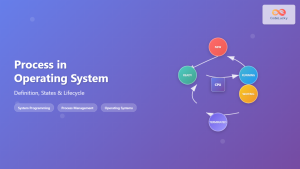
Process in Operating System: Complete Guide to Definition, States and Lifecycle
What is a Process in Operating System? A process is a program in execution that consists of the program code...

Process Scheduling in Operating System: Algorithms, Types & Implementation Guide
Process scheduling is one of the most critical components of an operating system that determines how the CPU time is...
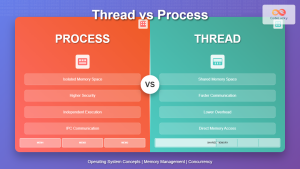
Thread vs Process: Complete Guide to Differences and When to Use Each
Understanding the fundamental differences between threads and processes is crucial for system programming, application design, and performance optimization. While both...
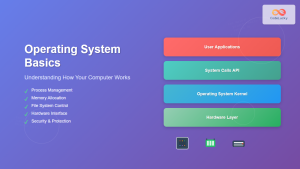
Operating System Basics: Complete Guide to What is an OS and How it Works
An operating system (OS) is the fundamental software that manages computer hardware and software resources, acting as an intermediary between...
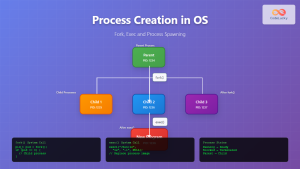
Process Creation in OS: Fork, Exec and Process Spawning Complete Guide
Introduction to Process Creation in Operating Systems Process creation is one of the fundamental concepts in operating systems that enables...
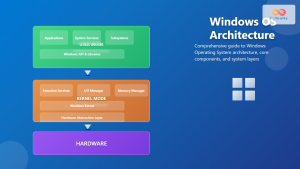
Windows Operating System: Complete Guide to Architecture and Core Components
The Windows Operating System stands as one of the most widely used operating systems globally, powering billions of devices from...
Garbage Collection in Operating System: Complete Guide to Automatic Memory Management
What is Garbage Collection in Operating Systems? Garbage collection is an automatic memory management technique used by operating systems and...

ps Command in Linux: Complete Guide to Process Monitoring and Management
The ps command is one of the most fundamental and powerful tools in Linux for displaying information about running processes....
Thread in Operating System: Lightweight Processes and Multithreading Explained
What are Threads in Operating Systems? A thread is the smallest unit of execution within a process that can be...
Multithreading in Operating Systems: Benefits, Challenges, and Implementation Guide
What is Multithreading in Operating Systems? Multithreading is a fundamental concept in modern operating systems that allows a single process...