
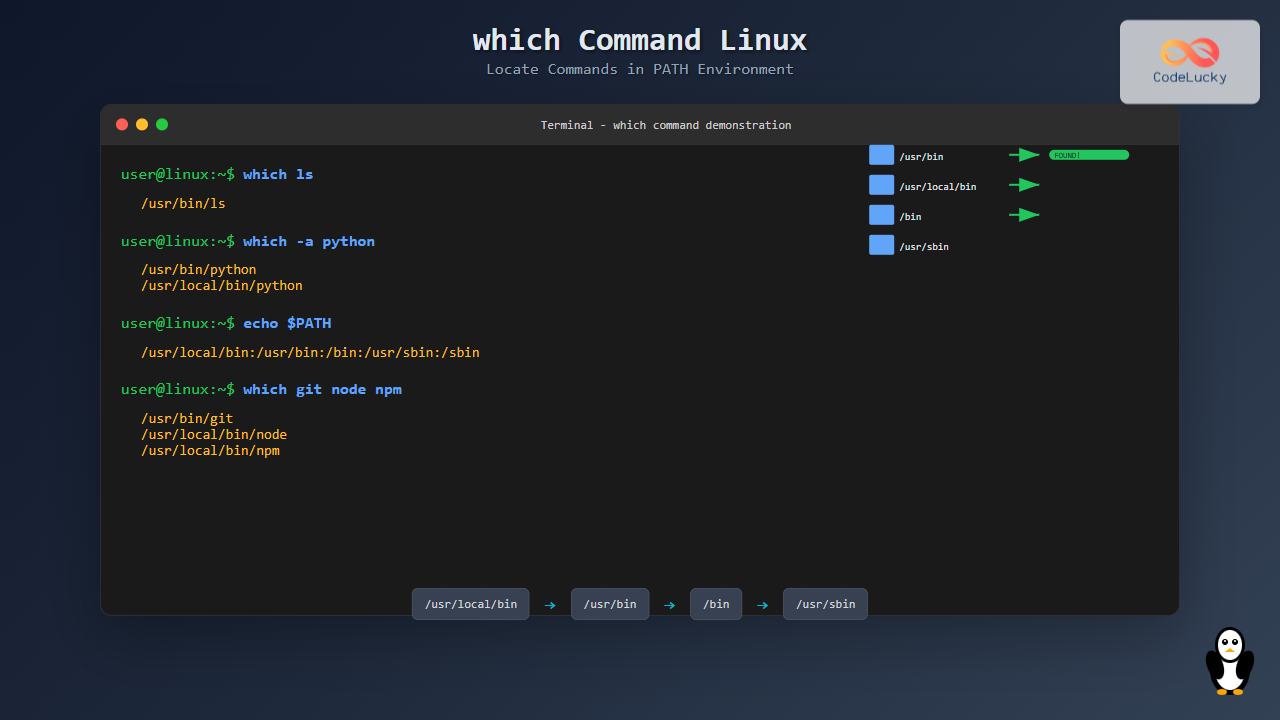
The which command is a fundamental Linux utility that helps you locate executable files in your system’s PATH environment variable. Whether you’re a system administrator, developer, or Linux enthusiast, understanding how to use the which command effectively is crucial for troubleshooting, scripting, and system management.
What is the which Command?
The which command searches through the directories listed in your PATH environment variable to find the location of executable files. When you type a command in the terminal, the shell uses the same search mechanism that which employs to locate and execute the program.
Basic Syntax
which [options] command_nameUnderstanding PATH Environment Variable
Before diving into which command examples, it’s essential to understand the PATH variable. You can view your current PATH by running:
echo $PATHSample Output:
/usr/local/sbin:/usr/local/bin:/usr/sbin:/usr/bin:/sbin:/bin:/usr/games:/usr/local/gamesThe PATH contains colon-separated directory paths where the shell searches for executable files.
Basic which Command Examples
Locating a Single Command
which lsOutput:
/usr/bin/lsThis shows that the ls command is located in the /usr/bin directory.
Locating Multiple Commands
which ls cat grepOutput:
/usr/bin/ls
/usr/bin/cat
/usr/bin/grep
Command Not Found
which nonexistent_commandOutput:
(no output - command exits with status 1)which Command Options
-a (Show All Matches)
By default, which shows only the first match. Use -a to display all instances:
which -a pythonSample Output:
/usr/bin/python
/usr/local/bin/python
–version (Display Version)
which --versionOutput:
GNU which v2.21, Copyright (C) 1999 - 2015 Carlo Wood.
GNU which comes with ABSOLUTELY NO WARRANTY;
This program is free software; your freedom to use, change
and distribute this program is protected by the GPL.
–help (Display Help)
which --helpPractical Use Cases
Checking if a Command Exists
Use which in scripts to verify if a required command is available:
#!/bin/bash
if which git > /dev/null 2>&1; then
    echo "Git is installed"
else
    echo "Git is not installed"
fi
Finding Command Conflicts
When you have multiple versions of the same program:
which -a nodeSample Output:
/usr/local/bin/node
/usr/bin/node
Debugging PATH Issues
If a command isn’t working as expected, check its location:
which python3Output:
/usr/bin/python3which vs. whereis vs. locate
which Command
- Searches only in PATH directories
- Shows executable files only
- Fast and lightweight
whereis Command
whereis lsOutput:
ls: /usr/bin/ls /usr/share/man/man1/ls.1.gzShows binaries, source code, and manual pages.
locate Command
locate pythonSearches entire filesystem database (requires updatedb).
Advanced which Command Usage
Using which with Aliases
The which command doesn’t show shell aliases. Use type instead:
alias ll='ls -la'
which ll    # Shows nothing
type ll     # Shows: ll is aliased to `ls -la'
which in Shell Scripts
Here’s a robust script example:
#!/bin/bash
REQUIRED_COMMANDS="git node npm"

for cmd in $REQUIRED_COMMANDS; do
    if ! which "$cmd" >/dev/null 2>&1; then
        echo "Error: $cmd is not installed or not in PATH"
        exit 1
    fi
done

echo "All required commands are available"
Common Issues and Solutions
Command Not Found Despite Being Installed
Problem: which myprogram returns nothing, but the program is installed.
Solution:
- Check if the program’s directory is in PATH
- Add the directory to PATH if needed:
export PATH=$PATH:/path/to/program/directoryDifferent Results in Different Shells
Different shells might have different PATH configurations. Check your shell’s configuration files:
- Bash:
~/.bashrc,~/.bash_profile - Zsh:
~/.zshrc - Fish:
~/.config/fish/config.fish
Alternative Methods
Using command -v
command -v lsOutput:
/usr/bin/lsThis is POSIX-compliant and works with built-ins, aliases, and functions.
Using type Command
type lsOutput:
ls is /usr/bin/lsPerformance Considerations
The which command is generally fast, but performance can vary based on:
- PATH length: Longer PATH variables take more time to search
- Number of directories: More directories mean more filesystem lookups
- Network filesystems: NFS-mounted directories can slow down searches
Security Implications
Understanding command locations is crucial for security:
PATH Injection Attacks
Malicious scripts might modify PATH to execute harmful programs:
# Check for suspicious PATH modifications
echo $PATH | grep -E "(^|:)\." && echo "Warning: Current directory in PATH"
Verifying Command Integrity
# Check if a command is where it should be
expected_path="/usr/bin/sudo"
actual_path=$(which sudo)

if [ "$actual_path" != "$expected_path" ]; then
    echo "Warning: sudo location unexpected"
fi
Integration with Other Commands
Combining with xargs
echo "ls cat grep" | xargs -n1 whichOutput:
/usr/bin/ls
/usr/bin/cat
/usr/bin/grep
Using with find
Find all executables in a directory and check which are in PATH:
find /usr/local/bin -type f -executable | while read file; do
    basename_file=$(basename "$file")
    if which "$basename_file" > /dev/null 2>&1; then
        echo "$basename_file is in PATH"
    fi
done
Troubleshooting Tips
Command Execution Issues
If a command exists but won’t run:
- Check permissions:
ls -la $(which command_name) - Verify it’s executable:
file $(which command_name) - Check for missing dependencies:
ldd $(which command_name)
Shell-Specific Behavior
Some shells have built-in which commands with different behaviors. Use the system which explicitly:
/usr/bin/which command_nameBest Practices
- Always check return codes when using
whichin scripts - Use absolute paths in production scripts for critical commands
- Document PATH requirements in your application documentation
- Regularly audit your PATH for security and cleanliness
- Use
command -vinstead ofwhichin POSIX-compliant scripts
Conclusion
The which command is an indispensable tool for Linux users and administrators. It provides a quick way to locate executables, troubleshoot PATH issues, and ensure system reliability. By mastering its usage along with related commands like whereis, type, and command -v, you’ll have a comprehensive toolkit for managing and understanding your Linux system’s command structure.
Remember that while which is useful for interactive use, consider using command -v in scripts for better portability and functionality. Understanding these subtle differences will make you a more effective Linux user and help you write more robust shell scripts.
Related Posts
which Command Linux: Complete Guide to Finding Executable File Locations
The which command is one of the most fundamental utilities in Linux and Unix-like systems, designed to help users locate...
type Command Linux: Complete Guide to Display Command Type and Location
The type command is an essential Linux utility that helps you identify the nature and location of commands in your...
pwd Command in Linux: Complete Guide to Display Current Working Directory Path
The pwd command is one of the fundamental Linux commands that every user should master. Standing for "Print Working Directory,"...

whereis Command Linux: Complete Guide to Locate Binary, Source and Manual Pages
The whereis command is a powerful Linux utility that helps system administrators and developers quickly locate binary executables, source files,...
source Command Linux: Execute Scripts and Load Functions Efficiently
The source command in Linux is a powerful built-in shell command that executes commands from a file within the current...
env Command Linux: Complete Guide to Display Environment Variables
Environment variables are crucial components of any Linux system, storing configuration data and system information that applications and processes rely...
cd Command Linux: Complete Guide to Directory Navigation in Terminal
The cd command is one of the most fundamental and frequently used commands in Linux and Unix-like operating systems. Standing...
find Command Linux: Ultimate Guide to Search Files and Directories by Name, Size, and Attributes
The find command is one of the most powerful and versatile tools in Linux for searching files and directories. Whether...
sh Command Linux: Complete Guide to Shell Script Execution and Commands
The sh command is one of the most fundamental tools in Linux and Unix-like systems, serving as the standard shell...

bash Command Linux: Start New Shell Sessions and Execute Scripts Efficiently
The bash command is one of the most fundamental tools in Linux systems, serving as both a command-line interpreter and...
export Command Linux: Complete Guide to Environment Variables Management
The export command is one of the most fundamental tools in Linux for managing environment variables. Whether you're a system...

locate Command in Linux: Fast File Search Using Database Indexing
The locate command is one of Linux's most efficient file search utilities, offering lightning-fast results by leveraging a pre-built database...





