
The which command is one of the most fundamental utilities in Linux and Unix-like systems, designed to help users locate executable files within their system’s PATH environment variable. Whether you’re a system administrator, developer, or Linux enthusiast, understanding how to effectively use the which command is essential for troubleshooting, script writing, and system management.
What is the which Command?
The which command searches through the directories listed in your PATH environment variable to find the location of executable files. When you type a command in the terminal, the shell uses the same search mechanism that which employs to locate and execute the program.
Unlike other file-finding commands such as find or locate, which specifically looks for executable files that can be run directly from the command line without specifying their full path.
Basic Syntax and Usage
The basic syntax of the which command is straightforward:
which [options] command_nameLet’s start with some basic examples:
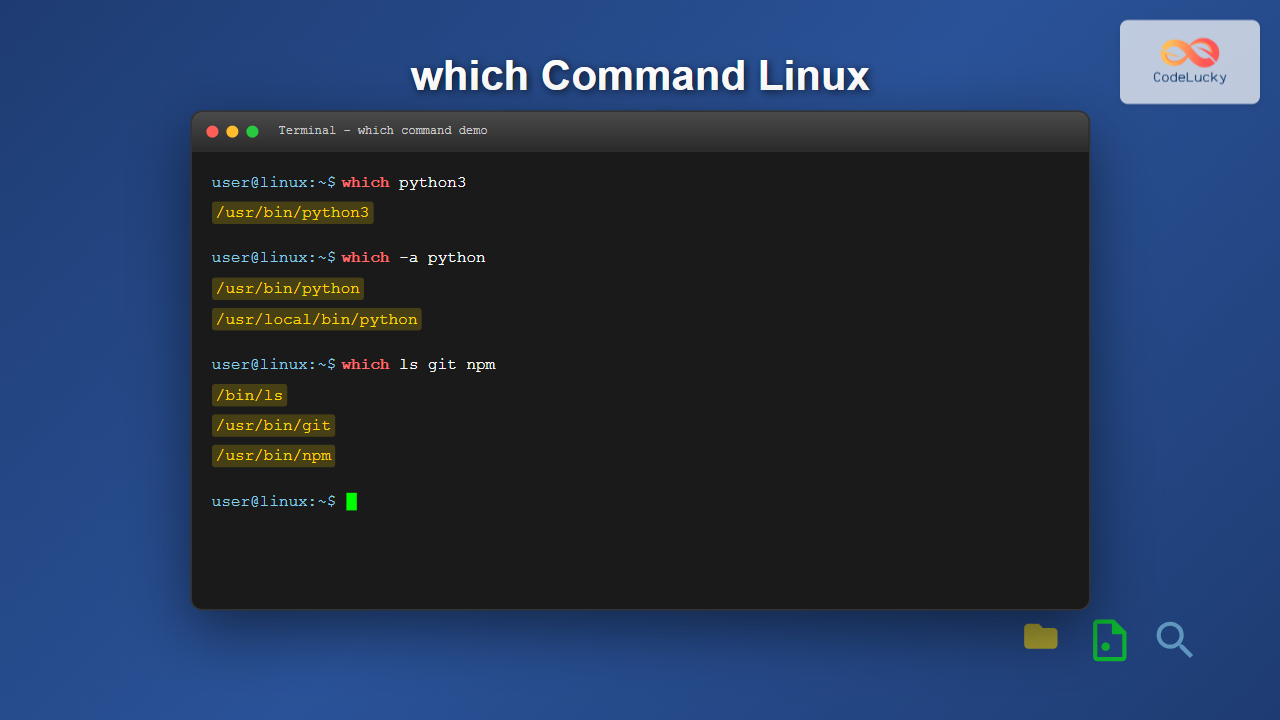
$ which ls
/bin/ls

$ which python3
/usr/bin/python3

$ which grep
/bin/grep
In these examples, which returns the full path to each executable, showing exactly where these commands are located on your system.
Common Command Options
-a (–all) Option
By default, which returns only the first occurrence of an executable found in the PATH. The -a option displays all instances:
$ which -a python
/usr/bin/python
/bin/python
This is particularly useful when you have multiple versions of the same program installed in different locations.
–skip-alias Option
When you have shell aliases defined, which might return the alias instead of the actual executable. Use --skip-alias to bypass aliases:
$ alias ls='ls --color=auto'
$ which ls
alias ls='ls --color=auto'
    /bin/ls

$ which --skip-alias ls
/bin/ls
–skip-functions Option
Similar to aliases, shell functions can interfere with which output. This option skips function definitions:
$ which --skip-functions command_namePractical Examples and Use Cases
Checking if a Command Exists
One of the most common uses of which is to verify if a particular command is available on the system:
$ which docker
/usr/bin/docker

$ which nonexistent-command
which: no nonexistent-command in (/usr/local/bin:/usr/bin:/bin:/usr/local/games:/usr/games)
The exit status of which can be used in scripts for conditional execution:
if which docker > /dev/null 2>&1; then
    echo "Docker is installed"
    docker --version
else
    echo "Docker is not installed"
fi
Finding Multiple Program Versions
When dealing with programming languages or tools that might have multiple versions installed:
$ which -a python
/usr/bin/python
/usr/local/bin/python

$ which -a gcc
/usr/bin/gcc
/usr/local/bin/gcc
Debugging PATH Issues
If a command isn’t working as expected, which can help identify PATH-related problems:
$ echo $PATH
/usr/local/bin:/usr/bin:/bin:/usr/local/games:/usr/games

$ which my-custom-script
which: no my-custom-script in (/usr/local/bin:/usr/bin:/bin:/usr/local/games:/usr/games)
Advanced Usage Scenarios
Using which in Shell Scripts
The which command is invaluable in shell scripts for ensuring dependencies are available:
#!/bin/bash

# Check for required commands
required_commands=("git" "node" "npm")

for cmd in "${required_commands[@]}"; do
    if ! which "$cmd" > /dev/null 2>&1; then
        echo "Error: $cmd is not installed or not in PATH"
        exit 1
    fi
done

echo "All required commands are available"
Combining with Other Commands
You can combine which with other commands for more complex operations:
# Get detailed information about an executable
$ ls -la $(which python3)
-rwxr-xr-x 1 root root 5494584 Mar 13 16:30 /usr/bin/python3

# Edit a script directly
$ nano $(which my-script)

# Check the type of file
$ file $(which ls)
/bin/ls: ELF 64-bit LSB shared object, x86-64
Understanding the PATH Environment Variable
To fully utilize which, it’s crucial to understand how the PATH variable works:
$ echo $PATH
/usr/local/bin:/usr/bin:/bin:/usr/local/games:/usr/games

# Add a directory to PATH temporarily
$ export PATH=$PATH:/home/user/bin

# Check if the change affected which
$ which my-custom-command
The order of directories in PATH matters – the shell searches from left to right and uses the first match found.
Troubleshooting Common Issues
Command Not Found
When which cannot find a command, consider these solutions:
- Check if the program is installed: Use your package manager to verify installation
- Verify PATH includes the program’s directory: Some programs install to non-standard locations
- Check file permissions: The file must be executable
- Consider shell built-ins: Some commands are built into the shell and won’t appear in
which
Multiple Versions Conflict
When multiple versions of a program exist:
$ which -a python
/usr/local/bin/python
/usr/bin/python

# To use a specific version, either:
# 1. Use the full path
/usr/local/bin/python script.py

# 2. Modify PATH order
export PATH=/usr/local/bin:$PATH
Alternative Commands
While which is widely used, there are alternatives worth knowing:
type Command
The type command provides more detailed information and works with shell built-ins:
$ type ls
ls is aliased to `ls --color=auto'

$ type cd
cd is a shell builtin

$ type python3
python3 is /usr/bin/python3
whereis Command
The whereis command finds binary, source, and manual files:
$ whereis python3
python3: /usr/bin/python3 /usr/lib/python3 /etc/python3 /usr/share/man/man1/python3.1.gz
Best Practices and Tips
- Use in Scripts: Always check for command availability in production scripts
- Combine with Error Handling: Use exit codes to handle missing dependencies gracefully
- Document Dependencies: List required commands in your project documentation
- Test Across Environments: Different systems may have commands in different locations
- Consider Portability: Some systems might not have
whichinstalled by default
Security Considerations
Be aware of potential security implications when using which:
- PATH Injection: Malicious directories in PATH can lead to executing unintended programs
- Symlink Attacks: Verify that found executables are legitimate
- Privilege Escalation: Be cautious when running commands found via
whichwith elevated privileges
# Verify the integrity of critical commands
$ ls -la $(which sudo)
-rwsr-xr-x 1 root root 149080 Jan 19 12:00 /usr/bin/sudo
Performance Considerations
While which is generally fast, consider these performance aspects:
- PATH Length: Longer PATH variables mean more directories to search
- Network Mounted Directories: Avoid including slow network paths in PATH when possible
- Caching: Some shells cache command locations for better performance
Integration with Development Workflows
Developers often use which in various contexts:
# In Makefiles
check-deps:
    @which docker || (echo "Docker required" && exit 1)
    @which node || (echo "Node.js required" && exit 1)

# In CI/CD pipelines
script:
  - which python3 && python3 --version
  - which pip3 && pip3 --version
Conclusion
The which command is an indispensable tool for Linux users, offering a simple yet powerful way to locate executable files within the system PATH. From basic command verification to complex script dependency checking, mastering which enhances your ability to work effectively with Linux systems.
Whether you’re troubleshooting why a command isn’t working, writing portable shell scripts, or managing multiple versions of software, the which command provides the foundation for understanding and controlling your executable environment. Combined with related commands like type and whereis, it forms part of a comprehensive toolkit for system administration and development tasks.
Remember to consider security implications, test across different environments, and use which as part of robust error handling in your scripts. With these practices in mind, you’ll be well-equipped to leverage this essential Linux command effectively in your daily workflow.
Related Posts
which Command Linux: Complete Guide to Locating Executable Commands in PATH
The which command is a fundamental Linux utility that helps you locate executable files in your system's PATH environment variable....
type Command Linux: Complete Guide to Display Command Type and Location
The type command is an essential Linux utility that helps you identify the nature and location of commands in your...

whereis Command Linux: Complete Guide to Locate Binary, Source and Manual Pages
The whereis command is a powerful Linux utility that helps system administrators and developers quickly locate binary executables, source files,...
pwd Command in Linux: Complete Guide to Display Current Working Directory Path
The pwd command is one of the fundamental Linux commands that every user should master. Standing for "Print Working Directory,"...
find Command Linux: Ultimate Guide to Search Files and Directories by Name, Size, and Attributes
The find command is one of the most powerful and versatile tools in Linux for searching files and directories. Whether...

locate Command in Linux: Fast File Search Using Database Indexing
The locate command is one of Linux's most efficient file search utilities, offering lightning-fast results by leveraging a pre-built database...
source Command Linux: Execute Scripts and Load Functions Efficiently
The source command in Linux is a powerful built-in shell command that executes commands from a file within the current...

locate Command Advanced Linux: Database Search Optimization Techniques
The locate command is one of Linux's most powerful file search utilities, offering lightning-fast file discovery through its pre-built database...
env Command Linux: Complete Guide to Display Environment Variables
Environment variables are crucial components of any Linux system, storing configuration data and system information that applications and processes rely...
cd Command Linux: Complete Guide to Directory Navigation in Terminal
The cd command is one of the most fundamental and frequently used commands in Linux and Unix-like operating systems. Standing...

file Command Advanced Linux: Master Detailed File Type Analysis and Detection
The file command is one of the most powerful and underutilized utilities in Linux for determining file types and analyzing...
sh Command Linux: Complete Guide to Shell Script Execution and Commands
The sh command is one of the most fundamental tools in Linux and Unix-like systems, serving as the standard shell...
- What is the which Command?
- Basic Syntax and Usage
- Common Command Options
- Practical Examples and Use Cases
- Advanced Usage Scenarios
- Understanding the PATH Environment Variable
- Troubleshooting Common Issues
- Alternative Commands
- Best Practices and Tips
- Security Considerations
- Performance Considerations
- Integration with Development Workflows
- Conclusion





