
The update-grub command is an essential tool for Linux system administrators and users who need to manage their GRUB (Grand Unified Bootloader) configuration. This comprehensive guide covers everything you need to know about using update-grub effectively, from basic usage to advanced troubleshooting scenarios.
What is update-grub?
update-grub is a convenience script that automatically generates or updates the GRUB configuration file (/boot/grub/grub.cfg) based on the settings in /etc/default/grub and the scripts in /etc/grub.d/. This command is primarily available on Debian-based distributions like Ubuntu, while other distributions may use grub-mkconfig directly.
Key Functions of update-grub
- Scans for installed operating systems and kernels
- Updates boot menu entries automatically
- Applies configuration changes from
/etc/default/grub - Generates a new
grub.cfgfile - Maintains proper boot order and options
Basic Syntax and Usage
The basic syntax for update-grub is straightforward:
sudo update-grubThis command must be run with root privileges (using sudo) because it modifies system boot configuration files.
Example Output
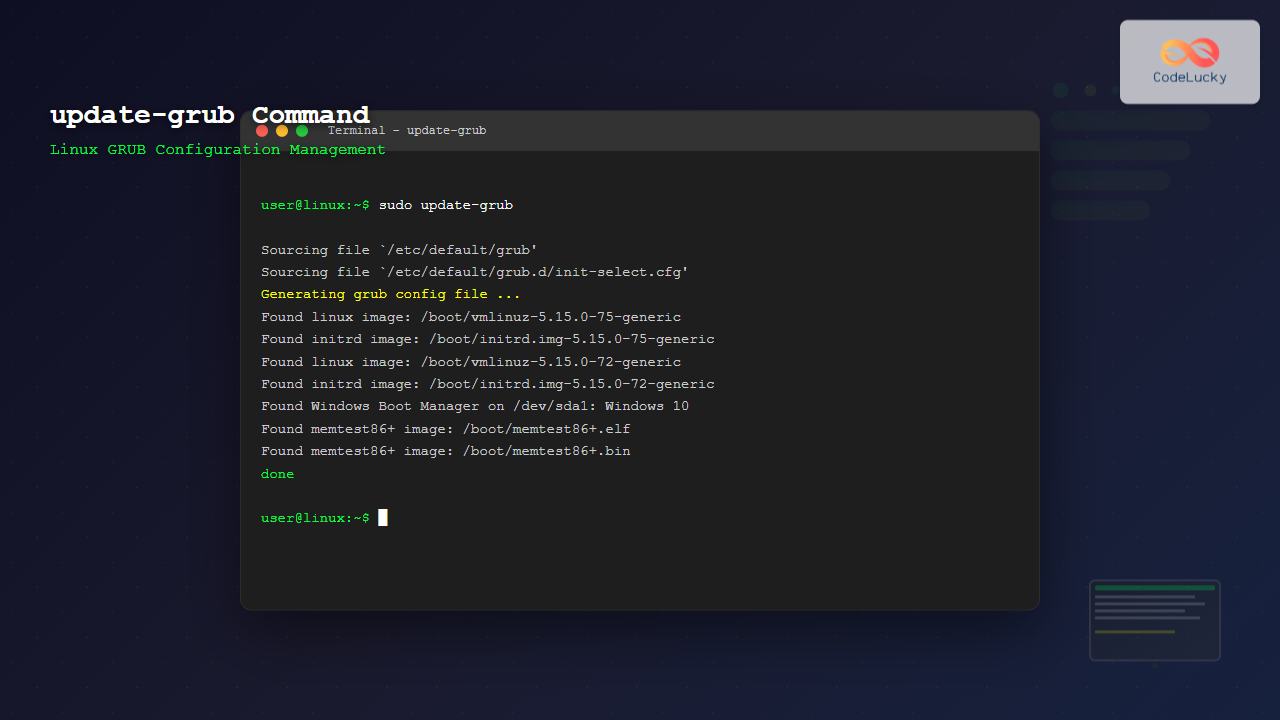
When you run update-grub, you’ll see output similar to this:
$ sudo update-grub
Sourcing file `/etc/default/grub'
Sourcing file `/etc/default/grub.d/init-select.cfg'
Generating grub config file ...
Found linux image: /boot/vmlinuz-5.15.0-75-generic
Found initrd image: /boot/initrd.img-5.15.0-75-generic
Found linux image: /boot/vmlinuz-5.15.0-72-generic
Found initrd image: /boot/initrd.img-5.15.0-72-generic
Found Windows Boot Manager on /dev/sda1: Windows 10
Found memtest86+ image: /boot/memtest86+.elf
Found memtest86+ image: /boot/memtest86+.bin
done
When to Use update-grub
You should run update-grub in the following scenarios:
1. After Kernel Updates
When new kernel versions are installed, update-grub ensures they appear in the boot menu:
# After installing a new kernel
sudo apt install linux-image-generic
sudo update-grub
2. After Modifying GRUB Configuration
Any changes to /etc/default/grub require running update-grub:
# Edit GRUB configuration
sudo nano /etc/default/grub
# Apply changes
sudo update-grub
3. After Installing New Operating Systems
When dual-booting or multi-booting systems, update-grub detects new OS installations:
sudo update-grub4. After Hardware Changes
Significant hardware changes may require GRUB configuration updates.
Common Configuration Changes
Changing Default Boot Option
To change which OS or kernel boots by default, modify the GRUB_DEFAULT parameter:
# Edit /etc/default/grub
GRUB_DEFAULT=0                    # First menu entry
GRUB_DEFAULT=2                    # Third menu entry
GRUB_DEFAULT="saved"              # Remember last selection
GRUB_DEFAULT="1>2"                # Submenu selection
After making changes:
sudo update-grubModifying Boot Timeout
Control how long the GRUB menu displays:
# In /etc/default/grub
GRUB_TIMEOUT=10                   # 10 seconds
GRUB_TIMEOUT=0                    # Boot immediately
GRUB_TIMEOUT=-1                   # Wait indefinitely
Adding Kernel Parameters
Add persistent kernel boot parameters:
# In /etc/default/grub
GRUB_CMDLINE_LINUX_DEFAULT="quiet splash acpi=off"
GRUB_CMDLINE_LINUX="net.ifnames=0 biosdevname=0"
Advanced update-grub Options
Verbose Output
For detailed information during the update process:
sudo update-grub --verboseOutput to Specific File
Generate configuration to a custom location:
sudo grub-mkconfig -o /boot/grub/grub.cfg.backupTroubleshooting update-grub Issues
Common Error: Permission Denied
If you encounter permission errors:
# Error example
update-grub: command not found
# Or
/usr/sbin/grub-mkconfig: 284: cannot create /boot/grub/grub.cfg: Permission denied
Solution: Always use sudo:
sudo update-grubMissing Kernels in Boot Menu
If kernels don’t appear after installation:
# Check if kernel files exist
ls -la /boot/vmlinuz*
ls -la /boot/initrd*

# Regenerate configuration
sudo update-grub
GRUB Configuration Backup
Always backup your working configuration before making changes:
# Backup current configuration
sudo cp /boot/grub/grub.cfg /boot/grub/grub.cfg.backup

# If something goes wrong, restore backup
sudo cp /boot/grub/grub.cfg.backup /boot/grub/grub.cfg
Distribution-Specific Considerations
Ubuntu and Debian
These distributions include update-grub as a wrapper script:
sudo update-grubRed Hat, CentOS, and Fedora
Use grub2-mkconfig instead:
# BIOS systems
sudo grub2-mkconfig -o /boot/grub2/grub.cfg

# UEFI systems
sudo grub2-mkconfig -o /boot/efi/EFI/centos/grub.cfg
Arch Linux
Use grub-mkconfig directly:
sudo grub-mkconfig -o /boot/grub/grub.cfgInteractive Example: Customizing GRUB Timeout
Let’s walk through a complete example of changing the GRUB timeout:
Step 1: Check Current Configuration
$ grep GRUB_TIMEOUT /etc/default/grub
GRUB_TIMEOUT=5
Step 2: Edit Configuration
sudo nano /etc/default/grubChange the line to:
GRUB_TIMEOUT=3Step 3: Apply Changes
$ sudo update-grub
Sourcing file `/etc/default/grub'
Generating grub config file ...
Found linux image: /boot/vmlinuz-5.15.0-75-generic
Found initrd image: /boot/initrd.img-5.15.0-75-generic
done
Step 4: Verify Changes
$ grep "timeout" /boot/grub/grub.cfg
set timeout_style=menu
set timeout=3
Best Practices and Security Tips
Regular Backups
Create automated backups of your GRUB configuration:
# Create backup script
#!/bin/bash
cp /boot/grub/grub.cfg /boot/grub/grub.cfg.$(date +%Y%m%d)
find /boot/grub/ -name "grub.cfg.*" -mtime +30 -delete
Test Changes Safely
Always test GRUB changes in a safe environment or with recovery options available:
- Keep a live USB/CD handy for recovery
- Document your changes
- Test boot process after modifications
Monitor Boot Process
After running update-grub, verify the boot process works correctly:
# Check boot logs
sudo journalctl -b -u systemd-boot
Automating update-grub
For systems that frequently receive kernel updates, consider automating the process:
#!/bin/bash
# Auto-update GRUB after kernel updates
if [ -f /var/run/reboot-required ]; then
    sudo update-grub
    echo "GRUB configuration updated after kernel update"
fi
Conclusion
The update-grub command is a powerful tool for maintaining your Linux system’s boot configuration. By understanding when and how to use it properly, you can ensure smooth system boots, manage multiple operating systems effectively, and troubleshoot boot-related issues. Remember to always backup your configuration before making changes and test thoroughly after modifications.
Regular use of update-grub after system changes helps maintain a reliable and up-to-date boot environment, making it an essential command in every Linux administrator’s toolkit.
Related Posts
grub-mkconfig Command Linux: Complete Guide to Generate GRUB Configuration Files
The grub-mkconfig command is an essential tool for Linux system administrators and users who need to manage their system's boot...
grub-install Command Linux: Complete Guide to Install GRUB Bootloader
The grub-install command is a critical system administration tool in Linux that installs the GRUB (Grand Unified Bootloader) bootloader to...
efibootmgr Command Linux: Complete Guide to EFI Boot Manager Control
The efibootmgr command is an essential Linux utility for managing EFI (Extensible Firmware Interface) boot entries on UEFI-enabled systems. This...
update-initramfs Command Linux: Complete Guide to Initial RAM Filesystem Management
The update-initramfs command is a crucial Linux system administration tool that manages the initial RAM filesystem (initramfs). This command creates,...

update-rc.d Command Linux: Complete Guide to Managing System Services and Run Levels
The update-rc.d command is a powerful utility in Debian-based Linux distributions that manages the symbolic links for System V init...
modprobe Command Linux: Complete Guide to Load and Manage Kernel Modules
The modprobe command is one of the most powerful tools in Linux system administration for managing kernel modules. Whether you're...

Linux Commands Tutorial: Complete Beginner’s Guide to Terminal Basics
The Linux terminal is a powerful command-line interface that gives you direct control over your operating system. While it might...

MySQL Update Statement: Modifying Your Data Safely & Efficiently
The UPDATE statement is your primary tool for modifying existing data in a MySQL database. Whether you need to correct...
sudo Command Linux: Execute Commands as Another User with Full Administrative Control
The sudo command is one of the most powerful and essential tools in Linux system administration. Short for "superuser do"...

Puppet Linux: Complete Configuration Management Guide for System Administrators
Puppet is a powerful configuration management tool that revolutionizes how system administrators manage Linux infrastructure. By automating system configuration, software...
usermod Command Linux: Complete Guide to Modify User Account Properties
The usermod command is a powerful Linux utility that allows system administrators to modify existing user account properties without deleting...
service Command Linux: Complete Guide to Managing System Services
The service command is a fundamental tool in Linux system administration that allows you to manage system services and daemons...





