
The type command is an essential Linux utility that helps you identify the nature and location of commands in your shell environment. Whether you’re troubleshooting script issues, understanding command behavior, or simply exploring your system, the type command provides valuable insights into how your shell interprets different commands.
What is the type Command?
The type command is a shell builtin that displays information about command names. It reveals whether a command is:
- A shell builtin
- An alias
- A function
- An executable file
- A keyword
This information is crucial for understanding command precedence and troubleshooting issues where commands might not behave as expected.
Basic Syntax and Usage
The basic syntax of the type command is straightforward:
type [options] command_nameLet’s start with simple examples:
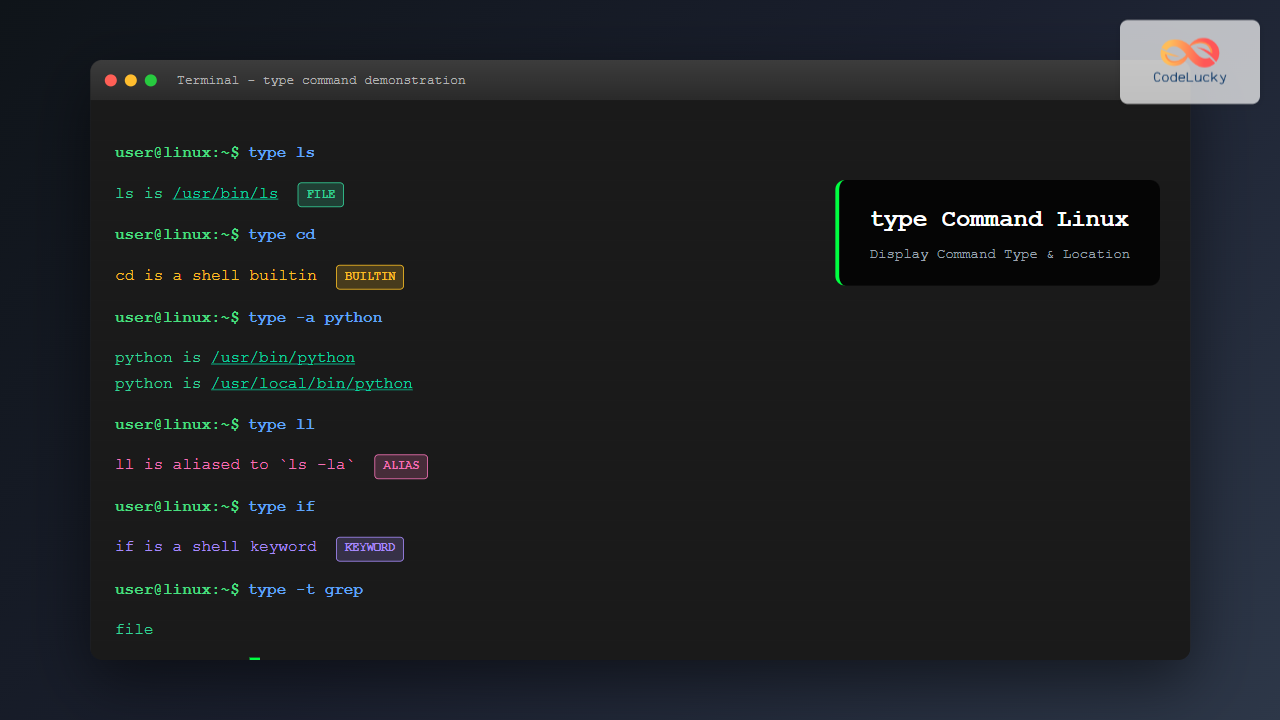
$ type ls
ls is /usr/bin/ls

$ type cd
cd is a shell builtin

$ type if
if is a shell keyword
Command Options
The type command supports several useful options:
-a (Show All Locations)
The -a option displays all locations where the command can be found:
$ type -a python
python is /usr/bin/python
python is /usr/local/bin/python
python is /home/user/.local/bin/python
This is particularly useful when multiple versions of a command exist in your system.
-t (Display Type Only)
The -t option shows only the type of the command:
$ type -t ls
file

$ type -t cd
builtin

$ type -t alias_name
alias
-p (Show Path Only)
The -p option displays only the path for external commands:
$ type -p grep
/usr/bin/grep

$ type -p cd
# No output (cd is a builtin, not a file)
-f (Suppress Function Lookup)
The -f option suppresses shell function lookup:
$ type -f command_nameUnderstanding Command Types
Shell Builtins
Shell builtins are commands built into the shell itself. They execute faster than external programs because they don’t require loading from disk:
$ type cd pwd echo
cd is a shell builtin
pwd is a shell builtin
echo is a shell builtin
External Commands
External commands are executable files located in directories listed in your PATH:
$ type find grep awk
find is /usr/bin/find
grep is /usr/bin/grep
awk is /usr/bin/awk
Aliases
Aliases are custom shortcuts for commands. The type command shows their definitions:
$ alias ll='ls -la'
$ type ll
ll is aliased to `ls -la'
Functions
Shell functions are displayed with their complete definitions:
$ myfunction() { echo "Hello World"; }
$ type myfunction
myfunction is a function
myfunction ()
{
    echo "Hello World"
}
Keywords
Shell keywords are reserved words with special meaning:
$ type if for while case
if is a shell keyword
for is a shell keyword
while is a shell keyword
case is a shell keyword
Practical Examples and Use Cases
Debugging Command Issues
When a command doesn’t work as expected, type helps identify the issue:
$ python --version
bash: python: command not found

$ type python
bash: type: python: not found

$ type -a python3
python3 is /usr/bin/python3
Checking Command Precedence
Understanding which version of a command will be executed:
$ type -a node
node is /usr/local/bin/node
node is /usr/bin/node
The first entry shows which version will be executed by default.
Verifying Installation
Confirm that a program is properly installed and accessible:
$ type docker
docker is /usr/bin/docker

$ type -p git
/usr/bin/git
Script Validation
In shell scripts, you can use type to check if required commands are available:
#!/bin/bash
if ! type -p git > /dev/null; then
    echo "Git is not installed or not in PATH"
    exit 1
fi
Advanced Usage
Multiple Commands
Check multiple commands at once:
$ type ls cd grep python
ls is /usr/bin/ls
cd is a shell builtin
grep is /usr/bin/grep
python is /usr/bin/python
Command Substitution
Use type output in scripts or other commands:
$ echo "Git location: $(type -p git)"
Git location: /usr/bin/git
Conditional Execution
Execute commands based on type information:
$ if [[ $(type -t ls) == "file" ]]; then
    echo "ls is an external command"
fi
Comparison with Related Commands
type vs which
While both commands locate executables, they have different behaviors:
$ type cd
cd is a shell builtin

$ which cd
# No output (which doesn't recognize builtins)
type vs whereis
The whereis command finds binaries, source files, and manual pages:
$ type grep
grep is /usr/bin/grep

$ whereis grep
grep: /usr/bin/grep /usr/share/man/man1/grep.1.gz
Common Use Cases in System Administration
Environment Auditing
System administrators often use type to audit environments:
$ type -a java python node npm
java is /usr/lib/jvm/java-11-openjdk/bin/java
python is /usr/bin/python3
node is /usr/local/bin/node
npm is /usr/local/bin/npm
Path Troubleshooting
When commands aren’t found, type helps diagnose PATH issues:
$ type myprogram
bash: type: myprogram: not found

$ echo $PATH
/usr/local/bin:/usr/bin:/bin
Security Verification
Verify that critical commands point to expected locations:
$ type -p sudo ssh
/usr/bin/sudo
/usr/bin/ssh
Tips and Best Practices
Always Check Before Scripting
Before writing scripts that depend on external commands, verify their availability:
#!/bin/bash
required_commands=("git" "curl" "jq")
for cmd in "${required_commands[@]}"; do
    if ! type -p "$cmd" > /dev/null; then
        echo "Error: $cmd is not installed"
        exit 1
    fi
done
Use -p for Portable Scripts
When you need just the path in scripts, use type -p for cleaner output:
GIT_PATH=$(type -p git)
if [[ -z "$GIT_PATH" ]]; then
    echo "Git not found"
fi
Understanding Shell Behavior
Remember that aliases and functions take precedence over external commands:
$ alias ls='ls --color=auto'
$ type ls
ls is aliased to `ls --color=auto'
Troubleshooting Common Issues
Command Not Found
When type reports a command is not found:
- Check if the command is installed
- Verify PATH environment variable
- Check for typos in the command name
- Consider if the command needs full path specification
Unexpected Command Behavior
If a command behaves unexpectedly, check for aliases or functions:
$ type -a command_nameThis shows all possible interpretations of the command name.
Integration with Shell Scripts
The type command is invaluable in shell scripting for robust error handling:
#!/bin/bash

check_command() {
    if ! type "$1" > /dev/null 2>&1; then
        echo "Error: Command '$1' not found"
        return 1
    fi
    return 0
}

# Usage
check_command "git" || exit 1
check_command "docker" || exit 1

echo "All required commands are available"
Performance Considerations
The type command is extremely fast since it’s a shell builtin. It doesn’t search the filesystem like which does for every query, making it ideal for use in scripts that need to check command availability frequently.
Conclusion
The type command is an indispensable tool for Linux users and system administrators. It provides crucial information about command interpretation, helps troubleshoot issues, and ensures robust script development. By understanding how to use type effectively, you can better manage your Linux environment and write more reliable scripts.
Whether you’re debugging PATH issues, verifying installations, or understanding command precedence, the type command gives you the insight needed to work efficiently with the Linux command line. Master this command, and you’ll have a powerful tool for system exploration and troubleshooting at your disposal.
Related Posts
which Command Linux: Complete Guide to Locating Executable Commands in PATH
The which command is a fundamental Linux utility that helps you locate executable files in your system's PATH environment variable....
which Command Linux: Complete Guide to Finding Executable File Locations
The which command is one of the most fundamental utilities in Linux and Unix-like systems, designed to help users locate...
sh Command Linux: Complete Guide to Shell Script Execution and Commands
The sh command is one of the most fundamental tools in Linux and Unix-like systems, serving as the standard shell...
file Command in Linux: Complete Guide to Determine File Types and Formats
The file command is one of the most essential utilities in Linux for determining file types and formats. Unlike relying...

file Command Advanced Linux: Master Detailed File Type Analysis and Detection
The file command is one of the most powerful and underutilized utilities in Linux for determining file types and analyzing...
set Command Linux: Display and Configure Shell Options for Advanced Terminal Control
The set command is one of the most powerful built-in commands in Linux shells, allowing you to display and modify...

bash Command Linux: Start New Shell Sessions and Execute Scripts Efficiently
The bash command is one of the most fundamental tools in Linux systems, serving as both a command-line interpreter and...
env Command Linux: Complete Guide to Display Environment Variables
Environment variables are crucial components of any Linux system, storing configuration data and system information that applications and processes rely...

size Command Linux: Display Section Sizes of Object Files and Executables
The size command is a powerful utility in Linux systems that displays the section sizes of object files, executables, and...

echo Command in Linux: Complete Guide to Print Text and Variables in Terminal
The echo command is one of the most fundamental and frequently used commands in Linux and Unix-like operating systems. It...
alias Command in Linux: Create Custom Command Shortcuts and Boost Your Productivity
The alias command in Linux is a powerful tool that allows you to create custom shortcuts for frequently used commands,...

ls Command in Linux: Complete Guide to List Files and Directories with Examples
The ls command is one of the most fundamental and frequently used commands in Linux and Unix-like operating systems. It...





