
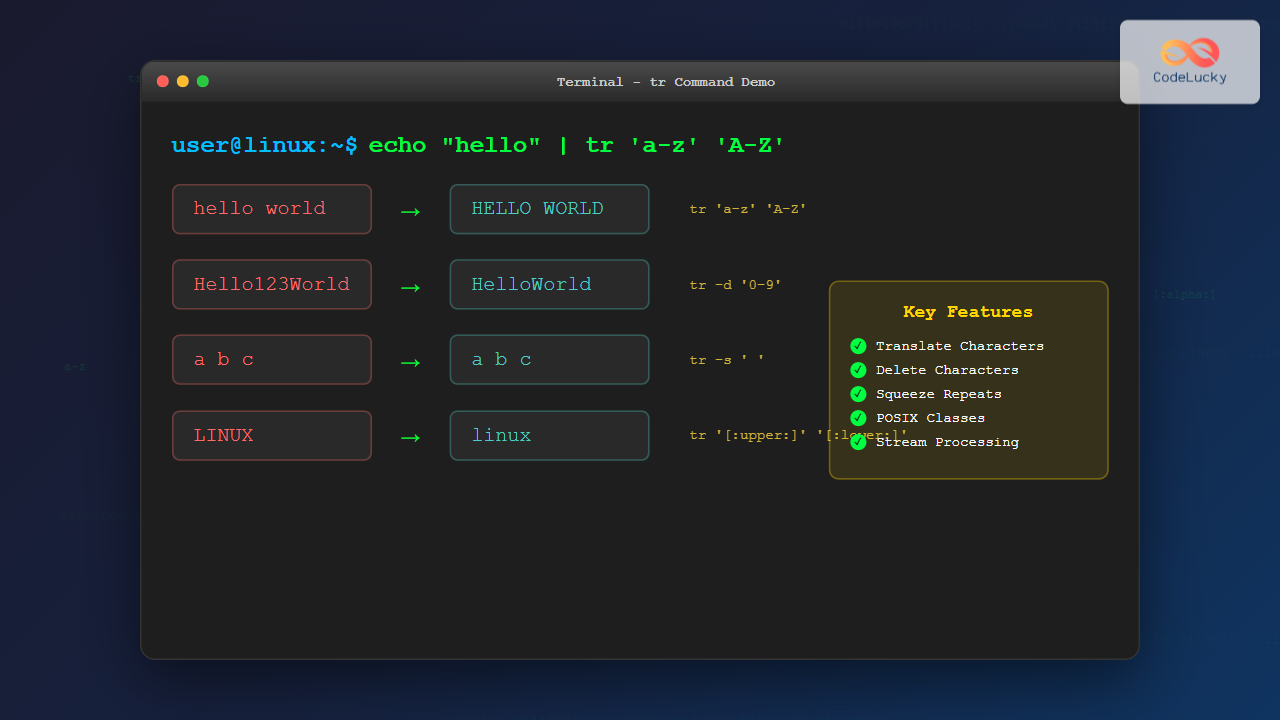
The tr command is one of the most versatile text processing utilities in Linux, designed to translate, delete, or squeeze characters from standard input. Short for “translate,” this powerful command-line tool enables developers and system administrators to manipulate text streams efficiently, making it an essential component of shell scripting and data processing workflows.
Understanding the tr Command Syntax
The basic syntax of the tr command follows this pattern:
tr [OPTION] SET1 [SET2]Where:
- SET1: Characters to be translated or deleted
- SET2: Characters to replace SET1 (when translating)
- OPTION: Various flags that modify the command’s behavior
Basic Character Translation
The primary function of tr is character translation. Let’s explore some fundamental examples:
Converting Lowercase to Uppercase
echo "hello world" | tr 'a-z' 'A-Z'Output:
HELLO WORLDThis command translates all lowercase letters to uppercase by mapping each character in the range ‘a-z’ to its corresponding character in ‘A-Z’.
Converting Uppercase to Lowercase
echo "LINUX COMMANDS" | tr 'A-Z' 'a-z'Output:
linux commandsUsing POSIX Character Classes
For better portability and locale support, use POSIX character classes:
echo "Hello World 123" | tr '[:lower:]' '[:upper:]'Output:
HELLO WORLD 123Common POSIX character classes include:
[:alnum:]– Alphanumeric characters[:alpha:]– Alphabetic characters[:digit:]– Numeric digits[:lower:]– Lowercase letters[:upper:]– Uppercase letters[:space:]– Whitespace characters
Character Deletion with the -d Option
The -d (delete) option removes specified characters from the input:
Removing Specific Characters
echo "Hello, World!" | tr -d ','Output:
Hello World!Removing Multiple Characters
echo "a1b2c3d4e5" | tr -d '0-9'Output:
abcdeRemoving Whitespace
echo " Hello World " | tr -d ' 'Output:
HelloWorldSqueezing Characters with the -s Option
The -s (squeeze) option replaces consecutive occurrences of characters with a single instance:
Squeezing Spaces
echo "Hello World" | tr -s ' 'Output:
Hello WorldCombining Squeeze and Translate
echo "Hello,,,,,World!!!" | tr -s ',!'Output:
Hello,World!Advanced tr Command Options
Complement Option (-c)
The -c option complements SET1, meaning it operates on all characters NOT in SET1:
echo "Hello123World456" | tr -cd '[:alpha:]'Output:
HelloWorldThis command deletes everything except alphabetic characters.
Truncate Option (-t)
When SET1 is longer than SET2, the -t option truncates SET1 to match SET2’s length:
echo "abcdef" | tr -t 'abcdef' '123'Output:
123defPractical Use Cases and Examples
Converting Windows Line Endings to Unix
tr -d '\r' < windows_file.txt > unix_file.txtThis removes carriage return characters, converting Windows CRLF line endings to Unix LF.
Creating URL-Friendly Slugs
echo "My Blog Post Title!" | tr '[:upper:]' '[:lower:]' | tr ' ' '-' | tr -d '[:punct:]'Output:
my-blog-post-titleExtracting Numbers from Text
echo "Price: $123.45" | tr -cd '[:digit:].'Output:
123.45Converting Tabs to Spaces
cat file.txt | tr '\t' ' 'Generating Random Passwords
cat /dev/urandom | tr -dc 'A-Za-z0-9!@#$%^&*()' | head -c 12This generates a 12-character random password using specified character sets.
Working with Character Sets and Ranges
Numeric Ranges
echo "abc123xyz" | tr '0-9' 'X'Output:
abcXXXxyzMultiple Character Sets
echo "Hello World 2024!" | tr 'A-Za-z0-9' 'X'Output:
XXXXX XXXXX XXXX!Escape Sequences
tr supports various escape sequences:
\n– Newline\t– Tab\r– Carriage return\\– Backslash\'– Single quote
echo "Line1\nLine2" | tr '\n' ' 'Error Handling and Common Pitfalls
Character Set Mismatch
When SET1 and SET2 have different lengths, tr handles this by:
- If SET2 is shorter, its last character is repeated
- If SET1 is shorter, extra characters in SET2 are ignored
echo "abcde" | tr 'abc' '12'Output:
1222eSpecial Character Handling
Be careful with special shell characters. Use quotes or escaping:
echo "Hello*World" | tr '*' '-'Output:
Hello-WorldCombining tr with Other Commands
With grep and sort
cat /etc/passwd | tr ':' '\n' | grep -E '^[0-9]+$' | sort -nThis extracts and sorts all numeric fields from /etc/passwd.
With cut and awk
echo "apple,banana,cherry" | tr ',' '\n' | nlOutput:
     1	apple
     2	banana
     3	cherry
Performance Considerations
The tr command is highly efficient for character-level operations because:
- It processes characters one at a time without loading entire files into memory
- It’s implemented in C, making it faster than equivalent shell scripts
- It works with streams, allowing pipeline processing
Benchmarking Example
time tr 'a-z' 'A-Z' < large_file.txt > /dev/nullBest Practices and Tips
- Use POSIX character classes for better portability across different locales
- Quote your character sets to prevent shell interpretation
- Test with small inputs first when working with complex transformations
- Combine multiple tr commands in pipelines for complex operations
- Use the complement option (-c) for inverse operations
Troubleshooting Common Issues
Locale-Related Problems
If character translations aren’t working as expected, check your locale:
locale
echo "café" | LANG=C tr 'é' 'e'
Binary Data Handling
tr works with any byte values, making it useful for binary data:
tr '\000' '\n' < binary_fileAlternative Commands and When to Use Them
While tr is powerful, consider alternatives for specific use cases:
- sed: For complex pattern matching and substitutions
- awk: For field-based text processing
- cut: For extracting specific columns
- iconv: For character encoding conversions
Conclusion
The tr command is an indispensable tool for text processing in Linux environments. Its simplicity, efficiency, and versatility make it perfect for character-level manipulations, from basic case conversions to complex data cleaning operations. By mastering tr’s various options and understanding its behavior with different character sets, you’ll have a powerful ally in your command-line toolkit.
Whether you’re processing log files, cleaning data, or preparing text for further analysis, tr provides the speed and reliability needed for production environments. Practice with the examples provided, experiment with different character sets, and incorporate tr into your shell scripting workflow to streamline text processing tasks.
Related Posts
strings Command Linux: Extract and Analyze Text from Binary Files
The strings command is a powerful Linux utility that extracts printable character sequences from binary files. Whether you're analyzing executables,...
sed Advanced Linux: Stream Editor Advanced Techniques for Text Processing
The sed (Stream Editor) command stands as one of the most powerful text processing tools in Linux systems. While basic...
sed Command Linux: Complete Guide to Stream Editor for Text Manipulation
The sed (Stream Editor) command is one of the most powerful text processing utilities in Linux and Unix systems. It...
Python String translate() Method: Translating Characters
The translate() method in Python is a powerful tool for replacing specific characters within a string with other characters. It's...
set Command Linux: Display and Configure Shell Options for Advanced Terminal Control
The set command is one of the most powerful built-in commands in Linux shells, allowing you to display and modify...
read Command Linux: Complete Guide to Reading User Input in Shell Scripts
The read command is one of the most fundamental tools in Linux shell scripting for creating interactive programs that capture...
strip Command Linux: Complete Guide to Removing Symbols from Object Files
The strip command is a powerful Linux utility that removes symbols, debugging information, and other metadata from executable files, object...
Python String maketrans() Method: Creating Translation Table
The maketrans() method is a powerful tool in Python's string library. It allows you to create translation tables, which are...
MySQL REPLACE Function: Mastering String Substitution
The MySQL REPLACE function is your go-to tool for efficiently substituting substrings within a string. Whether you need to standardize...
MySQL Truncate Table: Fast Data Removal and Auto-Increment Reset
The TRUNCATE TABLE statement in MySQL is a powerful tool for quickly removing all data from a table. While it...
awk Advanced Linux: Mastering Complex Text Processing and Pattern Matching
The awk command is one of the most powerful text processing tools in Linux, capable of performing complex data manipulation...
Regex in Linux: Complete Guide to Regular Expressions and Pattern Matching
Regular expressions (regex) are powerful pattern-matching tools that form the backbone of text processing in Linux systems. Whether you're searching...





