
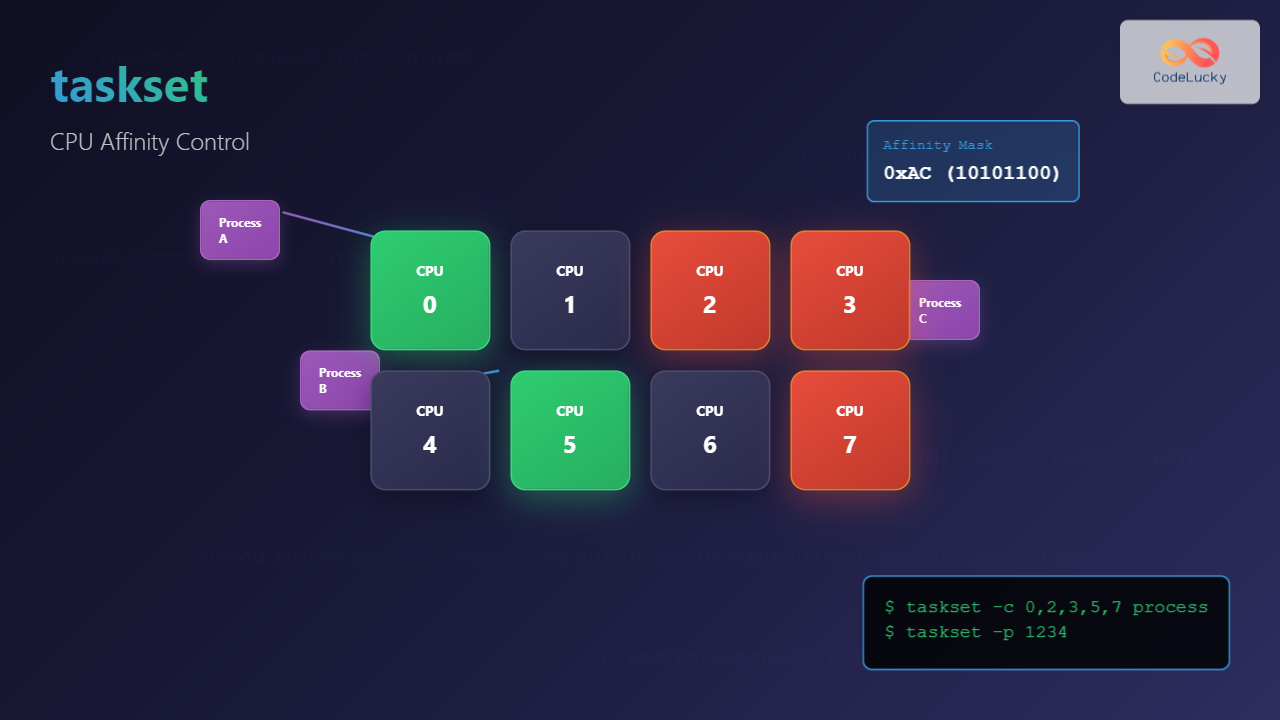
The taskset command is a powerful Linux utility that allows system administrators and developers to control which CPU cores or processors a specific process can utilize. This capability, known as CPU affinity, is crucial for optimizing system performance, especially in multi-core environments where proper resource allocation can significantly impact application efficiency.
What is CPU Affinity?
CPU affinity refers to the binding of a process or thread to specific CPU cores. By default, the Linux kernel scheduler can move processes between available CPU cores based on load balancing algorithms. However, there are scenarios where you might want to restrict a process to run only on specific cores:
- Performance optimization: Keeping cache-sensitive applications on specific cores
- Resource isolation: Preventing critical processes from being moved around
- NUMA optimization: Ensuring processes run on cores closest to their memory
- Testing and debugging: Isolating processes for performance analysis
Understanding taskset Syntax
The basic syntax of the taskset command follows this pattern:
taskset [options] mask command [arguments]
taskset [options] -p [mask] pid
The key components include:
- mask: Specifies which CPUs the process can use
- command: The program to execute with specific CPU affinity
- pid: Process ID for modifying existing processes
- -p: Option to work with existing processes
CPU Mask Formats
The taskset command supports multiple mask formats to specify CPU affinity:
Hexadecimal Mask
The traditional format uses hexadecimal values where each bit represents a CPU core:
# CPU 0 only (binary: 0001)
taskset 0x1 command

# CPU 1 only (binary: 0010)
taskset 0x2 command

# CPUs 0 and 2 (binary: 0101)
taskset 0x5 command

# All first 4 CPUs (binary: 1111)
taskset 0xf command
CPU List Format
A more intuitive format uses the -c option with CPU numbers:
# CPU 0 only
taskset -c 0 command

# CPUs 0, 2, and 4
taskset -c 0,2,4 command

# CPU range 1-3
taskset -c 1-3 command

# Mixed format: CPUs 0, 2-4, and 7
taskset -c 0,2-4,7 command
Practical Examples
Setting CPU Affinity for New Processes
Here’s how to launch applications with specific CPU affinity:
# Run a CPU-intensive task on CPU 0 only
taskset -c 0 stress --cpu 1 --timeout 10s

# Launch a web server on CPUs 2 and 3
taskset -c 2,3 nginx

# Start a database on the first 4 cores
taskset -c 0-3 mysqld

# Run a backup script on the last CPU (assuming 8-core system)
taskset -c 7 /scripts/backup.sh
Modifying Existing Process Affinity
You can change the CPU affinity of running processes using the process ID:
# Check current affinity of process 1234
taskset -p 1234

# Output example:
# pid 1234's current affinity mask: f

# Change process 1234 to run only on CPU 2
taskset -p -c 2 1234

# Verify the change
taskset -p 1234
# Output: pid 1234's current affinity mask: 4
Working with Process Groups
You can also set affinity for entire process groups or all processes of a specific user:
# Set affinity for all processes of user 'webapp'
for pid in $(pgrep -u webapp); do
    taskset -p -c 4-7 $pid
done

# Set affinity for all Apache processes
for pid in $(pgrep apache2); do
    taskset -p -c 0,2,4,6 $pid
done
Advanced Usage Scenarios
NUMA-Aware Process Placement
On NUMA (Non-Uniform Memory Access) systems, you can optimize performance by placing processes on specific NUMA nodes:
# Check NUMA topology
numactl --hardware

# Run a process on NUMA node 0 CPUs (assuming CPUs 0-3 are on node 0)
taskset -c 0-3 high-memory-app

# Combined with numactl for complete NUMA optimization
numactl --membind=0 taskset -c 0-3 memory-intensive-app
Real-time Application Optimization
For real-time applications, you might want to isolate CPUs and prevent other processes from using them:
# Isolate CPU 7 for real-time task (requires kernel parameter isolcpus=7)
taskset -c 7 real-time-application

# Move all non-essential processes away from isolated CPUs
for pid in $(ps -eo pid --no-headers); do
    current_mask=$(taskset -p $pid 2>/dev/null | awk '{print $6}')
    if [[ $current_mask == *"80"* ]]; then  # If using CPU 7
        taskset -p -c 0-6 $pid 2>/dev/null
    fi
done
Load Balancing and Performance Testing
Use taskset for performance testing and load distribution:
# Create controlled load on specific CPUs for testing
taskset -c 0 stress --cpu 1 &
taskset -c 1 stress --cpu 1 &
taskset -c 2 stress --cpu 1 &

# Monitor CPU usage per core
watch -n 1 'cat /proc/stat | grep cpu'

# Clean up test processes
killall stress
Monitoring and Verification
Checking Current Affinity
Several methods exist to verify CPU affinity settings:
# Check specific process affinity
taskset -p PID

# View affinity in /proc filesystem
cat /proc/PID/status | grep Cpus_allowed

# Monitor CPU usage per core in real-time
htop
# Press F2 → Display options → Detailed CPU time
System-wide Affinity Analysis
Create a script to analyze system-wide CPU affinity:
#!/bin/bash
echo "Process CPU Affinity Report"
echo "=========================="
for pid in $(ps -eo pid --no-headers); do
    if [ -r /proc/$pid/comm ]; then
        comm=$(cat /proc/$pid/comm 2>/dev/null)
        mask=$(taskset -p $pid 2>/dev/null | awk '{print $6}')
        cpus=$(taskset -c -p $pid 2>/dev/null | cut -d: -f2)
        echo "PID: $pid | Process: $comm | Mask: $mask | CPUs: $cpus"
    fi
done | head -20
Common Options and Flags
| Option | Description | Example |
|---|---|---|
-c |
Use CPU list format instead of hex mask | taskset -c 0,2 command |
-p |
Work with existing process by PID | taskset -p 1234 |
-a |
Set affinity for all tasks in thread group | taskset -a -p -c 0 1234 |
--cpu-list |
Same as -c (long form) |
taskset --cpu-list 1-3 command |
Performance Considerations
When to Use CPU Affinity
CPU affinity is beneficial in these scenarios:
- Cache-sensitive applications: Programs that benefit from CPU cache locality
- Real-time systems: Applications requiring predictable latency
- High-performance computing: Scientific applications with specific core requirements
- System isolation: Separating critical services from general workloads
When NOT to Use CPU Affinity
Avoid CPU affinity in these cases:
- General-purpose applications: Let the kernel scheduler handle optimization
- Variable workloads: Applications with changing resource requirements
- Small systems: Single or dual-core systems rarely benefit
- Dynamic environments: Containers and virtualized environments
Troubleshooting Common Issues
Permission Errors
If you encounter permission errors:
# Error: taskset: failed to set pid 1234's affinity: Operation not permitted

# Solution: Use sudo for system processes
sudo taskset -p -c 2 1234

# Or check if the process belongs to current user
ps -o pid,user,comm -p 1234
Invalid CPU Specifications
Handle invalid CPU references:
# Error: taskset: invalid CPU list: 8
# (On a 8-core system, CPUs are numbered 0-7)

# Check available CPUs
nproc
cat /proc/cpuinfo | grep processor

# Use valid CPU numbers
taskset -c 0-7 command  # Instead of 1-8
Process Not Found
When working with process IDs:
# Error: taskset: cannot find process with pid 1234

# Verify process exists
ps -p 1234

# Or find process by name
pgrep process_name
Integration with Other Tools
Combining with nice and ionice
Create comprehensive process management:
# High priority, specific CPU, low I/O priority
taskset -c 0 nice -n -10 ionice -c 3 important-process

# Background task with limited CPU access
taskset -c 7 nice -n 19 ionice -c 3 backup-script.sh
Docker and Container Integration
Use taskset with containerized applications:
# Set CPU affinity for Docker container
docker run -d --name web-server nginx
PID=$(docker inspect --format '{{.State.Pid}}' web-server)
taskset -p -c 0,2 $PID
Automation and Scripting
Create automated CPU affinity management:
#!/bin/bash
# CPU Affinity Manager Script

WEBSERVER_CPUS="0,2,4,6"
DATABASE_CPUS="1,3,5,7"
BACKUP_CPUS="7"

# Function to set affinity for service
set_service_affinity() {
    local service=$1
    local cpus=$2

    for pid in $(pgrep $service); do
        taskset -p -c $cpus $pid
        echo "Set $service (PID: $pid) to CPUs: $cpus"
    done
}

# Apply affinity settings
set_service_affinity "nginx" $WEBSERVER_CPUS
set_service_affinity "mysql" $DATABASE_CPUS
set_service_affinity "backup" $BACKUP_CPUS
Best Practices
- Test thoroughly: Always benchmark before and after applying CPU affinity
- Monitor performance: Use tools like
htop,iotop, andperfto verify improvements - Document changes: Keep records of affinity settings for system maintenance
- Consider NUMA topology: Understand your system’s memory and CPU architecture
- Start conservatively: Begin with less restrictive affinity settings
- Automate routine tasks: Use scripts for consistent affinity management
Conclusion
The taskset command is an essential tool for fine-tuning system performance in Linux environments. By understanding CPU affinity and implementing proper process-to-core binding, you can achieve significant performance improvements for specific workloads. Whether you’re managing a high-performance server, optimizing real-time applications, or conducting performance testing, taskset provides the precision control needed for effective CPU resource management.
Remember that CPU affinity is not a universal solution – it’s most effective when applied thoughtfully to specific use cases where the benefits outweigh the reduced scheduling flexibility. Always test changes in a controlled environment and monitor system performance to ensure your optimizations achieve the desired results.
Related Posts
Virtual CPU Scheduling: Complete Guide to Time-sharing Physical Processors
Virtual CPU scheduling is the cornerstone of modern operating systems, enabling multiple processes to share limited physical processors efficiently. This...

Process Scheduling in Operating System: Algorithms, Types & Implementation Guide
Process scheduling is one of the most critical components of an operating system that determines how the CPU time is...

CPU Scheduling Algorithms: FCFS, SJF, Round Robin Complete Guide
CPU scheduling is a fundamental concept in operating systems that determines how processes are allocated processor time. The CPU scheduler...

Completely Fair Scheduler: Linux CFS Algorithm Deep Dive
The Linux Completely Fair Scheduler (CFS) revolutionized process scheduling in the Linux kernel when it was introduced in version 2.6.23....

Preemptive vs Non-Preemptive Scheduling: Complete Guide to CPU Scheduling in Operating Systems
Understanding CPU Scheduling in Operating Systems CPU scheduling is one of the most critical functions of an operating system, determining...

Thread in Operating System: Lightweight Processes and Multithreading Explained
What are Threads in Operating Systems? A thread is the smallest unit of execution within a process that can be...

Multilevel Queue Scheduling: Multiple Priority Levels in Operating Systems
Introduction to Multilevel Queue Scheduling Multilevel queue scheduling is a sophisticated CPU scheduling algorithm used in operating systems to manage...
Nice Command Linux: Complete Guide to Process Priority Management
The nice command in Linux is a powerful system administration tool that allows you to control the priority of processes,...
renice Command Linux: Complete Guide to Changing Process Priority
The renice command in Linux is a powerful system administration tool that allows you to modify the scheduling priority of...

Priority Scheduling Algorithm: Complete Implementation Guide with Examples
What is Priority Scheduling Algorithm? Priority scheduling is a CPU scheduling algorithm where each process is assigned a priority value,...
Multithreading in Operating Systems: Benefits, Challenges, and Implementation Guide
What is Multithreading in Operating Systems? Multithreading is a fundamental concept in modern operating systems that allows a single process...

Thread vs Process: Complete Guide to Differences and When to Use Each
Understanding the fundamental differences between threads and processes is crucial for system programming, application design, and performance optimization. While both...





