
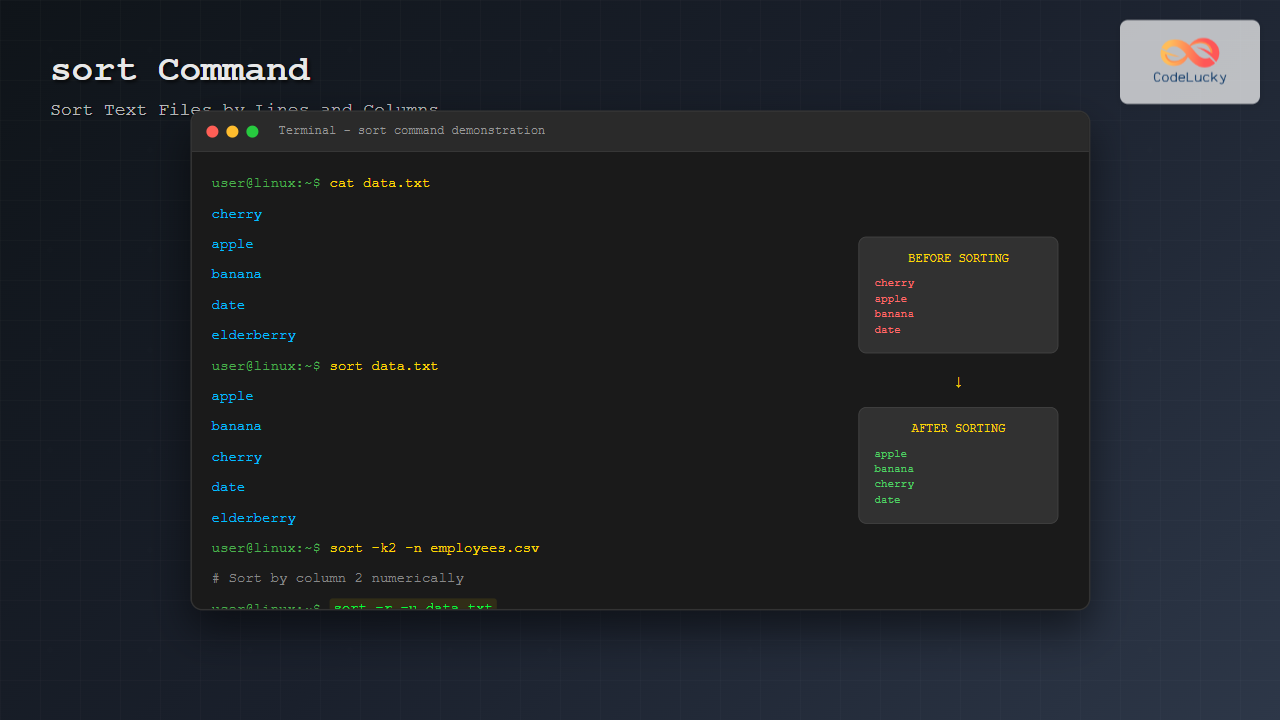
The sort command is one of the most essential text processing utilities in Linux, designed to arrange lines of text files in a specific order. Whether you’re organizing data, processing logs, or preparing files for further analysis, mastering the sort command is crucial for efficient Linux system administration and data manipulation.
Understanding the Basic sort Command Syntax
The basic syntax of the sort command follows this pattern:
sort [OPTIONS] [FILE...]When executed without any options, sort reads from standard input or specified files and outputs the sorted lines to standard output in ascending alphabetical order.
Simple Sorting Example
Let’s start with a basic example. Create a sample file called fruits.txt:
$ cat fruits.txt
banana
apple
cherry
date
elderberry
Now apply the sort command:
$ sort fruits.txt
apple
banana
cherry
date
elderberry
The output shows lines arranged in alphabetical order, which is the default behavior of the sort command.
Essential sort Command Options
Reverse Sorting (-r)
To sort in descending order, use the -r option:
$ sort -r fruits.txt
elderberry
date
cherry
banana
apple
Numeric Sorting (-n)
When dealing with numeric data, use the -n option for proper numerical sorting:
$ cat numbers.txt
10
2
100
20
1

$ sort numbers.txt
1
10
100
2
20

$ sort -n numbers.txt
1
2
10
20
100
Notice how the default alphabetical sort treats numbers as strings, while -n provides correct numerical ordering.
Unique Sorting (-u)
The -u option removes duplicate lines while sorting:
$ cat duplicates.txt
apple
banana
apple
cherry
banana

$ sort -u duplicates.txt
apple
banana
cherry
Case-Insensitive Sorting (-f)
Use -f to ignore case differences during sorting:
$ cat mixed_case.txt
Apple
banana
Cherry
apple

$ sort mixed_case.txt
Apple
Cherry
apple
banana

$ sort -f mixed_case.txt
Apple
apple
banana
Cherry
Advanced Column-Based Sorting
Sorting by Specific Columns (-k)
The -k option allows sorting by specific fields or columns. Consider this employee data file:
$ cat employees.txt
John,Sales,50000
Alice,Marketing,55000
Bob,IT,60000
Carol,Sales,52000
David,IT,58000
Sort by the second column (department):
$ sort -t',' -k2 employees.txt
Bob,IT,60000
David,IT,58000
Alice,Marketing,55000
John,Sales,50000
Carol,Sales,52000
The -t',' option specifies comma as the field delimiter.
Numerical Column Sorting
Sort by salary (third column) numerically:
$ sort -t',' -k3 -n employees.txt
John,Sales,50000
Carol,Sales,52000
Alice,Marketing,55000
David,IT,58000
Bob,IT,60000
Multiple Column Sorting
You can specify multiple sort keys. Sort by department first, then by salary within each department:
$ sort -t',' -k2,2 -k3,3n employees.txt
David,IT,58000
Bob,IT,60000
Alice,Marketing,55000
John,Sales,50000
Carol,Sales,52000
Working with Different Field Delimiters
Tab-Separated Values
For tab-separated files, use -t$'\t':
$ cat tab_data.txt
Name	Age	City
John	25	NewYork
Alice	30	Boston
Bob	22	Chicago

$ sort -t$'\t' -k2 -n tab_data.txt
Name	Age	City
Bob	22	Chicago
John	25	NewYork
Alice	30	Boston
Space-Separated Values
For space-separated data, sort handles whitespace automatically:
$ cat space_data.txt
John 25 Manager
Alice 30 Developer
Bob 22 Analyst

$ sort -k3 space_data.txt
Bob 22 Analyst
Alice 30 Developer
John 25 Manager
Advanced Sorting Techniques
Version Number Sorting (-V)
For version numbers or similar alphanumeric strings:
$ cat versions.txt
version-1.10
version-1.2
version-1.9
version-2.1

$ sort versions.txt
version-1.10
version-1.2
version-1.9
version-2.1

$ sort -V versions.txt
version-1.2
version-1.9
version-1.10
version-2.1
Random Sorting (-R)
Randomly shuffle lines using the -R option:
$ sort -R fruits.txt
cherry
banana
elderberry
apple
date
Month Sorting (-M)
Sort month abbreviations correctly:
$ cat months.txt
Dec
Feb
Jan
Nov
Mar

$ sort -M months.txt
Jan
Feb
Mar
Nov
Dec
Practical Real-World Examples
Log File Analysis
Sort access logs by IP address:
$ cat access.log
192.168.1.100 - GET /index.html
10.0.0.1 - GET /about.html
192.168.1.50 - POST /login
10.0.0.15 - GET /contact.html

$ sort -t' ' -k1 -V access.log
10.0.0.1 - GET /about.html
10.0.0.15 - GET /contact.html
192.168.1.50 - POST /login
192.168.1.100 - GET /index.html
CSV Data Processing
Sort CSV data by multiple criteria:
$ cat sales.csv
Product,Region,Sales,Date
Laptop,North,15000,2024-01-15
Mouse,South,500,2024-01-10
Keyboard,North,1200,2024-01-12
Laptop,South,18000,2024-01-20

$ sort -t',' -k2,2 -k3,3nr sales.csv
Product,Region,Sales,Date
Laptop,North,15000,2024-01-15
Keyboard,North,1200,2024-01-12
Laptop,South,18000,2024-01-20
Mouse,South,500,2024-01-10
Output Management and File Operations
Saving Sorted Output
Use the -o option to save output to a file:
$ sort -n numbers.txt -o sorted_numbers.txtYou can also sort a file in-place:
$ sort -o fruits.txt fruits.txtChecking if Files are Sorted
Use -c to check if a file is already sorted:
$ sort -c sorted_file.txt
$ echo $?
0

$ sort -c unsorted_file.txt
sort: unsorted_file.txt:3: disorder: apple
$ echo $?
1
Performance Optimization
Memory Management
For large files, control memory usage with -S:
$ sort -S 100M large_file.txtTemporary Directory
Specify temporary directory for sorting operations:
$ sort -T /tmp/sort_temp large_file.txtParallel Processing
Use multiple threads for faster sorting:
$ sort --parallel=4 large_file.txtCombining sort with Other Commands
Pipeline Operations
Sort combined with other commands:
# Find largest files and sort by size
$ ls -la | sort -k5 -n

# Sort unique values from multiple files
$ cat file1.txt file2.txt | sort -u

# Sort and count unique lines
$ sort file.txt | uniq -c | sort -nr
Complex Data Processing
# Process log files: extract IPs, sort, and count occurrences
$ awk '{print $1}' access.log | sort | uniq -c | sort -nr

# Sort by date in log files
$ sort -k4,4M -k5,5n -k6,6n log_with_dates.txt
Common Pitfalls and Best Practices
Locale Considerations
Sorting behavior depends on locale settings. For consistent results across systems:
$ LC_ALL=C sort file.txtField Separator Issues
Always specify field separators explicitly when working with structured data to avoid unexpected results.
Memory Limitations
For extremely large files, consider splitting them into smaller chunks or using external sorting tools.
Troubleshooting Common Issues
Unexpected Sort Order
If sorting doesn’t behave as expected, check:
- Locale settings (LC_COLLATE, LC_ALL)
- Field delimiter specification
- Proper use of numerical sorting (-n) for numbers
- Case sensitivity requirements
Performance Problems
For slow sorting operations:
- Increase memory allocation with -S
- Use parallel processing with –parallel
- Specify fast temporary directory with -T
- Consider using LC_ALL=C for faster sorting
Advanced Scripting Applications
Here’s a practical shell script that demonstrates advanced sort usage:
#!/bin/bash
# Script to analyze and sort server logs

# Sort access logs by timestamp and save top IPs
cat access.log | \
  sort -k4,4M -k5,5n -k6,6n | \
  awk '{print $1}' | \
  sort | uniq -c | \
  sort -nr | \
  head -10 > top_ips.txt

# Sort error logs by severity level
sort -t'[' -k2,2 error.log > sorted_errors.log

echo "Log analysis complete. Check top_ips.txt and sorted_errors.log"
Conclusion
The sort command is an indispensable tool for Linux users, offering powerful capabilities for organizing and processing text data. From simple alphabetical sorting to complex multi-column operations, mastering these techniques will significantly enhance your command-line productivity. Regular practice with different data types and sorting criteria will help you become proficient in handling various data processing scenarios efficiently.
Remember to consider locale settings, choose appropriate field delimiters, and use the right sorting options for your specific data types. With these skills, you’ll be well-equipped to handle any sorting challenge in your Linux environment.
Related Posts

SQL ORDER BY Clause: Sorting Your Query Results
In the world of databases, organizing and presenting data in a meaningful way is crucial. This is where the SQL...
paste Command Linux: Complete Guide to Merging Lines from Multiple Files
The paste command in Linux is a powerful text processing utility that allows you to merge lines from multiple files...

cat Command in Linux: Complete Guide to Display and Concatenate Files
The cat command is one of the most fundamental and frequently used commands in Linux and Unix-like operating systems. Short...

file Command Advanced Linux: Master Detailed File Type Analysis and Detection
The file command is one of the most powerful and underutilized utilities in Linux for determining file types and analyzing...
awk Command in Linux: Complete Pattern Scanning and Processing Tutorial
The awk command is one of the most powerful text processing tools available in Linux and Unix systems. Named after...

head Command in Linux: Display First Lines of Files Efficiently
The head command is one of the most fundamental and frequently used utilities in Linux and Unix-like operating systems. It...
Python List sort() Method: Sorting the List In-Place
The sort() method in Python provides a powerful and efficient way to arrange the elements of a list in a...
file Command in Linux: Complete Guide to Determine File Types and Formats
The file command is one of the most essential utilities in Linux for determining file types and formats. Unlike relying...

sed Command Linux: Complete Guide to Stream Editor for Text Manipulation
The sed (Stream Editor) command is one of the most powerful text processing utilities in Linux and Unix systems. It...
grep Command in Linux: Complete Guide to Text Pattern Search and File Operations
The grep command is one of the most powerful and frequently used text processing utilities in Linux and Unix systems....

Java Read Files: Input Operations
Java provides robust mechanisms for reading files, allowing developers to efficiently handle input operations. Whether you're working with small text...

PHP MySQL Order By: Sorting Query Results
In the world of database management and web development, the ability to retrieve and display data in a specific order...





