
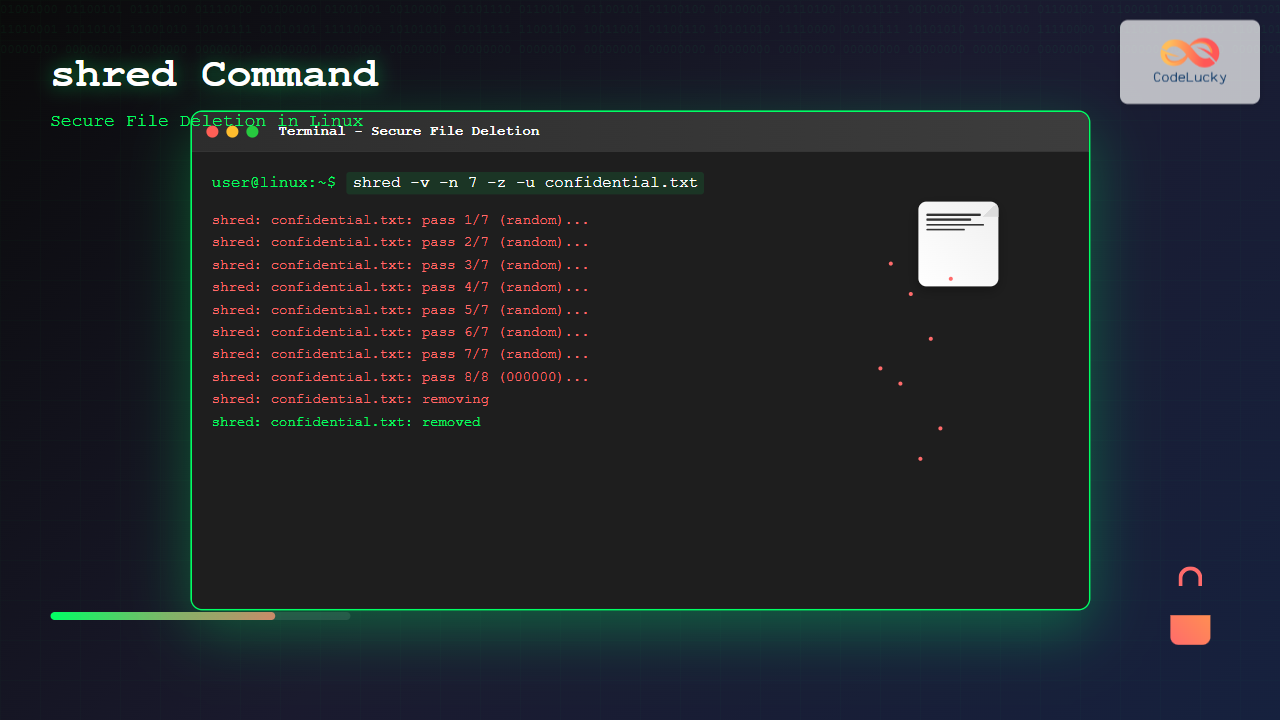
When you delete files in Linux using the standard rm command, the data isn’t actually removed from your storage device. Instead, the system simply marks the space as available for reuse, leaving the actual file content intact and potentially recoverable. This is where the shred command becomes invaluable for securely destroying sensitive data beyond recovery.
What is the shred Command?
The shred command is a powerful Linux utility designed to securely delete files by overwriting their content multiple times with random data patterns. Unlike regular deletion methods, shred makes file recovery virtually impossible by completely obliterating the original data at the disk level.
Why Use shred Instead of rm?
The fundamental difference lies in how data is handled:
- rm command: Only removes the file’s directory entry, leaving data recoverable
- shred command: Overwrites the actual file content multiple times with random patterns
- Security aspect: Shred provides military-grade data destruction
- Compliance: Meets various data protection regulations and standards
Basic Syntax and Usage
The basic syntax of the shred command follows this pattern:
shred [OPTIONS] FILE(s)Simple Example
Let’s start with a basic example. First, create a test file:
echo "Sensitive financial data: Account 123-456-789" > confidential.txt
cat confidential.txt
Output:
Sensitive financial data: Account 123-456-789Now, let’s securely delete this file using shred:
shred confidential.txtAfter running shred, if you try to read the file:
cat confidential.txtOutput:
�▒��▒▒�▒▒▒��▒▒�▒��▒▒▒���▒▒�▒▒▒��▒The file now contains random garbage data, making the original content unrecoverable.
Essential shred Command Options
-v (Verbose Output)
The verbose option shows the progress of the shredding process:
echo "Secret document content" > secret.txt
shred -v secret.txt
Output:
shred: secret.txt: pass 1/3 (random)...
shred: secret.txt: pass 2/3 (random)...
shred: secret.txt: pass 3/3 (random)...
-n (Number of Iterations)
Specify how many times to overwrite the file (default is 3):
echo "Top secret information" > topsecret.txt
shred -v -n 7 topsecret.txt
Output:
shred: topsecret.txt: pass 1/7 (random)...
shred: topsecret.txt: pass 2/7 (random)...
shred: topsecret.txt: pass 3/7 (random)...
shred: topsecret.txt: pass 4/7 (random)...
shred: topsecret.txt: pass 5/7 (random)...
shred: topsecret.txt: pass 6/7 (random)...
shred: topsecret.txt: pass 7/7 (random)...
-z (Final Zero Pass)
Add a final pass of zeros to hide the shredding process:
echo "Classified data" > classified.txt
shred -v -z classified.txt
Output:
shred: classified.txt: pass 1/3 (random)...
shred: classified.txt: pass 2/3 (random)...
shred: classified.txt: pass 3/3 (random)...
shred: classified.txt: pass 4/4 (000000)...
-u (Remove File After Shredding)
Automatically remove the file after shredding:
echo "Temporary sensitive data" > temp_sensitive.txt
ls -la temp_sensitive.txt
Output:
-rw-rw-r-- 1 user user 26 Aug 25 06:30 temp_sensitive.txtshred -v -u temp_sensitive.txtOutput:
shred: temp_sensitive.txt: pass 1/3 (random)...
shred: temp_sensitive.txt: pass 2/3 (random)...
shred: temp_sensitive.txt: pass 3/3 (random)...
shred: temp_sensitive.txt: removing
shred: temp_sensitive.txt: renamed to 00000000000000000
shred: temp_sensitive.txt: renamed to 0000000000000000
shred: temp_sensitive.txt: renamed to 000000000000000
shred: temp_sensitive.txt: renamed to 00000000000000
shred: temp_sensitive.txt: renamed to 0000000000000
shred: temp_sensitive.txt: renamed to 000000000000
shred: temp_sensitive.txt: renamed to 00000000000
shred: temp_sensitive.txt: renamed to 0000000000
shred: temp_sensitive.txt: renamed to 000000000
shred: temp_sensitive.txt: renamed to 00000000
shred: temp_sensitive.txt: renamed to 0000000
shred: temp_sensitive.txt: renamed to 000000
shred: temp_sensitive.txt: renamed to 00000
shred: temp_sensitive.txt: renamed to 0000
shred: temp_sensitive.txt: renamed to 000
shred: temp_sensitive.txt: renamed to 00
shred: temp_sensitive.txt: renamed to 0
shred: temp_sensitive.txt: removed
Now check if the file exists:
ls -la temp_sensitive.txtOutput:
ls: cannot access 'temp_sensitive.txt': No such file or directoryAdvanced shred Options
-s (Specify File Size)
Useful when shredding devices or when the file size cannot be determined:
shred -v -s 1024 /dev/sdb1-f (Force Permissions)
Change file permissions if necessary to allow writing:
echo "Protected file" > protected.txt
chmod 444 protected.txt  # Read-only
shred -v -f -u protected.txt
–random-source
Specify a custom source of random data:
echo "Custom random source test" > custom.txt
shred -v --random-source=/dev/urandom custom.txt
Practical Use Cases
Shredding Multiple Files
You can shred multiple files simultaneously:
# Create multiple test files
echo "Document 1" > doc1.txt
echo "Document 2" > doc2.txt
echo "Document 3" > doc3.txt

# Shred all files
shred -v -u doc1.txt doc2.txt doc3.txt
Shredding Files by Pattern
Use wildcards to shred files matching a pattern:
# Create test files
echo "Log entry 1" > app.log.1
echo "Log entry 2" > app.log.2
echo "Log entry 3" > app.log.3

# Shred all log files
shred -v -u app.log.*
Interactive Shredding Script
Here’s a practical script for interactive file shredding:
#!/bin/bash

echo "=== Secure File Shredder ==="
echo "Enter the file path to securely delete:"
read -r filepath

if [ -f "$filepath" ]; then
    echo "File found: $filepath"
    echo "File size: $(ls -lh "$filepath" | awk '{print $5}')"
    echo ""
    echo "Are you sure you want to permanently destroy this file? (yes/no)"
    read -r confirmation

    if [ "$confirmation" = "yes" ]; then
        echo "Shredding file with 7 passes..."
        shred -v -n 7 -z -u "$filepath"
        echo "File has been securely destroyed!"
    else
        echo "Operation cancelled."
    fi
else
    echo "Error: File not found!"
fi
Shredding Entire Drives
⚠️ WARNING: This will permanently destroy all data on the specified drive!
To securely wipe an entire drive or partition:
# First, unmount the drive
sudo umount /dev/sdb1

# Then shred the entire partition
sudo shred -v -n 3 -z /dev/sdb1
Checking Drive Shredding Progress
For large drives, monitor progress in another terminal:
# In terminal 1
sudo shred -v -n 1 /dev/sdb

# In terminal 2 (monitor progress)
sudo kill -USR1 $(pgrep shred)
Performance Considerations
Speed vs Security Trade-off
Different iteration counts provide different security levels:
- 1 pass: Fast, suitable for basic security needs
- 3 passes (default): Good balance of speed and security
- 7 passes: High security, slower performance
- 25+ passes: Maximum security, very slow
Benchmarking Shred Performance
# Create a 100MB test file
dd if=/dev/zero of=testfile.dat bs=1M count=100

# Time different shred configurations
echo "1 pass:"
time shred -n 1 testfile.dat

echo "3 passes:"
time shred -n 3 testfile.dat

echo "7 passes:"
time shred -n 7 testfile.dat

# Clean up
rm testfile.dat
File System Limitations
Effectiveness on Different File Systems
The effectiveness of shred varies by file system type:
| File System | Shred Effectiveness | Notes |
|---|---|---|
| ext2/ext3 | High | Direct overwriting works well |
| ext4 | Medium | Journaling may leave traces |
| NTFS | Medium | File compression can interfere |
| Btrfs/ZFS | Low | Copy-on-write may preserve data |
| SSD (any FS) | Limited | Wear leveling reduces effectiveness |
SSD Considerations
For SSD drives, shred has limited effectiveness due to wear leveling. Consider these alternatives:
Using Secure Erase for SSDs
# Check if secure erase is supported
sudo hdparm -I /dev/sda | grep -i erase

# Perform secure erase (destructive!)
sudo hdparm --user-master u --security-set-pass p /dev/sda
sudo hdparm --user-master u --security-erase p /dev/sda
Security Best Practices
Verification After Shredding
Always verify that sensitive data has been properly destroyed:
# Create and shred a test file
echo "Verification test data" > verify_test.txt
shred -v -n 3 -z verify_test.txt

# Attempt to recover readable strings
strings verify_test.txt | head -10
Combining shred with Other Security Measures
#!/bin/bash
# Comprehensive file destruction script

FILENAME="$1"
PASSES=7

if [ -z "$FILENAME" ]; then
    echo "Usage: $0 "
    exit 1
fi

echo "Starting secure deletion of: $FILENAME"

# Step 1: Multiple shred passes
echo "Phase 1: Shredding with random data ($PASSES passes)"
shred -v -n $PASSES "$FILENAME"

# Step 2: Zero fill
echo "Phase 2: Zero filling"
shred -v -n 1 -z "$FILENAME"

# Step 3: Remove file
echo "Phase 3: Removing file and clearing filename"
shred -v -u "$FILENAME"

# Step 4: Clear shell history entry
history -d $((HISTCMD-1))

echo "Secure deletion completed!"
Common Errors and Troubleshooting
Permission Denied Errors
# Error example
shred: secret.txt: failed to open for writing: Permission denied

# Solution: Use -f flag or change permissions
chmod 644 secret.txt
shred -f -v -u secret.txt
File System Full Errors
# Check disk space before shredding
df -h .

# If space is limited, use fewer passes
shred -v -n 1 -u largefile.dat
Automation and Scripts
Automated Log File Cleanup
#!/bin/bash
# Secure log rotation script

LOG_DIR="/var/log/myapp"
RETENTION_DAYS=30

# Find and shred old log files
find "$LOG_DIR" -name "*.log" -type f -mtime +$RETENTION_DAYS -exec shred -v -u {} \;

echo "Old log files securely removed from $LOG_DIR"
Scheduled Secure Cleanup
Add to crontab for automated secure cleanup:
# Edit crontab
crontab -e

# Add this line to run daily at 2 AM
0 2 * * * /usr/bin/find /tmp -name "*.tmp" -mtime +1 -exec /usr/bin/shred -u {} \;
Conclusion
The shred command is an essential tool for maintaining data security in Linux environments. While it has limitations on certain file systems and storage technologies, it remains highly effective for traditional hard drives and many security scenarios.
Key takeaways:
- Always use
shred -ufor complete file removal - Adjust iteration count based on security requirements
- Consider file system limitations when planning security measures
- For SSDs, complement shred with hardware-level secure erase
- Regularly test and verify your secure deletion procedures
Remember that data security is multi-layered, and shred should be part of a comprehensive data protection strategy that includes encryption, access controls, and proper backup management.
Related Posts
wipe Command Linux: Complete Guide to Secure File Deletion and Data Wiping
The wipe command in Linux is a powerful utility designed for secure file deletion that goes far beyond the standard...
rm Command in Linux: Complete Guide to Delete Files and Directories Safely
The rm command is one of the most powerful and potentially dangerous commands in Linux. It stands for "remove" and...
rmdir Command in Linux: Complete Guide to Remove Empty Directories Safely
The rmdir command is a fundamental Linux utility designed specifically for removing empty directories. Unlike the more powerful rm -r...
Java Delete Files: Removing Files from System
Java provides robust file handling capabilities, including the ability to delete files from the system. Whether you're cleaning up temporary...
umount Command Linux: Complete Guide to Safely Unmounting Filesystems
The umount command is an essential Linux utility that allows you to safely disconnect filesystems from the directory tree. Whether...
quotaoff Command Linux: Complete Guide to Disable Disk Quotas Safely
The quotaoff command is a crucial Linux system administration tool used to disable disk quotas on file systems. When you...
MySQL Drop Table: Deleting Tables Safely and Effectively
Dropping a table in MySQL is a serious operation. It's like deleting an entire file folder on your computer –...

File System Types: FAT32, NTFS, ext4 and Modern Linux Filesystems Explained
Understanding File Systems: The Foundation of Data Storage A file system is the method and data structure that an operating...
MySQL DELETE Statement: Safe and Efficient Data Removal
The DELETE statement in MySQL is your tool for removing unwanted data from your database. Just as important as adding...
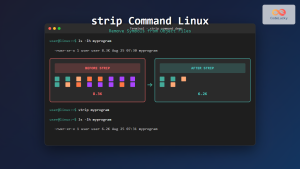
strip Command Linux: Complete Guide to Removing Symbols from Object Files
The strip command is a powerful Linux utility that removes symbols, debugging information, and other metadata from executable files, object...
dd Command Linux: Complete Guide to Low-Level File Operations and Disk Cloning
The dd command is one of the most powerful yet dangerous utilities in Linux, often referred to as "disk destroyer"...
Python File detach() Method: Separating Buffer from FileIO
The detach() method in Python's file I/O system provides a powerful tool for manipulating the underlying buffer associated with file...





