The set command is one of the most powerful built-in commands in Linux shells, allowing you to display and modify shell behavior, environment variables, and script execution options. Whether you’re debugging shell scripts, customizing your terminal environment, or managing system variables, understanding the set command is essential for effective Linux administration and scripting.
What is the set Command in Linux?
The set command is a shell built-in that serves multiple purposes:
- Display Variables: Shows all shell variables and their values
- Set Shell Options: Enables or disables various shell behaviors
- Set Positional Parameters: Assigns values to script arguments ($1, $2, etc.)
- Control Script Execution: Manages error handling and debugging options
Basic Syntax and Usage
The set command follows this general syntax:
set [options] [arguments]
set [+/-option_name]
set -- [arguments]
Key syntax elements:
-enables an option+disables an option--marks the end of options
Displaying Shell Variables and Environment
When used without arguments, set displays all shell variables and functions:
$ setSample Output:
BASH=/bin/bash
BASH_ALIASES=()
BASH_ARGC=()
BASH_ARGV=()
BASH_LINENO=()
BASH_SOURCE=()
BASH_VERSINFO=([0]="5" [1]="1" [2]="16")
BASH_VERSION='5.1.16(1)-release'
COLUMNS=120
DIRSTACK=()
EUID=1000
GROUPS=()
HISTFILE=/home/user/.bash_history
HISTFILESIZE=2000
HISTSIZE=1000
HOME=/home/user
HOSTNAME=myserver
HOSTTYPE=x86_64
IFS=$' \t\n'
LANG=en_US.UTF-8
LINES=30
LOGNAME=user
MACHTYPE=x86_64-pc-linux-gnu
OLDPWD=/home/user
OSTYPE=linux-gnu
PATH=/usr/local/bin:/usr/bin:/bin
PS1='\u@\h:\w\$ '
PS2='> '
PS4='+ '
PWD=/home/user/projects
SHELL=/bin/bash
SHELLOPTS=braceexpand:emacs:hashall:histexpand:history:interactive-comments:monitor
SHLVL=1
TERM=xterm-256color
UID=1000
USER=user
_=set
To display only environment variables (not shell variables), use env or printenv instead.
Essential Shell Options
Error Handling Options
Exit on Error (-e)
The -e option makes the shell exit immediately when a command returns a non-zero status:
# Enable exit on error
$ set -e

# Create a test script
$ cat > test_error.sh << 'EOF'
#!/bin/bash
set -e
echo "Starting script"
false  # This command fails
echo "This line won't execute"
EOF

$ chmod +x test_error.sh
$ ./test_error.sh
Output:
Starting scriptWithout set -e, the script would continue executing despite the false command failing.
Exit on Undefined Variables (-u)
The -u option causes the shell to exit when trying to use undefined variables:
# Enable undefined variable checking
$ set -u

# Try to use an undefined variable
$ echo $UNDEFINED_VAR
Output:
bash: UNDEFINED_VAR: unbound variablePipeline Error Propagation (-o pipefail)
By default, pipelines return the exit status of the last command. The pipefail option makes pipelines fail if any command in the pipeline fails:
# Enable pipefail
$ set -o pipefail

# Test with a failing pipeline
$ false | echo "This runs"
$ echo "Exit status: $?"
Output:
This runs
Exit status: 1
Debugging Options
Verbose Mode (-v)
The -v option prints shell input lines as they are read:
$ set -v
$ echo "Hello World"
Output:
echo "Hello World"
Hello World
Execution Trace (-x)
The -x option prints commands and their arguments as they are executed:
$ set -x
$ name="John"
$ echo "Hello $name"
Output:
+ name=John
+ echo 'Hello John'
Hello John
Practical Examples and Use Cases
Robust Script Development
Combine multiple options for robust script development:
#!/bin/bash
# Enable strict mode
set -euo pipefail

# Optional: Enable debug mode
# set -x

echo "Starting backup process..."

# Create backup directory
backup_dir="/tmp/backup_$(date +%Y%m%d)"
mkdir -p "$backup_dir"

# Copy important files
cp /etc/passwd "$backup_dir/" || {
    echo "Failed to backup passwd file"
    exit 1
}

echo "Backup completed successfully in $backup_dir"
Setting Positional Parameters
Use set to assign values to positional parameters:
$ set apple banana cherry
$ echo "First: $1"
$ echo "Second: $2"
$ echo "Third: $3"
$ echo "All: $@"
Output:
First: apple
Second: banana
Third: cherry
All: apple banana cherry
Parsing Command Output
Use set to parse command output into variables:
# Get system information
$ set $(uname -a)
$ echo "OS: $1"
$ echo "Hostname: $2"
$ echo "Kernel: $3"
Sample Output:
OS: Linux
Hostname: myserver
Kernel: 5.15.0-56-generic
Advanced Shell Options
Brace Expansion Control
# Disable brace expansion
$ set +o braceexpand
$ echo {1..5}
{1..5}

# Enable brace expansion
$ set -o braceexpand
$ echo {1..5}
1 2 3 4 5
History Expansion Control
# Disable history expansion
$ set +H
$ echo "Previous command: !!"
Previous command: !!

# Enable history expansion
$ set -H
$ echo "Previous command: !!"
echo "Previous command: echo "Previous command: !!""
Previous command: echo "Previous command: echo "Previous command: !!"""
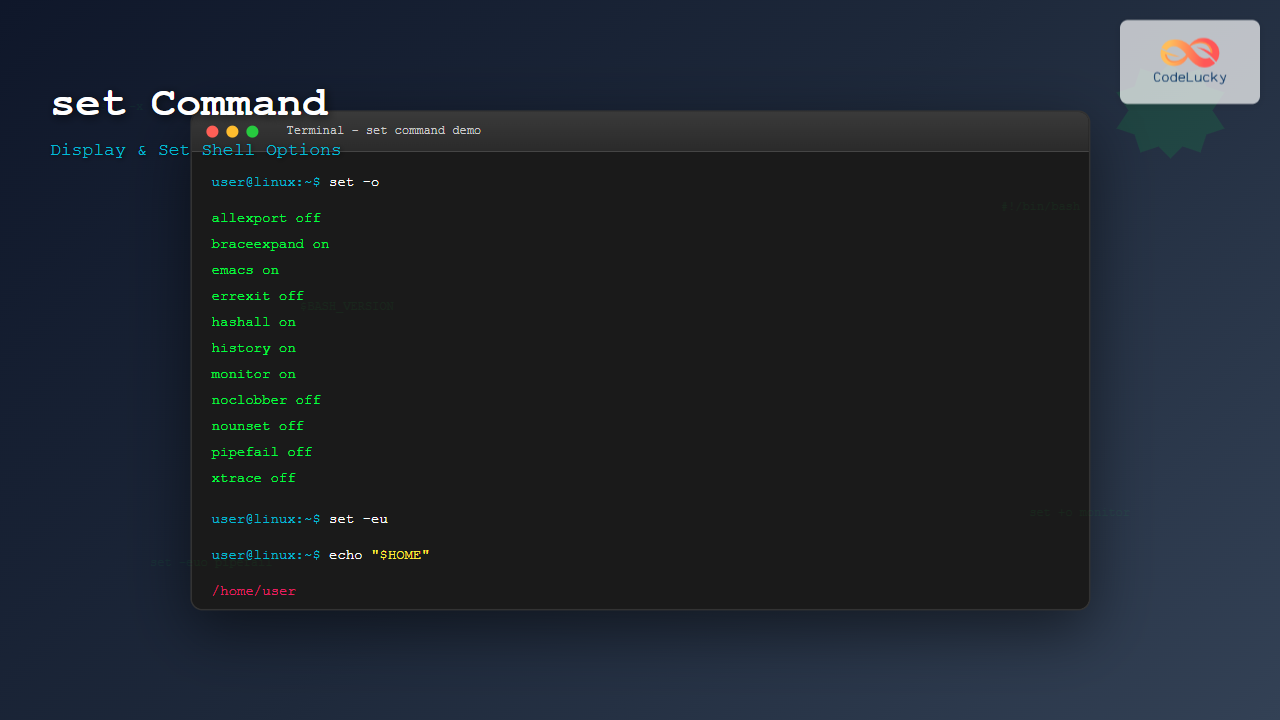
Viewing Current Options
Display currently enabled options:
$ set -oSample Output:
allexport      	off
braceexpand    	on
emacs          	on
errexit        	off
errtrace       	off
functrace      	off
hashall        	on
histexpand     	on
history        	on
ignoreeof      	off
interactive-comments	on
keyword        	off
monitor        	on
noclobber      	off
noexec         	off
noglob         	off
nolog          	off
notify         	off
nounset        	off
onecmd         	off
physical       	off
pipefail       	off
posix          	off
privileged     	off
verbose        	off
vi             	off
xtrace         	off
Interactive Terminal Customization
Preventing File Overwrite
# Enable noclobber to prevent accidental file overwrite
$ set -o noclobber
$ echo "test" > existing_file.txt
$ echo "overwrite" > existing_file.txt
bash: existing_file.txt: cannot overwrite existing file

# Use >| to force overwrite when noclobber is enabled
$ echo "forced overwrite" >| existing_file.txt
Emacs vs Vi Mode
# Enable vi-style command line editing
$ set -o vi

# Enable emacs-style command line editing (default)
$ set -o emacs
Script Template with Best Practices
Here’s a comprehensive script template using set options:
#!/bin/bash

# Script: example_script.sh
# Description: Demonstrates set command best practices

# Enable strict mode for robust scripting
set -euo pipefail

# Optional: Enable debug mode (uncomment for troubleshooting)
# set -x

# Set default values
readonly SCRIPT_NAME=$(basename "$0")
readonly LOG_FILE="/tmp/${SCRIPT_NAME%.sh}.log"

# Function to log messages
log() {
    echo "[$(date '+%Y-%m-%d %H:%M:%S')] $*" | tee -a "$LOG_FILE"
}

# Function to handle errors
error_handler() {
    local line_number=$1
    log "ERROR: Script failed at line $line_number"
    exit 1
}

# Set error trap
trap 'error_handler $LINENO' ERR

# Main script logic
main() {
    log "Starting $SCRIPT_NAME"

    # Validate required variables
    : "${USER:?Environment variable USER is required}"

    # Process arguments if provided
    if [[ $# -gt 0 ]]; then
        set -- "$@"  # Preserve arguments
        log "Processing arguments: $*"
    fi

    # Your script logic here
    log "Script completed successfully"
}

# Execute main function with all arguments
main "$@"
Common set Command Options Reference
| Option | Short Form | Description |
|---|---|---|
-o errexit |
-e |
Exit on command failure |
-o nounset |
-u |
Exit on undefined variable |
-o pipefail |
N/A | Pipeline fails if any command fails |
-o xtrace |
-x |
Print commands before execution |
-o verbose |
-v |
Print input lines as read |
-o noclobber |
-C |
Prevent file overwrite |
-o monitor |
-m |
Enable job control |
Troubleshooting and Tips
Disabling Options
To disable any option, use + instead of -:
# Disable exit on error
$ set +e

# Disable undefined variable checking
$ set +u

# Disable xtrace
$ set +x
Temporary Option Changes
You can temporarily change options within functions or subshells:
debug_function() {
    # Enable debugging only within this function
    local old_opts=$-
    set -x

    echo "Debug mode enabled"
    ls /tmp

    # Restore previous options
    set +x
    case $old_opts in
        *x*) set -x ;;
    esac
}

debug_function
Environment Variable Integration
Use environment variables to control script behavior:
#!/bin/bash

# Enable debug mode if DEBUG environment variable is set
if [[ "${DEBUG:-}" == "true" ]]; then
    set -x
fi

# Enable strict mode unless PERMISSIVE is set
if [[ "${PERMISSIVE:-}" != "true" ]]; then
    set -euo pipefail
fi

echo "Script running with appropriate settings"
Performance Considerations
Some set options can impact performance:
- xtrace (-x): Adds overhead by printing every command
- verbose (-v): Can slow down script execution in loops
- nounset (-u): Adds variable checking overhead
For production scripts, consider using debug options conditionally:
#!/bin/bash

# Only enable debug options in development
if [[ "${ENVIRONMENT:-production}" != "production" ]]; then
    set -x
fi
Conclusion
The set command is an indispensable tool for Linux users and administrators. By mastering its various options, you can create more robust scripts, debug issues effectively, and customize your shell environment to match your workflow. Whether you’re developing complex automation scripts or simply want better error handling in your terminal sessions, understanding set command options will significantly improve your Linux command-line experience.
Start incorporating these set command techniques into your daily Linux workflow, and you’ll notice improved script reliability and easier debugging. Remember that different situations call for different combinations of options, so experiment with various settings to find what works best for your specific use cases.
Related Posts
env Command Linux: Complete Guide to Display Environment Variables
Environment variables are crucial components of any Linux system, storing configuration data and system information that applications and processes rely...

echo Command in Linux: Complete Guide to Print Text and Variables in Terminal
The echo command is one of the most fundamental and frequently used commands in Linux and Unix-like operating systems. It...
unset Command Linux: Complete Guide to Remove Variables and Functions Efficiently
The unset command in Linux is a powerful built-in shell utility that allows you to remove variables and functions from...
type Command Linux: Complete Guide to Display Command Type and Location
The type command is an essential Linux utility that helps you identify the nature and location of commands in your...

bash Command Linux: Start New Shell Sessions and Execute Scripts Efficiently
The bash command is one of the most fundamental tools in Linux systems, serving as both a command-line interpreter and...
export Command Linux: Complete Guide to Environment Variables Management
The export command is one of the most fundamental tools in Linux for managing environment variables. Whether you're a system...
sh Command Linux: Complete Guide to Shell Script Execution and Commands
The sh command is one of the most fundamental tools in Linux and Unix-like systems, serving as the standard shell...
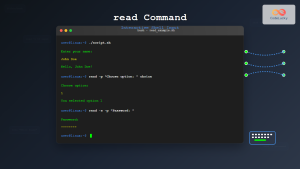
read Command Linux: Complete Guide to Reading User Input in Shell Scripts
The read command is one of the most fundamental tools in Linux shell scripting for creating interactive programs that capture...

Linux Commands Tutorial: Complete Beginner’s Guide to Terminal Basics
The Linux terminal is a powerful command-line interface that gives you direct control over your operating system. While it might...
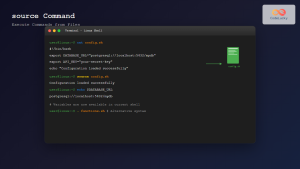
source Command Linux: Execute Scripts and Load Functions Efficiently
The source command in Linux is a powerful built-in shell command that executes commands from a file within the current...
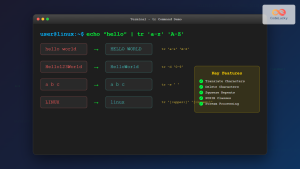
tr Command in Linux: Complete Guide to Character Translation and Deletion
The tr command is one of the most versatile text processing utilities in Linux, designed to translate, delete, or squeeze...
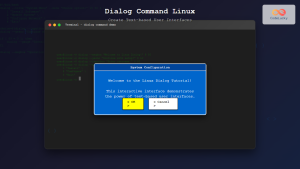
dialog Command Linux: Create Interactive Text-Based User Interfaces with Ease
The dialog command in Linux is a powerful utility that enables developers and system administrators to create sophisticated text-based user...