
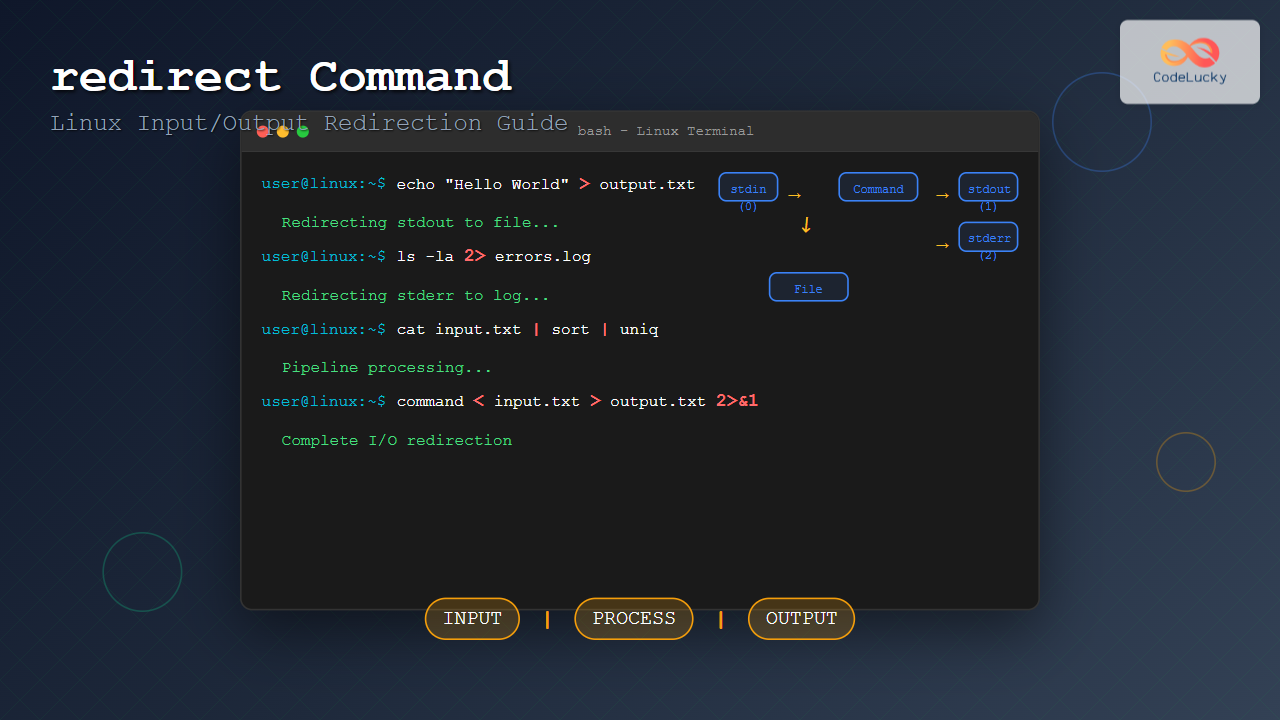
Linux redirection is a powerful feature that allows you to control where command input comes from and where output goes. Instead of displaying results on the terminal or reading from keyboard, you can redirect data to files, other commands, or different output streams. This comprehensive guide covers all aspects of Linux input/output redirection with practical examples.
Understanding Linux I/O Streams
Every Linux process has three default data streams:
- stdin (0): Standard input stream (keyboard by default)
- stdout (1): Standard output stream (terminal display by default)
- stderr (2): Standard error stream (terminal display by default)
These streams can be redirected using special operators to control data flow between commands, files, and devices.
Basic Output Redirection
Redirecting stdout to Files
The > operator redirects standard output to a file, overwriting existing content:
echo "Hello World" > output.txt
cat output.txt
Output:
Hello WorldTo append to existing files instead of overwriting, use >>:
echo "Line 1" > myfile.txt
echo "Line 2" >> myfile.txt
cat myfile.txt
Output:
Line 1
Line 2
Redirecting to /dev/null
Use /dev/null to discard output completely:
ls -la > /dev/null
echo "This command produces no visible output"
This is useful for suppressing unwanted output while keeping error messages visible.
Advanced Output Redirection
Redirecting stderr
Redirect error messages using 2>:
find /root -name "*.txt" 2> errors.log
cat errors.log
Output:
find: '/root': Permission deniedRedirecting Both stdout and stderr
Several methods exist to redirect both streams:
# Method 1: Redirect stdout and stderr separately
command > output.log 2> error.log

# Method 2: Redirect stderr to stdout, then redirect stdout
command > combined.log 2>&1

# Method 3: Bash shorthand (Bash 4.0+)
command &> combined.log
Example with practical demonstration:
ls existing_file non_existent_file &> combined_output.txt
cat combined_output.txt
Output:
existing_file
ls: cannot access 'non_existent_file': No such file or directory
Input Redirection
Basic Input Redirection
Use < to redirect file content as input to commands:
echo -e "apple\nbanana\ncherry" > fruits.txt
sort < fruits.txt
Output:
apple
banana
cherry
Here Documents (Heredoc)
Here documents allow multi-line input using <<:
cat << EOF
This is line 1
This is line 2
This is line 3
EOF
Output:
This is line 1
This is line 2
This is line 3
Useful for creating configuration files:
cat << EOF > config.txt
server=localhost
port=8080
debug=true
EOF
Here Strings
Here strings provide single-line input using <<<:
grep "pattern" <<< "This string contains the pattern we're searching for"Output:
This string contains the pattern we're searching forPipes and Command Chaining
Basic Piping
Pipes (|) connect stdout of one command to stdin of another:
ps aux | grep nginx | head -5This chains three commands: list processes, filter for nginx, show first 5 results.
Complex Pipeline Examples
# Count unique IP addresses in access log
cat access.log | awk '{print $1}' | sort | uniq -c | sort -nr

# Find largest files in current directory
ls -la | sort -k5 -nr | head -10

# Process CSV data
cat data.csv | cut -d',' -f2,4 | sort | uniq
The tee Command
The tee command splits output to both file and stdout:
echo "Important message" | tee important.logOutput (both to terminal and file):
Important messageAppend to file with -a option:
date | tee -a timestamps.logMultiple output destinations:
echo "Broadcast message" | tee file1.txt file2.txt file3.txtProcess Substitution
Process substitution treats command output as temporary files:
# Compare output of two commands
diff <(ls dir1) <(ls dir2)

# Use command output as input file
sort <(cat file1.txt file2.txt)

# Multiple input sources
paste <(cut -d',' -f1 data.csv) <(cut -d',' -f3 data.csv)
Named Pipes (FIFOs)
Create persistent pipes for inter-process communication:
# Create named pipe
mkfifo mypipe

# In one terminal
echo "Data through pipe" > mypipe

# In another terminal
cat < mypipe
Named pipes are useful for real-time data processing and logging.
Advanced Redirection Techniques
File Descriptor Manipulation
# Save original stdout to file descriptor 3
exec 3>&1

# Redirect stdout to file
exec 1> output.log

# Commands now write to file
echo "This goes to file"
date

# Restore original stdout
exec 1>&3

# Close file descriptor 3
exec 3>&-
Conditional Redirection
# Redirect only if file doesn't exist
echo "New content" > file.txt || echo "File already exists"

# Redirect with error handling
{ echo "Success"; echo "Error" >&2; } > success.log 2> error.log
Practical Use Cases and Examples
System Monitoring and Logging
# Monitor system resources
top -b -n1 | head -20 | tee system_status.log

# Log command execution with timestamps
{
    echo "=== $(date) ==="
    df -h
    free -m
    echo "=================="
} >> system_monitor.log
Data Processing Pipeline
# Process web server logs
cat access.log |
  grep "GET" |
  awk '{print $1, $7}' |
  sort |
  uniq -c |
  sort -nr |
  head -10 > top_requests.txt
Backup and Archive Operations
# Create compressed backup with progress
tar -czf - /home/user | tee >(wc -c >&2) | gzip > backup.tar.gz

# Split large files while monitoring
split -b 1M largefile.txt part_ | tee split.log
Error Handling and Debugging
Debugging Pipelines
Use set -o pipefail to catch pipeline errors:
#!/bin/bash
set -o pipefail

# This will fail if any command in pipeline fails
cat nonexistent.txt | sort | uniq > result.txt
echo "Exit code: $?"
Verbose Output for Debugging
# Debug with verbose output
set -x
cat input.txt | sort | uniq > output.txt
set +x
Performance Considerations
Efficient Redirection
- Use appropriate buffer sizes for large file operations
- Avoid unnecessary intermediate files
- Use process substitution instead of temporary files when possible
- Consider parallel processing for large datasets
# Efficient: Direct pipeline
cat large_file.txt | sort | uniq > result.txt

# Less efficient: Multiple temporary files
cat large_file.txt > temp1.txt
sort temp1.txt > temp2.txt
uniq temp2.txt > result.txt
rm temp1.txt temp2.txt
Common Pitfalls and Solutions
Order of Redirection
# Incorrect: stderr not redirected
command 2>&1 > file.txt

# Correct: both stdout and stderr to file
command > file.txt 2>&1
Overwriting Important Files
# Prevent accidental overwriting
set -o noclobber
echo "data" > existing_file.txt  # This will fail

# Force overwrite when needed
echo "data" >| existing_file.txt
Best Practices
- Always handle errors: Redirect stderr appropriately
- Use meaningful file names: Make output files descriptive
- Clean up temporary files: Remove intermediate files after use
- Test pipelines incrementally: Build complex pipelines step by step
- Document complex redirections: Add comments to scripts
- Use process substitution: Prefer over temporary files when possible
Conclusion
Linux redirection is a fundamental skill for system administrators, developers, and power users. By mastering input/output redirection, pipes, and process substitution, you can create efficient data processing workflows, automate complex tasks, and build robust shell scripts. Practice these techniques regularly to become proficient in manipulating data streams and building powerful command-line solutions.
Remember that redirection is not just about moving data—it’s about creating elegant, efficient, and maintainable solutions for common system administration and data processing tasks. Start with simple redirections and gradually work your way up to complex pipelines as you become more comfortable with these powerful tools.
Related Posts
stdin stdout stderr Linux: Complete Guide to Standard Streams and Redirection
Linux standard streams form the foundation of command-line communication, enabling programs to receive input and send output in a structured...
pipe Command Linux: Complete Guide to Connecting Commands with Pipes
The pipe command in Linux is one of the most powerful and fundamental concepts that allows you to connect multiple...
tee Command Linux: Write Output to Multiple Destinations Simultaneously
The tee command in Linux is a powerful utility that reads from standard input and writes the output to both...
read Command Linux: Complete Guide to Reading User Input in Shell Scripts
The read command is one of the most fundamental tools in Linux shell scripting for creating interactive programs that capture...

Linux Commands Tutorial: Complete Beginner’s Guide to Terminal Basics
The Linux terminal is a powerful command-line interface that gives you direct control over your operating system. While it might...

echo Command in Linux: Complete Guide to Print Text and Variables in Terminal
The echo command is one of the most fundamental and frequently used commands in Linux and Unix-like operating systems. It...

cat Command in Linux: Complete Guide to Display and Concatenate Files
The cat command is one of the most fundamental and frequently used commands in Linux and Unix-like operating systems. Short...

C++ Stream Methods: I/O Stream Operations
C++ provides powerful stream classes for input and output operations. These classes offer a wide range of methods to manipulate...
sed Advanced Linux: Stream Editor Advanced Techniques for Text Processing
The sed (Stream Editor) command stands as one of the most powerful text processing tools in Linux systems. While basic...
more Command Linux: Complete Guide to Paginated File Viewing
The more command is one of the most essential Linux utilities for viewing file contents in a controlled, paginated manner....
expect Command Linux: Complete Guide to Automate Interactive Programs
The expect command is a powerful automation tool in Linux that allows you to automate interactive programs that normally require...
history Command Linux: Complete Guide to View and Manage Your Command History
The history command in Linux is one of the most powerful tools for managing and navigating your command line experience....





