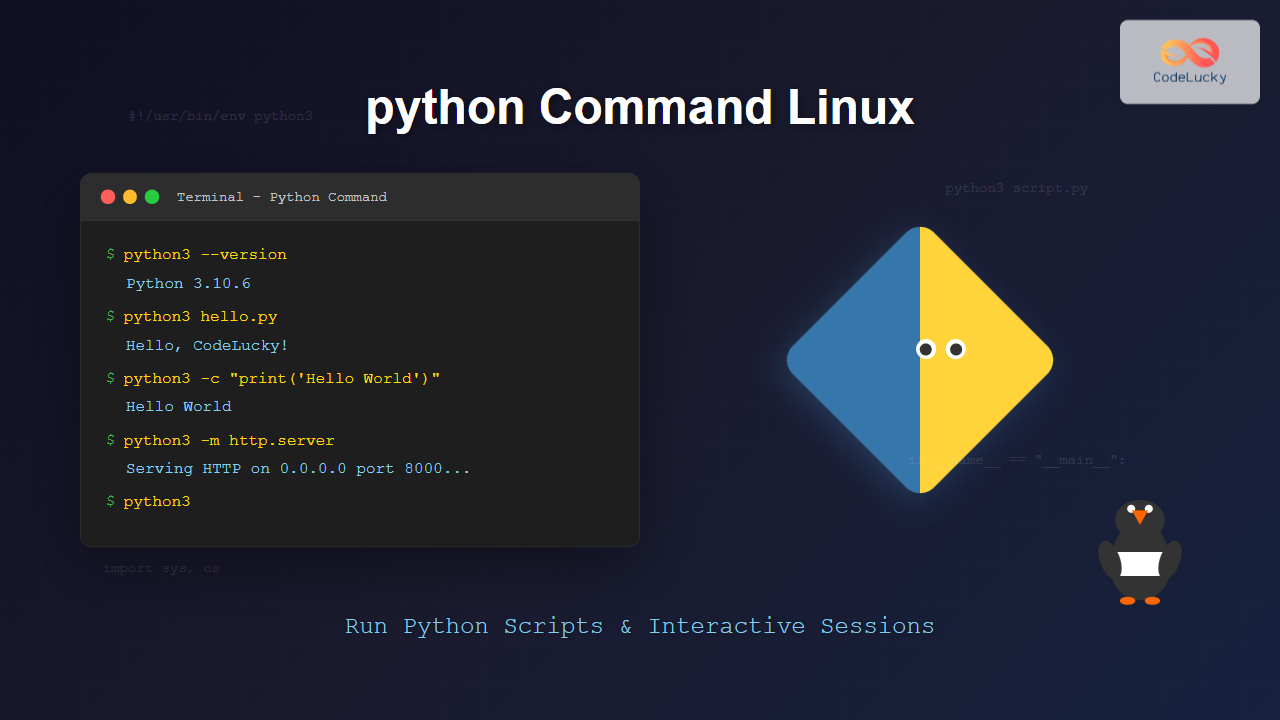
The python command is one of the most essential tools for developers working with Python on Linux systems. Whether you’re running scripts, starting interactive sessions, or debugging code, understanding how to effectively use the python command can significantly boost your productivity and development workflow.
What is the python Command?
The python command is the primary interface for executing Python code on Linux systems. It serves as an interpreter that can run Python scripts, start interactive Python sessions, and execute Python code directly from the command line. This command provides access to the Python runtime environment and all its capabilities.
Basic Syntax and Usage
The basic syntax of the python command follows this pattern:
python [options] [script] [arguments]Here are the most common usage patterns:
- Interactive Mode:
python - Run Script:
python script.py - Execute Code:
python -c "print('Hello World')" - Run Module:
python -m module_name
Python Version Management
Most Linux systems come with multiple Python versions installed. Understanding how to work with different versions is crucial:
Available Python Commands
# Check available Python versions
python --version
python3 --version
python3.9 --version
python3.10 --version
Example Output:
$ python3 --version
Python 3.10.6

$ python --version
Python 2.7.18
Using Specific Python Versions
# Use Python 3 explicitly
python3 script.py

# Use specific Python version
python3.10 script.py

# Create alias for convenience
alias py="python3"
Running Python Scripts
Basic Script Execution
Let’s create a simple Python script and run it:
# Create a sample script
cat > hello.py << 'EOF'
#!/usr/bin/env python3

def greet(name):
    return f"Hello, {name}!"

if __name__ == "__main__":
    user_name = input("Enter your name: ")
    print(greet(user_name))
    print(f"Python version: {__import__('sys').version}")
EOF

# Make it executable
chmod +x hello.py

# Run the script
python3 hello.py
Expected Output:
Enter your name: CodeLucky
Hello, CodeLucky!
Python version: 3.10.6 (main, Nov 14 2022, 16:10:14) [GCC 11.4.0] on linux
Passing Arguments to Scripts
Python scripts can accept command-line arguments:
# Create script with arguments
cat > calculator.py << 'EOF'
import sys

def calculate(operation, num1, num2):
    operations = {
        'add': lambda x, y: x + y,
        'subtract': lambda x, y: x - y,
        'multiply': lambda x, y: x * y,
        'divide': lambda x, y: x / y if y != 0 else "Cannot divide by zero"
    }

    return operations.get(operation, lambda x, y: "Invalid operation")(num1, num2)

if __name__ == "__main__":
    if len(sys.argv) != 4:
        print("Usage: python calculator.py   ")
        print("Operations: add, subtract, multiply, divide")
        sys.exit(1)

    operation = sys.argv[1]
    num1 = float(sys.argv[2])
    num2 = float(sys.argv[3])

    result = calculate(operation, num1, num2)
    print(f"Result: {result}")
EOF

# Run with arguments
python3 calculator.py add 15 25
python3 calculator.py multiply 7 8
Output:
$ python3 calculator.py add 15 25
Result: 40.0

$ python3 calculator.py multiply 7 8
Result: 56.0
Interactive Python Sessions
Starting Interactive Mode
The interactive Python shell is perfect for testing code, learning, and debugging:
# Start interactive Python session
python3

# You'll see the Python prompt
Python 3.10.6 (main, Nov 14 2022, 16:10:14) [GCC 11.4.0] on linux
Type "help", "copyright", "credits" or "license" for more information.
>>>
Interactive Session Examples
# Mathematical operations
>>> 2 + 3 * 4
14
>>> import math
>>> math.sqrt(16)
4.0

# Working with lists
>>> numbers = [1, 2, 3, 4, 5]
>>> sum(numbers)
15
>>> [x**2 for x in numbers]
[1, 4, 9, 16, 25]

# String operations
>>> text = "CodeLucky"
>>> text.upper()
'CODELUCKY'
>>> len(text)
9

# Exit interactive mode
>>> exit()
Command Line Options and Flags
Essential Python Command Options
| Option | Description | Example |
|---|---|---|
-c |
Execute code directly | python3 -c "print('Hello')" |
-m |
Run module as script | python3 -m http.server |
-i |
Interactive mode after script | python3 -i script.py |
-u |
Unbuffered output | python3 -u script.py |
-v |
Verbose mode | python3 -v script.py |
-W |
Warning control | python3 -W ignore script.py |
Practical Examples with Options
# Execute code directly
python3 -c "import os; print(f'Current directory: {os.getcwd()}')"

# Run module as script (start HTTP server)
python3 -m http.server 8000

# Run with interactive mode after execution
python3 -i -c "x = 42; y = 'CodeLucky'"
# This starts interactive session with x and y already defined

# Unbuffered output (useful for logging)
python3 -u long_running_script.py

# Check syntax without execution
python3 -m py_compile script.py
Working with Python Modules
Running Built-in Modules
Python comes with many useful built-in modules that can be executed directly:
# Start HTTP server
python3 -m http.server 8000

# Run calendar module
python3 -m calendar 2024

# JSON pretty printer
echo '{"name":"CodeLucky","type":"website"}' | python3 -m json.tool

# Create virtual environment
python3 -m venv myproject

# Install packages
python3 -m pip install requests

# Run timeit for performance testing
python3 -m timeit "sum(range(100))"
Module Execution Examples
# Calendar output
$ python3 -m calendar 2024 8
    August 2024
Mo Tu We Th Fr Sa Su
          1  2  3  4
 5  6  7  8  9 10 11
12 13 14 15 16 17 18
19 20 21 22 23 24 25
26 27 28 29 30 31

# JSON formatting
$ echo '{"name":"CodeLucky","version":"1.0"}' | python3 -m json.tool
{
    "name": "CodeLucky",
    "version": "1.0"
}
Environment and Path Configuration
Python Path Management
# Check Python executable location
which python3
whereis python3

# Check Python path
python3 -c "import sys; print('\n'.join(sys.path))"

# Set PYTHONPATH environment variable
export PYTHONPATH="/path/to/your/modules:$PYTHONPATH"

# Check environment variables
python3 -c "import os; print(f'PYTHONPATH: {os.environ.get(\"PYTHONPATH\", \"Not set\")}')"
Virtual Environment Usage
# Create virtual environment
python3 -m venv myproject_env

# Activate virtual environment
source myproject_env/bin/activate

# Check active Python
which python
python --version

# Install packages in virtual environment
pip install requests beautifulsoup4

# Deactivate virtual environment
deactivate
Debugging and Development
Using Python Debugger
# Create script with debugger
cat > debug_example.py << 'EOF'
import pdb

def factorial(n):
    if n <= 1:
        return 1
    result = n * factorial(n - 1)
    pdb.set_trace()  # Debugger breakpoint
    return result

if __name__ == "__main__":
    number = 5
    result = factorial(number)
    print(f"Factorial of {number} is {result}")
EOF

# Run with debugger
python3 debug_example.py
Profiling Python Code
# Profile script execution
python3 -m cProfile script.py

# Time code execution
python3 -m timeit -s "import math" "math.sqrt(144)"

# Memory profiling setup
cat > memory_test.py << 'EOF'
def memory_intensive():
    big_list = [i**2 for i in range(100000)]
    return sum(big_list)

if __name__ == "__main__":
    result = memory_intensive()
    print(f"Result: {result}")
EOF

# Run with memory profiling (requires memory_profiler)
# python3 -m memory_profiler memory_test.py
Error Handling and Troubleshooting
Common Issues and Solutions
# Check if Python is installed
command -v python3 || echo "Python 3 not found"

# Verify Python installation
python3 -c "print('Python is working!')"

# Check for syntax errors
python3 -m py_compile suspicious_script.py

# Run with warnings enabled
python3 -W all script.py
Permission and Execution Issues
# Make Python script executable
chmod +x script.py

# Add shebang line to script
cat > executable_script.py << 'EOF'
#!/usr/bin/env python3
print("This script can be run directly!")
EOF

chmod +x executable_script.py

# Run directly
./executable_script.py
Advanced Usage Patterns
Combining with Shell Commands
# Use Python in shell pipelines
echo "hello world" | python3 -c "import sys; print(sys.stdin.read().upper().strip())"

# Process files with Python
find . -name "*.txt" | python3 -c "
import sys
for line in sys.stdin:
    filename = line.strip()
    with open(filename) as f:
        print(f'{filename}: {len(f.readlines())} lines')
"

# Generate data with Python
python3 -c "
import json
data = {'numbers': list(range(1, 6)), 'message': 'CodeLucky'}
print(json.dumps(data, indent=2))
" > data.json
One-liner Python Scripts
# Convert timestamps
python3 -c "import datetime; print(datetime.datetime.fromtimestamp(1692960000))"

# Generate random password
python3 -c "import secrets, string; print(''.join(secrets.choice(string.ascii_letters + string.digits) for _ in range(12)))"

# Calculate file sizes
python3 -c "import os; print(f'Size: {os.path.getsize(\"large_file.txt\")} bytes')"

# URL encoding
python3 -c "import urllib.parse; print(urllib.parse.quote('Hello CodeLucky!'))"
Best Practices and Tips
Performance Optimization
- Use Python 3: Always prefer
python3over legacypython - Virtual Environments: Use virtual environments for project isolation
- Buffering: Use
-uflag for real-time output in logs - Module Execution: Use
-mfor running modules instead of scripts when possible
Security Considerations
# Avoid running untrusted code
# Never use: python3 -c "$(curl -s untrusted-url)"

# Check script before execution
cat suspicious_script.py

# Run in restricted environment
python3 -c "import sys; print('Python path:', sys.path)"

# Use virtual environments for isolation
python3 -m venv secure_env
source secure_env/bin/activate
Integration with Development Workflow
Automation Scripts
# Create deployment script
cat > deploy.py << 'EOF'
#!/usr/bin/env python3
import subprocess
import sys
import os

def run_command(cmd):
    result = subprocess.run(cmd, shell=True, capture_output=True, text=True)
    if result.returncode != 0:
        print(f"Error: {result.stderr}")
        sys.exit(1)
    return result.stdout

def main():
    print("Starting deployment...")

    # Run tests
    print("Running tests...")
    run_command("python3 -m pytest tests/")

    # Build project
    print("Building project...")
    run_command("python3 setup.py build")

    print("Deployment completed successfully!")

if __name__ == "__main__":
    main()
EOF

chmod +x deploy.py
./deploy.py
Conclusion
The python command in Linux is a powerful and versatile tool that forms the foundation of Python development on Unix-like systems. From running simple scripts to managing complex development workflows, mastering the python command and its various options will significantly enhance your productivity as a developer.
Whether you’re a beginner learning Python or an experienced developer working on large projects, understanding how to effectively use the python command, manage virtual environments, debug code, and integrate Python with shell workflows is essential for successful Linux-based Python development.
Remember to always use python3 for new projects, leverage virtual environments for project isolation, and explore the rich ecosystem of built-in modules that can be executed directly from the command line. With these skills, you’ll be well-equipped to harness the full power of Python on Linux systems.
Related Posts
Python Tutorial: Getting Started with the Basics
Introduction Python is a versatile, high-level programming language known for its simplicity and readability. Whether you're a complete beginner or...
Python import Keyword: Importing Modules
The import keyword is fundamental to Python programming. It allows you to utilize pre-written code from external modules, expanding the...

Python Functions: Building Reusable Code Blocks
Python functions are the cornerstone of efficient and organized programming. They allow you to encapsulate reusable code blocks, making your...
Python input() Function: Reading User Input
The input() function is a powerful tool in Python that allows your programs to interact with users by gathering information...
Python exec() Function: Executing Python Code Dynamically
The exec() function in Python is a powerful tool that allows you to execute arbitrary Python code at runtime. This...

Python Modules: Organizing and Reusing Code
Python modules are a cornerstone of efficient and organized programming. They allow developers to break down complex programs into manageable,...
Python open() Function: Opening Files and Streams
In the realm of programming, working with files is an essential task. Python provides a powerful and intuitive function, open(),...

Python Syntax: A Beginner’s Guide to Writing Clean Code
Introduction Python is renowned for its clean, readable syntax, making it an excellent language for beginners and experienced programmers alike....
Python help() Function: Accessing Built-in Documentation
Welcome to the world of Python's built-in functions! In this comprehensive guide, we'll delve into the help() function, your trusty...
Python File isatty() Method: Checking if File Stream is Interactive
The isatty() method is a handy tool in Python for determining whether a file stream is connected to an interactive...
ruby Command Linux: Complete Guide to Running Ruby Scripts and Programs
The ruby command is a powerful tool for executing Ruby scripts and programs directly from the Linux command line. Whether...
Python compile() Function: Compiling Source into Code Objects
The compile() function in Python is a powerful tool that allows you to transform source code into a code object....