
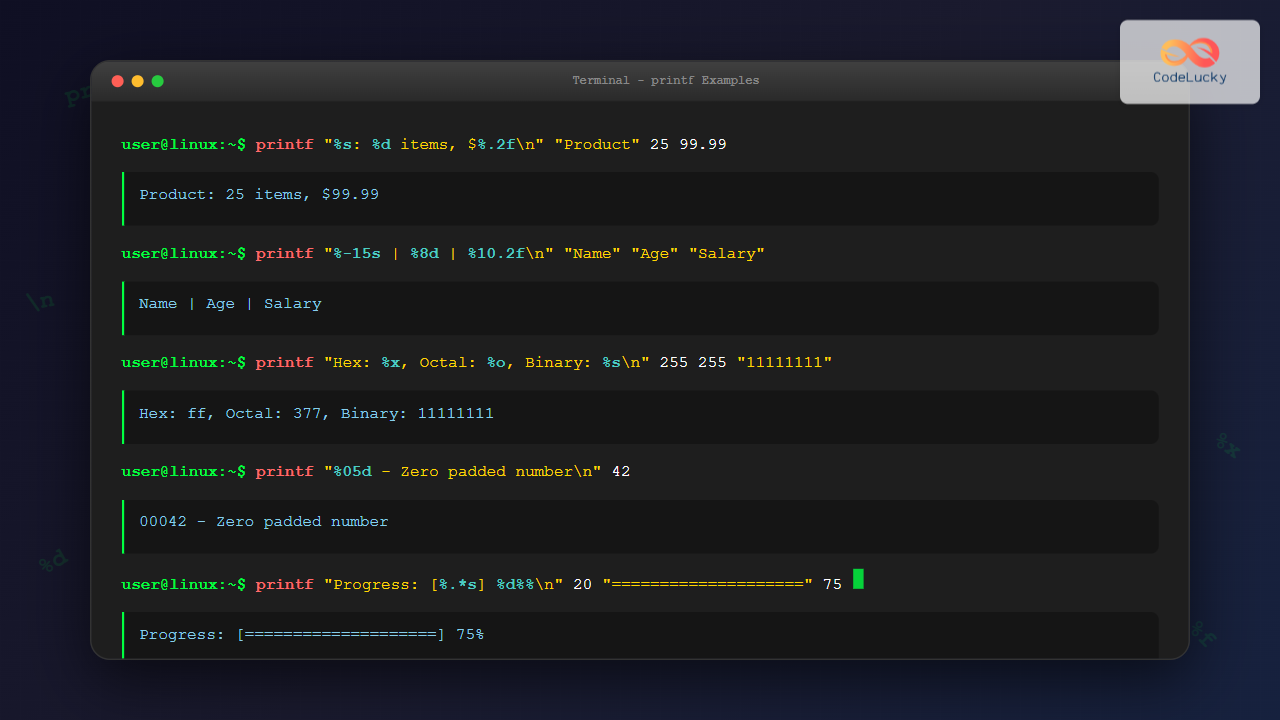
The printf command in Linux is a powerful tool for formatting and displaying text output with precise control over appearance, alignment, and data presentation. Unlike the simple echo command, printf provides advanced formatting capabilities similar to the printf function in C programming language, making it essential for shell scripting and professional command-line operations.
Understanding printf vs echo
While echo simply prints text followed by a newline, printf offers sophisticated formatting control:
# echo behavior
echo "Hello World"
# Output: Hello World (with newline)

# printf behavior
printf "Hello World"
# Output: Hello World (no automatic newline)

printf "Hello World\n"
# Output: Hello World (with explicit newline)
Basic printf Syntax
The general syntax of the printf command follows this pattern:
printf "format_string" [arguments...]
The format string contains literal text and format specifiers that define how arguments should be displayed.
Essential Format Specifiers
| Specifier | Description | Example |
|---|---|---|
| %s | String | printf “%s\n” “Hello” |
| %d | Decimal integer | printf “%d\n” 42 |
| %f | Floating point | printf “%.2f\n” 3.14159 |
| %c | Single character | printf “%c\n” 65 |
| %x | Hexadecimal | printf “%x\n” 255 |
| %o | Octal | printf “%o\n” 64 |
String Formatting Examples
String formatting with printf provides precise control over text alignment and width:
# Basic string output
printf "%s\n" "CodeLucky"
# Output: CodeLucky

# Right-aligned string in 15-character width
printf "%15s\n" "CodeLucky"
# Output:    CodeLucky

# Left-aligned string in 15-character width
printf "%-15s|\n" "CodeLucky"
# Output: CodeLucky      |

# Truncate string to 4 characters
printf "%.4s\n" "CodeLucky"
# Output: Code
Multiple String Arguments
# Format multiple strings
printf "Name: %s, Role: %s, Company: %s\n" "John" "Developer" "CodeLucky"
# Output: Name: John, Role: Developer, Company: CodeLucky

# Create formatted table headers
printf "%-10s %-8s %-12s\n" "Name" "Age" "Department"
printf "%-10s %-8s %-12s\n" "Alice" "28" "Engineering"
printf "%-10s %-8s %-12s\n" "Bob" "32" "Marketing"
Number Formatting Techniques
Numeric formatting with printf enables precise control over decimal places, padding, and number representation:
Integer Formatting
# Basic integer output
printf "%d\n" 42
# Output: 42

# Right-aligned with padding
printf "%8d\n" 42
# Output:       42

# Left-aligned with padding
printf "%-8d|\n" 42
# Output: 42      |

# Zero-padded integers
printf "%05d\n" 42
# Output: 00042

# Positive number with explicit sign
printf "%+d\n" 42
# Output: +42
Floating Point Precision
# Default floating point
printf "%f\n" 3.14159
# Output: 3.141590

# Two decimal places
printf "%.2f\n" 3.14159
# Output: 3.14

# Width and precision combined
printf "%10.2f\n" 3.14159
# Output:      3.14

# Scientific notation
printf "%e\n" 1234.5
# Output: 1.234500e+03

# Automatic format selection
printf "%g\n" 1234.5
# Output: 1234.5
Advanced Formatting Options
Hexadecimal and Octal Output
# Hexadecimal representation
printf "Decimal: %d, Hex: %x, Uppercase Hex: %X\n" 255 255 255
# Output: Decimal: 255, Hex: ff, Uppercase Hex: FF

# Octal representation
printf "Decimal: %d, Octal: %o\n" 64 64
# Output: Decimal: 64, Octal: 100

# Hexadecimal with 0x prefix
printf "0x%x\n" 255
# Output: 0xff
Character Output and ASCII
# Convert ASCII code to character
printf "%c\n" 65
# Output: A

# Multiple character conversions
printf "%c%c%c%c\n" 72 101 108 108
# Output: Hell

# Mix characters and strings
printf "Character: %c, String: %s\n" 65 "pple"
# Output: Character: A, String: pple
Escape Sequences and Special Characters
Printf supports various escape sequences for special character output:
# Common escape sequences
printf "Line 1\nLine 2\n"              # Newline
printf "Column1\tColumn2\n"            # Tab
printf "Quote: \"Hello\"\n"            # Escaped quotes
printf "Backslash: \\\n"               # Escaped backslash
printf "Alert sound: \a\n"             # Alert/bell
printf "Carriage return: \rOverwrite\n" # Carriage return
Color and Terminal Formatting
# ANSI color codes with printf
printf "\033[31mRed text\033[0m\n"     # Red text
printf "\033[32mGreen text\033[0m\n"   # Green text
printf "\033[1mBold text\033[0m\n"     # Bold text
printf "\033[4mUnderlined\033[0m\n"    # Underlined text

# Background colors
printf "\033[41mRed background\033[0m\n"
printf "\033[42mGreen background\033[0m\n"
Practical Shell Scripting Examples
Creating Formatted Reports
#!/bin/bash
# System information report

printf "=%.0s" {1..50}; printf "\n"
printf "%-20s %s\n" "SYSTEM INFORMATION" "$(date)"
printf "=%.0s" {1..50}; printf "\n"

printf "%-15s: %s\n" "Hostname" "$(hostname)"
printf "%-15s: %s\n" "Kernel" "$(uname -r)"
printf "%-15s: %s\n" "Uptime" "$(uptime -p)"
printf "%-15s: %.1f%%\n" "CPU Usage" "$(top -bn1 | grep "Cpu(s)" | awk '{print $2}' | cut -d'%' -f1)"
Progress Bar Implementation
#!/bin/bash
# Progress bar using printf

show_progress() {
    local progress=$1
    local total=50
    local filled=$((progress * total / 100))
    local empty=$((total - filled))

    printf "\r["
    printf "=%.0s" $(seq 1 $filled)
    printf " %.0s" $(seq 1 $empty)
    printf "] %d%%" $progress
}

# Usage example
for i in {0..100}; do
    show_progress $i
    sleep 0.1
done
printf "\n"
Data Formatting and Conversion
Processing CSV-like Data
# Format data from variables
name="Alice Johnson"
age=28
salary=75000.50
department="Engineering"

printf "| %-15s | %3d | $%10.2f | %-12s |\n" \
       "$name" "$age" "$salary" "$department"
# Output: | Alice Johnson   |  28 | $ 75000.50 | Engineering  |

# Create table with headers
printf "| %-15s | %-3s | %-11s | %-12s |\n" "Name" "Age" "Salary" "Department"
printf "|%.*s|\n" 17 "$(printf '=%.0s' {1..17})" \
                  5 "$(printf '=%.0s' {1..5})" \
                  13 "$(printf '=%.0s' {1..13})" \
                  14 "$(printf '=%.0s' {1..14})"
Number Base Conversions
# Convert decimal to different bases
number=42
printf "Decimal: %d\n" $number
printf "Binary: %s\n" $(echo "obase=2; $number" | bc)
printf "Octal: %o\n" $number
printf "Hexadecimal: %x\n" $number
printf "Hexadecimal (upper): %X\n" $number

# Output:
# Decimal: 42
# Binary: 101010
# Octal: 52
# Hexadecimal: 2a
# Hexadecimal (upper): 2A
Error Handling and Validation
Printf provides reliable output even with missing or incorrect arguments:
# Missing arguments are treated as empty strings or zero
printf "%s %d %f\n" "Hello"
# Output: Hello 0 0.000000

# Too many arguments - extras are ignored
printf "%s\n" "First" "Second" "Third"
# Output: First

# Invalid format specifiers print literally
printf "%q invalid specifier\n" "test"
# Output: %q invalid specifier
Performance and Best Practices
Efficient Loop Formatting
# Efficient way to format multiple items
files=("file1.txt" "file2.txt" "file3.txt")
sizes=(1024 2048 512)

for i in "${!files[@]}"; do
    printf "%-12s: %8d bytes\n" "${files[i]}" "${sizes[i]}"
done

# Output:
# file1.txt   :     1024 bytes
# file2.txt   :     2048 bytes
# file3.txt   :      512 bytes
Memory and Speed Considerations
# Printf is generally faster than echo for formatted output
# Use printf for:
# - Precise formatting requirements
# - Numerical conversions
# - Complex string manipulation
# - Portable shell scripts

# Avoid printf for:
# - Simple text output (use echo)
# - Very long strings without formatting
# - When newline behavior doesn't matter
Common Pitfalls and Solutions
Format String Security
# Dangerous: user input as format string
user_input="%s %s %s"
printf "$user_input" "arg1" "arg2"  # Unsafe

# Safe: use %s for user input
printf "%s" "$user_input"           # Safe approach
printf "User said: %s\n" "$user_input"  # Even better
Locale and Number Formatting
# Different locales may affect decimal separators
export LC_NUMERIC=C  # Ensure consistent numeric formatting
printf "%.2f\n" 1234.56
# Output: 1234.56 (consistent across locales)
Integration with Other Commands
Printf works excellently with other Linux commands through pipes and command substitution:
# Format output from other commands
ls -la | while read -r perms links owner group size date time name; do
    printf "%-10s %8s %s\n" "$name" "$size" "$date"
done

# Format dates and times
current_time=$(date +%s)
printf "Unix timestamp: %d\nFormatted date: %s\n" \
       "$current_time" "$(date -d @$current_time)"

# Process JSON-like data
printf '{"name": "%s", "age": %d, "score": %.2f}\n' \
       "John Doe" 25 87.5
# Output: {"name": "John Doe", "age": 25, "score": 87.50}
Conclusion
The printf command is an indispensable tool for Linux users and shell script developers who need precise control over text formatting and output presentation. Its powerful format specifiers, escape sequences, and alignment options make it superior to simple echo commands for professional scripting and system administration tasks.
Master printf to create professional-looking reports, format data consistently, handle numeric conversions, and build robust shell scripts that produce clean, readable output. Whether you’re processing log files, creating system reports, or building interactive command-line tools, printf provides the formatting precision your projects deserve.
Practice with these examples and experiment with different format combinations to fully leverage printf’s capabilities in your Linux command-line workflow and automation scripts.
Related Posts

C Output: Printing to Console with printf()
In the world of C programming, mastering output is crucial. The printf() function is your go-to tool for displaying information...

echo Command in Linux: Complete Guide to Print Text and Variables in Terminal
The echo command is one of the most fundamental and frequently used commands in Linux and Unix-like operating systems. It...

C User Input: Getting Input with scanf()
In the world of C programming, interacting with users is a fundamental skill. One of the most common ways to...

C Standard Library: <stdio.h> Functions
The C programming language is renowned for its efficiency and power, and much of this comes from its extensive standard...

C Hello World: Your First C Program
Welcome to the exciting world of C programming! 🎉 In this comprehensive guide, we'll walk you through creating your very...
sed Advanced Linux: Stream Editor Advanced Techniques for Text Processing
The sed (Stream Editor) command stands as one of the most powerful text processing tools in Linux systems. While basic...

PHP Echo and Print: Outputting Data
In the world of PHP programming, outputting data is a fundamental task that every developer needs to master. Two of...

Java Output: Printing to Console
Java, one of the most popular programming languages, offers various ways to display output to the console. Whether you're a...

C++ Output: Printing to Console
In the world of C++ programming, mastering console output is a fundamental skill that every developer must acquire. Whether you're...

cat Command in Linux: Complete Guide to Display and Concatenate Files
The cat command is one of the most fundamental and frequently used commands in Linux and Unix-like operating systems. Short...
read Command Linux: Complete Guide to Reading User Input in Shell Scripts
The read command is one of the most fundamental tools in Linux shell scripting for creating interactive programs that capture...
redirect Command Linux: Complete Input Output Redirection Guide
Linux redirection is a powerful feature that allows you to control where command input comes from and where output goes....





