
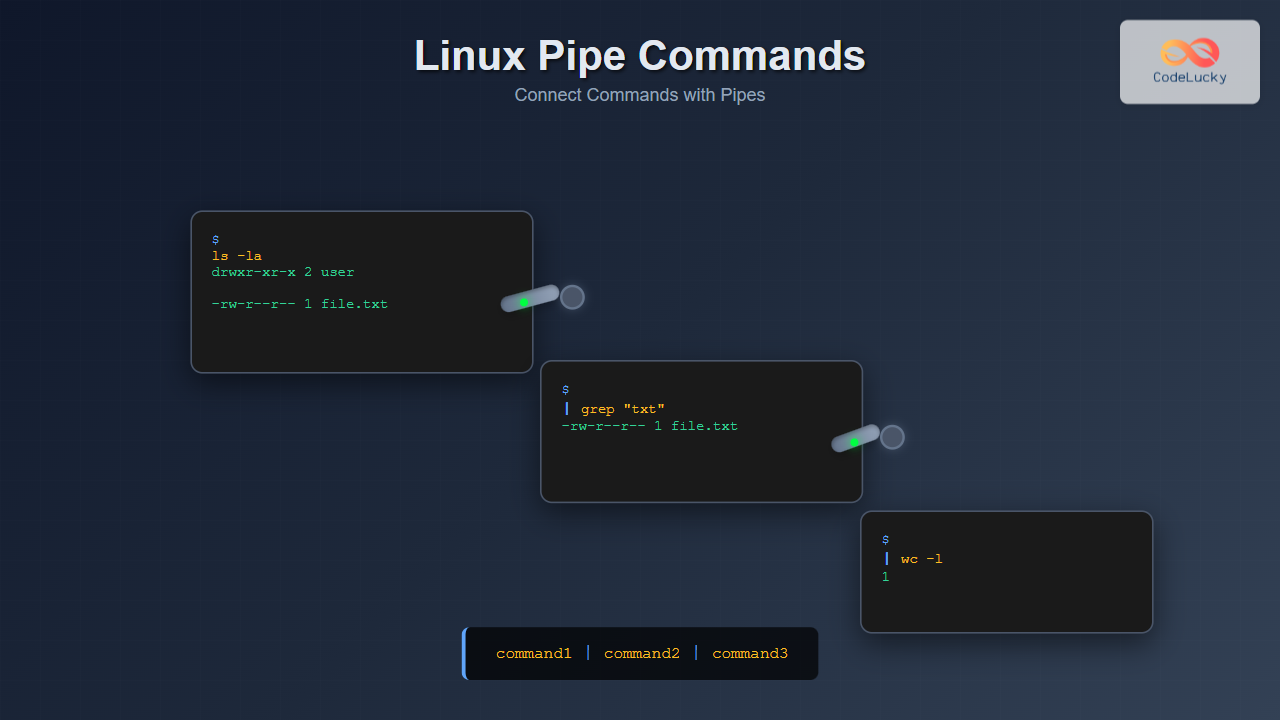
The pipe command in Linux is one of the most powerful and fundamental concepts that allows you to connect multiple commands together, creating efficient workflows and complex data processing chains. By understanding how to use pipes effectively, you can transform simple commands into sophisticated data manipulation tools.
What is a Pipe in Linux?
A pipe (|) is a form of redirection that connects the standard output of one command to the standard input of another command. This creates a pipeline where data flows from left to right, allowing you to chain multiple commands together seamlessly.
The basic syntax of a pipe is:
command1 | command2 | command3In this structure, the output of command1 becomes the input for command2, and the output of command2 becomes the input for command3.
Basic Pipe Command Examples
Example 1: Listing and Counting Files
ls -l | wc -lOutput:
15This command lists all files in long format and pipes the output to wc -l, which counts the number of lines, effectively giving you the total number of files and directories.
Example 2: Finding Specific Processes
ps aux | grep firefoxSample Output:
user     12345  2.1  5.4 234567 123456 ?        Sl   10:30   0:15 /usr/bin/firefox
user     12389  0.0  0.1   6789   1234 pts/0    S+   10:45   0:00 grep --color=auto firefox
This pipes the process list to grep, showing only Firefox-related processes.
Example 3: Sorting Directory Contents by Size
ls -la | sort -k5 -nSample Output:
-rw-r--r-- 1 user group    512 Aug 25 10:30 small.txt
-rw-r--r-- 1 user group   1024 Aug 25 10:32 medium.txt
-rw-r--r-- 1 user group   5120 Aug 25 10:35 large.txt
This command lists files and sorts them numerically by size (5th column).
Advanced Pipe Operations
Multiple Command Chaining
You can chain multiple commands together for complex operations:
cat /var/log/auth.log | grep "Failed password" | awk '{print $11}' | sort | uniq -c | sort -nrSample Output:
     15 192.168.1.100
      8 192.168.1.101
      3 192.168.1.102
This command:
- Reads the authentication log
- Filters for failed password attempts
- Extracts IP addresses (11th field)
- Sorts the IPs
- Counts unique occurrences
- Sorts by count in descending order
Using Pipes with Text Processing
cat data.txt | cut -d',' -f2 | sort | uniqThis extracts the second field from a CSV file, sorts it, and removes duplicates.
Pipe Command with Different Utilities
Using Pipes with Head and Tail
dmesg | tail -20 | head -10This shows lines 11-20 from the end of the system message buffer.
Combining Find and Pipes
find /etc -name "*.conf" | xargs ls -la | sort -k5 -nThis finds all .conf files, lists their details, and sorts by size.
Using Pipes with AWK
ps aux | awk '{sum+=$6} END {print "Total Memory: " sum/1024 " MB"}'Sample Output:
Total Memory: 2048.5 MBThis calculates the total memory usage of all processes.
Named Pipes (FIFOs)
Linux also supports named pipes, which are special files that act as pipes:
Creating a Named Pipe
mkfifo mypipeUsing Named Pipes
Terminal 1:
echo "Hello from pipe" > mypipeTerminal 2:
cat < mypipeOutput in Terminal 2:
Hello from pipeError Handling with Pipes
Handling Stderr with Pipes
command1 2>&1 | command2This redirects both stdout and stderr to the pipe.
Using Pipes with Error Suppression
ls /nonexistent 2>/dev/null | wc -lThis suppresses error messages and only pipes valid output.
Performance Considerations
Pipe Buffer Size
Linux pipes have a default buffer size (usually 65KB). For large data processing, consider:
cat large_file.txt | buffer -m 1M | sortParallel Processing with Pipes
cat input.txt | parallel --pipe --block 1M command_to_processCommon Pipe Patterns and Best Practices
Log Analysis Pattern
tail -f /var/log/apache2/access.log | grep "404" | awk '{print $1}' | sort | uniq -cReal-time monitoring of 404 errors with IP counting.
System Monitoring Pattern
iostat 1 | awk '/Device/ {getline; print strftime("%Y-%m-%d %H:%M:%S"), $0}'Timestamped I/O statistics monitoring.
Data Extraction Pattern
curl -s "https://api.example.com/data" | jq '.users[]' | grep "email" | cut -d'"' -f4API data extraction and filtering.
Troubleshooting Pipe Commands
Debugging Pipe Chains
To debug complex pipe chains, test each stage:
# Test stage by stage
cat data.txt
cat data.txt | grep "pattern"
cat data.txt | grep "pattern" | sort
cat data.txt | grep "pattern" | sort | uniq
Common Pipe Errors
- Broken pipe: Occurs when a command in the pipe terminates early
- Buffer overflow: When pipe buffer is full and processes block
- Permission errors: When intermediate commands lack proper permissions
Interactive Pipe Examples
Creating a Simple Log Monitor
#!/bin/bash
# log_monitor.sh
tail -f /var/log/syslog | while read line; do
    echo "[$(date)] $line" | grep -i error
done
Real-time Network Connection Monitor
watch -n 1 'netstat -tuln | grep LISTEN | wc -l'This continuously monitors the number of listening ports.
Advanced Pipe Techniques
Process Substitution
diff <(sort file1.txt) <(sort file2.txt)This compares two files after sorting them without creating temporary files.
Tee Command with Pipes
ps aux | tee processes.txt | grep firefoxThis saves the process list to a file while also searching for Firefox processes.
Pipe with Background Processing
(tail -f logfile.log | grep "ERROR" &) | head -10This runs continuous monitoring in the background while showing initial results.
Conclusion
The pipe command is an essential tool in the Linux command-line arsenal that enables powerful data processing workflows. By mastering pipes, you can create efficient, readable, and maintainable command sequences that handle complex tasks with elegance. Whether you’re processing logs, analyzing system data, or building automated scripts, understanding how to effectively use pipes will significantly enhance your productivity and capabilities as a Linux user.
Remember to start with simple pipe combinations and gradually build complexity as you become more comfortable with the concept. Practice with different commands and scenarios to develop an intuitive understanding of how data flows through your pipe chains.
Related Posts
tee Command Linux: Write Output to Multiple Destinations Simultaneously
The tee command in Linux is a powerful utility that reads from standard input and writes the output to both...
redirect Command Linux: Complete Input Output Redirection Guide
Linux redirection is a powerful feature that allows you to control where command input comes from and where output goes....
Pipes in Operating System: Complete Guide to Anonymous and Named Pipes
Pipes are one of the most fundamental and widely used Inter-Process Communication (IPC) mechanisms in Unix-like operating systems. They provide...
stdin stdout stderr Linux: Complete Guide to Standard Streams and Redirection
Linux standard streams form the foundation of command-line communication, enabling programs to receive input and send output in a structured...

cat Command in Linux: Complete Guide to Display and Concatenate Files
The cat command is one of the most fundamental and frequently used commands in Linux and Unix-like operating systems. Short...
paste Command Linux: Complete Guide to Merging Lines from Multiple Files
The paste command in Linux is a powerful text processing utility that allows you to merge lines from multiple files...
read Command Linux: Complete Guide to Reading User Input in Shell Scripts
The read command is one of the most fundamental tools in Linux shell scripting for creating interactive programs that capture...
sed Advanced Linux: Stream Editor Advanced Techniques for Text Processing
The sed (Stream Editor) command stands as one of the most powerful text processing tools in Linux systems. While basic...
xargs Command Linux: Process Standard Input with Powerful Command Building
The xargs command is one of Linux's most powerful utilities for building and executing commands from standard input. It bridges...

echo Command in Linux: Complete Guide to Print Text and Variables in Terminal
The echo command is one of the most fundamental and frequently used commands in Linux and Unix-like operating systems. It...

Linux Commands Tutorial: Complete Beginner’s Guide to Terminal Basics
The Linux terminal is a powerful command-line interface that gives you direct control over your operating system. While it might...

bash Command Linux: Start New Shell Sessions and Execute Scripts Efficiently
The bash command is one of the most fundamental tools in Linux systems, serving as both a command-line interpreter and...





