
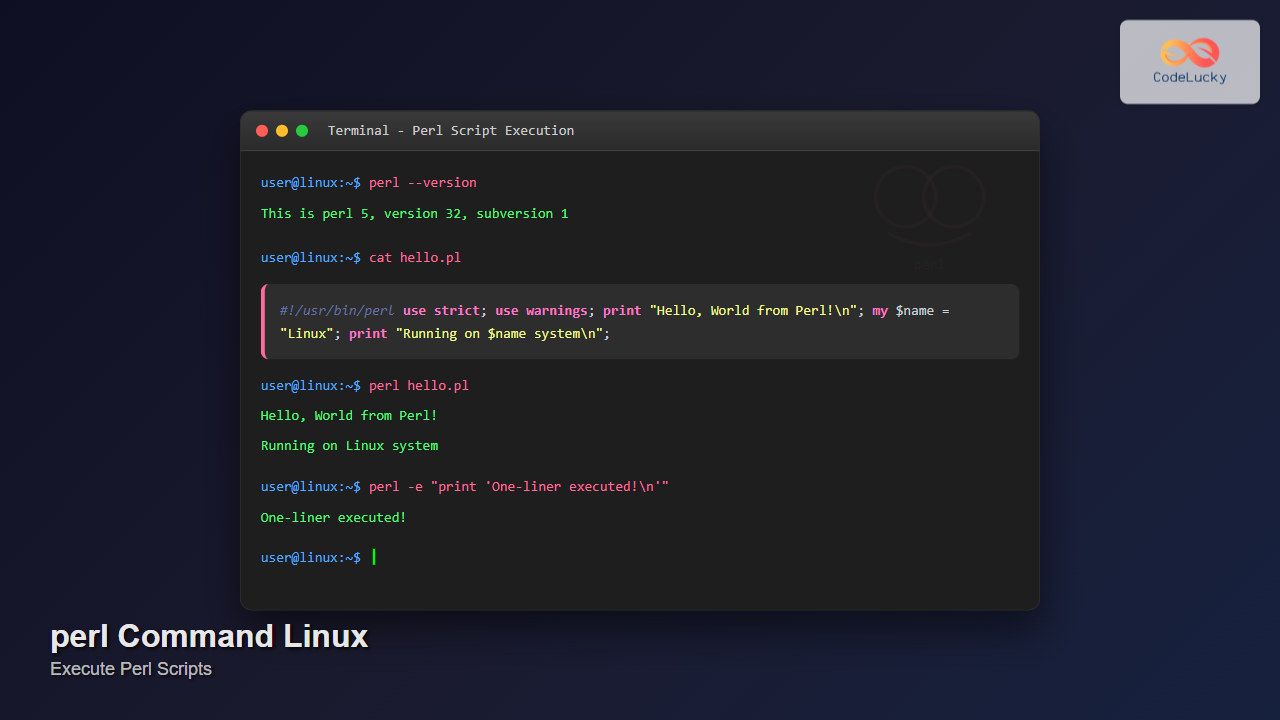
The perl command is a powerful tool in Linux systems that allows you to execute Perl scripts and run Perl code directly from the command line. As one of the most versatile scripting languages, Perl excels in text processing, system administration, web development, and automation tasks. This comprehensive guide will walk you through everything you need to know about using the perl command effectively in Linux environments.
What is the perl Command?
The perl command is the interpreter for the Perl programming language. It reads and executes Perl scripts, whether they’re stored in files or provided directly through command-line options. Perl (Practical Extraction and Reporting Language) is particularly renowned for its powerful regular expression capabilities and text manipulation features.
Basic Syntax and Options
The basic syntax of the perl command follows this structure:
perl [options] [script] [arguments]Common perl Command Options
| Option | Description |
|---|---|
-e |
Execute Perl code from command line |
-n |
Process input line by line |
-p |
Process and print each line |
-i |
Edit files in-place |
-w |
Enable warnings |
-c |
Check syntax without execution |
-v |
Display Perl version |
Installing Perl on Linux
Most Linux distributions come with Perl pre-installed. However, if you need to install or update Perl, use your distribution’s package manager:
Ubuntu/Debian:
sudo apt update
sudo apt install perl
CentOS/RHEL/Fedora:
sudo yum install perl
# or for newer versions
sudo dnf install perl
Verify Installation:
perl -vOutput:
This is perl 5, version 32, subversion 1 (v5.32.1) built for x86_64-linux-gnu-thread-multi

Copyright 1987-2021, Larry Wall

Perl may be copied only under the terms of either the Artistic License or the
GNU General Public License, which may be found in the Perl 5 source kit.
Executing Perl Scripts from Files
Creating Your First Perl Script
Let’s create a simple Perl script to demonstrate basic execution:
#!/usr/bin/perl
use strict;
use warnings;

print "Hello, World from Perl!\n";
print "Current date: " . localtime() . "\n";

my $name = "CodeLucky";
print "Welcome to $name.com\n";
Save this as hello.pl and make it executable:
chmod +x hello.plRunning the Script
You can execute the script in several ways:
# Method 1: Direct execution (if shebang is present)
./hello.pl

# Method 2: Using perl command
perl hello.pl

# Method 3: Specifying full path
perl /path/to/hello.pl
Output:
Hello, World from Perl!
Current date: Mon Aug 25 04:44:15 2025
Welcome to CodeLucky.com
One-liner Commands with -e Option
The -e option allows you to execute Perl code directly from the command line without creating a file. This is extremely useful for quick tasks and automation.
Basic One-liners
# Print current date
perl -e "print localtime() . \"\n\""

# Calculate mathematical expressions
perl -e "print 25 * 4 + 15, \"\n\""

# Generate random numbers
perl -e "print int(rand(100)) + 1, \"\n\""
Text Processing One-liners
# Convert text to uppercase
echo "hello world" | perl -pe 's/.*/\U$&/'

# Count lines in a file
perl -ne 'END{print $.}' filename.txt

# Extract email addresses from text
perl -ne 'print "$1\n" if /([a-zA-Z0-9._%+-]+@[a-zA-Z0-9.-]+\.[a-zA-Z]{2,})/' file.txt
Processing Files Line by Line
Using -n Option
The -n option processes input line by line without automatically printing:
# Count occurrences of a word
perl -ne '$count++ if /error/i; END{print "Errors found: $count\n"}' logfile.txt

# Print line numbers for matching lines
perl -ne 'print "$.: $_" if /pattern/' file.txt
Using -p Option
The -p option processes and automatically prints each line:
# Replace all occurrences of 'old' with 'new'
perl -pe 's/old/new/g' input.txt

# Add line numbers to file content
perl -pe '$_ = "$.: $_"' file.txt
In-place File Editing with -i Option
The -i option allows you to edit files directly, which is incredibly powerful for batch file modifications:
# Replace text in-place with backup
perl -i.bak -pe 's/old_text/new_text/g' *.txt

# Remove empty lines from files
perl -i -ne 'print if /\S/' file1.txt file2.txt

# Convert DOS line endings to Unix
perl -i -pe 's/\r\n/\n/g' file.txt
Advanced perl Command Examples
Log File Analysis
Create a script to analyze Apache access logs:
#!/usr/bin/perl
use strict;
use warnings;

my %ip_count;
my %status_count;

while (<>) {
    if (/^(\S+).*?\[.*?\] ".*?" (\d+) /) {
        my ($ip, $status) = ($1, $2);
        $ip_count{$ip}++;
        $status_count{$status}++;
    }
}

print "Top 10 IP addresses:\n";
my @sorted_ips = sort { $ip_count{$b} <=> $ip_count{$a} } keys %ip_count;
for my $i (0..9) {
    last unless defined $sorted_ips[$i];
    printf "%-15s: %d requests\n", $sorted_ips[$i], $ip_count{$sorted_ips[$i]};
}

print "\nHTTP Status Codes:\n";
for my $status (sort keys %status_count) {
    printf "%-3s: %d\n", $status, $status_count{$status};
}
Save as log_analyzer.pl and run:
perl log_analyzer.pl access.logCSV File Processing
#!/usr/bin/perl
use strict;
use warnings;

# Process CSV file and calculate averages
my $total = 0;
my $count = 0;

while (<>) {
    chomp;
    my @fields = split /,/;

    # Assuming numeric data in column 3 (index 2)
    if ($fields[2] && $fields[2] =~ /^\d+\.?\d*$/) {
        $total += $fields[2];
        $count++;
        printf "Record %d: %s = %.2f\n", $count, $fields[0], $fields[2];
    }
}

printf "\nTotal records: %d\n", $count;
printf "Average: %.2f\n", $count > 0 ? $total / $count : 0;
Error Handling and Debugging
Syntax Checking
Use the -c option to check syntax without executing:
perl -c myscript.plSuccess output:
myscript.pl syntax OKError output:
syntax error at myscript.pl line 15, near "print"
myscript.pl had compilation errors.
Enabling Warnings
# Enable warnings from command line
perl -w script.pl

# Or use in one-liners
perl -we 'print $undefined_var'
Working with Modules and Libraries
Using Built-in Modules
#!/usr/bin/perl
use strict;
use warnings;
use File::Find;
use Time::Local;

# Find all .txt files in current directory
find(sub {
    if (-f $_ && /\.txt$/) {
        my $size = -s $_;
        print "Found: $File::Find::name (${size} bytes)\n";
    }
}, '.');

# Work with dates
my $timestamp = timelocal(0, 0, 12, 25, 7, 2025); # Aug 25, 2025 12:00:00
print "Timestamp: " . localtime($timestamp) . "\n";
Installing CPAN Modules
# Install modules via CPAN
cpan install JSON
cpan install DBI

# Use installed modules
perl -MJSON -e 'print encode_json({name => "CodeLucky", type => "website"})'
Performance and Optimization Tips
Benchmarking Perl Code
#!/usr/bin/perl
use strict;
use warnings;
use Benchmark qw(cmpthese);

# Compare different approaches
cmpthese(-3, {
    'regex' => sub {
        my $str = "Hello World" x 1000;
        $str =~ s/World/Universe/g;
    },
    'index' => sub {
        my $str = "Hello World" x 1000;
        my $pos = index($str, "World");
        substr($str, $pos, 5) = "Universe" if $pos >= 0;
    }
});
Memory Usage Monitoring
# Monitor memory usage
perl -e 'use Memory::Usage; my $mu = Memory::Usage->new(); $mu->record("start");
         # Your code here
         $mu->record("end"); $mu->dump();'
Common Use Cases and Applications
System Administration Tasks
# Monitor disk usage and send alerts
#!/usr/bin/perl
use strict;
use warnings;

my $threshold = 80; # 80% threshold

open(my $df, '-|', 'df -h') or die "Cannot run df: $!";
while (<$df>) {
    next if /^Filesystem/; # Skip header

    my @fields = split;
    my $usage = $fields[4];
    $usage =~ s/%//;

    if ($usage > $threshold) {
        print "WARNING: $fields[0] is ${usage}% full\n";
        # Send email alert here
    }
}
close($df);
Text Processing and Data Extraction
# Extract and format data from configuration files
perl -ne 'print "$1 = $2\n" if /^(\w+)\s*=\s*(.+)$/' config.ini

# Convert log timestamps
perl -pe 's/(\d{4})-(\d{2})-(\d{2}) (\d{2}):(\d{2}):(\d{2})/localtime(mktime($6,$5,$4,$3,$2-1,$1-1900))/e' logfile.txt
Best Practices and Tips
Script Structure
- Always use
use strict;anduse warnings; - Include proper shebang line:
#!/usr/bin/perl - Add proper documentation and comments
- Handle errors gracefully with eval blocks
Security Considerations
# Taint checking for security
perl -T script.pl

# Validate input data
if ($input =~ /^([a-zA-Z0-9_]+)$/) {
    my $safe_input = $1; # Untainted
    # Use $safe_input safely
} else {
    die "Invalid input format";
}
Troubleshooting Common Issues
Common Error Messages
| Error | Cause | Solution |
|---|---|---|
| “Can’t locate Module.pm” | Missing Perl module | Install via CPAN or package manager |
| “Permission denied” | File not executable | Use chmod +x script.pl |
| “Bad interpreter” | Wrong shebang path | Use correct path: #!/usr/bin/perl |
Debugging Techniques
# Add debug output
perl -d script.pl

# Use Data::Dumper for complex data structures
use Data::Dumper;
print Dumper(\%complex_hash);

# Enable verbose warnings
perl -W script.pl
Conclusion
The perl command is an incredibly versatile tool for Linux system administrators, developers, and power users. From simple one-liners that process text files to complex scripts that automate system tasks, Perl’s flexibility and power make it an essential skill in the Linux ecosystem.
Whether you’re parsing log files, manipulating data, or automating repetitive tasks, mastering the perl command will significantly enhance your productivity. Start with simple examples and gradually build up to more complex scripts as you become comfortable with Perl’s syntax and capabilities.
Remember to always test your Perl scripts thoroughly, use proper error handling, and follow security best practices, especially when processing user input or working with system files. With practice and experience, you’ll find that Perl becomes an indispensable tool in your Linux command-line arsenal.
Related Posts
read Command Linux: Complete Guide to Reading User Input in Shell Scripts
The read command is one of the most fundamental tools in Linux shell scripting for creating interactive programs that capture...
source Command Linux: Execute Scripts and Load Functions Efficiently
The source command in Linux is a powerful built-in shell command that executes commands from a file within the current...
sed Command Linux: Complete Guide to Stream Editor for Text Manipulation
The sed (Stream Editor) command is one of the most powerful text processing utilities in Linux and Unix systems. It...

echo Command in Linux: Complete Guide to Print Text and Variables in Terminal
The echo command is one of the most fundamental and frequently used commands in Linux and Unix-like operating systems. It...

bash Command Linux: Start New Shell Sessions and Execute Scripts Efficiently
The bash command is one of the most fundamental tools in Linux systems, serving as both a command-line interpreter and...
sh Command Linux: Complete Guide to Shell Script Execution and Commands
The sh command is one of the most fundamental tools in Linux and Unix-like systems, serving as the standard shell...
awk Command in Linux: Complete Pattern Scanning and Processing Tutorial
The awk command is one of the most powerful text processing tools available in Linux and Unix systems. Named after...
Regex in Linux: Complete Guide to Regular Expressions and Pattern Matching
Regular expressions (regex) are powerful pattern-matching tools that form the backbone of text processing in Linux systems. Whether you're searching...
perf Command Linux: Complete Performance Analysis and Profiling Guide
The perf command is one of the most powerful performance analysis tools available in Linux, offering comprehensive insights into system...
strings Command Linux: Extract and Analyze Text from Binary Files
The strings command is a powerful Linux utility that extracts printable character sequences from binary files. Whether you're analyzing executables,...

Linux Commands Tutorial: Complete Beginner’s Guide to Terminal Basics
The Linux terminal is a powerful command-line interface that gives you direct control over your operating system. While it might...
ruby Command Linux: Complete Guide to Running Ruby Scripts and Programs
The ruby command is a powerful tool for executing Ruby scripts and programs directly from the Linux command line. Whether...





