
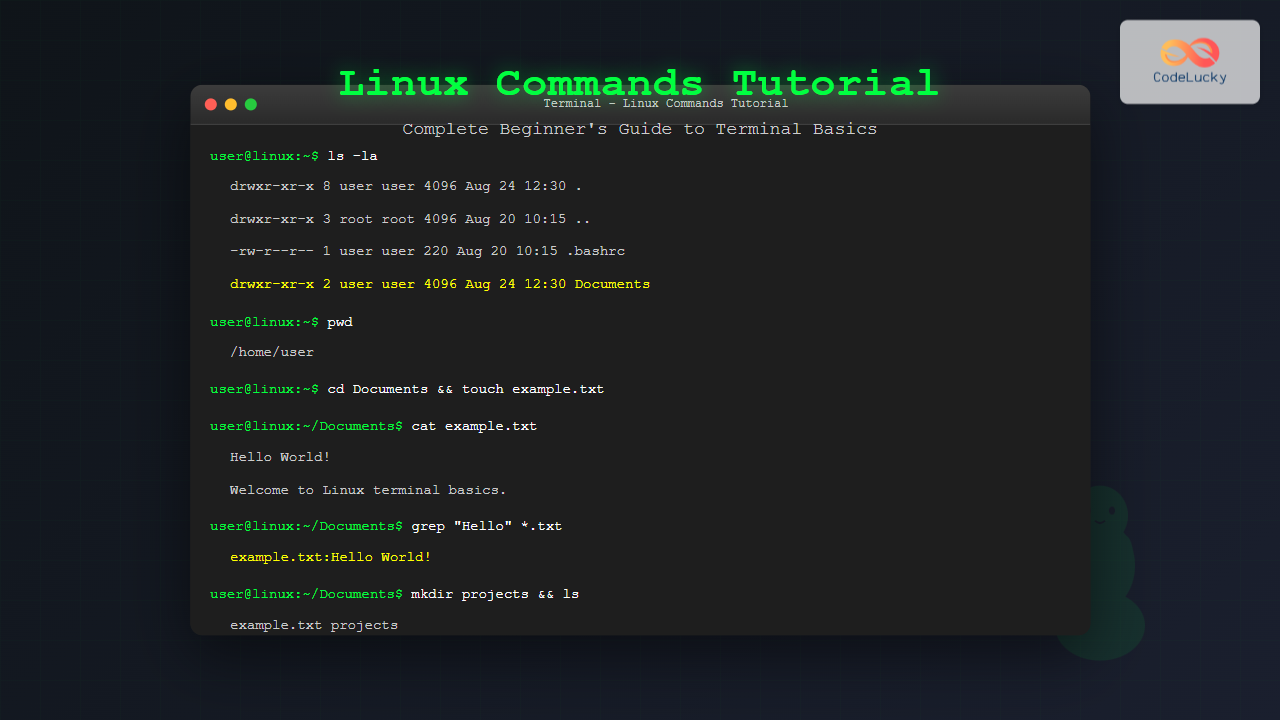
The Linux terminal is a powerful command-line interface that gives you direct control over your operating system. While it might seem intimidating at first, mastering basic Linux commands is essential for developers, system administrators, and anyone working with Linux systems. This comprehensive guide will walk you through the fundamental commands you need to navigate and manage your Linux system effectively.
Getting Started with the Linux Terminal
The terminal (also called shell or command line) is a text-based interface where you type commands to interact with your Linux system. Most Linux distributions use Bash (Bourne Again Shell) as the default shell, which provides a rich set of features for command execution and scripting.
Opening the Terminal
You can open the terminal in several ways:
- Keyboard shortcut: Press
Ctrl + Alt + T(most distributions) - Applications menu: Search for “Terminal” or “Console”
- Right-click: Right-click on desktop and select “Open Terminal”
Understanding the Command Structure
Linux commands follow a consistent structure:
command [options] [arguments]- Command: The action you want to perform
- Options: Modify how the command behaves (usually start with – or –)
- Arguments: The target of the command (files, directories, etc.)
Example:
ls -la /home/userHere, ls is the command, -la are options, and /home/user is the argument.
Essential Navigation Commands
pwd – Print Working Directory
The pwd command shows your current location in the file system.
$ pwd
/home/username
This tells you exactly where you are in the directory structure.
ls – List Directory Contents
The ls command displays files and directories in the current location.
Basic usage:
$ ls
Desktop  Documents  Downloads  Music  Pictures  Videos
Common options:
ls -l– Long format with detailed informationls -a– Show hidden files (starting with .)ls -la– Combine both optionsls -h– Human-readable file sizes
$ ls -la
total 32
drwxr-xr-x  8 user user 4096 Aug 24 12:30 .
drwxr-xr-x  3 root root 4096 Aug 20 10:15 ..
-rw-r--r--  1 user user  220 Aug 20 10:15 .bashrc
drwxr-xr-x  2 user user 4096 Aug 24 12:30 Desktop
drwxr-xr-x  2 user user 4096 Aug 24 12:30 Documents
cd – Change Directory
The cd command moves you between directories.
Basic navigation:
$ cd Documents          # Move to Documents folder
$ cd ..                 # Move up one level
$ cd ~                  # Go to home directory
$ cd /                  # Go to root directory
$ cd -                  # Go back to previous directory
Useful shortcuts:
~– Home directory.– Current directory..– Parent directory/– Root directory
File and Directory Management
mkdir – Create Directories
Create new directories with the mkdir command.
$ mkdir my_project
$ mkdir -p projects/web/html    # Create nested directories
$ mkdir dir1 dir2 dir3          # Create multiple directories
touch – Create Empty Files
The touch command creates empty files or updates timestamps.
$ touch index.html
$ touch file1.txt file2.txt file3.txt
$ ls
file1.txt  file2.txt  file3.txt  index.html
cp – Copy Files and Directories
Copy files and directories using the cp command.
$ cp file1.txt file1_backup.txt          # Copy file
$ cp -r my_project my_project_backup      # Copy directory recursively
$ cp *.txt backup/                        # Copy all .txt files to backup folder
mv – Move and Rename
The mv command both moves and renames files and directories.
$ mv old_name.txt new_name.txt           # Rename file
$ mv file.txt Documents/                  # Move file to Documents
$ mv temp_folder/ archive/                # Move directory
rm – Remove Files and Directories
⚠️ Warning: The rm command permanently deletes files. Use with caution!
$ rm file.txt                    # Remove file
$ rm -r directory/               # Remove directory recursively
$ rm -f file.txt                 # Force remove without confirmation
$ rm -rf directory/              # Force remove directory (dangerous!)
Viewing and Editing Files
cat – Display File Contents
View the entire contents of a file.
$ cat example.txt
Hello World!
This is a sample file.
Welcome to Linux commands tutorial.
less and more – View Large Files
For large files, use less or more to view content page by page.
$ less large_file.txt
$ more large_file.txt
Navigation in less:
- Space – Next page
- b – Previous page
- / – Search forward
- q – Quit
head and tail – View File Beginnings and Ends
$ head file.txt          # Show first 10 lines
$ head -n 5 file.txt     # Show first 5 lines
$ tail file.txt          # Show last 10 lines
$ tail -f logfile.txt    # Follow file changes (useful for logs)
nano – Simple Text Editor
Nano is a beginner-friendly terminal text editor.
$ nano myfile.txtCommon nano shortcuts:
Ctrl + O– Save fileCtrl + X– ExitCtrl + W– SearchCtrl + K– Cut lineCtrl + U– Paste line
File Permissions and Ownership
Understanding Permissions
Linux uses a permission system with three types of access:
- r (read) – Permission to read file contents
- w (write) – Permission to modify file
- x (execute) – Permission to run file as program
Permissions are set for three categories:
- Owner (u) – The file owner
- Group (g) – Users in the file’s group
- Others (o) – All other users
chmod – Change Permissions
$ chmod 755 script.sh           # rwxr-xr-x
$ chmod +x script.sh            # Add execute permission
$ chmod u+w,g-r file.txt        # Add write for user, remove read for group
chown – Change Ownership
$ sudo chown user:group file.txt
$ sudo chown -R user:group directory/
System Information Commands
whoami – Current User
$ whoami
username
uname – System Information
$ uname -a
Linux hostname 5.4.0-74-generic #83-Ubuntu SMP Sat May 8 02:35:39 UTC 2021 x86_64 GNU/Linux
df – Disk Space Usage
$ df -h
Filesystem      Size  Used Avail Use% Mounted on
/dev/sda1        50G   25G   23G  53% /
/dev/sda2       100G   45G   51G  47% /home
free – Memory Usage
$ free -h
              total        used        free      shared  buff/cache   available
Mem:           7.7G        2.1G        3.2G        156M        2.4G        5.2G
Process Management
ps – List Running Processes
$ ps aux
USER       PID %CPU %MEM    VSZ   RSS TTY      STAT START   TIME COMMAND
root         1  0.0  0.1 225316  9012 ?        Ss   10:30   0:02 /sbin/init
user      1234  0.5  2.1 524288 164832 ?       Sl   10:31   0:15 firefox
top – Real-time Process Monitor
$ topPress q to quit the top command.
kill – Terminate Processes
$ kill 1234              # Kill process by PID
$ killall firefox        # Kill all firefox processes
$ kill -9 1234           # Force kill process
Network and Connectivity
ping – Test Network Connectivity
$ ping google.com
PING google.com (142.250.191.14) 56(84) bytes of data.
64 bytes from 142.250.191.14: icmp_seq=1 ttl=117 time=23.4 ms
wget and curl – Download Files
$ wget https://example.com/file.zip
$ curl -O https://example.com/file.zip
Search and Find Operations
find – Locate Files and Directories
$ find . -name "*.txt"           # Find all .txt files in current directory
$ find /home -name "config*"     # Find files starting with "config"
$ find . -type d -name "backup*" # Find directories starting with "backup"
grep – Search Text Patterns
$ grep "error" logfile.txt           # Search for "error" in file
$ grep -r "function" .               # Search recursively in all files
$ grep -i "warning" *.log            # Case-insensitive search
Archive and Compression
tar – Archive Files
$ tar -czf backup.tar.gz Documents/     # Create compressed archive
$ tar -xzf backup.tar.gz               # Extract archive
$ tar -tzf backup.tar.gz               # List archive contents
zip and unzip
$ zip -r archive.zip folder/      # Create zip archive
$ unzip archive.zip               # Extract zip archive
Input/Output Redirection
Redirecting Output
$ ls > file_list.txt              # Redirect output to file (overwrite)
$ ls >> file_list.txt             # Append output to file
$ ls 2> errors.txt                # Redirect errors to file
$ ls > output.txt 2>&1            # Redirect both output and errors
Pipes – Chain Commands
$ ls -la | grep "txt"             # List files and filter for .txt
$ cat file.txt | wc -l            # Count lines in file
$ ps aux | grep firefox | wc -l   # Count firefox processes
Command History and Shortcuts
Command History
$ history                    # Show command history
$ !123                      # Execute command number 123
$ !!                        # Execute last command
$ !grep                     # Execute last command starting with "grep"
Keyboard Shortcuts
Ctrl + C– Cancel current commandCtrl + Z– Suspend current commandCtrl + D– Exit terminalCtrl + L– Clear screenTab– Auto-complete commands and filenamesUp/Down arrows– Navigate command history
Getting Help
man – Manual Pages
$ man ls                     # View manual for ls command
$ man -k search_term         # Search manual pages
Command Options
$ ls --help                  # Show command help
$ command --version          # Show command version
Practical Examples and Exercises
Example 1: Organizing Files
# Create project structure
$ mkdir -p project/{src,docs,tests}
$ touch project/src/main.py project/docs/README.md project/tests/test.py
$ ls -la project/
drwxr-xr-x 5 user user 4096 Aug 24 12:45 .
drwxr-xr-x 3 user user 4096 Aug 24 12:45 ..
drwxr-xr-x 2 user user 4096 Aug 24 12:45 docs
drwxr-xr-x 2 user user 4096 Aug 24 12:45 src
drwxr-xr-x 2 user user 4096 Aug 24 12:45 tests
Example 2: Finding Large Files
# Find files larger than 100MB
$ find /home -size +100M -type f 2>/dev/null

# Find and sort by size
$ find . -type f -exec ls -la {} + | sort -k5 -nr | head -10
Example 3: Log Analysis
# Count error occurrences in log file
$ grep -c "ERROR" /var/log/application.log

# Show last 50 lines and follow new entries
$ tail -f -n 50 /var/log/application.log

# Extract unique IP addresses from access log
$ cat access.log | cut -d' ' -f1 | sort | uniq -c | sort -nr
Best Practices and Tips
Safety Guidelines
- Always double-check before using
rm -rfcommand - Use tab completion to avoid typos in file and directory names
- Create backups before making major changes
- Test commands on sample files first
Efficiency Tips
- Use aliases for frequently used commands
- Learn keyboard shortcuts to work faster
- Use command history to avoid retyping
- Master piping to combine commands effectively
Creating Aliases
# Add to ~/.bashrc file
alias ll='ls -la'
alias grep='grep --color=auto'
alias ..='cd ..'
alias la='ls -A'

# Reload configuration
$ source ~/.bashrc
Common Troubleshooting
Permission Denied Errors
When you encounter “Permission denied” errors:
$ sudo command_name          # Run with administrator privileges
$ chmod +x script_name       # Add execute permission to scripts
Command Not Found
If a command is not found:
$ which command_name         # Check if command exists in PATH
$ echo $PATH                 # View current PATH
$ sudo apt install package  # Install missing package (Ubuntu/Debian)
Disk Space Issues
$ df -h                      # Check disk usage
$ du -sh *                   # Check directory sizes
$ sudo apt autoremove        # Remove unused packages
Mastering these fundamental Linux commands will significantly improve your productivity and confidence when working with Linux systems. Start with the basic navigation and file management commands, then gradually incorporate more advanced features as you become comfortable with the terminal environment. Remember that practice makes perfect – the more you use these commands, the more natural they’ll become.
The terminal might seem intimidating initially, but it’s an incredibly powerful tool that offers precise control over your system. With these commands in your toolkit, you’ll be well-equipped to handle most common Linux tasks efficiently and effectively.
Related Posts

bash Command Linux: Start New Shell Sessions and Execute Scripts Efficiently
The bash command is one of the most fundamental tools in Linux systems, serving as both a command-line interpreter and...

echo Command in Linux: Complete Guide to Print Text and Variables in Terminal
The echo command is one of the most fundamental and frequently used commands in Linux and Unix-like operating systems. It...
history Command Linux: Complete Guide to View and Manage Your Command History
The history command in Linux is one of the most powerful tools for managing and navigating your command line experience....
read Command Linux: Complete Guide to Reading User Input in Shell Scripts
The read command is one of the most fundamental tools in Linux shell scripting for creating interactive programs that capture...
ruby Command Linux: Complete Guide to Running Ruby Scripts and Programs
The ruby command is a powerful tool for executing Ruby scripts and programs directly from the Linux command line. Whether...
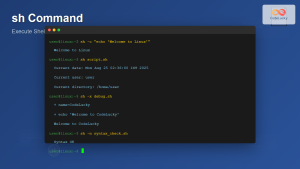
sh Command Linux: Complete Guide to Shell Script Execution and Commands
The sh command is one of the most fundamental tools in Linux and Unix-like systems, serving as the standard shell...
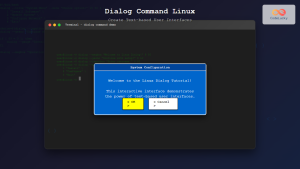
dialog Command Linux: Create Interactive Text-Based User Interfaces with Ease
The dialog command in Linux is a powerful utility that enables developers and system administrators to create sophisticated text-based user...
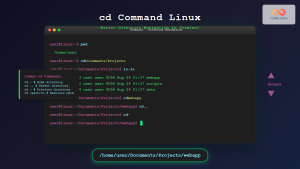
cd Command Linux: Complete Guide to Directory Navigation in Terminal
The cd command is one of the most fundamental and frequently used commands in Linux and Unix-like operating systems. Standing...
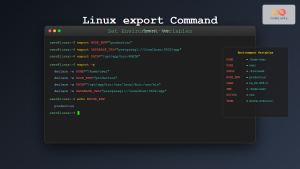
export Command Linux: Complete Guide to Environment Variables Management
The export command is one of the most fundamental tools in Linux for managing environment variables. Whether you're a system...
emacs Command Linux: Complete Guide to the Powerful Text Editor
The emacs command is one of the most powerful and extensible text editors available in Linux systems. Originally developed by...
redirect Command Linux: Complete Input Output Redirection Guide
Linux redirection is a powerful feature that allows you to control where command input comes from and where output goes....
nano Command Linux: Complete Guide to Simple Text Editing for Beginners
The nano command is one of the most beginner-friendly text editors available in Linux systems. Unlike complex editors like Vim...





