
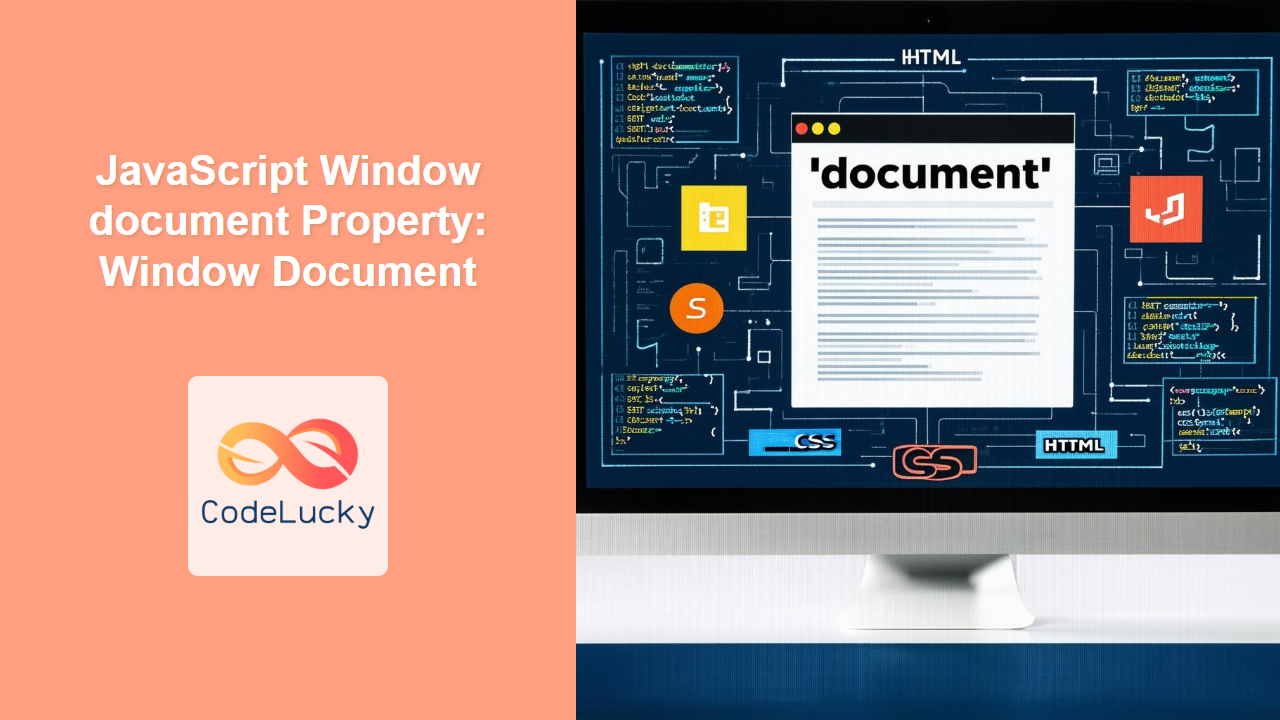
JavaScript Window document Property: Understanding the Window Document
The document property of the JavaScript Window object provides a way to access the Document Object Model (DOM) of the current webpage. The DOM represents the structure of an HTML or XML document as a tree of objects, allowing JavaScript to interact with and manipulate the content, structure, and style of a webpage. This guide will delve into the specifics of the document property, its usage, and provide practical examples to illustrate its importance.
What is the Window.document Property?
The Window.document property is a read-only property that returns the Document object associated with the window. The Document object is the root node of the DOM, and it provides access to all elements and attributes within the HTML document. Through the document object, you can:
- Access and modify HTML elements
- Create new elements and add them to the document
- Access and modify CSS styles
- Respond to user events
Syntax
The syntax to access the document property is straightforward:
const documentObject = window.document;
Since the window object is the global object in browsers, you can also access the document object directly:
const documentObject = document;
Key Properties and Methods of the Document Object
The Document object has numerous properties and methods that allow for extensive manipulation of the DOM. Here are some commonly used ones:
| Property/Method | Description |
|---|---|
| `documentElement` | Returns the root element of the document (usually the `` element). |
| `body` | Returns the `` element of the document. |
| `head` | Returns the `` element of the document. |
| `getElementById(id)` | Returns the element with the specified ID. |
| `getElementsByClassName(className)` | Returns a collection of elements with the specified class name. |
| `getElementsByTagName(tagName)` | Returns a collection of elements with the specified tag name. |
| `querySelector(selector)` | Returns the first element that matches a specified CSS selector. |
| `querySelectorAll(selector)` | Returns a collection of elements that match a specified CSS selector. |
| `createElement(tagName)` | Creates a new HTML element with the specified tag name. |
| `createTextNode(text)` | Creates a new text node with the specified text. |
| `appendChild(node)` | Appends a node as the last child of a node. |
| `removeChild(node)` | Removes a child node from a node. |
Basic Examples
Let’s explore some basic examples to illustrate how to use the document property.
Accessing the Document Body
This example demonstrates how to access the body element of the document and change its background color.
<!DOCTYPE html>
<html>
<head>
    <title>Document Body Example</title>
</head>
<body>
    <h1>Hello, Document!</h1>
    <script>
        const bodyElement_doc1 = document.body;
        bodyElement_doc1.style.backgroundColor = "lightblue";
    </script>
</body>
</html>
Output:
The background color of the webpage will change to light blue.
Accessing an Element by ID
This example shows how to access an element by its ID and change its text content.
<!DOCTYPE html>
<html>
<head>
    <title>Get Element By ID Example</title>
</head>
<body>
    <h1 id="myHeading_doc1">Original Heading</h1>
    <script>
        const headingElement_doc1 = document.getElementById("myHeading_doc1");
        headingElement_doc1.textContent = "New Heading Text";
    </script>
</body>
</html>
Output:
The text content of the h1 element will change from “Original Heading” to “New Heading Text”.
Creating and Appending a New Element
This example demonstrates how to create a new paragraph element, set its text content, and append it to the body of the document.
<!DOCTYPE html>
<html>
<head>
    <title>Create and Append Element Example</title>
</head>
<body>
    <script>
        const newParagraph_doc1 = document.createElement("p");
        const textNode_doc1 = document.createTextNode("This is a new paragraph.");
        newParagraph_doc1.appendChild(textNode_doc1);
        document.body.appendChild(newParagraph_doc1);
    </script>
</body>
</html>
Output:
A new paragraph with the text “This is a new paragraph.” will be added to the end of the body.
Advanced Examples
Let’s move on to more advanced examples to showcase the capabilities of the document property.
Modifying CSS Styles Dynamically
This example demonstrates how to dynamically modify the CSS styles of an element based on user interaction.
<!DOCTYPE html>
<html>
<head>
    <title>Dynamic CSS Styles Example</title>
    <style>
        #styledDiv_doc2 {
            width: 100px;
            height: 100px;
            background-color: red;
        }
    </style>
</head>
<body>
    <div id="styledDiv_doc2"></div>
    <button id="styleButton_doc2">Change Color</button>

    <script>
        const divElement_doc2 = document.getElementById("styledDiv_doc2");
        const buttonElement_doc2 = document.getElementById("styleButton_doc2");

        buttonElement_doc2.addEventListener("click", function() {
            divElement_doc2.style.backgroundColor = "green";
            divElement_doc2.style.width = "150px";
            divElement_doc2.style.height = "150px";
        });
    </script>
</body>
</html>
Output:
Initially, a red square is displayed. Clicking the “Change Color” button will change the square’s background color to green and increase its width and height.
Creating a List Dynamically
This example demonstrates how to create a list dynamically by adding list items to an unordered list.
<!DOCTYPE html>
<html>
<head>
    <title>Dynamic List Example</title>
</head>
<body>
    <ul id="myList_doc2"></ul>
    <script>
        const listElement_doc2 = document.getElementById("myList_doc2");
        const items_doc2 = ["Item 1", "Item 2", "Item 3"];

        items_doc2.forEach(function(item) {
            const listItem_doc2 = document.createElement("li");
            listItem_doc2.textContent = item;
            listElement_doc2.appendChild(listItem_doc2);
        });
    </script>
</body>
</html>
Output:
An unordered list will be created with three list items: “Item 1”, “Item 2”, and “Item 3”.
Handling Events Dynamically
This example demonstrates how to attach an event listener to an element dynamically and respond to the event.
<!DOCTYPE html>
<html>
<head>
    <title>Dynamic Event Handling Example</title>
</head>
<body>
    <button id="myButton_doc3">Click Me</button>
    <script>
        const buttonElement_doc3 = document.getElementById("myButton_doc3");

        buttonElement_doc3.addEventListener("click", function() {
            alert("Button Clicked!");
        });
    </script>
</body>
</html>
Output:
Clicking the “Click Me” button will display an alert box with the message “Button Clicked!”.
Real-World Applications of the document Property
The document property is used extensively in web development for various purposes, including:
- Single-Page Applications (SPAs): Dynamically updating content without reloading the page.
- Interactive User Interfaces: Creating responsive and interactive UIs with dynamic elements.
- Form Validation: Validating user input in forms and providing real-time feedback.
- Content Management Systems (CMS): Dynamically generating and managing website content.
- AJAX Applications: Updating parts of a webpage without requiring a full page reload.
Use Case Example: Creating a Dynamic Table
Let’s create a practical example that demonstrates how to use the document property to build a simple but effective dynamic table. This example shows how to combine various DOM manipulation features to create a real-world data representation.
<!DOCTYPE html>
<html>
<head>
    <title>Dynamic Table Example</title>
    <style>
        table, th, td {
            border: 1px solid black;
            border-collapse: collapse;
            padding: 8px;
            text-align: left;
        }
    </style>
</head>
<body>
    <h2>Dynamic Table</h2>
    <table id="dataTable_doc3"></table>

    <script>
        const tableData_doc3 = [
            { name: 'John Doe', age: 30, city: 'New York' },
            { name: 'Jane Smith', age: 25, city: 'Los Angeles' },
            { name: 'Peter Jones', age: 40, city: 'Chicago' }
        ];

        const tableElement_doc3 = document.getElementById('dataTable_doc3');

        // Create table header
        const headerRow_doc3 = tableElement_doc3.insertRow(0);
        const headers_doc3 = Object.keys(tableData_doc3[0]);
        headers_doc3.forEach(headerText => {
            const header_doc3 = document.createElement('th');
            header_doc3.textContent = headerText;
            headerRow_doc3.appendChild(header_doc3);
        });

        // Create table rows
        tableData_doc3.forEach((rowData, index) => {
            const row_doc3 = tableElement_doc3.insertRow(index + 1);
            headers_doc3.forEach(header => {
                const cell_doc3 = row_doc3.insertCell();
                cell_doc3.textContent = rowData[header];
            });
        });
    </script>
</body>
</html>
Output:
A dynamic table will be created with columns “Name”, “Age”, and “City”, populated with the provided data.
Conclusion
The Window.document property is an essential part of JavaScript web development, providing the gateway to interact with and manipulate the DOM. With a solid understanding of the document property and its associated methods and properties, you can create dynamic, interactive, and engaging web applications. Whether you’re building a simple webpage or a complex web application, the document property is a fundamental tool in your JavaScript toolkit. Happy coding!
Related Posts
JavaScript Window parent Property: Window Parent
Understanding the JavaScript Window parent Property The JavaScript window.parent property returns a reference to the parent window of the current...

JavaScript DOM Document: Working with the Document Object
JavaScript's Document Object Model (DOM) is a powerful tool that allows developers to interact with and manipulate web pages dynamically....

JavaScript Window: Interacting with the Browser Window Object
JavaScript's window object is a powerful tool that serves as the global object in browser environments. It represents the browser...
JavaScript Window Object: Browser Window
The JavaScript Window Object: Browser Window Demystified The JavaScript Window object represents the browser window or tab. It is the...

JavaScript Window navigator Property: Window Navigator
JavaScript Window navigator Property: Comprehensive Guide The navigator property of the JavaScript window object is a powerful tool for web...
JavaScript Window self Property: Window Self
JavaScript window.self Property: Understanding the Current Window The window.self property in JavaScript is a read-only property that returns a reference...
JavaScript Window name Property: Window Name
JavaScript Window name Property: A Comprehensive Guide The JavaScript window.name property is a string value that sets or returns the...

JavaScript Window console Property: Window Console
JavaScript Window console Property: A Comprehensive Guide The console property of the JavaScript window object provides access to the browser's...

HTML DOM Script Object: Accessing Script Elements
HTML DOM Script Object: Accessing Script Elements The HTML DOM script object represents the <script> element in HTML. This object...

JavaScript Window opener Property: Window Opener
JavaScript Window opener Property: Understanding Window Relationships The JavaScript window.opener property is a reference to the window that opened the...

JavaScript Window frames Property: Accessing and Managing Frames
JavaScript Window frames Property: Accessing and Managing Frames The JavaScript window.frames property provides a powerful way to access and manage...

JavaScript Window frameElement Property: Window Frame Element
JavaScript Window frameElement Property: Understanding the Containing Element The window.frameElement property in JavaScript provides a reference to the HTML element...





