
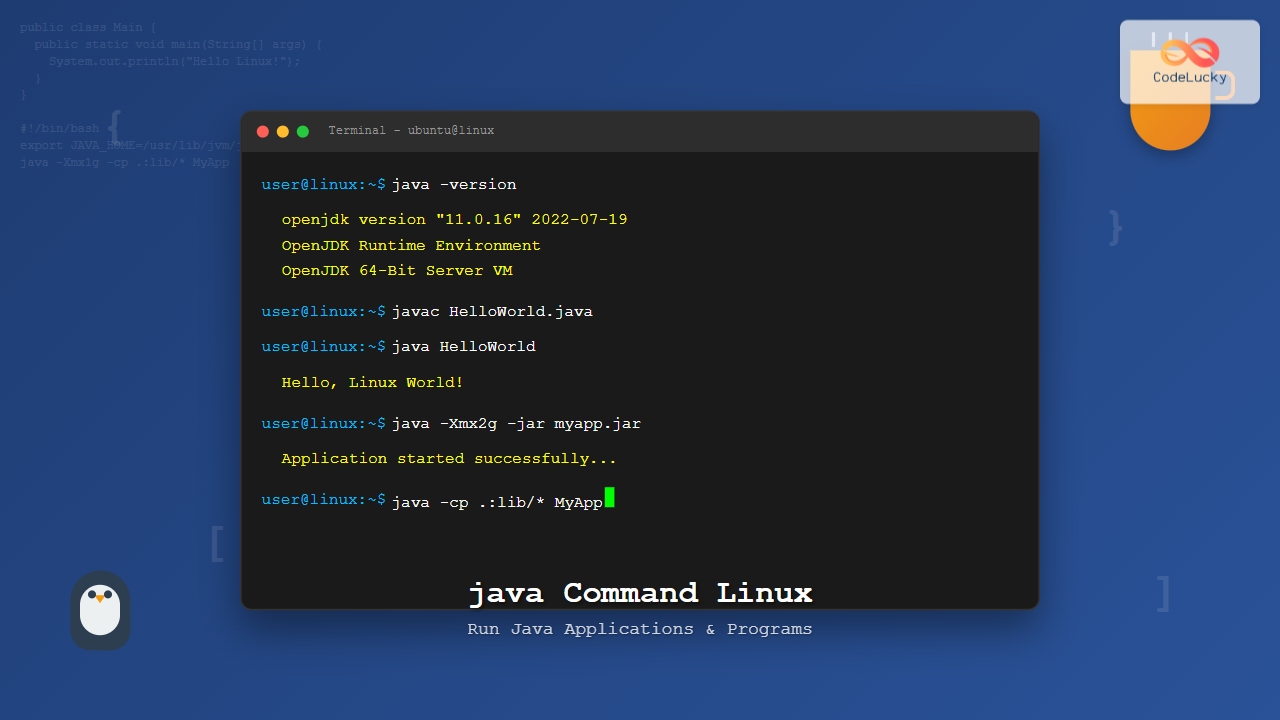
The java command is one of the most essential tools for developers working with Java applications on Linux systems. This command launches the Java Virtual Machine (JVM) and executes Java bytecode, making it possible to run compiled Java programs from the command line.
What is the java Command?
The java command is the primary tool for executing Java applications on Linux. It’s part of the Java Runtime Environment (JRE) and serves as the launcher for Java programs. When you use the java command, it starts the JVM, loads the specified class file, and executes the main method.
Basic Syntax
The basic syntax of the java command follows this pattern:
java [options] classname [arguments]
java [options] -jar jarfile [arguments]
Where:
- options: JVM configuration parameters
- classname: The name of the class containing the main method
- jarfile: Path to the JAR file to execute
- arguments: Command-line arguments passed to the program
Common java Command Options
Memory Management Options
| Option | Description | Example |
|---|---|---|
-Xmx |
Set maximum heap size | -Xmx2g (2GB) |
-Xms |
Set initial heap size | -Xms512m (512MB) |
-XX:MaxMetaspaceSize |
Set maximum metaspace size | -XX:MaxMetaspaceSize=256m |
Classpath Options
| Option | Description | Example |
|---|---|---|
-cp or -classpath |
Specify classpath | -cp /path/to/classes |
-jar |
Execute JAR file | -jar myapp.jar |
System Properties
| Option | Description | Example |
|---|---|---|
-D |
Set system property | -Dfile.encoding=UTF-8 |
-version |
Display Java version | java -version |
Practical Examples
Example 1: Running a Simple Java Class
First, let’s create a simple Java program:
// HelloWorld.java
public class HelloWorld {
    public static void main(String[] args) {
        System.out.println("Hello, Linux World!");
    }
}
Compile and run:
$ javac HelloWorld.java
$ java HelloWorld
Output:
Hello, Linux World!Example 2: Running Java with Command-Line Arguments
Create a program that accepts arguments:
// ArgumentDemo.java
public class ArgumentDemo {
    public static void main(String[] args) {
        System.out.println("Number of arguments: " + args.length);
        for (int i = 0; i < args.length; i++) {
            System.out.println("Argument " + i + ": " + args[i]);
        }
    }
}
Compile and run with arguments:
$ javac ArgumentDemo.java
$ java ArgumentDemo Linux Java Programming
Output:
Number of arguments: 3
Argument 0: Linux
Argument 1: Java
Argument 2: Programming
Example 3: Running a JAR File
To run a JAR file:
$ java -jar myapplication.jarWith additional JVM options:
$ java -Xmx1g -jar myapplication.jar --config=/path/to/configExample 4: Setting Classpath
When your classes are in different directories:
$ java -cp /home/user/classes:/opt/libs/* com.example.MainClassUsing current directory and additional JAR files:
$ java -cp .:lib/commons-lang3.jar:lib/jackson-core.jar MyAppExample 5: Memory Configuration
Running Java with specific memory settings:
$ java -Xms512m -Xmx2g -XX:MaxMetaspaceSize=256m MyApplicationThis sets:
- Initial heap size: 512MB
- Maximum heap size: 2GB
- Maximum metaspace: 256MB
Advanced Usage Examples
Example 6: System Properties
Passing system properties to your Java application:
$ java -Dfile.encoding=UTF-8 -Duser.timezone=UTC -Denv=production MyAppExample 7: Debugging Options
Enable remote debugging:
$ java -agentlib:jdwp=transport=dt_socket,server=y,suspend=n,address=5005 MyAppExample 8: Garbage Collection Options
Using different garbage collectors:
# G1 Garbage Collector
$ java -XX:+UseG1GC -XX:MaxGCPauseMillis=200 MyApp

# Parallel GC (default in many cases)
$ java -XX:+UseParallelGC MyApp

# ConcurrentMarkSweep GC
$ java -XX:+UseConcMarkSweepGC MyApp
Working with Packages
When working with packaged Java classes:
// File: com/example/PackageDemo.java
package com.example;

public class PackageDemo {
    public static void main(String[] args) {
        System.out.println("Running from package: com.example");
    }
}
Compile and run:
$ javac com/example/PackageDemo.java
$ java com.example.PackageDemo
Error Handling and Troubleshooting
Common Errors and Solutions
ClassNotFoundException
Error: Could not find or load main class MyClassSolutions:
- Check if the class file exists in the current directory
- Verify the classpath is set correctly
- Ensure the class name matches exactly (case-sensitive)
OutOfMemoryError
java.lang.OutOfMemoryError: Java heap spaceSolution:
$ java -Xmx2g MyApp # Increase heap size to 2GBUnsupportedClassVersionError
java.lang.UnsupportedClassVersionError: MyClass has been compiled by a more recent version of the Java RuntimeSolution: Ensure you’re using the correct Java version or recompile with the current Java version.
Environment Variables
Important Java Environment Variables
| Variable | Description | Example |
|---|---|---|
JAVA_HOME |
Java installation directory | /usr/lib/jvm/java-11-openjdk |
CLASSPATH |
Default classpath | .:lib/*:/opt/myapp/classes |
PATH |
Should include Java bin directory | $JAVA_HOME/bin:$PATH |
Set environment variables:
# In ~/.bashrc or ~/.profile
export JAVA_HOME=/usr/lib/jvm/java-11-openjdk
export PATH=$JAVA_HOME/bin:$PATH
export CLASSPATH=.:lib/*
Performance Monitoring
JVM Performance Options
Enable performance monitoring:
# Enable JMX for monitoring
$ java -Dcom.sun.management.jmxremote \
       -Dcom.sun.management.jmxremote.port=9999 \
       -Dcom.sun.management.jmxremote.authenticate=false \
       -Dcom.sun.management.jmxremote.ssl=false \
       MyApp

# Print GC details
$ java -XX:+PrintGC -XX:+PrintGCDetails MyApp

# Log GC to file
$ java -Xloggc:gc.log -XX:+PrintGCDetails MyApp
Security Considerations
When running Java applications on Linux, consider these security options:
# Restrict network access
$ java -Djava.net.preferIPv4Stack=true \
       -Djava.security.policy=app.policy \
       MyApp

# Enable security manager
$ java -Djava.security.manager \
       -Djava.security.policy=security.policy \
       MyApp
Creating Shell Scripts for Java Applications
Create a startup script for your Java application:
#!/bin/bash
# startup.sh

JAVA_HOME=/usr/lib/jvm/java-11-openjdk
CLASSPATH=".:lib/*"
JAVA_OPTS="-Xmx1g -XX:+UseG1GC"

$JAVA_HOME/bin/java $JAVA_OPTS -cp $CLASSPATH com.example.MyApp "$@"
Make it executable and run:
$ chmod +x startup.sh
$ ./startup.sh arg1 arg2
Best Practices
- Memory Management: Always set appropriate heap sizes based on your application’s requirements
- Classpath Organization: Keep your classpath clean and organized
- Environment Variables: Use JAVA_HOME consistently across your system
- Error Handling: Implement proper logging and error handling in your applications
- Security: Use security managers and policies when running untrusted code
- Performance Monitoring: Enable JVM monitoring for production applications
- Version Management: Use tools like SDKMAN to manage multiple Java versions
Checking Java Installation
Verify your Java installation:
$ java -versionOutput:
openjdk version "11.0.16" 2022-07-19
OpenJDK Runtime Environment (build 11.0.16+8-post-Ubuntu-0ubuntu120.04)
OpenJDK 64-Bit Server VM (build 11.0.16+8-post-Ubuntu-0ubuntu120.04, mixed mode, sharing)
Check available options:
$ java -helpConclusion
The java command is a powerful tool for running Java applications on Linux systems. By understanding its various options and parameters, you can optimize your Java applications for better performance, security, and reliability. Whether you’re running simple console applications or complex enterprise systems, mastering the java command is essential for effective Java development on Linux.
Remember to always test your applications with different JVM options to find the optimal configuration for your specific use case. Regular monitoring and performance tuning will help ensure your Java applications run efficiently in production environments.
Related Posts
javac Command Linux: Complete Guide to Compiling Java Source Files
The javac command is the Java compiler that transforms Java source code (.java files) into bytecode (.class files) that can...

Java Hello World: Your First Java Program
Welcome to the exciting world of Java programming! 🚀 In this comprehensive guide, we'll walk you through creating your very...

Java JVM: Java Virtual Machine Basics
Java's "Write Once, Run Anywhere" philosophy is made possible by the Java Virtual Machine (JVM). This powerful component of the...

Java Environment Setup: Installation and Configuration
Java, one of the world's most popular programming languages, powers countless applications across various platforms. Whether you're a budding developer...
Java Methods: Defining and Calling Functions
Java methods are the building blocks of any Java program, serving as reusable units of code that perform specific tasks....
Java Syntax: Basic Rules and Structure
Java, one of the most popular programming languages in the world, is known for its simplicity, versatility, and "write once,...

Java Scanner Methods: User Input Operations
Java's Scanner class is a powerful tool for reading user input from various sources, including the console, files, and even...

bash Command Linux: Start New Shell Sessions and Execute Scripts Efficiently
The bash command is one of the most fundamental tools in Linux systems, serving as both a command-line interpreter and...

Java 9 Features: Modules and API Improvements
Java 9, released in September 2017, brought significant enhancements to the Java platform. This version introduced a modular system and...

Java If…Else: Conditional Statements
Java, like many programming languages, uses conditional statements to control the flow of execution in a program. The if...else statement...

Java Output: Printing to Console
Java, one of the most popular programming languages, offers various ways to display output to the console. Whether you're a...
which Command Linux: Complete Guide to Locating Executable Commands in PATH
The which command is a fundamental Linux utility that helps you locate executable files in your system's PATH environment variable....





