
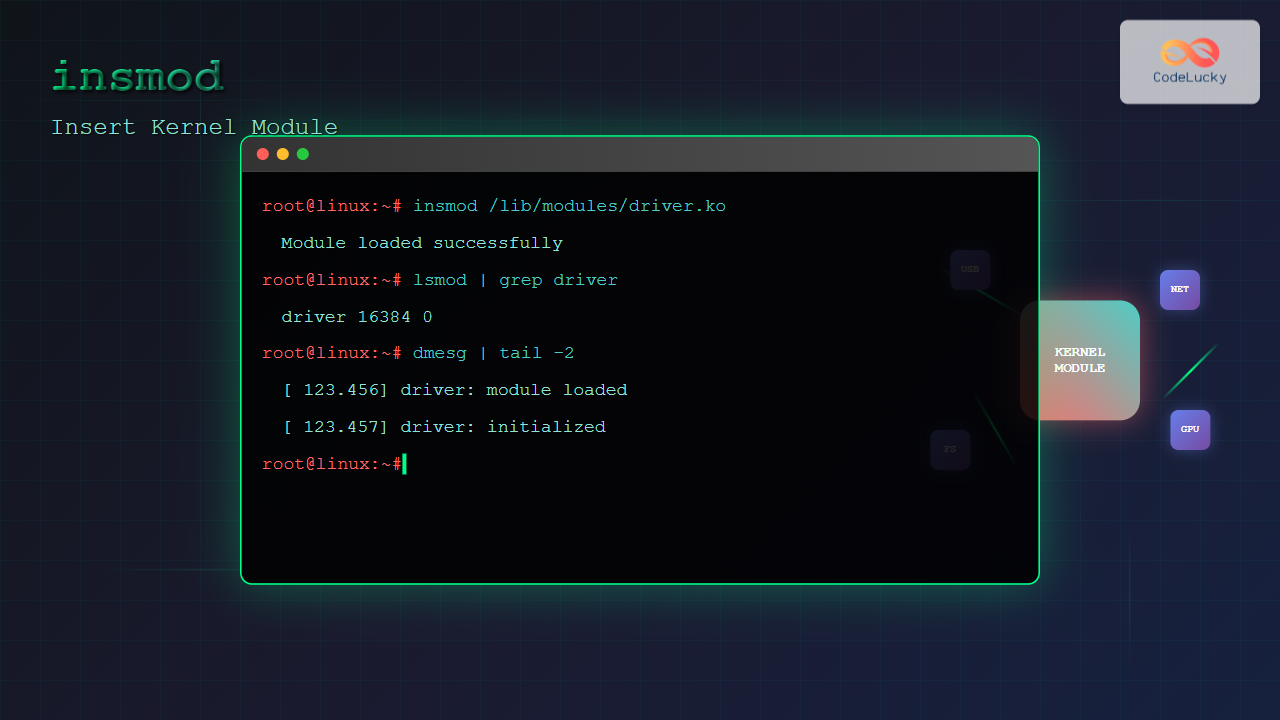
The insmod command is a fundamental Linux utility that allows system administrators and developers to insert kernel modules into the running Linux kernel. This powerful command enables dynamic loading of device drivers, filesystem support, and other kernel functionality without requiring a system reboot.
What is insmod Command?
The insmod (insert module) command is used to load kernel modules into the Linux kernel at runtime. Kernel modules are pieces of code that can be loaded and unloaded into the kernel upon demand, extending the kernel’s functionality without modifying the core kernel code.
Unlike user-space programs, kernel modules run in kernel space with elevated privileges and direct access to system hardware and kernel data structures.
Basic Syntax
insmod [options] module_file [module_parameters]Where:
- module_file: Path to the kernel module file (usually with .ko extension)
- module_parameters: Optional parameters to pass to the module
- options: Command-line options to modify insmod behavior
Common Options
| Option | Description |
|---|---|
-f, --force |
Force module loading despite version mismatches |
-k, --autoclean |
Mark module for automatic cleanup |
-v, --verbose |
Enable verbose output |
-x, --lock |
Lock module against removal |
-o, --name |
Assign alternative name to module |
Basic Examples
1. Loading a Simple Module
sudo insmod /lib/modules/$(uname -r)/kernel/drivers/net/dummy.koExpected Output:
# No output if successful
# Check with lsmod to verify:
lsmod | grep dummy
dummy                  16384  0
2. Loading Module with Parameters
sudo insmod /path/to/module.ko parameter1=value1 parameter2=value2Example with actual module:
sudo insmod /lib/modules/$(uname -r)/kernel/drivers/net/dummy.ko numdummies=23. Verbose Loading
sudo insmod -v /lib/modules/$(uname -r)/kernel/fs/fat/fat.koExpected Output:
insmod: loading /lib/modules/5.4.0-74-generic/kernel/fs/fat/fat.ko
insmod: module loaded successfully
Advanced Usage Examples
Force Loading (Use with Caution)
sudo insmod -f /path/to/module.koWarning: Force loading can cause system instability. Use only when absolutely necessary and you understand the risks.
Loading with Alternative Name
sudo insmod -o my_custom_name /path/to/module.koChecking Module Information Before Loading
# Check module information
modinfo /lib/modules/$(uname -r)/kernel/drivers/net/dummy.ko

# Sample output:
filename:       /lib/modules/5.4.0-74-generic/kernel/drivers/net/dummy.ko
alias:          rtnl-link-dummy
version:        1.0
description:    Dummy network driver
author:         Jeff Garzik <[email protected]>
license:        GPL
srcversion:     B8C807F8D8C4C8A4B8A2B8C
depends:
retpoline:      Y
intree:         Y
name:           dummy
vermagic:       5.4.0-74-generic SMP mod_unload
Practical Scenarios
Scenario 1: Loading USB Driver Module
# Check if USB storage module is loaded
lsmod | grep usb_storage

# If not loaded, insert it
sudo insmod /lib/modules/$(uname -r)/kernel/drivers/usb/storage/usb-storage.ko

# Verify loading
lsmod | grep usb_storage
dmesg | tail -5
Scenario 2: Loading Network Interface Module
# Load dummy network interface module
sudo insmod /lib/modules/$(uname -r)/kernel/drivers/net/dummy.ko numdummies=3

# Check created interfaces
ip link show | grep dummy

# Expected output:
# 4: dummy0: <BROADCAST,NOARP> mtu 1500 qdisc noop state DOWN mode DEFAULT group default qlen 1000
# 5: dummy1: <BROADCAST,NOARP> mtu 1500 qdisc noop state DOWN mode DEFAULT group default qlen 1000
# 6: dummy2: <BROADCAST,NOARP> mtu 1500 qdisc noop state DOWN mode DEFAULT group default qlen 1000
Error Handling and Troubleshooting
Common Error Messages
1. Permission Denied
insmod: ERROR: could not insert module: Operation not permittedSolution: Run with sudo or as root user.
2. Module Already Loaded
insmod: ERROR: could not insert module: File existsSolution: Check if module is already loaded with lsmod.
3. Invalid Module Format
insmod: ERROR: could not insert module: Invalid module formatSolution: Ensure module is compiled for current kernel version.
4. Missing Dependencies
insmod: ERROR: could not insert module: Unknown symbol in moduleSolution: Load required dependency modules first or use modprobe instead.
Best Practices
1. Check Module Dependencies
# Check module dependencies
modinfo -F depends module_name.ko

# Example:
modinfo -F depends /lib/modules/$(uname -r)/kernel/fs/ext4/ext4.ko
# Output: crc16,jbd2,fscrypto
2. Verify Kernel Version Compatibility
# Check kernel version
uname -r

# Check module's target kernel version
modinfo -F vermagic /path/to/module.ko
3. Monitor System Logs
# Monitor kernel messages during module loading
sudo dmesg -w

# In another terminal, load the module
sudo insmod /path/to/module.ko
insmod vs modprobe: When to Use Each
| Feature | insmod | modprobe |
|---|---|---|
| Dependency Resolution | Manual | Automatic |
| Configuration Files | Not used | Uses /etc/modprobe.d/ |
| Module Path | Full path required | Module name sufficient |
| Use Case | Testing, debugging | Production use |
Security Considerations
Important Security Notes:
- Only load modules from trusted sources
- Verify module signatures when possible
- Use
modprobein production environments - Regularly audit loaded modules with
lsmod - Monitor system logs for suspicious module activity
Checking Module Signatures
# Check if module is signed
modinfo /path/to/module.ko | grep sig_id

# Example output:
sig_id:         PKCS#7
sig_hashalgo:   sha512
Complete Workflow Example
Here’s a complete example of safely loading a kernel module:
# Step 1: Check current kernel version
uname -r

# Step 2: Locate the module
find /lib/modules/$(uname -r) -name "dummy.ko"

# Step 3: Check module information
modinfo /lib/modules/$(uname -r)/kernel/drivers/net/dummy.ko

# Step 4: Check if module is already loaded
lsmod | grep dummy

# Step 5: Load the module with parameters
sudo insmod /lib/modules/$(uname -r)/kernel/drivers/net/dummy.ko numdummies=1

# Step 6: Verify successful loading
lsmod | grep dummy
dmesg | tail -3

# Step 7: Test functionality (if applicable)
ip link show dummy0

# Step 8: Remove module when done (optional)
sudo rmmod dummy
Debugging Module Loading Issues
Using strace for Detailed Analysis
sudo strace -e trace=init_module insmod /path/to/module.koChecking System Call Failures
# Enable detailed kernel debugging
echo 8 > /proc/sys/kernel/printk

# Load module and check messages
sudo insmod /path/to/module.ko
dmesg | tail -10
Conclusion
The insmod command is a powerful tool for loading kernel modules in Linux systems. While it requires manual dependency management and full path specification, it provides fine-grained control over module loading, making it invaluable for system debugging and development.
For production environments, consider using modprobe instead, as it handles dependencies automatically and integrates better with system configuration. However, understanding insmod is crucial for system administrators who need to troubleshoot kernel module issues or work with custom modules.
Remember to always exercise caution when loading kernel modules, as they run with full system privileges and can potentially cause system instability if misused. Regular monitoring and proper security practices ensure safe and effective kernel module management.
Related Posts
modprobe Command Linux: Complete Guide to Load and Manage Kernel Modules
The modprobe command is one of the most powerful tools in Linux system administration for managing kernel modules. Whether you're...
rmmod Command Linux: Complete Guide to Remove Kernel Modules Safely
The rmmod command is a fundamental Linux utility for removing loadable kernel modules from the running kernel. Understanding how to...
depmod Command Linux: Complete Guide to Generate Module Dependencies
The depmod command is a critical system administration tool in Linux that generates module dependency maps for the kernel. This...
lsmod Command Linux: Complete Guide to Listing Kernel Modules
The lsmod command is an essential Linux utility that displays information about currently loaded kernel modules in your system. Understanding...
modinfo Command Linux: Complete Guide to Display Kernel Module Information
The modinfo command is an essential Linux utility that displays detailed information about kernel modules. Whether you're troubleshooting hardware issues,...
dkms Command Linux: Complete Guide to Dynamic Kernel Module Support
Dynamic Kernel Module Support (DKMS) is a powerful framework that automatically rebuilds kernel modules when you install a new kernel...
usermod Command Linux: Complete Guide to Modify User Account Properties
The usermod command is a powerful Linux utility that allows system administrators to modify existing user account properties without deleting...
update-initramfs Command Linux: Complete Guide to Initial RAM Filesystem Management
The update-initramfs command is a crucial Linux system administration tool that manages the initial RAM filesystem (initramfs). This command creates,...
Kernel in Operating System: Core Functions and Memory Management
The kernel stands as the fundamental cornerstone of any operating system, serving as the critical bridge between hardware components and...
mkinitrd Command Linux: Complete Guide to Creating Initial RAM Disks
The mkinitrd command is a crucial Linux utility that creates initial RAM disk (initrd) images, which are essential for the...
devtmpfs Linux: Complete Guide to Device Temporary Filesystem Management
The devtmpfs (Device Temporary Filesystem) is a crucial component of modern Linux systems that revolutionizes how device nodes are managed...
proc filesystem Linux: Complete Guide to Understanding /proc Directory Structure and Commands
What is the Linux /proc Filesystem? The /proc filesystem is a virtual filesystem in Linux that provides a window into...





