
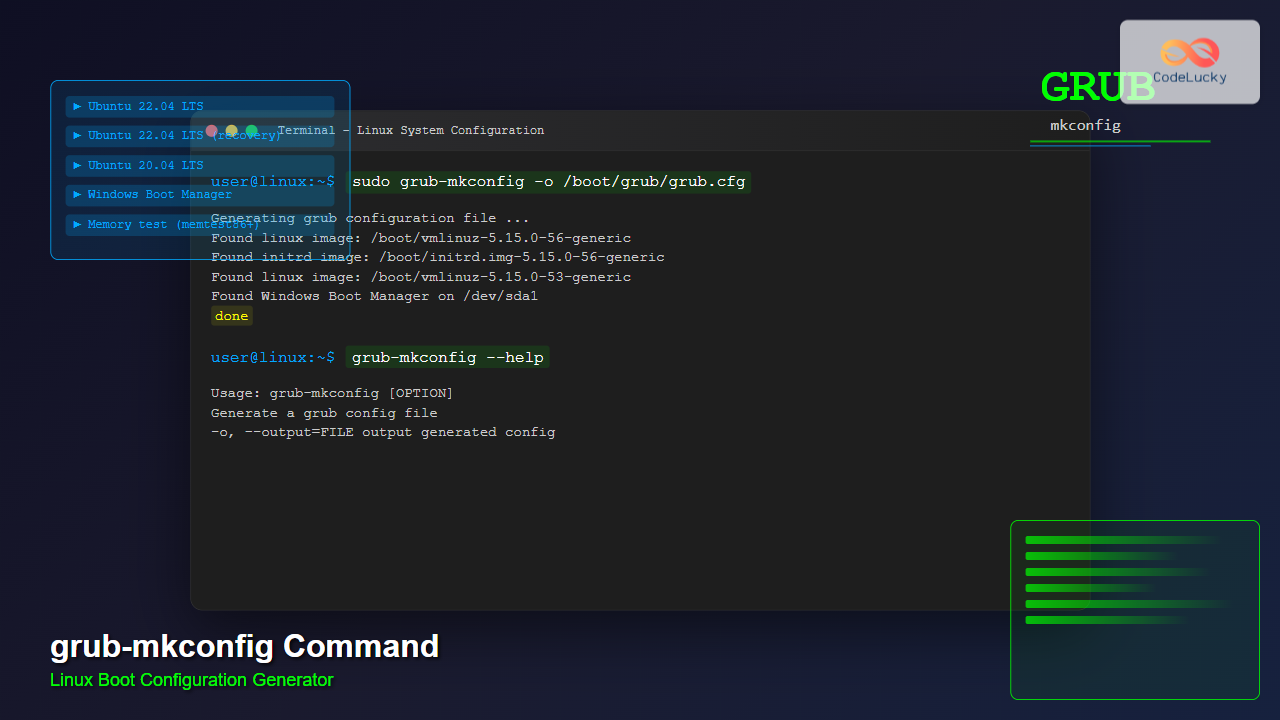
The grub-mkconfig command is an essential tool for Linux system administrators and users who need to manage their system’s boot configuration. This powerful utility automatically generates GRUB (Grand Unified Bootloader) configuration files by scanning your system for installed operating systems and kernel images.
What is grub-mkconfig?
grub-mkconfig is a shell script that creates the main GRUB configuration file (/boot/grub/grub.cfg) by executing various helper scripts located in /etc/grub.d/. Unlike manual editing of configuration files, this command ensures proper syntax and automatically detects system changes.
Command Syntax
grub-mkconfig [OPTIONS] [OUTPUT_FILE]Basic Usage
# Generate configuration and display to stdout
sudo grub-mkconfig

# Generate and write to default location
sudo grub-mkconfig -o /boot/grub/grub.cfg

# Alternative command (on some distributions)
sudo update-grub
Command Options
| Option | Description |
|---|---|
-o, --output=FILE |
Write output to specified file instead of stdout |
-h, --help |
Display help message and exit |
-V, --version |
Show version information |
How grub-mkconfig Works
The command operates by executing scripts in a specific order from the /etc/grub.d/ directory:
- 00_header: Sets basic configuration parameters
- 05_debian_theme: Configures theme settings (distribution-specific)
- 10_linux: Detects Linux kernels in /boot
- 20_linux_xen: Handles Xen hypervisor configurations
- 30_os-prober: Detects other operating systems
- 40_custom: Includes custom user entries
- 41_custom: Additional custom configurations
Practical Examples
Example 1: Standard Configuration Generation
sudo grub-mkconfig -o /boot/grub/grub.cfgSample Output:
Generating grub configuration file ...
Found linux image: /boot/vmlinuz-5.15.0-56-generic
Found initrd image: /boot/initrd.img-5.15.0-56-generic
Found linux image: /boot/vmlinuz-5.15.0-53-generic
Found initrd image: /boot/initrd.img-5.15.0-53-generic
Found Windows Boot Manager on /dev/sda1@/EFI/Microsoft/Boot/bootmgfw.efi
done
Example 2: Preview Configuration Without Writing
sudo grub-mkconfig | lessThis allows you to review the generated configuration before applying it.
Example 3: Backup and Update
# Create backup of current configuration
sudo cp /boot/grub/grub.cfg /boot/grub/grub.cfg.backup

# Generate new configuration
sudo grub-mkconfig -o /boot/grub/grub.cfg
Configuration Files and Settings
Main Configuration File
The primary settings are controlled through /etc/default/grub:
# Default boot entry
GRUB_DEFAULT=0

# Boot timeout in seconds
GRUB_TIMEOUT=5

# Kernel command line parameters
GRUB_CMDLINE_LINUX_DEFAULT="quiet splash"

# Additional kernel parameters
GRUB_CMDLINE_LINUX=""

# Hide GRUB menu (set to true to hide)
GRUB_TIMEOUT_STYLE=menu

# Resolution for GRUB menu
GRUB_GFXMODE=640x480
Common Configuration Modifications
Change Default Boot Entry:
GRUB_DEFAULT="1>2" # Boot second submenu, third entrySet Custom Timeout:
GRUB_TIMEOUT=10 # Wait 10 seconds before auto-bootAdd Kernel Parameters:
GRUB_CMDLINE_LINUX="acpi=off noapic"Troubleshooting Common Issues
Permission Denied Error
$ grub-mkconfig -o /boot/grub/grub.cfg
grub-mkconfig: error: cannot write to `/boot/grub/grub.cfg': Permission denied
Solution: Run with sudo privileges:
sudo grub-mkconfig -o /boot/grub/grub.cfgMissing Operating Systems
If other operating systems aren’t detected:
# Install os-prober
sudo apt install os-prober  # Ubuntu/Debian
sudo dnf install os-prober  # Fedora

# Enable os-prober in GRUB configuration
echo "GRUB_DISABLE_OS_PROBER=false" | sudo tee -a /etc/default/grub

# Regenerate configuration
sudo grub-mkconfig -o /boot/grub/grub.cfg
Kernel Not Detected
Verify kernel files exist:
ls -la /boot/vmlinuz*
ls -la /boot/initrd*
Advanced Usage Scenarios
Custom Menu Entries
Create custom entries in /etc/grub.d/40_custom:
#!/bin/sh
exec tail -n +3 $0

menuentry "Custom Linux Boot" {
    set root='hd0,msdos1'
    linux /boot/vmlinuz-custom root=/dev/sda1 ro quiet splash
    initrd /boot/initrd-custom
}
Automated Updates with Scripts
#!/bin/bash
# update-grub-config.sh

# Backup current configuration
sudo cp /boot/grub/grub.cfg /boot/grub/grub.cfg.$(date +%Y%m%d_%H%M%S)

# Update configuration
sudo grub-mkconfig -o /boot/grub/grub.cfg

# Verify update
echo "GRUB configuration updated successfully"
echo "Boot entries found:"
sudo grep "menuentry " /boot/grub/grub.cfg | head -5
Distribution-Specific Variations
Ubuntu/Debian Systems
sudo update-grub  # Shortcut for grub-mkconfig
sudo update-grub2  # On older systems
RHEL/CentOS/Fedora Systems
sudo grub2-mkconfig -o /boot/grub2/grub.cfg  # BIOS systems
sudo grub2-mkconfig -o /boot/efi/EFI/fedora/grub.cfg  # UEFI systems
Arch Linux Systems
sudo grub-mkconfig -o /boot/grub/grub.cfgBest Practices and Security
Regular Maintenance
- Backup before changes: Always backup existing configuration
- Test configurations: Preview generated config before applying
- Monitor boot process: Verify system boots correctly after updates
- Clean old kernels: Remove unused kernels to keep menu manageable
Security Considerations
# Set password protection for GRUB menu editing
echo "set superusers="admin"" | sudo tee -a /etc/grub.d/40_custom
echo "password admin grub123" | sudo tee -a /etc/grub.d/40_custom

# Regenerate configuration
sudo grub-mkconfig -o /boot/grub/grub.cfg
Monitoring and Validation
Verify Configuration Syntax
# Check configuration file syntax
sudo grub-script-check /boot/grub/grub.cfg

# List all menu entries
sudo grep "menuentry " /boot/grub/grub.cfg
Debug Configuration Issues
# Enable verbose output
sudo GRUB_DISABLE_SUBMENU=y grub-mkconfig -o /boot/grub/grub.cfg

# Check for specific modules
sudo grep -i "insmod" /boot/grub/grub.cfg
Performance Optimization
Optimize GRUB performance by modifying /etc/default/grub:
# Reduce timeout for faster boot
GRUB_TIMEOUT=2

# Disable submenu for simpler navigation
GRUB_DISABLE_SUBMENU=y

# Hide GRUB menu for single OS systems
GRUB_TIMEOUT_STYLE=hidden
GRUB_TIMEOUT=0
Conclusion
The grub-mkconfig command is an indispensable tool for maintaining Linux boot configurations. By understanding its syntax, options, and best practices, system administrators can ensure reliable boot processes while accommodating system changes and updates. Regular use of this command, combined with proper backup procedures, helps maintain stable and secure boot environments across diverse Linux distributions.
Remember to always test configuration changes in safe environments before applying them to production systems, and maintain regular backups of working configurations to ensure system recovery capabilities.
Related Posts
update-grub Command Linux: Complete Guide to GRUB Configuration Management
The update-grub command is an essential tool for Linux system administrators and users who need to manage their GRUB (Grand...
grub-install Command Linux: Complete Guide to Install GRUB Bootloader
The grub-install command is a critical system administration tool in Linux that installs the GRUB (Grand Unified Bootloader) bootloader to...
efibootmgr Command Linux: Complete Guide to EFI Boot Manager Control
The efibootmgr command is an essential Linux utility for managing EFI (Extensible Firmware Interface) boot entries on UEFI-enabled systems. This...
update-initramfs Command Linux: Complete Guide to Initial RAM Filesystem Management
The update-initramfs command is a crucial Linux system administration tool that manages the initial RAM filesystem (initramfs). This command creates,...
chkconfig Command Linux: Complete Guide to System Service Management
The chkconfig command is a powerful system administration tool in Red Hat-based Linux distributions that allows you to configure system...

init Command Linux: Complete Guide to Process Control and System Initialization
The init command in Linux serves as the cornerstone of system initialization and process control. As the first process started...
modprobe Command Linux: Complete Guide to Load and Manage Kernel Modules
The modprobe command is one of the most powerful tools in Linux system administration for managing kernel modules. Whether you're...
sgdisk Command Linux: Complete Guide to Script-Friendly GPT Partition Management
The sgdisk command is a powerful script-friendly alternative to the interactive gdisk utility for managing GPT (GUID Partition Table) partitions...
modinfo Command Linux: Complete Guide to Display Kernel Module Information
The modinfo command is an essential Linux utility that displays detailed information about kernel modules. Whether you're troubleshooting hardware issues,...

Puppet Linux: Complete Configuration Management Guide for System Administrators
Puppet is a powerful configuration management tool that revolutionizes how system administrators manage Linux infrastructure. By automating system configuration, software...
mkinitrd Command Linux: Complete Guide to Creating Initial RAM Disks
The mkinitrd command is a crucial Linux utility that creates initial RAM disk (initrd) images, which are essential for the...
uname Command Linux: Complete Guide to Display System Information
The uname command is one of the most fundamental Linux utilities for retrieving system information. Whether you're a system administrator,...





