
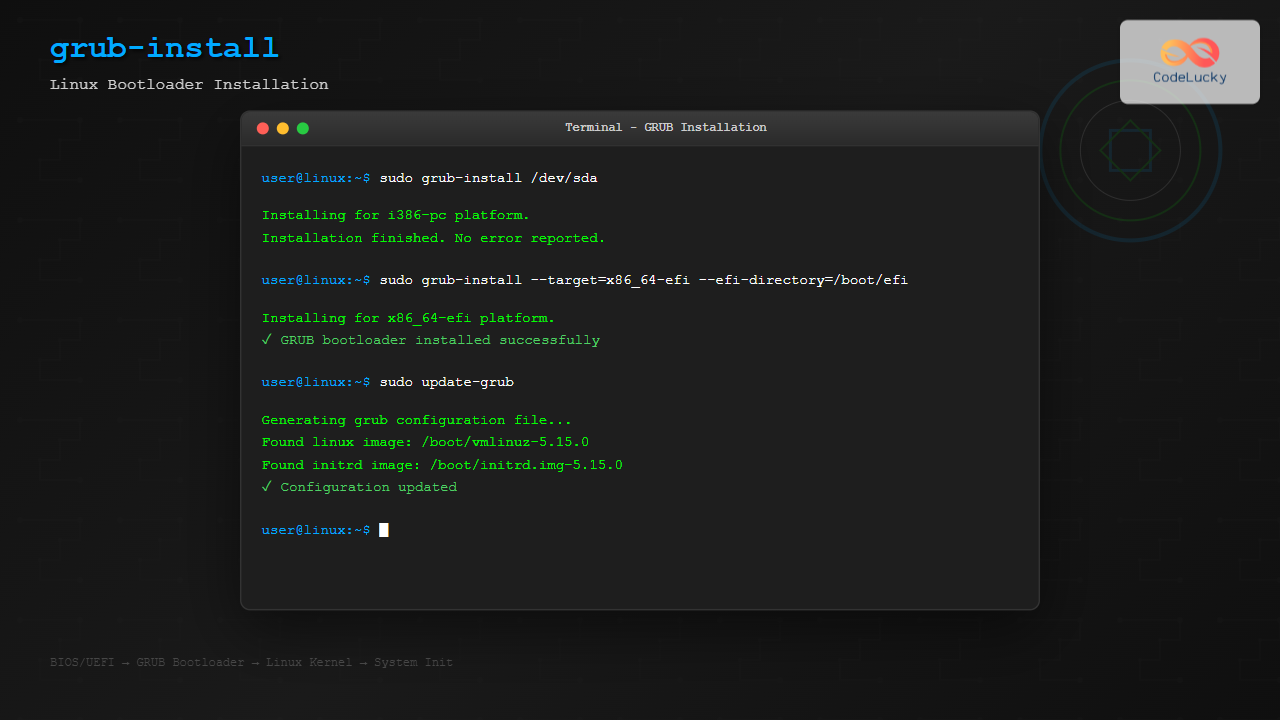
The grub-install command is a critical system administration tool in Linux that installs the GRUB (Grand Unified Bootloader) bootloader to your system’s boot device. This comprehensive guide will walk you through everything you need to know about using grub-install safely and effectively.
What is GRUB and Why Use grub-install?
GRUB is the default bootloader for most Linux distributions. It’s responsible for loading the operating system kernel and initializing the boot process. The grub-install command installs GRUB’s boot images to the specified device, making your system bootable.
Basic Syntax and Options
The basic syntax of the grub-install command is:
grub-install [OPTIONS] [INSTALL_DEVICE]Essential Command Options
| Option | Description |
|---|---|
--target=TARGET |
Specify the target platform (i386-pc, x86_64-efi, etc.) |
--boot-directory=DIR |
Install GRUB images under the directory DIR/grub |
--efi-directory=DIR |
Use DIR as the EFI System Partition root |
--bootloader-id=ID |
The bootloader identifier for EFI systems |
--recheck |
Delete device map if it already exists |
--force |
Install even if problems are detected |
--removable |
Make the installation removable |
Installing GRUB on BIOS Systems
For traditional BIOS systems, GRUB is installed to the Master Boot Record (MBR) of your hard drive.
Basic BIOS Installation
sudo grub-install /dev/sdaExpected Output:
Installing for i386-pc platform.
Installation finished. No error reported.
BIOS Installation with Custom Boot Directory
sudo grub-install --boot-directory=/mnt/boot /dev/sdaThis command installs GRUB to /dev/sda but places the boot files in /mnt/boot/grub instead of the default /boot/grub.
Installing GRUB on UEFI Systems
UEFI systems require a different approach as they use the EFI System Partition (ESP) for boot files.
Basic UEFI Installation
sudo grub-install --target=x86_64-efi --efi-directory=/boot/efiExpected Output:
Installing for x86_64-efi platform.
Installation finished. No error reported.
UEFI Installation with Custom Bootloader ID
sudo grub-install --target=x86_64-efi --efi-directory=/boot/efi --bootloader-id=MyLinuxThis creates a bootloader entry named “MyLinux” in your UEFI firmware.
Advanced Installation Scenarios
Installing GRUB for Dual Boot Systems
When setting up dual boot with Windows, ensure you’re installing to the correct device:
# First, check your disk layout
lsblk

# Install GRUB to the main disk (not a partition)
sudo grub-install /dev/sda

# Update GRUB configuration to detect other operating systems
sudo update-grub
Installing GRUB on a USB Drive
To make a USB drive bootable with GRUB:
sudo grub-install --target=i386-pc --boot-directory=/media/usb/boot /dev/sdbReplace /dev/sdb with your USB device and /media/usb with the mount point.
Troubleshooting Common Issues
Permission Denied Error
If you encounter permission errors, ensure you’re running the command with sudo:
sudo grub-install /dev/sdaDevice Map Issues
If GRUB can’t detect your devices properly, use the --recheck option:
sudo grub-install --recheck /dev/sdaEFI Directory Not Found
For UEFI systems, ensure the EFI System Partition is mounted:
# Check if ESP is mounted
mount | grep efi

# If not mounted, mount it
sudo mount /dev/sda1 /boot/efi

# Then install GRUB
sudo grub-install --target=x86_64-efi --efi-directory=/boot/efi
Verifying GRUB Installation
After installation, verify GRUB is properly installed:
Check GRUB Version
grub-install --versionVerify Boot Files
For BIOS systems:
ls -la /boot/grub/For UEFI systems:
ls -la /boot/efi/EFI/Best Practices and Safety Tips
Always Backup Before Installing
Before running grub-install, create backups:
# Backup MBR (first 512 bytes)
sudo dd if=/dev/sda of=mbr_backup.img bs=512 count=1

# Backup current GRUB configuration
sudo cp -r /boot/grub /boot/grub.backup
Double-Check Your Target Device
Always verify you’re installing to the correct device:
# List all block devices
lsblk

# Check disk partitions
sudo fdisk -l
Use Dry Run When Possible
Some versions support a dry run option to see what would be done:
sudo grub-install --dry-run /dev/sdaPlatform-Specific Considerations
32-bit vs 64-bit Systems
For 32-bit UEFI systems (rare), use:
sudo grub-install --target=i386-efi --efi-directory=/boot/efiARM-based Systems
For ARM systems, the target would be different:
sudo grub-install --target=arm64-efi --efi-directory=/boot/efiRecovery Scenarios
Reinstalling GRUB After Windows Installation
Windows installations often overwrite the bootloader. To recover:
# Boot from a Linux live USB/CD
# Mount your Linux root partition
sudo mount /dev/sda2 /mnt
sudo mount /dev/sda1 /mnt/boot/efi  # for UEFI systems

# Chroot into your system
sudo chroot /mnt

# Reinstall GRUB
grub-install /dev/sda  # for BIOS
# or
grub-install --target=x86_64-efi --efi-directory=/boot/efi  # for UEFI

# Update GRUB configuration
update-grub
Interactive Example: Step-by-Step GRUB Installation
Let’s walk through a complete GRUB installation on a UEFI system:
# Step 1: Check system type
[ -d /sys/firmware/efi ] && echo "UEFI" || echo "BIOS"

# Step 2: Identify target disk
sudo fdisk -l | grep "Disk /dev/"

# Step 3: Check EFI System Partition
sudo fdisk -l /dev/sda | grep -i efi

# Step 4: Mount EFI partition if needed
sudo mount /dev/sda1 /boot/efi

# Step 5: Install GRUB
sudo grub-install --target=x86_64-efi --efi-directory=/boot/efi --bootloader-id=Ubuntu

# Step 6: Update GRUB configuration
sudo update-grub

# Step 7: Verify installation
efibootmgr -v
Common Error Messages and Solutions
Error: “Installing for x86_64-efi platform. grub-install: error: cannot find EFI directory.”
Solution: Mount the EFI System Partition first:
sudo mount /dev/sda1 /boot/efi
sudo grub-install --target=x86_64-efi --efi-directory=/boot/efi
Error: “grub-install: warning: File system ‘ext2’ doesn’t support embedding.”
Solution: Create a separate /boot partition or use the –force option (not recommended):
sudo grub-install --force /dev/sdaAlternative Installation Methods
Using grub2-install (on some distributions)
sudo grub2-install /dev/sdaManual Installation Steps
For advanced users who want to understand the process:
# Install boot images
sudo grub-install --target=i386-pc /dev/sda

# Generate configuration file
sudo grub-mkconfig -o /boot/grub/grub.cfg

# Update initramfs (if needed)
sudo update-initramfs -u
Conclusion
The grub-install command is a powerful tool that requires careful handling. Always identify your system type (BIOS or UEFI), verify target devices, and backup important data before proceeding. Whether you’re setting up a new system, recovering from a boot failure, or configuring dual boot, understanding grub-install options and best practices will help you manage your system’s bootloader confidently.
Remember to always update your GRUB configuration after installation using update-grub or grub-mkconfig to ensure all operating systems and kernels are properly detected and available in the boot menu.
Related Posts
update-grub Command Linux: Complete Guide to GRUB Configuration Management
The update-grub command is an essential tool for Linux system administrators and users who need to manage their GRUB (Grand...
grub-mkconfig Command Linux: Complete Guide to Generate GRUB Configuration Files
The grub-mkconfig command is an essential tool for Linux system administrators and users who need to manage their system's boot...
efibootmgr Command Linux: Complete Guide to EFI Boot Manager Control
The efibootmgr command is an essential Linux utility for managing EFI (Extensible Firmware Interface) boot entries on UEFI-enabled systems. This...
update-initramfs Command Linux: Complete Guide to Initial RAM Filesystem Management
The update-initramfs command is a crucial Linux system administration tool that manages the initial RAM filesystem (initramfs). This command creates,...
modprobe Command Linux: Complete Guide to Load and Manage Kernel Modules
The modprobe command is one of the most powerful tools in Linux system administration for managing kernel modules. Whether you're...

init Command Linux: Complete Guide to Process Control and System Initialization
The init command in Linux serves as the cornerstone of system initialization and process control. As the first process started...
insmod Command Linux: Complete Guide to Insert Kernel Modules
The insmod command is a fundamental Linux utility that allows system administrators and developers to insert kernel modules into the...

Linux Commands Tutorial: Complete Beginner’s Guide to Terminal Basics
The Linux terminal is a powerful command-line interface that gives you direct control over your operating system. While it might...
fdisk Command Linux: Complete Guide to Disk Partition Management
The fdisk command is one of the most powerful and essential tools for disk partition management in Linux systems. Whether...
Secure Boot Process: Trusted Platform Module Complete Guide
The Secure Boot process with Trusted Platform Module (TPM) represents a fundamental shift in computer security, providing hardware-based protection against...
Kernel in Operating System: Core Functions and Memory Management
The kernel stands as the fundamental cornerstone of any operating system, serving as the critical bridge between hardware components and...
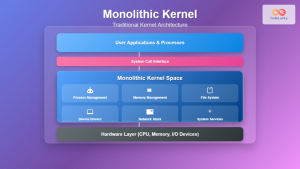
Monolithic Kernel: Complete Guide to Traditional Kernel Architecture
What is a Monolithic Kernel? A monolithic kernel is a traditional kernel architecture where the entire operating system runs in...





