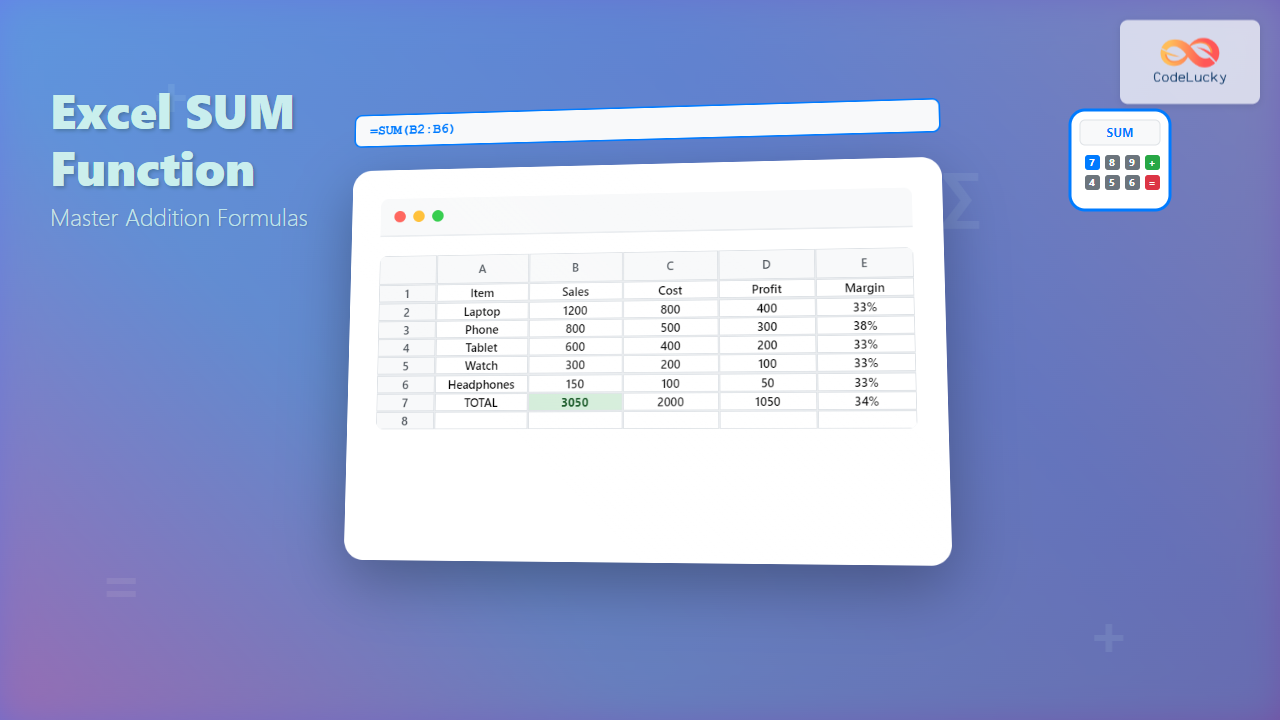
The Excel SUM function is one of the most fundamental and widely-used formulas in Microsoft Excel, designed to add numerical values across cells, ranges, or arrays. Whether you’re calculating totals for financial reports, analyzing sales data, or performing basic arithmetic operations, mastering the SUM function is essential for efficient spreadsheet management.
What is the Excel SUM Function?
The SUM function performs addition operations on numerical values within your Excel worksheet. It can add individual cell values, entire ranges, multiple ranges, or even other functions’ results. This versatile function automatically ignores text values, logical values, and empty cells, focusing solely on numerical data.
Basic SUM Function Syntax
The basic syntax for the Excel SUM function follows this structure:
=SUM(number1, [number2], [number3], ...)Where:
- number1 (required): The first number, cell reference, or range to add
- number2, number3, … (optional): Additional numbers, cell references, or ranges up to 255 arguments
Simple SUM Function Examples
Adding Individual Cell Values
To add values from specific cells, reference each cell separated by commas:
=SUM(A1, B1, C1)Adding Cell Ranges
For continuous ranges, use the colon operator:
=SUM(A1:A10)Adding Multiple Ranges
Combine multiple ranges or individual cells:
=SUM(A1:A5, C1:C5, E1)Advanced SUM Function Techniques
SUM with Non-Adjacent Ranges
You can add non-adjacent ranges by separating them with commas:
=SUM(A1:A5, D1:D5, G1:G5)3D SUM Across Multiple Worksheets
Sum values across multiple worksheets using 3D references:
=SUM(Sheet1:Sheet3!A1)This formula adds the value in cell A1 from Sheet1, Sheet2, and Sheet3.
SUM with Entire Columns or Rows
Add entire columns or rows using these references:
=SUM(A:A)    // Entire column A
=SUM(1:1)    // Entire row 1
Conditional SUM Functions
SUMIF Function
Use SUMIF when you need to sum values based on a single condition:
=SUMIF(range, criteria, [sum_range])Example: Sum sales where region equals “North”:
=SUMIF(B2:B20, "North", C2:C20)SUMIFS Function
For multiple conditions, use SUMIFS:
=SUMIFS(sum_range, criteria_range1, criteria1, criteria_range2, criteria2, ...)Example: Sum sales where region is “North” and product is “Laptops”:
=SUMIFS(D2:D20, B2:B20, "North", C2:C20, "Laptops")SUM Function with Arrays and Dynamic References
Array Formulas with SUM
Create powerful array formulas by combining SUM with other functions:
=SUM(IF(A2:A20>100, B2:B20, 0))This formula sums values in column B only where corresponding values in column A exceed 100.
Dynamic Range References
Use functions like OFFSET or INDIRECT for dynamic ranges:
=SUM(OFFSET(A1, 0, 0, 10, 1))Common SUM Function Errors and Solutions
#VALUE! Error
This error occurs when the function encounters text that cannot be converted to numbers. Solutions include:
- Check for hidden characters or spaces
- Use the VALUE function to convert text to numbers
- Verify data formatting consistency
#REF! Error
Appears when cell references are invalid. Common causes:
- Deleted cells referenced in the formula
- Invalid worksheet references
- Circular references
#NAME? Error
Occurs due to:
- Misspelled function names
- Invalid range names
- Missing quotation marks around text criteria
SUM Function Performance Tips
Optimize Large Range Calculations
For better performance with large datasets:
- Avoid entire column references when possible
- Use specific ranges instead of A:A
- Consider using SUMPRODUCT for complex conditions
- Break down complex formulas into smaller components
Memory Management
Efficient memory usage strategies:
- Limit the number of volatile functions
- Use structured references in Excel tables
- Avoid unnecessary array formulas
Practical Business Applications
Financial Reporting
Create dynamic financial reports using SUM with other functions:
=SUM(Revenue_Q1:Revenue_Q4)Budget Analysis
Calculate budget variances:
=SUM(Actual_Expenses) - SUM(Budgeted_Expenses)Sales Performance Tracking
Monitor sales performance across regions:
=SUMIF(Region_Column, "West", Sales_Column)Alternative Addition Methods in Excel
AutoSum Feature
Excel’s AutoSum button (Σ) automatically detects ranges and inserts SUM formulas. Access it via:
- Home tab → AutoSum button
- Keyboard shortcut: Alt + =
- Right-click context menu
Subtotal Function
For filtered data, use SUBTOTAL instead of SUM:
=SUBTOTAL(109, A2:A20)Function number 109 represents SUM and ignores hidden rows.
Advanced Integration Techniques
Combining SUM with Lookup Functions
Integrate SUM with VLOOKUP or INDEX/MATCH:
=SUM(VLOOKUP(lookup_value, table_array, {2,3,4}, FALSE))SUM with Text Functions
Process text-based numerical data:
=SUM(VALUE(TRIM(A2:A20)))Troubleshooting Common Issues
Numbers Stored as Text
Convert text numbers to values:
- Use the VALUE function
- Multiply by 1: =A1*1
- Use Paste Special with Add operation
Hidden Characters
Remove invisible characters affecting calculations:
=SUM(CLEAN(TRIM(A2:A20)))Best Practices for SUM Function Usage
Documentation and Clarity
- Use descriptive range names
- Add comments to complex formulas
- Structure data consistently
- Implement error handling with IFERROR
Formula Auditing
Regular auditing practices:
- Use Excel’s Trace Precedents feature
- Verify formulas with sample calculations
- Test edge cases and boundary conditions
- Document assumptions and data sources
Conclusion
The Excel SUM function serves as the foundation for numerical analysis in spreadsheets, offering flexibility from basic addition to complex conditional calculations. By mastering its various applications, syntax variations, and integration techniques, you can significantly enhance your Excel proficiency and data analysis capabilities.
Remember to consider performance implications with large datasets, implement proper error handling, and maintain clear documentation for complex formulas. Whether you’re preparing financial reports, analyzing business metrics, or performing academic research, the SUM function remains an indispensable tool in your Excel arsenal.
Practice these techniques with real-world data to solidify your understanding and discover additional creative applications that suit your specific analytical needs.
Related Posts

Excel SUMIF Function: Complete Guide to Conditional Sum Formulas with Syntax Examples
What is the Excel SUMIF Function? The SUMIF function is one of Excel's most powerful conditional sum formulas that allows...
Excel AVERAGE Function: Complete Guide to Mean Calculation with Syntax Examples
The Excel AVERAGE function is one of the most fundamental and widely-used statistical functions in Microsoft Excel. This powerful function...

Excel SUMPRODUCT Function: Complete Guide to Array Multiplication and Advanced Calculations
What is the Excel SUMPRODUCT Function? The SUMPRODUCT function is one of Excel's most powerful and versatile array functions that...
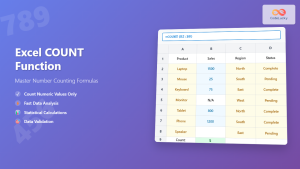
Excel COUNT Function: Complete Guide to Number Counting Formulas
The COUNT function is one of Excel's most fundamental and frequently used statistical functions. Whether you're analyzing sales data, tracking...
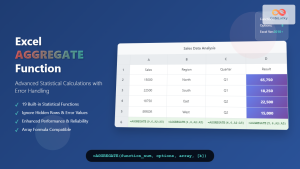
Excel AGGREGATE Function: Complete Guide to Advanced Statistical Calculations
Excel's AGGREGATE function is one of the most powerful and versatile statistical functions available in Microsoft Excel. Unlike traditional statistical...

Excel SUMIFS Function: Complete Guide to Multiple Criteria Sum Calculations
The SUMIFS function in Microsoft Excel is one of the most powerful tools for performing conditional sum calculations. Unlike the...

MySQL SUM Function: Mastering Numeric Aggregation
The SUM() function in MySQL is a powerful tool for aggregating numeric data. It allows you to calculate the total...

SQL SUM() Function: Totaling Values
SQL's SUM() function is a powerful tool in a data analyst's arsenal, allowing for quick and efficient calculation of numerical...

Excel SUBTOTAL Function: Complete Guide to Filtered Data Calculations
The Excel SUBTOTAL function is one of the most powerful yet underutilized functions in Microsoft Excel. Unlike standard aggregation functions...
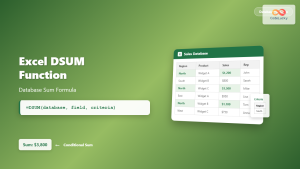
Excel DSUM Function: Complete Database Sum Formula Guide with Examples
The DSUM function in Microsoft Excel is a powerful database function that calculates the sum of values in a database...

Excel ROWS Function: Complete Guide to Count Rows with Formula Syntax Examples
What is the Excel ROWS Function? The ROWS function in Microsoft Excel is a built-in lookup and reference function that...

Excel MIN Function: Complete Guide to Finding Minimum Values with Formula Examples
The MIN function in Microsoft Excel is one of the most fundamental and frequently used statistical functions for data analysis....
- What is the Excel SUM Function?
- Basic SUM Function Syntax
- Simple SUM Function Examples
- Advanced SUM Function Techniques
- Conditional SUM Functions
- SUM Function with Arrays and Dynamic References
- Common SUM Function Errors and Solutions
- SUM Function Performance Tips
- Practical Business Applications
- Alternative Addition Methods in Excel
- Advanced Integration Techniques
- Troubleshooting Common Issues
- Best Practices for SUM Function Usage
- Conclusion