
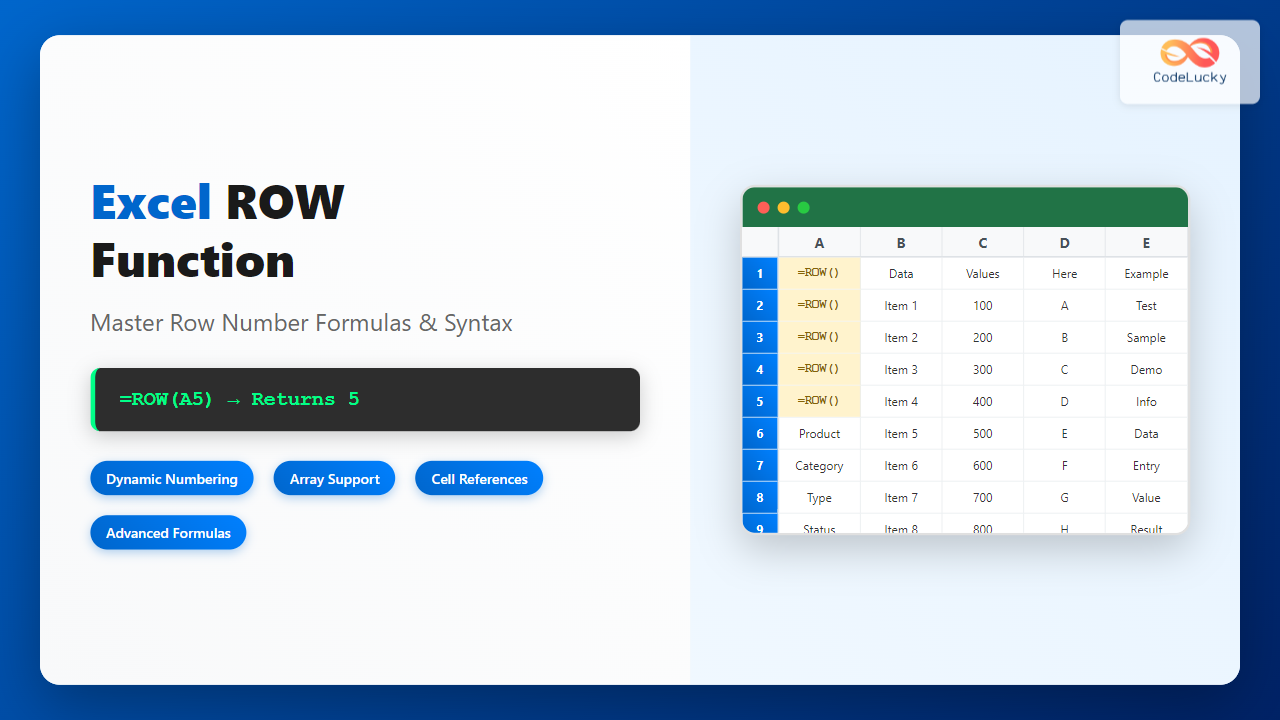
The Excel ROW function is one of the most fundamental yet powerful functions in Microsoft Excel, designed to return the row number of a specified cell reference. Whether you’re creating dynamic formulas, building complex spreadsheet models, or simply need to identify row positions, understanding the ROW function is essential for effective Excel usage.
What is the Excel ROW Function?
The ROW function in Excel returns the row number of a cell reference or the current row number if no reference is provided. This function is particularly useful for creating sequential numbering systems, building dynamic ranges, and developing advanced Excel formulas that need to reference specific row positions.
ROW Function Syntax
The syntax for the Excel ROW function is straightforward:
=ROW([reference])Parameters Explained
- reference (optional): The cell or range of cells for which you want the row number. If omitted, ROW returns the row number of the cell containing the formula.
Basic ROW Function Examples
Example 1: Getting Current Row Number
When you enter =ROW() in any cell, it returns the row number of that cell. For instance:
- In cell A5:
=ROW()returns 5 - In cell C10:
=ROW()returns 10 - In cell B1:
=ROW()returns 1
Example 2: Getting Row Number of Specific Cell
You can specify a particular cell reference to get its row number:
=ROW(A15)returns 15=ROW(Z100)returns 100=ROW($B$7)returns 7
Example 3: ROW Function with Range References
When used with a range, ROW returns an array of row numbers. For example:
=ROW(A1:A5)returns {1;2;3;4;5} as a vertical array=ROW(B10:D10)returns 10 (since all cells in a horizontal range share the same row)
Advanced ROW Function Applications
Creating Auto-Incrementing Serial Numbers
One of the most common uses of the ROW function is creating automatic serial numbers that adjust when rows are inserted or deleted:
=ROW()-1If you place this formula in cell A2, it will return 1. In A3, it returns 2, and so on. This creates a dynamic numbering system that automatically adjusts.
Generating Sequential Numbers Starting from Any Value
To start your sequence from a specific number, use:
=ROW()+10This formula, when placed in row 1, would start numbering from 11, in row 2 from 12, and so forth.
Creating Conditional Row Numbers
Combine ROW with IF functions for conditional numbering:
=IF(A2<>"",ROW()-1,"")This formula only displays a row number if the adjacent cell (A2) is not empty.
ROW Function in Array Formulas
The ROW function becomes particularly powerful when used in array formulas. Here are some advanced applications:
Creating Dynamic Ranges
Use ROW to create dynamic ranges that expand automatically:
=INDIRECT("A1:A"&ROW())This creates a range from A1 to the current row, useful for running totals or cumulative calculations.
Extracting Every Nth Row
To extract every 3rd row from a dataset:
=IF(MOD(ROW(),3)=0,A1,"")This formula displays the value only when the row number is divisible by 3.
Common ROW Function Use Cases
1. Invoice Numbering Systems
Create dynamic invoice numbers that automatically increment:
="INV-"&TEXT(ROW()-1,"0000")This generates invoice numbers like INV-0001, INV-0002, etc.
2. Date Sequences
Generate sequential dates using ROW:
=DATE(2024,1,1)+ROW()-1This creates a series of consecutive dates starting from January 1, 2024.
3. Ranking and Sorting
Use ROW for creating custom ranking systems:
=RANK(B2,$B$2:$B$100)&" (Row "&ROW()&")"This shows both the rank and original row position of data.
ROW Function with Other Excel Functions
ROW with INDEX and MATCH
Create dynamic lookups that return row positions:
=ROW(INDEX(A:A,MATCH("SearchValue",A:A,0)))This returns the row number where “SearchValue” is found in column A.
ROW with OFFSET
Build flexible reference systems:
=OFFSET(A1,ROW()-1,0)This creates a reference that moves down one row for each row the formula is copied to.
Troubleshooting Common ROW Function Issues
Issue 1: ROW Function Returns Array Instead of Single Value
Problem: When referencing a range, ROW returns multiple values.
Solution: Use array formulas or specify a single cell reference instead of a range.
Issue 2: ROW Numbers Don’t Update When Rows Are Deleted
Problem: Hardcoded row references don’t adjust automatically.
Solution: Use relative references without the ROW function for static numbering, or use ROW() for dynamic numbering.
Issue 3: Incorrect Results in Filtered Data
Problem: ROW function shows actual row numbers even in filtered datasets.
Solution: Use SUBTOTAL or AGGREGATE functions combined with ROW for filtered data scenarios.
Performance Considerations
While the ROW function is generally efficient, consider these performance tips:
- Avoid using ROW in large arrays unnecessarily
- Use absolute references when the row reference shouldn’t change
- Consider alternatives like SEQUENCE function in Excel 365 for better performance
ROW Function vs. Alternative Methods
ROW vs. SEQUENCE (Excel 365)
In Excel 365, the SEQUENCE function offers more flexibility:
=ROW(A1:A10)vs.=SEQUENCE(10)- SEQUENCE allows custom start values and increments
- ROW is more widely compatible across Excel versions
ROW vs. Manual Numbering
- ROW advantages: Dynamic, automatic adjustment, formula-based
- Manual advantages: Fixed values, no formula overhead, simple
Best Practices for Using ROW Function
- Use meaningful references: Instead of
=ROW()-1, consider=ROW()-ROW($A$1)for clarity - Document your formulas: Add comments explaining complex ROW-based formulas
- Test with edge cases: Verify behavior when rows are inserted or deleted
- Consider compatibility: ROW works in all Excel versions, making it highly portable
Conclusion
The Excel ROW function is a versatile tool that serves as the foundation for many advanced Excel techniques. From simple row numbering to complex dynamic formulas, mastering the ROW function opens up numerous possibilities for spreadsheet automation and data management.
By understanding its syntax, applications, and best practices, you can leverage the ROW function to create more efficient, dynamic, and maintainable Excel workbooks. Whether you’re building financial models, creating data analysis tools, or simply organizing information, the ROW function is an essential skill in your Excel toolkit.
Remember to practice these techniques in your own spreadsheets and experiment with combining ROW with other Excel functions to discover even more powerful applications for your specific needs.
Related Posts
Excel COLUMN Function: Complete Guide to Column Number References
The Excel COLUMN function is a fundamental lookup and reference function that returns the column number of a specified cell...

Excel ROWS Function: Complete Guide to Count Rows with Formula Syntax Examples
What is the Excel ROWS Function? The ROWS function in Microsoft Excel is a built-in lookup and reference function that...

Excel OFFSET Function: Dynamic Reference Formula for Advanced Data Management
The Excel OFFSET function is one of the most powerful yet underutilized tools for creating dynamic references in spreadsheets. This...
Excel ADDRESS Function: Complete Guide to Dynamic Cell Reference Creation
The Excel ADDRESS function is a powerful text function that creates cell references as text strings based on row and...

Excel INDIRECT Function: Complete Guide to Dynamic Cell Reference Creation
The INDIRECT function in Microsoft Excel is a powerful reference function that allows you to create dynamic cell references from...
Excel COLUMNS Function: Master Column Counting with Practical Examples
The Excel COLUMNS function is a powerful built-in tool that counts the number of columns in a specified range or...
Excel CELL Function: Complete Guide to Cell Information Formula Syntax
The CELL function in Microsoft Excel is a powerful information function that returns specific details about the formatting, location, or...

Excel SEQUENCE Function: Complete Guide to Dynamic Number Sequences
What is the Excel SEQUENCE Function? The Excel SEQUENCE function is a powerful dynamic array function introduced in Excel 365...
Excel INDEX Function: Complete Guide to Array Position Lookup with Practical Examples
The Excel INDEX function is one of the most powerful and versatile lookup functions available in Microsoft Excel. Unlike other...

Excel TABLE Function: Complete Guide to Structured Data Management and Advanced Formulas
What is the Excel TABLE Function? The Excel TABLE function is a powerful feature that converts regular cell ranges into...
Excel AREAS Function: Complete Guide to Count Reference Areas in Formulas
The Excel AREAS function is a powerful reference function that counts the number of areas (separate ranges) within a given...
Excel Structured References: Complete Table Formula Syntax Guide
Excel structured references revolutionize how you work with tables by replacing traditional cell references with intuitive, readable formula syntax. Instead...





