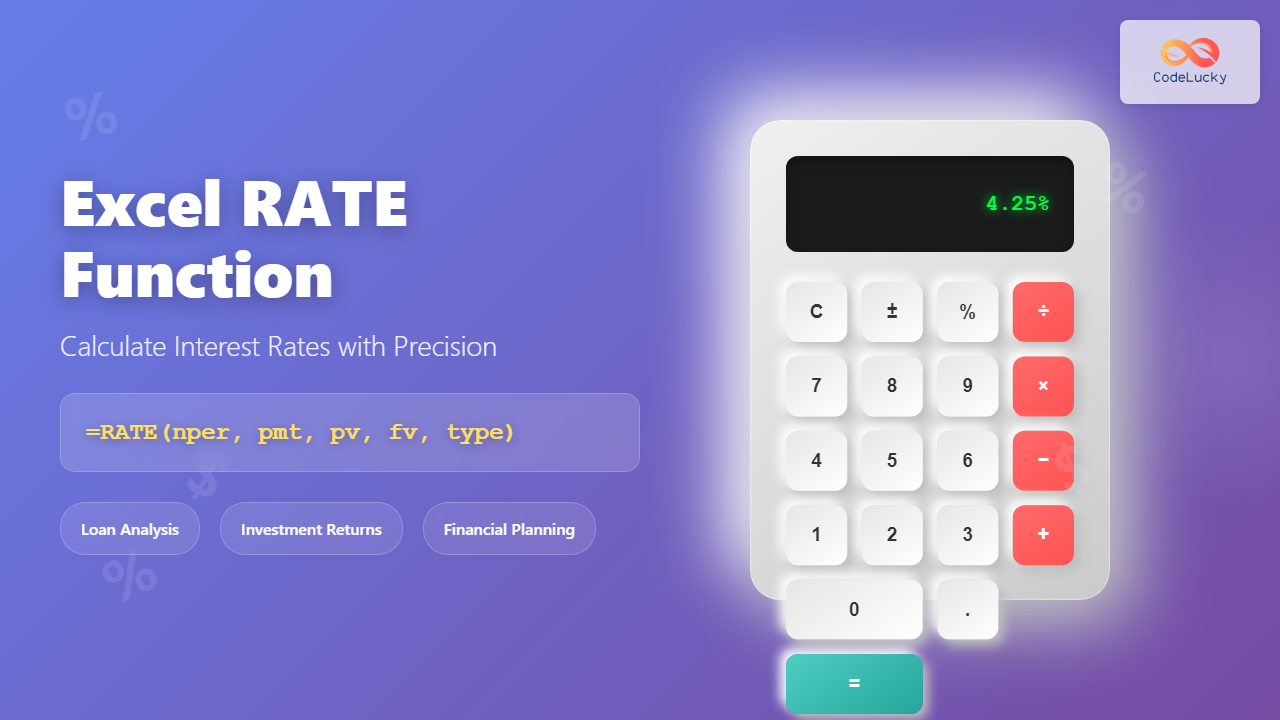
The Excel RATE function is a powerful financial tool that calculates the interest rate per period for an annuity or loan. Whether you’re analyzing investment returns, calculating loan rates, or performing complex financial modeling, understanding the RATE function is essential for accurate financial analysis.
What is the Excel RATE Function?
The RATE function in Excel determines the interest rate per period of an annuity by using an iterative process. It’s particularly useful when you know the payment amount, number of periods, and present value, but need to find the interest rate that makes the equation balance.
This function is commonly used in scenarios such as:
- Calculating the annual percentage rate (APR) on loans
- Determining investment return rates
- Analyzing lease agreements
- Evaluating bond yields
- Financial planning and budgeting
RATE Function Syntax
The complete syntax for the RATE function is:
=RATE(nper, pmt, pv, [fv], [type], [guess])Required Arguments
nper – The total number of payment periods in an annuity. For monthly payments over 5 years, this would be 60 periods.
pmt – The payment made each period, which cannot change over the life of the annuity. This includes principal and interest but excludes fees or taxes. For loans, this is typically negative since it represents money going out.
pv – The present value, or the total amount that a series of future payments is worth now. For loans, this is the loan amount (positive value).
Optional Arguments
[fv] – The future value, or cash balance you want to attain after the last payment is made. If omitted, Excel assumes 0 (zero).
[type] – Indicates when payments are due:
- 0 (default) – Payments are due at the end of the period
- 1 – Payments are due at the beginning of the period
[guess] – Your guess for what the rate will be. If omitted, Excel uses 10% as the default starting point for its iterative calculation.
Understanding Cash Flow Convention
The RATE function follows standard financial cash flow conventions where:
- Positive values represent cash received (inflows)
- Negative values represent cash paid out (outflows)
For a typical loan scenario, the loan amount (pv) is positive because you receive the money, while the monthly payments (pmt) are negative because you pay them out.
Practical Examples of RATE Function
Example 1: Calculate Loan Interest Rate
Suppose you have a $250,000 mortgage with monthly payments of $1,342.05 for 30 years. To find the annual interest rate:
=RATE(360, -1342.05, 250000) * 12This formula returns approximately 0.04 or 4% annual interest rate. We multiply by 12 to convert the monthly rate to an annual rate.
Example 2: Investment Return Calculation
If you invest $1,000 monthly for 20 years and end up with $500,000, the annual return rate would be:
=RATE(240, -1000, 0, 500000) * 12This calculates the monthly return rate and converts it to annual by multiplying by 12.
Example 3: Bond Yield Calculation
For a bond with a $1,000 face value, $50 annual coupon payments, and current price of $950:
=RATE(10, 50, -950, 1000)This gives you the annual yield to maturity for a 10-year bond.
Advanced RATE Function Applications
Irregular Payment Scenarios
When dealing with irregular payment schedules or varying amounts, you might need to combine RATE with other functions like IRR (Internal Rate of Return) for more complex calculations.
Sensitivity Analysis
Use the RATE function in data tables to perform sensitivity analysis, showing how interest rates change with different payment amounts or loan terms.
Goal Seek Integration
Combine RATE with Excel’s Goal Seek feature to determine what payment amount would achieve a specific interest rate target.
Common Errors and Troubleshooting
#NUM! Error
This error occurs when:
- Excel cannot find a solution after 20 iterations
- The guess value leads to divergent results
- The payment and present value have the same sign (both positive or both negative)
Solution: Adjust your guess parameter or verify your cash flow signs are correct.
#VALUE! Error
This happens when arguments contain non-numeric values or text.
Solution: Ensure all arguments are numbers, not text or blank cells.
Tips for Accurate RATE Calculations
1. Verify Cash Flow Signs
Always double-check that inflows are positive and outflows are negative. Incorrect signs are the most common source of errors.
2. Use Appropriate Guess Values
If the default 10% guess doesn’t work, try values closer to your expected result. For very low or high interest rates, adjust the guess accordingly.
3. Consider Compounding Frequency
Remember to convert between different compounding periods. Monthly rates need to be multiplied by 12 for annual rates, quarterly by 4, etc.
4. Validate Results
Cross-check your RATE function results using the PMT function with your calculated rate to verify accuracy.
Alternative Functions to Consider
IRR Function
Use IRR when you have irregular cash flows or need to calculate internal rate of return for investment projects.
XIRR Function
Choose XIRR when dealing with cash flows that occur at irregular intervals with specific dates.
NOMINAL and EFFECT Functions
These functions help convert between nominal and effective interest rates when dealing with different compounding frequencies.
Real-World Applications
Loan Comparison
Use RATE to compare different loan offers by calculating the effective interest rate for each option, considering fees and different payment structures.
Investment Analysis
Evaluate investment performance by calculating the rate of return on contributions to retirement accounts or other investment vehicles.
Lease vs. Buy Decisions
Calculate the implicit interest rate in lease agreements to compare with loan rates for purchase decisions.
Performance Optimization
When using RATE in large spreadsheets:
- Provide good guess values to reduce calculation time
- Consider using array formulas for multiple calculations
- Cache results when possible to avoid repeated calculations
Integration with Other Excel Features
Data Validation
Set up data validation rules to ensure input values are within reasonable ranges before RATE calculations.
Conditional Formatting
Use conditional formatting to highlight interest rates that fall outside acceptable ranges.
Charts and Visualization
Create dynamic charts showing how interest rates change with different variables using RATE function results.
Best Practices for Financial Modeling
When incorporating RATE functions into financial models:
- Document your assumptions clearly
- Use named ranges for better formula readability
- Include error checking and validation
- Test edge cases and boundary conditions
- Provide clear explanations for end users
Conclusion
The Excel RATE function is an indispensable tool for financial analysis, enabling you to calculate interest rates with precision and flexibility. By understanding its syntax, cash flow conventions, and practical applications, you can leverage this function for everything from simple loan calculations to complex investment analysis.
Remember to always verify your results, use appropriate cash flow signs, and consider the compounding frequency when interpreting your calculations. With practice and attention to detail, the RATE function will become a valuable asset in your financial analysis toolkit.
Whether you’re a financial professional, business analyst, or individual managing personal finances, mastering the RATE function will enhance your ability to make informed financial decisions and perform accurate calculations in Excel.
Related Posts

Excel PMT Function: Complete Guide to Payment Calculations
The PMT function in Microsoft Excel is one of the most powerful financial tools for calculating periodic payments for loans,...
Excel FV Function: Complete Guide to Future Value Calculations
The Excel FV (Future Value) function is a powerful financial tool that calculates the future value of an investment based...

Excel NPER Function: Master Payment Period Calculations with Complete Syntax Guide
What is the Excel NPER Function? The NPER function in Microsoft Excel is a powerful financial function that calculates the...
Excel PV Function: Master Present Value Calculations with Complete Formula Guide
The Excel PV function is one of the most powerful financial tools available in Microsoft Excel, enabling users to calculate...
Excel IRR Function: Complete Guide to Internal Rate of Return Analysis
The Excel IRR function is one of the most powerful financial analysis tools available in Microsoft Excel, designed to calculate...
Excel IPMT Function: Calculate Interest Payments with Precision
The IPMT function in Microsoft Excel is a powerful financial tool that calculates the interest payment for a specific period...
Excel MIRR Function: Complete Guide to Modified Internal Rate of Return Calculations
The MIRR (Modified Internal Rate of Return) function in Excel is a powerful financial tool that provides a more realistic...

Excel PPMT Function: Complete Guide to Principal Payment Calculations
The PPMT function in Microsoft Excel is a powerful financial tool that calculates the principal payment for a specific period...

Excel NPV Function: Complete Guide to Net Present Value Calculations
The Excel NPV (Net Present Value) function is one of the most powerful financial tools available in Microsoft Excel, enabling...

Excel POWER Function: Complete Guide to Exponentiation Formula with Examples
What is the Excel POWER Function? The Excel POWER function is a built-in mathematical function that calculates the result of...

Excel EXP Function: Complete Guide to Exponential Calculations
What is the Excel EXP Function? The Excel EXP function is a powerful mathematical function that calculates the exponential value...

Excel LN Function: Complete Guide to Natural Logarithm Calculations
The Excel LN function is a powerful mathematical tool that calculates the natural logarithm of a number. Understanding how to...