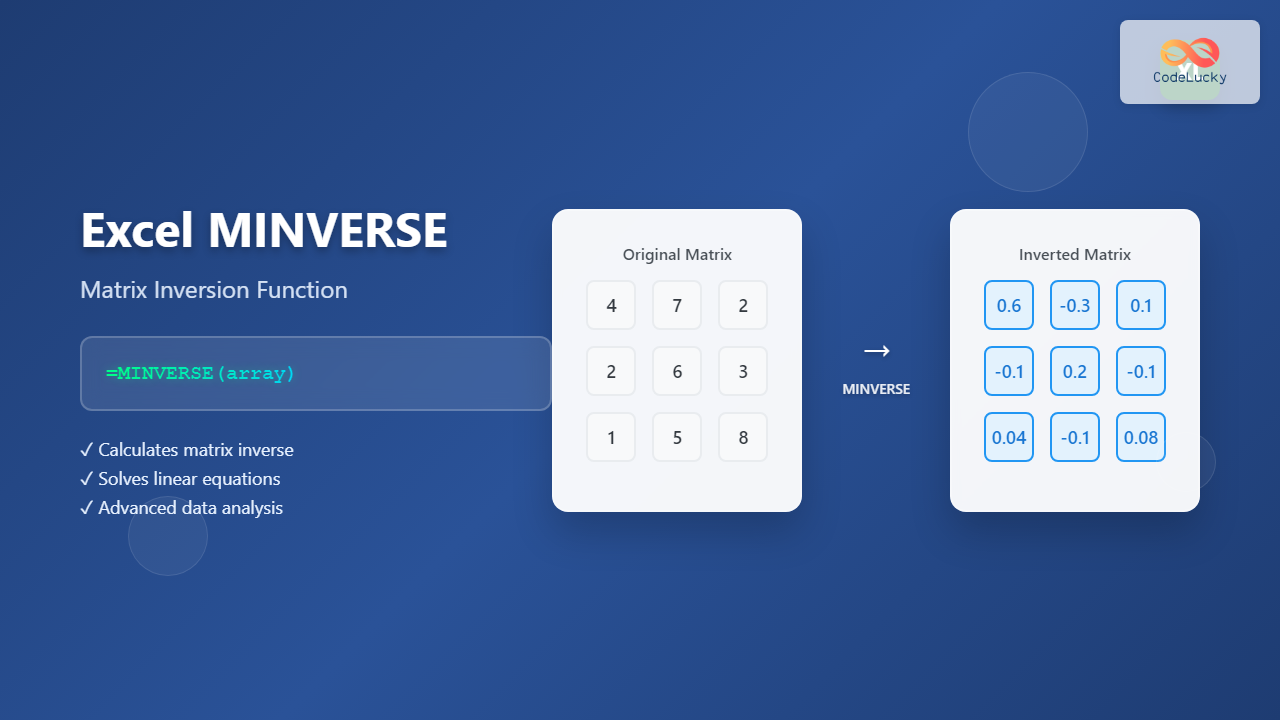
The MINVERSE function in Microsoft Excel is a powerful mathematical tool that calculates the inverse of a square matrix. This function is essential for advanced data analysis, linear algebra operations, and solving systems of equations directly within Excel.
What is the Excel MINVERSE Function?
MINVERSE is an array function that returns the matrix inverse of a given square matrix. A matrix inverse is essentially the mathematical equivalent of division for matrices – when you multiply a matrix by its inverse, you get an identity matrix (similar to how multiplying a number by its reciprocal gives you 1).
The function only works with square matrices (same number of rows and columns) that are non-singular, meaning they have a determinant that is not zero.
MINVERSE Function Syntax
The syntax for the MINVERSE function is straightforward:
=MINVERSE(array)Parameters:
- array (required): A square matrix with equal number of rows and columns, represented as a range of cells containing numeric values
How to Use MINVERSE Function: Step-by-Step Guide
Basic Matrix Inversion Example
Let’s work through a simple 2×2 matrix inversion:
Step 1: Set up your original matrix in Excel. For example, place the following values:
- A1: 4, B1: 7
- A2: 2, B2: 6
Step 2: Select a range for the result that matches your original matrix size (2×2 in this case). Select cells D1:E2.
Step 3: Enter the MINVERSE formula:
=MINVERSE(A1:B2)Step 4: Press Ctrl+Shift+Enter (for Excel 2019 and earlier) or simply Enter (for Excel 365 and 2021) to enter it as an array formula.
The result will show the inverse matrix values across the selected range.
Working with Larger Matrices
For a 3×3 matrix, the process is identical but requires a larger selection range:
Original 3×3 Matrix Example:
2  1  3
1  4  2
3  1  5
Select a 3×3 range for results, enter =MINVERSE(A1:C3), and press the appropriate key combination based on your Excel version.
Important Requirements and Limitations
Matrix Requirements
- Square Matrix Only: The matrix must have equal rows and columns
- Non-Singular: The determinant must not be zero
- Numeric Values: All cells must contain numbers, not text or empty cells
Common Error Messages
- #NUM! Error: Occurs when the matrix is singular (determinant = 0) or not square
- #VALUE! Error: Appears when the array contains non-numeric values
- #N/A Error: Results from incorrect array formula entry or size mismatch
Practical Applications of MINVERSE
Solving Systems of Linear Equations
MINVERSE is particularly useful for solving systems of equations. When you have a system like:
2x + 3y = 8
4x + y = 6
You can represent this as a matrix equation AX = B, where A is the coefficient matrix, X is the variable matrix, and B is the constant matrix. The solution is X = A⁻¹B.
Financial Modeling
In finance, MINVERSE helps with:
- Portfolio optimization calculations
- Risk analysis using covariance matrices
- Regression analysis for forecasting
Engineering Applications
Engineers use matrix inversion for:
- Structural analysis calculations
- Control system design
- Signal processing operations
Advanced Tips and Best Practices
Checking Matrix Determinant First
Before using MINVERSE, verify that your matrix has a non-zero determinant using the MDETERM function:
=MDETERM(A1:B2)If the result is zero or very close to zero, the matrix cannot be inverted.
Handling Precision Issues
For matrices with very small determinants, consider:
- Rounding input values to reduce computational errors
- Using higher precision by formatting cells to show more decimal places
- Checking if the problem can be reformulated to avoid near-singular matrices
Combining with Other Matrix Functions
MINVERSE works well with other Excel matrix functions:
- MMULT: For matrix multiplication
- TRANSPOSE: For matrix transposition
- MDETERM: For calculating determinants
Troubleshooting Common Issues
Array Formula Entry Problems
If MINVERSE isn’t working properly:
- Ensure you’ve selected the correct output range size
- Verify you’re using Ctrl+Shift+Enter for older Excel versions
- Check that your input range contains only numeric values
Performance Considerations
For large matrices:
- Consider if matrix inversion is necessary or if alternative methods exist
- Be aware that computation time increases significantly with matrix size
- Test with smaller matrices first to verify your approach
Alternative Methods and Workarounds
Using Solver Add-in
For complex systems, Excel’s Solver add-in might provide more robust solutions, especially when dealing with constraints or optimization problems.
External Tools Integration
For heavy matrix operations, consider:
- Exporting data to specialized mathematical software
- Using Excel’s Power Query for large dataset preprocessing
- Implementing custom VBA functions for specialized requirements
Real-World Example: Portfolio Optimization
Here’s a practical example using MINVERSE for basic portfolio optimization:
Scenario: You have three assets with the following covariance matrix representing risk relationships:
Asset A  Asset B  Asset C
0.04     0.02     0.01
0.02     0.06     0.03
0.01     0.03     0.05
Using MINVERSE on this covariance matrix helps calculate optimal portfolio weights that minimize risk for a given return level.
Conclusion
The Excel MINVERSE function is a valuable tool for anyone working with linear algebra, systems of equations, or advanced data analysis. While it requires careful attention to matrix properties and proper array formula entry, mastering MINVERSE opens up sophisticated analytical capabilities directly within Excel.
Remember to always verify your matrix meets the requirements (square and non-singular) before applying MINVERSE, and consider the practical limitations when working with large or nearly singular matrices. With proper understanding and application, MINVERSE can significantly enhance your Excel-based mathematical and analytical workflows.
Related Posts

Excel MDETERM Function: Complete Matrix Determinant Formula Guide
What is the Excel MDETERM Function? The MDETERM function in Microsoft Excel calculates the determinant of a square matrix. This...

Excel MMULT Function: Complete Guide to Matrix Multiplication Formula
The MMULT function in Microsoft Excel is a powerful mathematical tool that performs matrix multiplication operations directly within your spreadsheet....

Excel MIN Function: Complete Guide to Finding Minimum Values with Formula Examples
The MIN function in Microsoft Excel is one of the most fundamental and frequently used statistical functions for data analysis....

NumPy Matrix: Using mat Objects for Linear Algebra
NumPy's mat objects provide a specialized way to represent and manipulate matrices in Python. While not as widely used as...

Excel SIGN Function: Master Number Sign Detection with Practical Examples
The Excel SIGN function is a powerful mathematical tool that determines whether a number is positive, negative, or zero. This...

Excel ABS Function: Complete Guide to Absolute Value Calculations
The ABS function in Microsoft Excel is one of the most fundamental mathematical functions that converts any number to its...

Excel NOT Function: Complete Guide to Reverse Logic Formulas
What is the Excel NOT Function? The Excel NOT function is a powerful logical function that reverses the logical value...

Excel TRANSPOSE Function: Complete Guide to Array Transposition with Examples
The TRANSPOSE function in Microsoft Excel is a powerful array function that allows you to convert rows to columns and...

Excel LOWER Function: Convert Text to Lowercase with Syntax Examples
The Excel LOWER function is a powerful text manipulation tool that converts all uppercase letters in a text string to...
Excel ASIN Function: Complete Guide to Arcsine Calculations with Formula Examples
The ASIN function in Microsoft Excel is a powerful trigonometric tool that calculates the arcsine (inverse sine) of a number....

Excel MEDIAN Function: Complete Guide to Middle Value Calculations
The MEDIAN function in Microsoft Excel is one of the most essential statistical functions for data analysis. It calculates the...

Excel POWER Function: Complete Guide to Exponentiation Formula with Examples
What is the Excel POWER Function? The Excel POWER function is a built-in mathematical function that calculates the result of...