
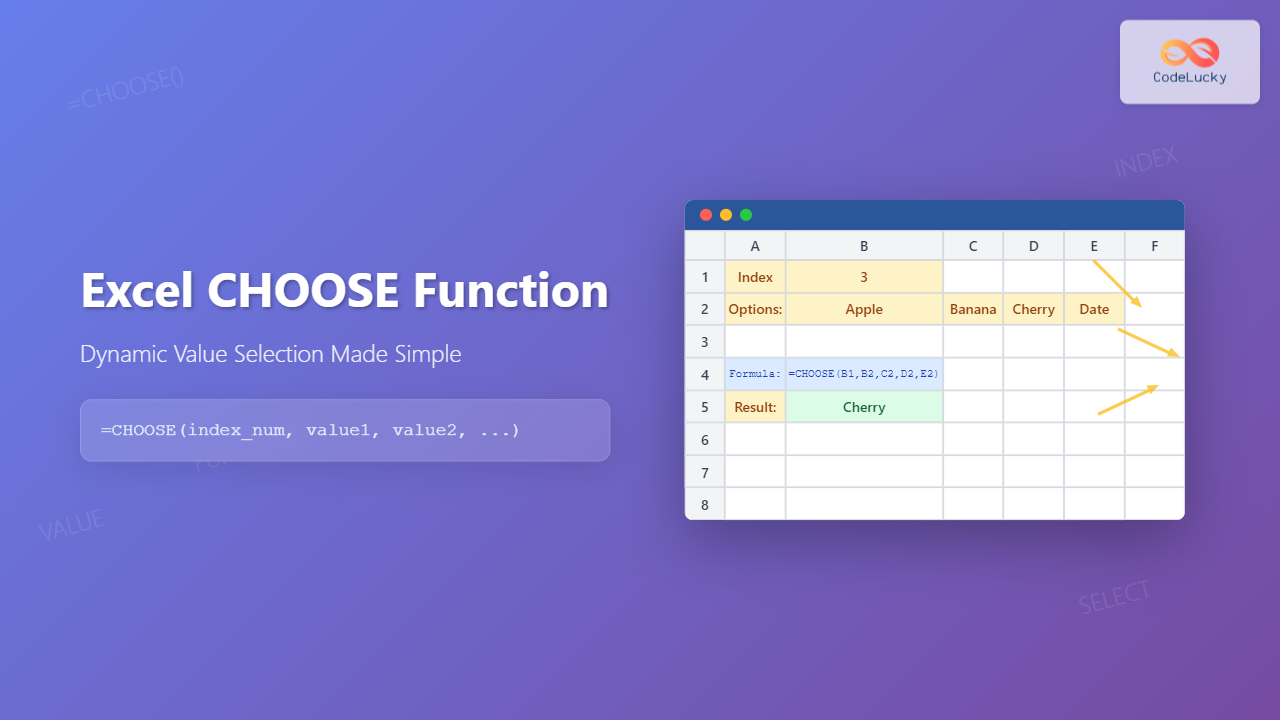
The Excel CHOOSE function is a powerful lookup and reference function that allows you to select and return a specific value from a list of up to 254 values based on an index number. This versatile function acts like a dynamic switch, making it invaluable for creating flexible formulas, building dynamic reports, and simplifying complex decision-making processes in your spreadsheets.
What is the Excel CHOOSE Function?
The CHOOSE function returns a value from a list of values based on a position number you specify. Think of it as a way to create a custom lookup table directly within your formula. When you provide an index number, CHOOSE retrieves the corresponding value from your predefined list, making it perfect for scenarios where you need to map numbers to specific outcomes or categories.
CHOOSE Function Syntax
The syntax for the CHOOSE function follows this structure:
=CHOOSE(index_num, value1, [value2], [value3], ...)Parameters Explained:
- index_num (Required): A number between 1 and 254 that specifies which value to choose from the list
- value1 (Required): The first value in your list of options
- value2, value3, … (Optional): Additional values up to 254 total values
How CHOOSE Function Works
The CHOOSE function operates on a simple principle: it uses the index number as a position indicator to select from your value list. If your index number is 1, it returns the first value; if it’s 2, it returns the second value, and so on. The function is particularly useful because the values can be numbers, text strings, cell references, formulas, or even other functions.
Basic CHOOSE Function Examples
Example 1: Simple Text Selection
=CHOOSE(3, "Apple", "Banana", "Cherry", "Date", "Elderberry")This formula returns “Cherry” because it’s the third item in the list.
Example 2: Number Selection
=CHOOSE(2, 100, 250, 500, 750, 1000)This returns 250, the second number in the sequence.
Example 3: Using Cell References
=CHOOSE(A1, "Monday", "Tuesday", "Wednesday", "Thursday", "Friday")If cell A1 contains the number 4, this formula returns “Thursday”.
Advanced CHOOSE Function Applications
Dynamic Month Names
Create a formula that converts month numbers to month names:
=CHOOSE(MONTH(TODAY()), "Jan", "Feb", "Mar", "Apr", "May", "Jun", "Jul", "Aug", "Sep", "Oct", "Nov", "Dec")This formula automatically displays the current month’s abbreviated name.
Grade Letter Assignment
Convert numeric grades to letter grades:
=CHOOSE(ROUNDUP(B2/10,0), "F", "F", "F", "F", "F", "F", "D", "C", "B", "A")This formula assigns letter grades based on percentage scores in cell B2.
Random Value Selection
Combine CHOOSE with RANDBETWEEN for random selections:
=CHOOSE(RANDBETWEEN(1,5), "Red", "Blue", "Green", "Yellow", "Purple")This generates a random color each time the worksheet recalculates.
CHOOSE with Array Formulas
The CHOOSE function becomes even more powerful when used with arrays. You can use it to create dynamic ranges or perform complex lookups:
=SUM(CHOOSE({1;2}, A1:A10, B1:B10))This formula sums both ranges A1:A10 and B1:B10 simultaneously.
Combining CHOOSE with Other Functions
CHOOSE + INDEX + MATCH
Create flexible lookup formulas:
=INDEX(CHOOSE(C1, A:A, B:B, D:D), MATCH(E1, CHOOSE(C1, A:A, B:B, D:D), 0))This allows you to dynamically select which column to search based on the value in C1.
CHOOSE + IF for Conditional Logic
=CHOOSE(IF(A1>100, 1, IF(A1>50, 2, 3)), "High", "Medium", "Low")This creates a three-tier classification system based on the value in A1.
Practical Business Applications
Sales Commission Calculator
Calculate different commission rates based on sales tiers:
=B2*CHOOSE(MIN(ROUNDUP(B2/10000,0),5), 0.02, 0.035, 0.05, 0.065, 0.08)This applies increasing commission rates as sales amounts increase.
Project Status Indicators
Display status messages based on completion percentages:
=CHOOSE(MIN(ROUNDUP(C2*10,0),4), "Not Started", "In Progress", "Nearly Complete", "Complete")Dynamic Chart Labels
Create flexible chart titles that change based on selected criteria:
="Sales Report - " & CHOOSE(D1, "Q1", "Q2", "Q3", "Q4", "Annual")Error Handling with CHOOSE
The CHOOSE function returns a #VALUE! error if the index number is less than 1 or greater than the number of values provided. Use IFERROR to handle these situations gracefully:
=IFERROR(CHOOSE(A1, "Option 1", "Option 2", "Option 3"), "Invalid Selection")Performance Considerations
While CHOOSE is efficient for small to medium lists, consider these performance tips:
- For large datasets, INDEX and MATCH might be more efficient
- Avoid using volatile functions like RAND() within CHOOSE if not necessary
- Use absolute references for value lists that don’t change
- Consider using named ranges for frequently used value lists
CHOOSE vs VLOOKUP vs INDEX/MATCH
| Function | Best For | Limitations | Performance |
|---|---|---|---|
| CHOOSE | Small, predefined lists | Limited to 254 values | Fast for small lists |
| VLOOKUP | Large table lookups | Only looks right | Moderate |
| INDEX/MATCH | Complex lookups | More complex syntax | Fastest for large data |
Common CHOOSE Function Errors
#VALUE! Error
Occurs when the index number is outside the valid range (1 to number of values provided).
#REF! Error
Happens when cell references in the value list point to deleted cells.
#NAME? Error
Results from typos in the function name or incorrect syntax.
Best Practices for Using CHOOSE
- Use meaningful variable names: When index numbers come from other cells, use descriptive cell names
- Document your logic: Add comments explaining what each index number represents
- Validate input ranges: Ensure index numbers stay within valid bounds
- Consider maintenance: Think about how easy it will be to modify the value list later
- Test edge cases: Always test with minimum and maximum index values
Alternative Approaches
While CHOOSE is excellent for many scenarios, consider these alternatives:
- SWITCH function (Excel 2019+): More readable for multiple conditions
- IFS function (Excel 2019+): Better for complex conditional logic
- Lookup tables: More maintainable for frequently changing data
- Data validation lists: Better for user input scenarios
Troubleshooting Tips
When your CHOOSE function isn’t working as expected:
- Check that your index number is within the valid range
- Verify that all value parameters are properly separated by commas
- Ensure parentheses are properly balanced
- Test with simple, hardcoded values first
- Use the formula evaluation tool (F9) to debug complex expressions
Conclusion
The Excel CHOOSE function is a versatile tool that bridges the gap between simple value selection and complex lookup operations. Its ability to work with various data types and integrate seamlessly with other Excel functions makes it invaluable for creating dynamic, responsive spreadsheets. Whether you’re building simple selection lists or complex business logic, mastering CHOOSE will significantly enhance your Excel formula toolkit.
By understanding its syntax, exploring practical applications, and following best practices, you can leverage the CHOOSE function to create more efficient, maintainable, and user-friendly Excel solutions. Remember to consider performance implications for large datasets and always implement proper error handling to ensure robust formulas that stand the test of time.
Related Posts
Excel INDEX Function: Complete Guide to Array Position Lookup with Practical Examples
The Excel INDEX function is one of the most powerful and versatile lookup functions available in Microsoft Excel. Unlike other...
Excel COLUMNS Function: Master Column Counting with Practical Examples
The Excel COLUMNS function is a powerful built-in tool that counts the number of columns in a specified range or...

Excel TABLE Function: Complete Guide to Structured Data Management and Advanced Formulas
What is the Excel TABLE Function? The Excel TABLE function is a powerful feature that converts regular cell ranges into...
Excel ROW Function: Complete Guide to Row Number Formula and Syntax
The Excel ROW function is one of the most fundamental yet powerful functions in Microsoft Excel, designed to return the...
Excel COLUMN Function: Complete Guide to Column Number References
The Excel COLUMN function is a fundamental lookup and reference function that returns the column number of a specified cell...

Excel SWITCH Function: Complete Guide to Multiple Condition Logic
The Excel SWITCH function revolutionizes how you handle multiple conditional scenarios in spreadsheets. Instead of nesting countless IF statements, SWITCH...

Excel COMBIN Function: Master Combination Calculations in Spreadsheets
What is the Excel COMBIN Function? The COMBIN function in Microsoft Excel is a powerful mathematical tool that calculates the...

Excel XLOOKUP Function: Complete Guide to Modern Lookup Formulas
Excel's XLOOKUP function represents a revolutionary advancement in spreadsheet lookup capabilities, offering a modern alternative to traditional VLOOKUP and HLOOKUP...

Excel OFFSET Function: Dynamic Reference Formula for Advanced Data Management
The Excel OFFSET function is one of the most powerful yet underutilized tools for creating dynamic references in spreadsheets. This...
Excel Dynamic Array Formulas: Complete Spill Range Syntax and Functions Guide
Excel's dynamic array formulas revolutionized spreadsheet calculations by automatically expanding results across multiple cells. These powerful functions eliminate the need...

Excel IF Function: Complete Guide to Conditional Logic Formulas
The Excel IF function is one of the most fundamental and powerful logical functions in Microsoft Excel, enabling users to...
Excel ADDRESS Function: Complete Guide to Dynamic Cell Reference Creation
The Excel ADDRESS function is a powerful text function that creates cell references as text strings based on row and...





