
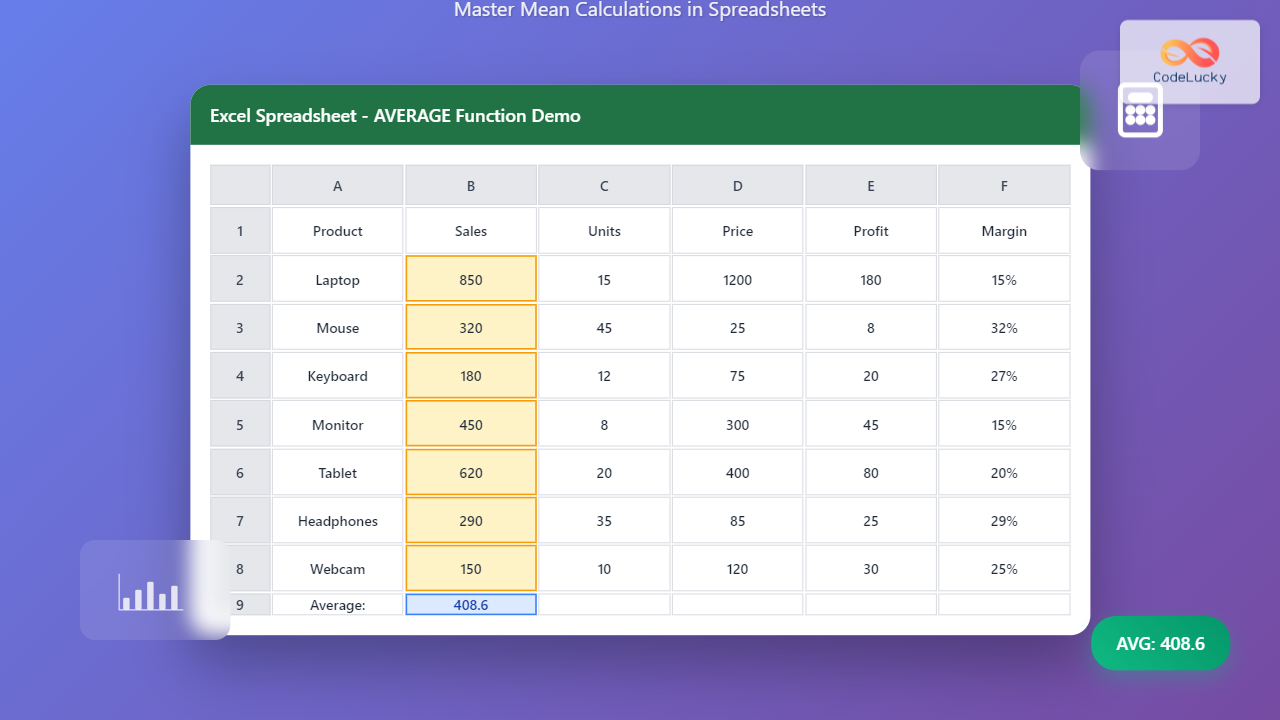
The Excel AVERAGE function is one of the most fundamental and widely-used statistical functions in Microsoft Excel. This powerful function calculates the arithmetic mean of a range of numbers, making it essential for data analysis, financial calculations, and statistical operations in spreadsheets.
What is the Excel AVERAGE Function?
The AVERAGE function in Excel computes the arithmetic mean by adding all numbers in a specified range and dividing by the count of those numbers. It automatically excludes empty cells, text values, and logical values from the calculation, focusing only on numerical data.
AVERAGE Function Syntax
The basic syntax for the Excel AVERAGE function is:
=AVERAGE(number1, [number2], [number3], ...)Parameters Explained
- number1 (Required): The first number, cell reference, or range of cells containing numbers
- number2, number3, … (Optional): Additional numbers, cell references, or ranges up to 255 arguments
Basic AVERAGE Function Examples
Simple Number Average
To calculate the average of specific numbers:
=AVERAGE(10, 20, 30, 40, 50)Result: 30
Cell Range Average
To calculate the average of a range of cells:
=AVERAGE(A1:A10)This calculates the mean of all numerical values in cells A1 through A10.
Multiple Range Average
To calculate the average across multiple ranges:
=AVERAGE(A1:A5, C1:C5, E1:E5)This combines values from three different ranges into a single average calculation.
Advanced AVERAGE Function Techniques
Combining Individual Values and Ranges
You can mix individual numbers with cell ranges:
=AVERAGE(A1:A5, 100, B10:B15)This includes the range A1:A5, the number 100, and the range B10:B15 in the calculation.
Using Named Ranges
If you’ve defined named ranges in your workbook:
=AVERAGE(SalesData)Where “SalesData” is a named range containing your numerical data.
Common AVERAGE Function Use Cases
Grade Point Average Calculation
Calculate student GPA using:
=AVERAGE(B2:B10)Where B2:B10 contains individual course grades.
Monthly Sales Average
Determine average monthly sales performance:
=AVERAGE(D2:D13)For 12 months of sales data in column D.
Stock Price Analysis
Calculate average stock price over time:
=AVERAGE(StockPrices)Using a named range for stock price data.
Important Notes About AVERAGE Function Behavior
What AVERAGE Includes
- Numerical values (positive, negative, decimals)
- Cells containing numbers
- Dates (converted to serial numbers)
- Times (converted to decimal values)
What AVERAGE Excludes
- Empty cells
- Text values
- Logical values (TRUE/FALSE) in cell references
- Error values (#N/A, #VALUE!, etc.)
Special Consideration for Logical Values
When logical values are entered directly as arguments:
=AVERAGE(10, 20, TRUE, FALSE)TRUE is treated as 1 and FALSE as 0, resulting in an average of 7.75.
AVERAGE Function Error Handling
Common Errors and Solutions
#DIV/0! Error
Occurs when all cells in the range are empty or contain non-numeric values. Solution: Ensure at least one cell contains a number.
#VALUE! Error
Happens when text is entered directly as an argument. Solution: Use cell references instead of typing text directly.
#NAME? Error
Results from misspelling the function name or using undefined named ranges. Solution: Check spelling and verify named ranges exist.
Alternative AVERAGE Functions in Excel
AVERAGEA Function
Includes logical values and text in calculations:
=AVERAGEA(A1:A10)Text evaluates to 0, TRUE to 1, FALSE to 0.
AVERAGEIF Function
Calculates average based on criteria:
=AVERAGEIF(A1:A10, ">50")Averages only values greater than 50.
AVERAGEIFS Function
Handles multiple criteria:
=AVERAGEIFS(B1:B10, A1:A10, ">50", C1:C10, "Yes")Averages values in B1:B10 where A1:A10 > 50 AND C1:C10 = “Yes”.
Performance Tips for AVERAGE Function
Optimize Large Datasets
- Use contiguous ranges when possible for better performance
- Avoid volatile functions within AVERAGE calculations
- Consider using pivot tables for complex averaging operations
Best Practices
- Use absolute references ($A$1:$A$10) when copying formulas
- Name your ranges for better formula readability
- Document complex AVERAGE formulas with comments
- Validate data before applying AVERAGE function
Practical Examples and Templates
Financial Analysis Template
Create a monthly expense tracker:
=AVERAGE(ExpenseData)
=AVERAGE(B2:B13) // Monthly averages
=AVERAGE(C2:F2)  // Category averages
Student Grade Management
Calculate semester averages:
=AVERAGE(Quiz1:Quiz10)     // Quiz average
=AVERAGE(Midterm, Final)   // Exam average
=AVERAGE(Homework1:Homework15) // Assignment average
Sales Performance Dashboard
Track sales metrics:
=AVERAGE(DailySales)       // Daily average
=AVERAGE(WeeklySales)      // Weekly average
=AVERAGE(Q1Sales:Q4Sales)  // Quarterly average
Troubleshooting AVERAGE Function Issues
Unexpected Results
If your AVERAGE function returns unexpected results:
- Check for hidden characters in cells
- Verify number formatting is consistent
- Ensure no cells contain formulas returning errors
- Use ISNUMBER() function to identify non-numeric values
Formula Auditing
Use Excel’s formula auditing tools:
- Formula → Evaluate Formula to step through calculations
- Formula → Show Formulas to display all formulas
- Formula → Error Checking to identify issues
Conclusion
The Excel AVERAGE function is an indispensable tool for statistical analysis and data processing in spreadsheets. By understanding its syntax, behavior, and advanced applications, you can efficiently calculate means for various datasets and create powerful analytical models. Whether you’re managing financial data, academic grades, or business metrics, mastering the AVERAGE function will significantly enhance your Excel proficiency and data analysis capabilities.
Remember to validate your data, use appropriate cell references, and leverage Excel’s built-in error checking tools to ensure accurate results. With practice and the techniques outlined in this guide, you’ll be able to implement sophisticated averaging calculations that meet your specific analytical needs.
Related Posts
Excel SUM Function: Complete Guide to Addition Formulas and Advanced Techniques
The Excel SUM function is one of the most fundamental and widely-used formulas in Microsoft Excel, designed to add numerical...

Excel MEDIAN Function: Complete Guide to Middle Value Calculations
The MEDIAN function in Microsoft Excel is one of the most essential statistical functions for data analysis. It calculates the...

Excel AVERAGEIF Function: Complete Guide to Conditional Average Formulas
What is the Excel AVERAGEIF Function? The AVERAGEIF function is one of Excel's most powerful statistical tools that calculates the...
Excel MIN Function: Complete Guide to Finding Minimum Values with Formula Examples
The MIN function in Microsoft Excel is one of the most fundamental and frequently used statistical functions for data analysis....
Excel AGGREGATE Function: Complete Guide to Advanced Statistical Calculations
Excel's AGGREGATE function is one of the most powerful and versatile statistical functions available in Microsoft Excel. Unlike traditional statistical...
Excel COUNT Function: Complete Guide to Number Counting Formulas
The COUNT function is one of Excel's most fundamental and frequently used statistical functions. Whether you're analyzing sales data, tracking...
Excel MAX Function: Complete Guide to Finding Maximum Values in Spreadsheets
The MAX function in Microsoft Excel is one of the most fundamental and widely-used statistical functions that helps you quickly...

Excel ROWS Function: Complete Guide to Count Rows with Formula Syntax Examples
What is the Excel ROWS Function? The ROWS function in Microsoft Excel is a built-in lookup and reference function that...

Excel POWER Function: Complete Guide to Exponentiation Formula with Examples
What is the Excel POWER Function? The Excel POWER function is a built-in mathematical function that calculates the result of...

Excel SUMIF Function: Complete Guide to Conditional Sum Formulas with Syntax Examples
What is the Excel SUMIF Function? The SUMIF function is one of Excel's most powerful conditional sum formulas that allows...
Excel SUBTOTAL Function: Complete Guide to Filtered Data Calculations
The Excel SUBTOTAL function is one of the most powerful yet underutilized functions in Microsoft Excel. Unlike standard aggregation functions...
Excel ROW Function: Complete Guide to Row Number Formula and Syntax
The Excel ROW function is one of the most fundamental yet powerful functions in Microsoft Excel, designed to return the...





