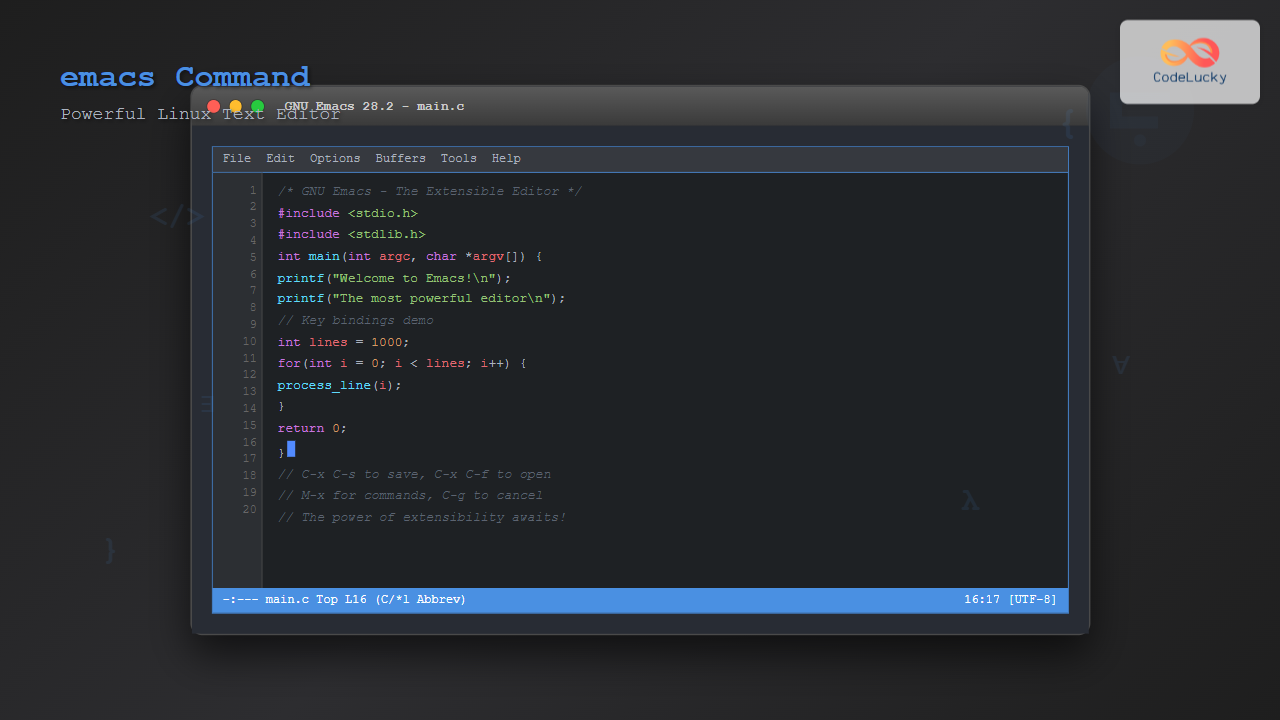
The emacs command is one of the most powerful and extensible text editors available in Linux systems. Originally developed by Richard Stallman in the 1970s, GNU Emacs has evolved into a comprehensive editing environment that goes far beyond simple text manipulation. This guide will take you through everything you need to know about using emacs effectively in Linux.
What is Emacs?
Emacs (Editor MACroS) is a family of text editors characterized by their extensibility. The most common variant is GNU Emacs, which is available on virtually all Unix-like systems including Linux. Unlike simple text editors, Emacs is often described as a “text editor operating system” due to its incredible flexibility and the ability to customize almost every aspect of its behavior.
Installing Emacs on Linux
Before diving into emacs commands, you need to ensure it’s installed on your system. Here’s how to install emacs on different Linux distributions:
Ubuntu/Debian:
sudo apt update
sudo apt install emacs
CentOS/RHEL/Fedora:
# For newer versions with dnf
sudo dnf install emacs

# For older versions with yum
sudo yum install emacs
Arch Linux:
sudo pacman -S emacsBasic Emacs Commands and Navigation
Emacs uses a unique key combination system. The most important keys to remember are:
- C- means hold the Control key
- M- means hold the Meta key (usually Alt or Esc)
- S- means hold the Shift key
Starting Emacs
To start emacs from the terminal:
# Start emacs with GUI (if available)
emacs

# Start emacs in terminal mode
emacs -nw

# Open a specific file
emacs filename.txt

# Start emacs with multiple files
emacs file1.txt file2.txt
Essential Navigation Commands
| Command | Action |
|---|---|
C-f |
Move forward one character |
C-b |
Move backward one character |
C-n |
Move to next line |
C-p |
Move to previous line |
C-a |
Move to beginning of line |
C-e |
Move to end of line |
M-f |
Move forward one word |
M-b |
Move backward one word |
File Operations in Emacs
Managing files is a fundamental aspect of any text editor. Here are the essential file operations in emacs:
Opening and Saving Files
# Open a file
C-x C-f

# Save current file
C-x C-s

# Save as (write to a different file)
C-x C-w

# Save all open files
C-x s
Practical Example: Creating and Editing a File
Let’s create a simple Python script using emacs:
- Start emacs:
emacs -nw - Press
C-x C-fto open a file - Type
hello.pyand press Enter - Type the following code:
#!/usr/bin/env python3

def greet(name):
    """A simple greeting function"""
    return f"Hello, {name}!"

if __name__ == "__main__":
    user_name = input("Enter your name: ")
print(greet(user_name))- Save the file with
C-x C-s - Exit emacs with
C-x C-c
Text Editing and Manipulation
Emacs provides powerful text editing capabilities that go beyond basic insertion and deletion.
Basic Editing Commands
| Command | Action |
|---|---|
C-d |
Delete character under cursor |
Backspace |
Delete character before cursor |
M-d |
Delete word forward |
M-Backspace |
Delete word backward |
C-k |
Kill (cut) from cursor to end of line |
C-y |
Yank (paste) last killed text |
Copy, Cut, and Paste Operations
Emacs uses regions for copy and cut operations:
- Set mark:
C-Space– This starts selecting text - Move cursor: Use navigation commands to select text
- Copy:
M-w– Copies the selected region - Cut:
C-w– Cuts the selected region - Paste:
C-y– Pastes the last copied/cut text
Search and Replace Functions
Emacs offers powerful search and replace capabilities that can significantly speed up your editing workflow.
Search Commands
# Incremental search forward
C-s

# Incremental search backward
C-r

# Search and replace
M-%

# Query replace (asks for confirmation for each replacement)
M-x query-replace
Practical Search Example
Let’s say you have a configuration file and want to replace all instances of “localhost” with “example.com”:
- Press
M-% - Type “localhost” and press Enter
- Type “example.com” and press Enter
- Emacs will highlight each occurrence and ask for confirmation:
y– Replace this occurrencen– Skip this occurrence!– Replace all remaining occurrencesq– Quit without replacing
Buffer Management
In emacs, each open file is stored in a buffer. You can have multiple buffers open simultaneously and switch between them easily.
Buffer Commands
| Command | Action |
|---|---|
C-x b |
Switch to buffer |
C-x C-b |
List all buffers |
C-x k |
Kill (close) buffer |
C-x → |
Switch to next buffer |
C-x ← |
Switch to previous buffer |
Window and Frame Management
Emacs allows you to split your screen into multiple windows to view different files or different parts of the same file simultaneously.
Window Operations
# Split window horizontally
C-x 2

# Split window vertically
C-x 3

# Switch between windows
C-x o

# Close current window
C-x 0

# Close other windows (keep only current)
C-x 1
Practical Window Example
When working on a programming project, you might want to view a header file and implementation file side by side:
- Open your main file:
emacs main.c - Split window vertically:
C-x 3 - Switch to the new window:
C-x o - Open header file:
C-x C-f header.h - Switch between windows using
C-x o
Advanced Emacs Features
Modes in Emacs
Emacs automatically detects file types and enables appropriate modes that provide syntax highlighting and specialized functionality:
- Programming modes: python-mode, c-mode, java-mode, etc.
- Text modes: text-mode, markdown-mode, org-mode
- Special modes: dired-mode (directory editor), shell-mode
Customization with .emacs File
You can customize emacs by creating a .emacs file in your home directory:
;; Example .emacs configuration
;; Enable line numbers
(global-linum-mode 1)

;; Enable syntax highlighting
(global-font-lock-mode 1)

;; Show matching parentheses
(show-paren-mode 1)

;; Enable auto-completion
(global-auto-complete-mode 1)

;; Set default tab width
(setq-default tab-width 4)
Useful Emacs Extensions and Packages
Emacs has a rich ecosystem of packages that extend its functionality:
Package Management
# Access package manager
M-x package-list-packages

# Install a package
M-x package-install
Popular Packages
- Magit: Git interface for emacs
- Company: Text completion framework
- Helm: Incremental completion and selection framework
- Projectile: Project management library
- Org-mode: Organize your life in plain text
Emacs for Programming
Emacs excels as a programming environment with features like:
Code Navigation
| Command | Action |
|---|---|
M-. |
Find definition of symbol |
M-, |
Return from definition |
C-M-f |
Move forward by s-expression |
C-M-b |
Move backward by s-expression |
Compilation and Debugging
# Compile current project
M-x compile

# Run gdb debugger
M-x gdb

# Check syntax (if supported by mode)
M-x flycheck-mode
Tips and Best Practices
Essential Tips for Emacs Beginners
- Learn incrementally: Start with basic commands and gradually learn more advanced features
- Use the tutorial: Access it with
C-h t - Customize gradually: Don’t overwhelm yourself with configurations initially
- Use the help system:
C-hfollowed by various keys provides extensive help - Practice regularly: Muscle memory is crucial for efficiency
Productivity Shortcuts
# Repeat last command
C-x z

# Undo
C-_

# Redo (if undo-tree is installed)
C-g C-_

# Execute extended command
M-x

# Cancel current command
C-g
Troubleshooting Common Issues
Performance Issues
If emacs feels slow:
- Disable unnecessary modes
- Reduce the number of active packages
- Use
emacs --no-init-fileto start without configuration
Configuration Problems
If emacs won’t start due to configuration errors:
# Start emacs without loading .emacs file
emacs --no-init-file

# Debug initialization
emacs --debug-init
Conclusion
The emacs command in Linux opens the door to one of the most powerful and customizable text editors available. While the learning curve can be steep initially, the investment pays off with increased productivity and the ability to handle complex text editing tasks efficiently. Whether you’re writing code, managing documents, or organizing your life with org-mode, emacs provides the tools and flexibility to adapt to your specific workflow needs.
Remember that mastering emacs is a journey, not a destination. Start with the basic commands covered in this guide, practice regularly, and gradually incorporate more advanced features as you become comfortable. The emacs community is vast and helpful, so don’t hesitate to seek help when needed.
By understanding these fundamental emacs commands and concepts, you’ll be well-equipped to harness the full power of this remarkable text editor in your Linux environment.
Related Posts
vim Command Linux: Master the Ultimate Text Editor with Advanced Techniques
The vim command is one of the most powerful and versatile text editors available in Linux systems. Originally created as...
nano Command Linux: Complete Guide to Simple Text Editing for Beginners
The nano command is one of the most beginner-friendly text editors available in Linux systems. Unlike complex editors like Vim...

Linux Commands Tutorial: Complete Beginner’s Guide to Terminal Basics
The Linux terminal is a powerful command-line interface that gives you direct control over your operating system. While it might...
sed Command Linux: Complete Guide to Stream Editor for Text Manipulation
The sed (Stream Editor) command is one of the most powerful text processing utilities in Linux and Unix systems. It...

echo Command in Linux: Complete Guide to Print Text and Variables in Terminal
The echo command is one of the most fundamental and frequently used commands in Linux and Unix-like operating systems. It...
dialog Command Linux: Create Interactive Text-Based User Interfaces with Ease
The dialog command in Linux is a powerful utility that enables developers and system administrators to create sophisticated text-based user...
sed Advanced Linux: Stream Editor Advanced Techniques for Text Processing
The sed (Stream Editor) command stands as one of the most powerful text processing tools in Linux systems. While basic...
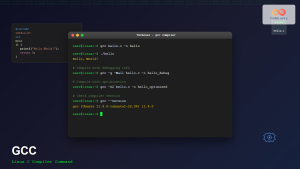
gcc Command Linux: Complete Guide to Compiling C Programs with Examples
The gcc (GNU Compiler Collection) is one of the most essential tools for C programmers working on Linux systems. This...
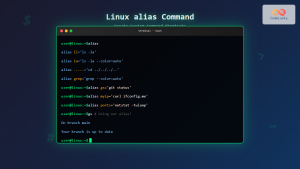
alias Command in Linux: Create Custom Command Shortcuts and Boost Your Productivity
The alias command in Linux is a powerful tool that allows you to create custom shortcuts for frequently used commands,...
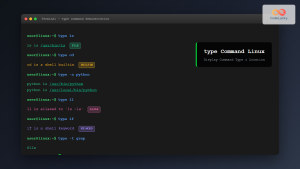
type Command Linux: Complete Guide to Display Command Type and Location
The type command is an essential Linux utility that helps you identify the nature and location of commands in your...
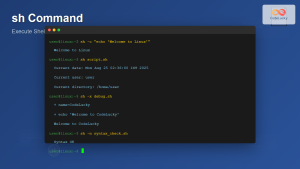
sh Command Linux: Complete Guide to Shell Script Execution and Commands
The sh command is one of the most fundamental tools in Linux and Unix-like systems, serving as the standard shell...
perl Command Linux: Complete Guide to Executing Perl Scripts on Linux Systems
The perl command is a powerful tool in Linux systems that allows you to execute Perl scripts and run Perl...