
The echo command is one of the most fundamental and frequently used commands in Linux and Unix-like operating systems. It serves as a simple yet powerful tool for displaying text, variables, and formatted output in the terminal. Whether you’re a beginner learning Linux basics or an experienced system administrator writing complex shell scripts, mastering the echo command is essential for effective command-line interaction.
In this comprehensive guide, we’ll explore every aspect of the echo command, from basic text printing to advanced formatting techniques, variable manipulation, and practical scripting applications.
What is the echo Command?
The echo command is a built-in shell utility that displays lines of text or variables to the standard output (typically your terminal screen). It’s available in virtually all Unix-like systems, including Linux distributions, macOS, and Unix variants. The command is so fundamental that it’s built into most shells, including bash, zsh, and dash.
The primary purpose of echo is to:
- Display text messages
- Print variable values
- Create formatted output
- Generate content for files through redirection
- Provide feedback in shell scripts
Basic Syntax and Usage
The basic syntax of the echo command is straightforward:
echo [OPTIONS] [STRING...]Let’s start with the simplest usage:
Printing Simple Text
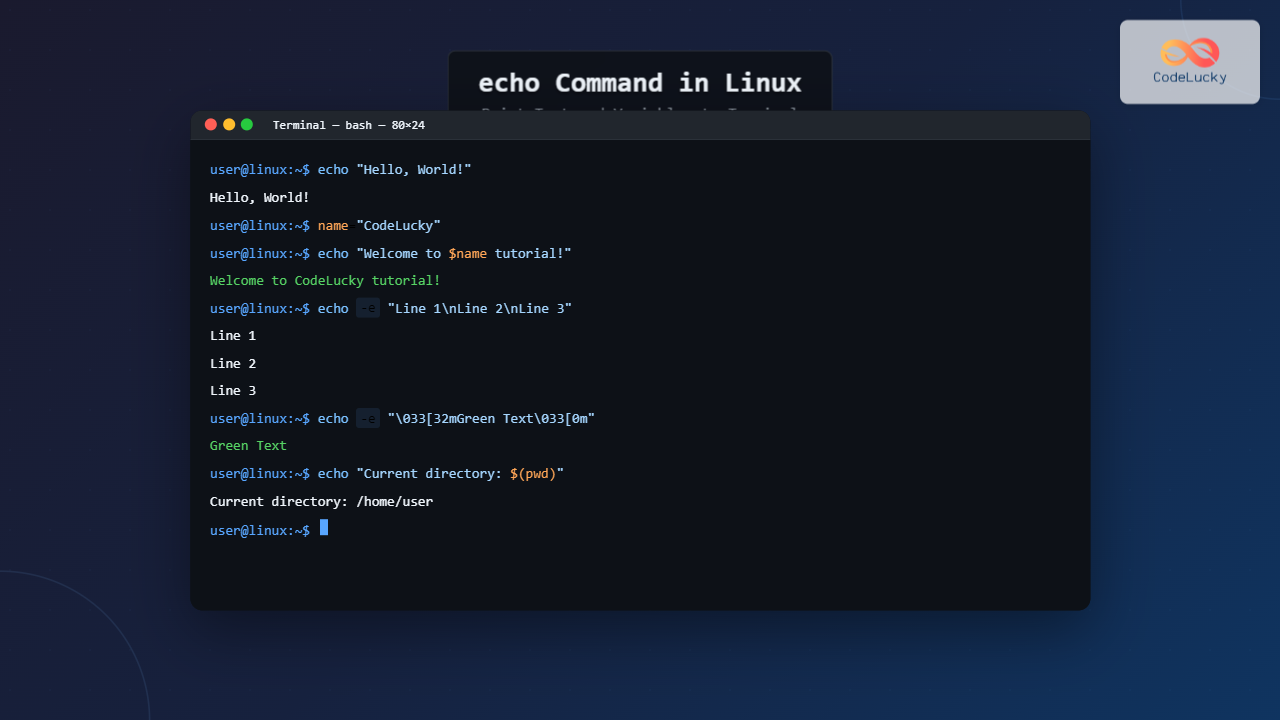
$ echo "Hello, World!"
Hello, World!
You can also use single quotes or no quotes at all for simple text:
$ echo 'Hello, World!'
Hello, World!

$ echo Hello, World!
Hello, World!
Printing Multiple Arguments
The echo command can accept multiple arguments, separating them with spaces:
$ echo Welcome to CodeLucky.com Linux Tutorial
Welcome to CodeLucky.com Linux Tutorial

$ echo "First argument" "Second argument" "Third argument"
First argument Second argument Third argument
Working with Variables
One of the most powerful features of echo is its ability to display variable values. This is crucial for shell scripting and system administration tasks.
Environment Variables
$ echo $HOME
/home/username

$ echo $USER
username

$ echo $PATH
/usr/local/sbin:/usr/local/bin:/usr/sbin:/usr/bin:/sbin:/bin
Custom Variables
$ name="CodeLucky"
$ echo $name
CodeLucky

$ echo "Welcome to $name website!"
Welcome to CodeLucky website!
Variable Substitution with Curly Braces
For better clarity and to avoid ambiguity, especially when concatenating variables with other text, use curly braces:
$ filename="document"
$ extension="txt"
$ echo "${filename}.${extension}"
document.txt

$ echo "${filename}_backup.${extension}"
document_backup.txt
Echo Command Options
The echo command supports several options that modify its behavior. The most commonly used options are:
-n Option: Suppress Trailing Newline
By default, echo adds a newline character at the end of the output. The -n option suppresses this behavior:
$ echo -n "Enter your name: "
Enter your name: $

# Without -n option
$ echo "Enter your name: "
Enter your name:
$
-e Option: Enable Escape Sequences
The -e option enables interpretation of backslash escape sequences, allowing for advanced formatting:
$ echo -e "Line 1\nLine 2\nLine 3"
Line 1
Line 2
Line 3
-E Option: Disable Escape Sequences
The -E option explicitly disables escape sequence interpretation (this is the default behavior in most shells):
$ echo -E "This will show \n literally"
This will show \n literally
Escape Sequences and Special Characters
When using the -e option, echo can interpret various escape sequences for formatting output:
Common Escape Sequences
| Sequence | Description | Example |
|---|---|---|
\n |
Newline | echo -e "Line1\nLine2" |
\t |
Horizontal tab | echo -e "Col1\tCol2\tCol3" |
\r |
Carriage return | echo -e "Hello\rWorld" |
\b |
Backspace | echo -e "Hello\b World" |
\\ |
Literal backslash | echo -e "Path: C:\\Users" |
\" |
Double quote | echo -e "He said \"Hello\"" |
\a |
Alert (bell) | echo -e "\aBeep sound" |
Practical Examples with Escape Sequences
# Creating formatted output
$ echo -e "Name\t\tAge\tCity"
$ echo -e "John Doe\t25\tNew York"
$ echo -e "Jane Smith\t30\tLos Angeles"

Name		Age	City
John Doe	25	New York
Jane Smith	30	Los Angeles
# Creating a simple menu
$ echo -e "Main Menu\n=========\n1. Option 1\n2. Option 2\n3. Exit"
Main Menu
=========
1. Option 1
2. Option 2
3. ExitColor Output with Echo
You can create colorful terminal output using ANSI escape codes with the echo command. This is particularly useful for highlighting important information or creating visually appealing scripts.
Basic Color Codes
# Red text
$ echo -e "\033[31mThis is red text\033[0m"

# Green text
$ echo -e "\033[32mThis is green text\033[0m"

# Blue text
$ echo -e "\033[34mThis is blue text\033[0m"

# Yellow background with black text
$ echo -e "\033[43m\033[30mHighlighted text\033[0m"
Advanced Color Formatting
# Bold red text
$ echo -e "\033[1;31mBold Red Text\033[0m"

# Underlined blue text
$ echo -e "\033[4;34mUnderlined Blue Text\033[0m"

# Multiple colors in one line
$ echo -e "\033[31mRed\033[0m \033[32mGreen\033[0m \033[34mBlue\033[0m"
File Operations with Echo
The echo command is frequently used with redirection operators to create or modify files:
Creating Files
# Create a new file with content
$ echo "Hello, World!" > hello.txt
$ cat hello.txt
Hello, World!

# Create a file with multiple lines
$ echo -e "Line 1\nLine 2\nLine 3" > multiline.txt
$ cat multiline.txt
Line 1
Line 2
Line 3
Appending to Files
# Append content to existing file
$ echo "This is additional content" >> hello.txt
$ cat hello.txt
Hello, World!
This is additional content
Creating Configuration Files
# Create a simple configuration file
$ echo -e "# Database Configuration\nhost=localhost\nport=3306\nuser=admin" > config.txt
$ cat config.txt
# Database Configuration
host=localhost
port=3306
user=admin
Echo in Shell Scripts
The echo command is indispensable in shell scripting for providing user feedback, debugging, and creating dynamic output:
User Interaction Script
#!/bin/bash
echo "Welcome to the CodeLucky Linux Tutorial!"
echo -n "Enter your name: "
read name
echo "Hello, $name! Thanks for visiting our site."
echo -e "\nToday's date is: $(date)"
Progress Indicator Script
#!/bin/bash
echo "Starting backup process..."
for i in {1..5}; do
    echo -n "Processing... $((i*20))% "
    echo -e "\033[32m[$i/5]\033[0m"
    sleep 1
done
echo -e "\033[1;32mBackup completed successfully!\033[0m"
Error Handling with Echo
#!/bin/bash
if [ ! -f "important_file.txt" ]; then
    echo -e "\033[1;31mError: important_file.txt not found!\033[0m" >&2
    echo "Please check the file path and try again." >&2
    exit 1
else
    echo -e "\033[32mFile found successfully.\033[0m"
fi
Advanced Echo Techniques
Command Substitution
Combine echo with command substitution to display dynamic information:
$ echo "Current directory: $(pwd)"
Current directory: /home/user/documents

$ echo "Files in current directory: $(ls | wc -l)"
Files in current directory: 15

$ echo "System uptime: $(uptime | cut -d',' -f1)"
System uptime:  10:30:25 up 2 days
Arithmetic Operations
$ num1=10
$ num2=5
$ echo "Sum: $((num1 + num2))"
Sum: 15

$ echo "Product: $((num1 * num2))"
Product: 50
Conditional Output
$ status="online"
$ echo "Server is ${status:-offline}"
Server is online

$ unset status
$ echo "Server is ${status:-offline}"
Server is offline
Troubleshooting Common Issues
Quote Handling
Understanding how different quotes affect echo behavior:
# Double quotes allow variable expansion
$ name="CodeLucky"
$ echo "Welcome to $name"
Welcome to CodeLucky

# Single quotes treat everything literally
$ echo 'Welcome to $name'
Welcome to $name

# No quotes can cause issues with special characters
$ echo Welcome to CodeLucky's website
bash: syntax error near unexpected token `s'

# Proper way to handle apostrophes
$ echo "Welcome to CodeLucky's website"
Welcome to CodeLucky's website
Escape Sequence Issues
# This won't work as expected without -e
$ echo "Line 1\nLine 2"
Line 1\nLine 2

# Correct usage with -e option
$ echo -e "Line 1\nLine 2"
Line 1
Line 2
Performance and Best Practices
Echo vs Printf
While echo is simpler, printf offers more control and is more portable:
# Echo approach
$ echo -e "Name: $name\nAge: $age"

# Printf approach (more portable)
$ printf "Name: %s\nAge: %d\n" "$name" "$age"
Best Practices
- Use quotes: Always quote variables and strings containing spaces
- Be explicit: Use
-ewhen you need escape sequences,-Ewhen you don’t - Consider printf: For complex formatting,
printfmight be more appropriate - Error output: Use
>&2to redirect error messages to stderr - Portability: Be aware that different shells might have slightly different
echobehaviors
Real-World Examples
System Information Script
#!/bin/bash
echo -e "\033[1;36m=== System Information ===\033[0m"
echo -e "\033[32mHostname:\033[0m $(hostname)"
echo -e "\033[32mUptime:\033[0m $(uptime -p)"
echo -e "\033[32mCurrent User:\033[0m $USER"
echo -e "\033[32mHome Directory:\033[0m $HOME"
echo -e "\033[32mShell:\033[0m $SHELL"
echo -e "\033[32mDate:\033[0m $(date)"
Log File Creation
#!/bin/bash
LOG_FILE="/var/log/myapp.log"
echo "$(date '+%Y-%m-%d %H:%M:%S') - Application started" >> $LOG_FILE
echo "$(date '+%Y-%m-%d %H:%M:%S') - User $USER logged in" >> $LOG_FILE
Configuration File Generator
#!/bin/bash
CONFIG_FILE="app.conf"
echo "# Application Configuration" > $CONFIG_FILE
echo "# Generated on $(date)" >> $CONFIG_FILE
echo "" >> $CONFIG_FILE
echo "[database]" >> $CONFIG_FILE
echo "host=localhost" >> $CONFIG_FILE
echo "port=5432" >> $CONFIG_FILE
echo "name=myapp_db" >> $CONFIG_FILE
echo "" >> $CONFIG_FILE
echo "[server]" >> $CONFIG_FILE
echo "port=8080" >> $CONFIG_FILE
echo "debug=false" >> $CONFIG_FILE
Conclusion
The echo command is a fundamental tool in the Linux command-line arsenal that every user should master. From simple text output to complex formatted messages, variable display, and file creation, echo provides the foundation for effective terminal interaction and shell scripting.
By understanding its various options, escape sequences, and best practices, you can leverage echo to create professional scripts, provide clear user feedback, and automate system tasks efficiently. Whether you’re debugging scripts, creating configuration files, or simply displaying information, the techniques covered in this guide will serve you well in your Linux journey.
Remember that mastery comes with practice, so experiment with these examples and incorporate echo into your daily Linux workflow. The versatility and simplicity of this command make it an indispensable tool for both beginners and experienced Linux users alike.
Related Posts

PHP Echo and Print: Outputting Data
In the world of PHP programming, outputting data is a fundamental task that every developer needs to master. Two of...
printf Command Linux: Complete Guide to Advanced Text Formatting and Output Control
The printf command in Linux is a powerful tool for formatting and displaying text output with precise control over appearance,...

bash Command Linux: Start New Shell Sessions and Execute Scripts Efficiently
The bash command is one of the most fundamental tools in Linux systems, serving as both a command-line interpreter and...
read Command Linux: Complete Guide to Reading User Input in Shell Scripts
The read command is one of the most fundamental tools in Linux shell scripting for creating interactive programs that capture...

Linux Commands Tutorial: Complete Beginner’s Guide to Terminal Basics
The Linux terminal is a powerful command-line interface that gives you direct control over your operating system. While it might...

C Output: Printing to Console with printf()
In the world of C programming, mastering output is crucial. The printf() function is your go-to tool for displaying information...
set Command Linux: Display and Configure Shell Options for Advanced Terminal Control
The set command is one of the most powerful built-in commands in Linux shells, allowing you to display and modify...

cat Command in Linux: Complete Guide to Display and Concatenate Files
The cat command is one of the most fundamental and frequently used commands in Linux and Unix-like operating systems. Short...
export Command Linux: Complete Guide to Environment Variables Management
The export command is one of the most fundamental tools in Linux for managing environment variables. Whether you're a system...
sh Command Linux: Complete Guide to Shell Script Execution and Commands
The sh command is one of the most fundamental tools in Linux and Unix-like systems, serving as the standard shell...
type Command Linux: Complete Guide to Display Command Type and Location
The type command is an essential Linux utility that helps you identify the nature and location of commands in your...
history Command Linux: Complete Guide to View and Manage Your Command History
The history command in Linux is one of the most powerful tools for managing and navigating your command line experience....





