
The cut command is one of the most powerful and versatile text processing utilities in Linux and Unix systems. It allows you to extract specific portions of text from files or input streams by selecting columns, fields, or character ranges. Whether you’re processing CSV files, log files, or any structured text data, the cut command provides an efficient way to slice and dice your data exactly how you need it.
What is the cut Command?
The cut command is a command-line utility that extracts sections from each line of input. It can cut text based on:
- Character positions – Extract specific characters from each line
- Fields/columns – Extract fields separated by delimiters
- Byte positions – Extract specific bytes (useful for binary data)
Basic Syntax
cut [OPTIONS] [FILE...]If no file is specified, cut reads from standard input, making it perfect for use in pipelines.
Essential Options and Parameters
Character-based Extraction
Use the -c option to extract specific character positions:
cut -c [RANGE] [FILE]Example: Extracting Characters
Let’s create a sample file to demonstrate:
echo -e "Hello World\nLinux Commands\nText Processing" > sample.txtExtract the first 5 characters from each line:
cut -c 1-5 sample.txtOutput:
Hello
Linux
Text
Extract specific character positions (1st, 3rd, and 5th characters):
cut -c 1,3,5 sample.txtOutput:
Hlo
Lnx
Tt
Field-based Extraction
Use the -f option to extract fields separated by delimiters:
cut -f [FIELD_LIST] -d [DELIMITER] [FILE]Example: Working with CSV Data
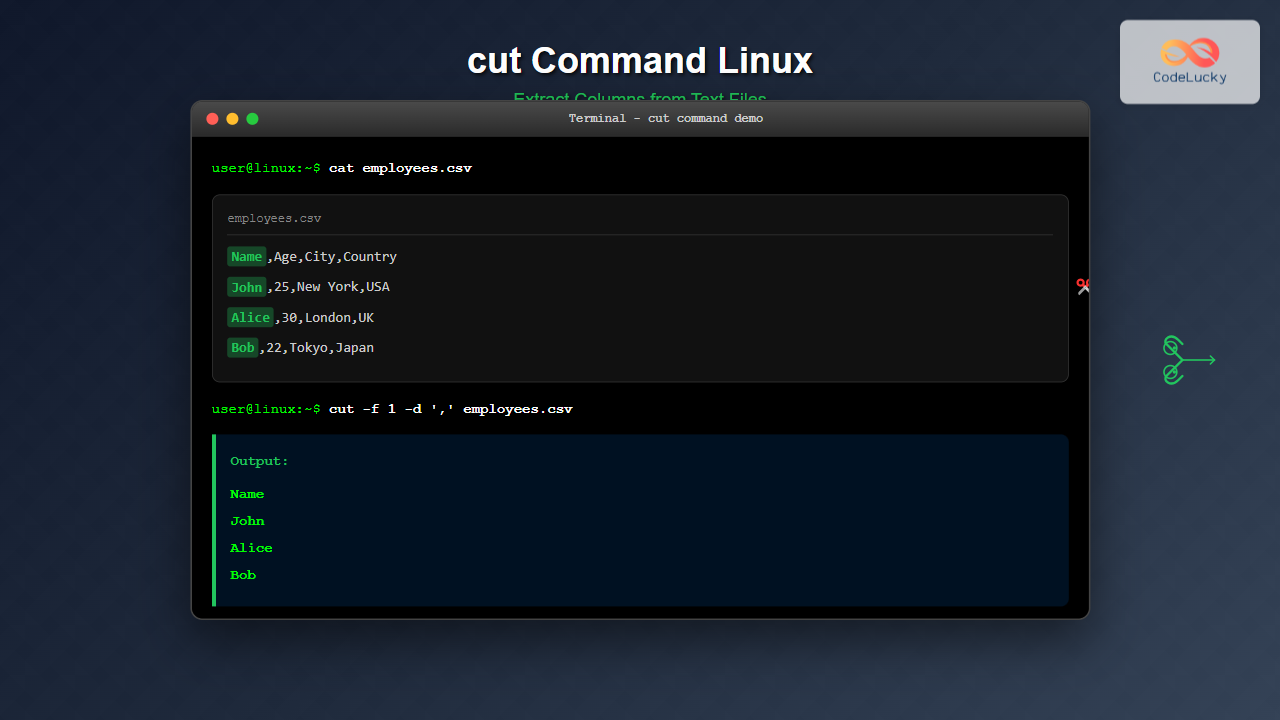
Create a CSV file for demonstration:
echo -e "Name,Age,City,Country\nJohn,25,New York,USA\nAlice,30,London,UK\nBob,22,Tokyo,Japan" > employees.csvExtract the first column (names):
cut -f 1 -d ',' employees.csvOutput:
Name
John
Alice
Bob
Extract multiple fields (Name and City):
cut -f 1,3 -d ',' employees.csvOutput:
Name,City
John,New York
Alice,London
Bob,Tokyo
Advanced Usage Examples
Working with Tab-delimited Files
The default delimiter for cut is the tab character. Create a tab-separated file:
echo -e "Product\tPrice\tQuantity\nLaptop\t1200\t5\nMouse\t25\t50\nKeyboard\t75\t20" > inventory.txtExtract product names and quantities:
cut -f 1,3 inventory.txtOutput:
Product	Quantity
Laptop	5
Mouse	50
Keyboard	20
Using Ranges
You can specify ranges using the hyphen (-) operator:
1-5– Characters/fields 1 through 51-– From character/field 1 to the end-5– From the beginning to character/field 5
Example: Character Ranges
echo "Linux System Administration" | cut -c 7-12Output:
SystemExtract from the 7th character to the end:
echo "Linux System Administration" | cut -c 7-Output:
System AdministrationProcessing System Files
The cut command is excellent for extracting information from system files like /etc/passwd:
# Extract usernames (1st field)
cut -f 1 -d ':' /etc/passwd | head -5
Extract usernames and home directories:
cut -f 1,6 -d ':' /etc/passwd | head -5Combining with Other Commands
The real power of cut shines when combined with other commands in pipelines:
Extract Running Process Names
ps aux | cut -c 61- | head -10This extracts the command column from the ps output.
Process Log Files
# Extract timestamps from log files (assuming space-delimited)
cat /var/log/syslog | cut -d ' ' -f 1-3 | head -5
Practical Use Cases
1. Extract Email Addresses from a List
If you have a file with “Name <[email protected]>” format:
echo -e "John Doe <[email protected]>\nJane Smith <[email protected]>" > contacts.txt
cut -d '<' -f 2 contacts.txt | cut -d '>' -f 1
Output:
[email protected]
[email protected]
2. Extract IP Addresses from Access Logs
# Assuming Apache/Nginx log format
echo '192.168.1.100 - - [25/Aug/2025:12:18:00 +0000] "GET /index.html"' | cut -d ' ' -f 1
Output:
192.168.1.1003. Process Configuration Files
Extract values from configuration files:
echo -e "server_name=web01\nport=8080\ndatabase=mydb" > config.conf
cut -d '=' -f 2 config.conf
Output:
web01
8080
mydb
Important Options and Flags
| Option | Description | Example |
|---|---|---|
-c |
Select by character positions | cut -c 1-5 |
-f |
Select by fields | cut -f 1,3 |
-d |
Specify delimiter | cut -d ',' -f 1 |
-b |
Select by byte positions | cut -b 1-10 |
--complement |
Select complement of specified fields | cut --complement -f 2 |
-s |
Only output lines containing delimiter | cut -s -f 1 -d ':' |
--output-delimiter |
Specify output delimiter | cut -f 1,3 --output-delimiter="|" |
Advanced Examples
Using Complement Option
The --complement option selects everything except the specified fields:
echo "one,two,three,four,five" | cut -d ',' --complement -f 2,4Output:
one,three,fiveCustom Output Delimiter
Change the output delimiter when extracting fields:
echo "apple,banana,cherry" | cut -d ',' -f 1,3 --output-delimiter=" | "Output:
apple | cherryProcessing Only Lines with Delimiter
Use -s to suppress lines that don’t contain the delimiter:
echo -e "name:john\nage\nemail:[email protected]" | cut -s -d ':' -f 2Output:
john
[email protected]
Common Pitfalls and Solutions
1. Handling Spaces in Delimited Data
When working with space-delimited data that might have extra spaces:
# Wrong approach - might not work with extra spaces
echo "john  doe  30" | cut -d ' ' -f 2

# Better approach - use tr to squeeze spaces first
echo "john  doe  30" | tr -s ' ' | cut -d ' ' -f 2
2. Empty Fields
Cut preserves empty fields, which might cause issues:
echo "a,,c,d" | cut -d ',' -f 2This returns an empty line. Be aware of this behavior when processing data with missing values.
3. Multi-character Delimiters
Cut only supports single-character delimiters. For multi-character delimiters, use awk instead:
# This won't work as expected
echo "data::separated::by::double::colons" | cut -d '::' -f 2

# Use awk instead
echo "data::separated::by::double::colons" | awk -F '::' '{print $2}'
Performance Tips
- Use character positions when possible – Character-based cutting is generally faster than field-based cutting
- Specify exact ranges – Avoid open-ended ranges like
1-when you know the exact positions - Combine with head/tail – When processing large files, combine with head or tail to limit processing
Integration with Shell Scripts
Here’s a practical shell script example that processes a CSV file:
#!/bin/bash
# Script to extract and format employee data

CSV_FILE="employees.csv"

echo "Employee Names:"
cut -f 1 -d ',' "$CSV_FILE" | tail -n +2

echo -e "\nAges and Cities:"
cut -f 2,3 -d ',' "$CSV_FILE" | tail -n +2 | while IFS=',' read -r age city; do
    echo "Age: $age, City: $city"
done
Conclusion
The cut command is an indispensable tool for text processing in Linux environments. Its ability to extract specific portions of text makes it perfect for data analysis, log processing, and system administration tasks. While it has limitations like single-character delimiters, its simplicity and efficiency make it the go-to choice for straightforward text extraction operations.
Master the cut command by practicing with different file formats and combining it with other Unix utilities. Remember that cut works best with structured, consistently formatted data, and when you need more complex text processing, consider combining it with tools like awk, sed, or grep for more powerful text manipulation capabilities.
Whether you’re extracting columns from CSV files, processing log entries, or manipulating configuration files, the cut command provides a clean, efficient solution that integrates seamlessly into shell scripts and command pipelines.
Related Posts
awk Command in Linux: Complete Pattern Scanning and Processing Tutorial
The awk command is one of the most powerful text processing tools available in Linux and Unix systems. Named after...

sed Command Linux: Complete Guide to Stream Editor for Text Manipulation
The sed (Stream Editor) command is one of the most powerful text processing utilities in Linux and Unix systems. It...

sed Advanced Linux: Stream Editor Advanced Techniques for Text Processing
The sed (Stream Editor) command stands as one of the most powerful text processing tools in Linux systems. While basic...

NumPy Text Files: Reading Delimited Data
NumPy is a cornerstone library in the Python scientific computing ecosystem, providing powerful tools for numerical operations and data manipulation....

awk Advanced Linux: Mastering Complex Text Processing and Pattern Matching
The awk command is one of the most powerful text processing tools in Linux, capable of performing complex data manipulation...
strings Command Linux: Extract and Analyze Text from Binary Files
The strings command is a powerful Linux utility that extracts printable character sequences from binary files. Whether you're analyzing executables,...
hexdump Command Linux: Complete Guide to Display File Contents in Hexadecimal Format
The hexdump command is a powerful Linux utility that displays the contents of files in hexadecimal format, making it an...
Python String rsplit() Method: Splitting String from Right
The rsplit() method in Python is a versatile tool for splitting strings from the right side. It provides a robust...
grep Command in Linux: Complete Guide to Text Pattern Search and File Operations
The grep command is one of the most powerful and frequently used text processing utilities in Linux and Unix systems....
head Command in Linux: Display First Lines of Files Efficiently
The head command is one of the most fundamental and frequently used utilities in Linux and Unix-like operating systems. It...
Excel RIGHT Function: Extract Text from Right Side with Examples
The RIGHT function in Excel is a powerful text manipulation tool that extracts a specified number of characters from the...
Python String splitlines() Method: Splitting String at Line Boundaries
The splitlines() method in Python is a powerful tool for working with strings containing multiple lines. It allows you to...





