
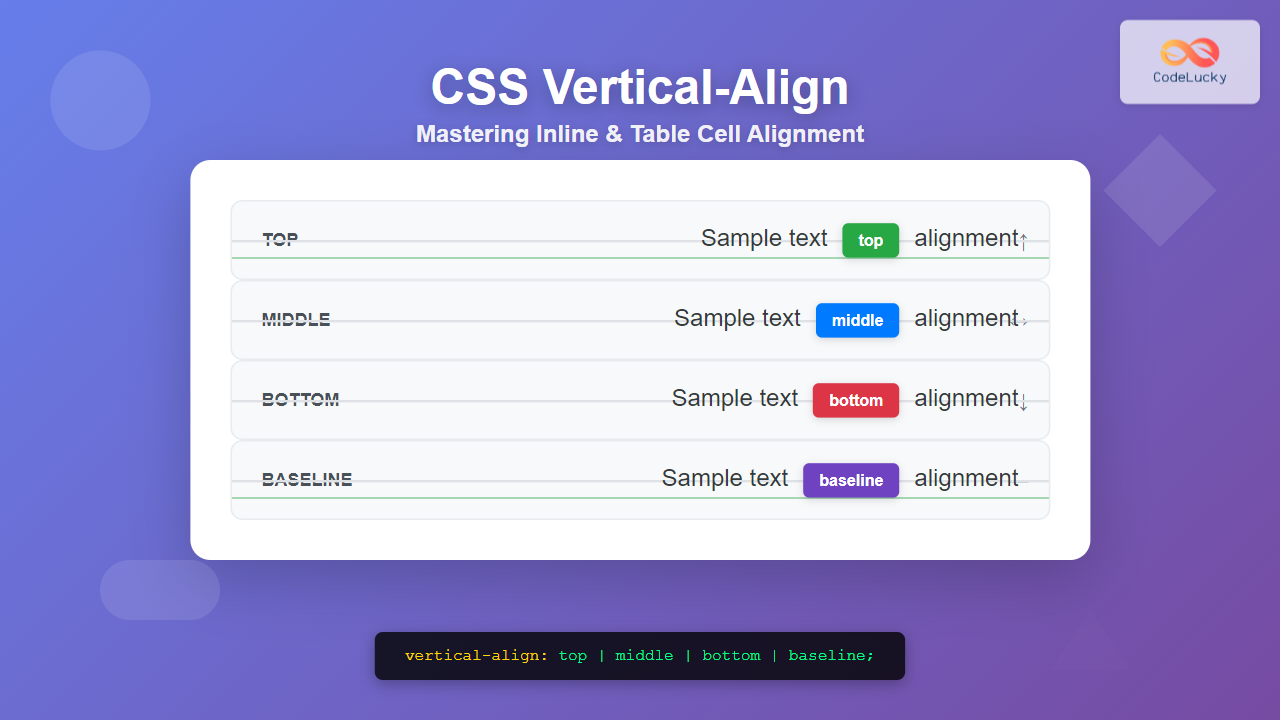
The CSS vertical-align property is one of the most misunderstood properties in web development. While many developers expect it to work like text-align for vertical positioning, it actually serves a specific purpose: controlling the vertical alignment of inline and table-cell elements relative to their baseline or containing element.
Understanding CSS Vertical-Align Fundamentals
The vertical-align property only affects elements with specific display types:
- Inline elements (span, img, input, etc.)
- Inline-block elements
- Table-cell elements
It does not work on block-level elements like divs, paragraphs, or sections unless they’re displayed as table cells.
Basic Syntax
/* Keyword values */
vertical-align: baseline;
vertical-align: top;
vertical-align: middle;
vertical-align: bottom;
vertical-align: text-top;
vertical-align: text-bottom;
vertical-align: sub;
vertical-align: super;

/* Length values */
vertical-align: 10px;
vertical-align: 0.5em;
vertical-align: -2px;

/* Percentage values */
vertical-align: 20%;
vertical-align: -50%;
Vertical-Align Values and Their Effects
Baseline Alignment (Default)
The baseline value aligns the element’s baseline with the baseline of its parent. This is the default behavior for most inline elements.
Top and Bottom Alignment
The top value aligns the top of the element with the top of the tallest element on the line, while bottom aligns with the bottom of the lowest element.
Middle Alignment
The middle value aligns the middle of the element with the baseline plus half the x-height of the parent font.
Text-Top and Text-Bottom
These values align with the top and bottom of the parent element’s font, respectively, ignoring line-height.
Superscript and Subscript
The super and sub values create superscript and subscript effects without changing font size.
Working with Images and Vertical-Align
One common use case for vertical-align is aligning images with text. By default, images align to the baseline, which can create unwanted spacing.
Default Image Alignment (Baseline)
 creates spacing issues.
Middle-Aligned Image
 aligns better with text.
Vertical-Align in Table Cells
In table cells, vertical-align controls how content is positioned within the cell’s height. This is particularly useful for creating professional-looking data tables.
| Alignment | Content | Description |
|---|---|---|
| Top | This content is aligned to the top of the cell, regardless of cell height. | Content sticks to the top edge |
| Middle | This content is centered vertically within the cell. | Content is vertically centered |
| Bottom | This content is aligned to the bottom of the cell. | Content sticks to the bottom edge |
Using Length and Percentage Values
You can use specific length values (px, em, rem) or percentages to create precise vertical positioning. Positive values move elements up, while negative values move them down.
+10px
0px
-10px
with different offsets.
Interactive Demo: Vertical-Align in Action
Try Different Vertical-Align Values
Common Vertical-Align Mistakes and Solutions
Mistake 1: Trying to Center Block Elements
❌ This Won’t Work
.container {
  height: 300px;
  vertical-align: middle; /* Won't work on block elements */
}
✅ Better Solutions
/* Use Flexbox */
.container {
  display: flex;
  align-items: center;
  justify-content: center;
  height: 300px;
}

/* Or CSS Grid */
.container {
  display: grid;
  place-items: center;
  height: 300px;
}
Mistake 2: Expecting Middle to Always Center
The middle value doesn’t always produce perfect centering because it aligns with the font’s x-height, not the mathematical center of the line.
Advanced Techniques and Best Practices
Creating Custom Baselines
You can create custom alignment points by combining vertical-align with relative positioning:
Aligning Form Elements
Form elements often need vertical alignment adjustments to look professional alongside labels and text:
Browser Support and Compatibility
The vertical-align property has excellent browser support and works consistently across all modern browsers. It’s been part of CSS since the early specifications and is considered a stable, well-supported property.
✅ Supported In:
- All modern browsers (Chrome, Firefox, Safari, Edge)
- Internet Explorer 4+
- Mobile browsers (iOS Safari, Chrome Mobile, Samsung Internet)
Performance Considerations
The vertical-align property doesn’t trigger layout recalculations when changed, making it relatively performance-friendly. However, excessive use of length values that create dramatic shifts can impact rendering performance, especially with many elements.
Conclusion
The CSS vertical-align property is a powerful tool for fine-tuning the alignment of inline and table-cell elements. While it doesn’t work for general block-level element centering, it excels at its intended purpose: controlling how inline content aligns relative to text baselines and within table cells.
Key takeaways for effective use of vertical-align:
- Use it for inline elements, inline-block elements, and table cells
- Understand that
middlealigns with the font’s x-height, not geometric center - Combine with other CSS properties for complex layouts
- Test across different font sizes and line heights
- Consider modern alternatives like Flexbox and Grid for block-level centering
Master these concepts, and you’ll have precise control over how your inline content aligns, creating more polished and professional web interfaces.
Related Posts
CSS vertical-align Property: CSS Vertical Align
CSS vertical-align Property: Mastering Vertical Alignment The CSS vertical-align property specifies the vertical alignment of an inline or table-cell box....
HTML Block and Inline Elements: Understanding Display Properties
Introduction Have you ever wondered why some HTML elements stack vertically while others flow horizontally? Understanding the difference between block-level...
CSS Text-Align: Complete Guide to Left, Right, Center and Justify Text Alignment
Text alignment is a fundamental aspect of web design that significantly impacts readability and visual hierarchy. The CSS text-align property...
CSS Display Property: Complete Guide to Block, Inline, and Inline-Block Elements
The CSS display property is one of the most fundamental concepts in web development, controlling how elements are rendered and...
CSS Align-Content: Master Grid Container Block Axis Alignment
The CSS align-content property is a powerful tool for controlling how grid items are distributed along the block axis (typically...
CSS Align-Content: Complete Guide to Cross-Axis Multi-Line Alignment
The align-content property is a powerful CSS tool that controls how multiple lines of content are distributed along the cross-axis...
CSS Align-Items: Complete Guide to Grid Item Block Axis Alignment
Understanding CSS Align-Items in Grid Context The CSS align-items property is a powerful tool for controlling how grid items align...

CSS Style textAlign Property: CSS Text Align
Understanding the CSS textAlign Property: Aligning Text in Web Layouts The textAlign property in CSS specifies the horizontal alignment of...
CSS align-content Property: CSS Align Content
CSS align-content Property: Mastering Content Alignment in Flexbox and Grid Layouts The CSS align-content property is a powerful tool for...
CSS table-layout Property: CSS Table Layout Explained
Understanding the CSS table-layout Property The table-layout property in CSS controls how the browser calculates the layout of a table....
CSS Style left Property: CSS Left
CSS left Property: A Comprehensive Guide The CSS left property is a fundamental tool for web developers, enabling precise horizontal...
CSS Style alignItems Property: CSS Align Items
Understanding the CSS align-items Property The align-items property in CSS is a powerful tool that defines how items are aligned...





