
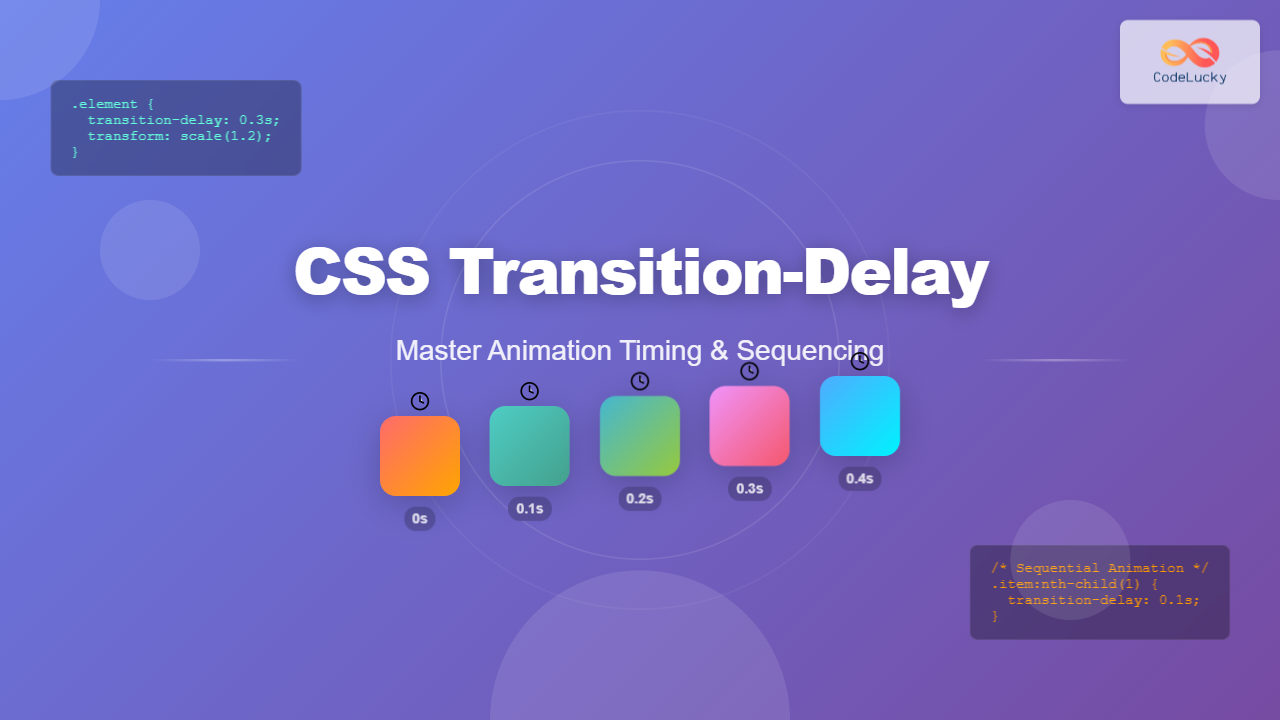
The transition-delay property in CSS is a powerful tool that allows you to control when a transition animation begins. Unlike the immediate start of standard transitions, this property introduces a pause before the animation kicks in, enabling you to create sophisticated timing sequences and more polished user interfaces.
Understanding CSS Transition-Delay
The transition-delay property specifies the amount of time to wait before starting a transition effect. It’s part of the CSS transition module and works in conjunction with other transition properties to create smooth, timed animations.
Basic Syntax
transition-delay: time;
/* or as part of the shorthand */
transition: property duration timing-function delay;
The value can be specified in seconds (s) or milliseconds (ms). Positive values delay the start, while negative values can make transitions appear to start partway through their duration.
Practical Examples and Visual Demonstrations
Basic Delayed Transition
Let’s start with a simple example that demonstrates the core concept:
Hover over the square to see the delayed transition
.delayed-element {
  width: 100px;
  height: 100px;
  background-color: #3498db;
  transition: transform 0.5s ease, background-color 0.5s ease;
  transition-delay: 0.3s;
}

.delayed-element:hover {
  transform: scale(1.2) rotate(15deg);
  background-color: #e74c3c;
}
Sequential Card Animation
One of the most practical applications of transition-delay is creating staggered animations. Here’s an example of cards that animate in sequence:
.card {
  transform: translateY(20px);
  opacity: 0;
  transition: all 0.6s cubic-bezier(0.4, 0, 0.2, 1);
}

.animate .card:nth-child(1) { transition-delay: 0.1s; }
.animate .card:nth-child(2) { transition-delay: 0.2s; }
.animate .card:nth-child(3) { transition-delay: 0.3s; }
.animate .card:nth-child(4) { transition-delay: 0.4s; }
.animate .card:nth-child(5) { transition-delay: 0.5s; }

.animate .card {
  transform: translateY(0);
  opacity: 1;
}
Advanced Timing Techniques
Negative Delay Values
Negative delay values make transitions appear to start partway through their duration. This technique is useful for creating complex timing effects:
Hover over the container to see negative delay effects
.item:nth-child(1) { transition-delay: 0s; }
.item:nth-child(2) { transition-delay: -0.5s; }
.item:nth-child(3) { transition-delay: -1s; }
.item:nth-child(4) { transition-delay: -1.5s; }

.container:hover .item {
  transform: rotate(360deg) scale(1.2);
}
Multiple Property Delays
You can apply different delays to different properties for more sophisticated effects:
Hover to see multiple properties with different delays
.element {
  transition:
    transform 0.5s ease 0s,
    border-radius 0.3s ease 0.2s,
    background 0.4s ease 0.4s;
}

.element::before {
  transition: all 0.6s ease 0.1s;
}
Real-World Applications
Navigation Menu Animation
Here’s a practical example of how transition-delay can enhance navigation menus:
.nav-link::after {
  width: 0;
  transition: width 0.4s ease;
  transition-delay: 0.1s;
}

.dropdown {
  opacity: 0;
  visibility: hidden;
  transition: all 0.3s ease;
  transition-delay: 0s;
}

.nav-item:hover .dropdown {
  opacity: 1;
  visibility: visible;
  transition-delay: 0.2s;
}
Best Practices and Performance Tips
Optimal Timing Values
When working with transition-delay, consider these guidelines for the best user experience:
- Keep delays short: Most delays should be between 0.1s and 0.5s to maintain responsiveness
- Stagger incrementally: Use consistent increments (0.1s, 0.2s, 0.3s) for sequential animations
- Consider user expectations: Immediate feedback (0s-0.1s delay) for interactive elements
- Use negative delays sparingly: They can be confusing if overused
Browser Performance
To ensure smooth animations across all devices:
Pro Tip: Use transform and opacity properties for the best performance, as they don’t trigger layout recalculations. Avoid animating properties like width, height, or top when possible.
Shorthand Syntax
The transition-delay can be included in the shorthand transition property:
/* Longhand */
transition-property: transform;
transition-duration: 0.5s;
transition-timing-function: ease;
transition-delay: 0.2s;

/* Shorthand */
transition: transform 0.5s ease 0.2s;

/* Multiple properties with different delays */
transition:
  transform 0.5s ease 0.2s,
  opacity 0.3s ease 0.1s,
  background-color 0.4s ease 0.3s;
Browser Support and Fallbacks
The transition-delay property enjoys excellent browser support across all modern browsers. For older browsers, consider providing fallbacks:
/* Fallback for older browsers */
.element {
  /* Immediate transition for older browsers */
  transition: transform 0.5s ease;
}

/* Enhanced experience for modern browsers */
@supports (transition-delay: 0s) {
  .element {
    transition: transform 0.5s ease;
    transition-delay: 0.2s;
  }
}
Accessibility Considerations
Always respect user preferences for reduced motion:
@media (prefers-reduced-motion: reduce) {
  .element {
    transition-delay: 0s;
    transition-duration: 0.01ms;
  }
}
Conclusion
The transition-delay property is an essential tool for creating polished, professional animations in CSS. By controlling when transitions begin, you can craft sophisticated timing sequences that enhance user experience without overwhelming performance. Whether you’re building subtle hover effects, complex sequential animations, or responsive interface elements, mastering transition delays will elevate your web development skills.
Remember to test your animations across different devices and connection speeds, and always prioritize user experience over visual complexity. With these techniques and best practices, you’ll be able to create engaging, accessible animations that delight users while maintaining excellent performance.
Related Posts
CSS Animation-Delay: Master Timing Control for Perfect Web Animations
What is CSS Animation-Delay? The animation-delay property in CSS controls when an animation starts after it's been applied to an...
CSS Transition-Duration: Complete Guide to Animation Timing Control
What is CSS Transition-Duration? The transition-duration property in CSS defines how long a transition animation should take to complete. It's...
CSS Transition-Timing-Function: Master Easing and Animation Curves for Smooth Web Animations
The transition-timing-function property in CSS is a powerful tool that controls how intermediate values are calculated during a transition. It...
CSS Style animationDuration Property: CSS Animation Duration
Understanding the animationDuration Property in CSS The animationDuration property in CSS specifies the length of time that an animation should...
JavaScript TransitionEvent elapsedTime Property: Transition Duration
JavaScript TransitionEvent elapsedTime Property: Understanding Transition Durations The elapsedTime property of the JavaScript TransitionEvent interface is a crucial element for...

CSS Style animationDelay Property: CSS Animation Delay
Understanding the CSS animationDelay Property The CSS animationDelay property specifies the amount of time to wait from when the element...
CSS Style transition Property: CSS Transition
CSS transition Property: A Comprehensive Guide The CSS transition property is a powerful tool for creating smooth animations when CSS...
CSS Style animationTimingFunction Property: CSS Animation Timing Function
CSS Style animationTimingFunction Property: A Comprehensive Guide The animation-timing-function property in CSS is a crucial component for controlling the pace...
CSS Transition Property: Complete Guide to Smooth Animation Effects
CSS transitions enable smooth, visually appealing animations when element properties change, transforming abrupt state changes into fluid motion. This powerful...
CSS Animation Property: Complete Guide to Keyframe-Based Animations
CSS animations bring life to web pages by allowing elements to transition smoothly between different states over time. The animation...
CSS Animation-Duration: Complete Guide to Controlling Animation Timing and Speed
The animation-duration property is a fundamental CSS animation property that controls how long an animation takes to complete one full...
CSS Animation Timing Function: Complete Guide to Animation Easing Functions
The animation-timing-function property in CSS controls how an animation progresses through its duration, determining the acceleration and deceleration patterns that...





