

CSS list-style-type Property: A Comprehensive Guide
The list-style-type property in CSS allows you to control the appearance of the markers (such as bullets or numbers) for list items in HTML lists (<ol> and <ul> elements). It provides a wide range of options to customize the style of list markers, making your lists more visually appealing and aligned with your website’s design. This guide provides a comprehensive overview of the list-style-type property, including its syntax, values, and practical examples.
What is the list-style-type Property?
The list-style-type property specifies the type of marker (e.g., bullet, number, letter) that appears before each list item in an HTML list. It applies to both ordered (<ol>) and unordered (<ul>) lists, although some values are more commonly used with one type of list over the other.
Purpose of the list-style-type Property
The primary purpose of the list-style-type property is to:
- Customize the appearance of list markers.
- Differentiate between ordered and unordered lists visually.
- Align list styles with the overall design of a webpage.
- Enhance the readability and organization of list content.
Syntax
The list-style-type property is set using the following syntax:
list-style-type: value;
Where value can be one of the predefined keywords.
Possible Values
The list-style-type property accepts a variety of values, each defining a specific type of list marker. Here’s a breakdown of the most commonly used values:
| Value | Description | Applies To |
|---|---|---|
| `disc` | A filled circle (default for `
|
`
|
| `circle` | An empty circle. | `
|
| `square` | A filled square. | `
|
| `decimal` | Decimal numbers (1, 2, 3, …; default for `
|
`
|
| `lower-roman` | Lower-case Roman numerals (i, ii, iii, iv, v, …). | `
|
| `upper-roman` | Upper-case Roman numerals (I, II, III, IV, V, …). | `
|
| `lower-alpha` | Lower-case letters (a, b, c, d, e, …). | `
|
| `upper-alpha` | Upper-case letters (A, B, C, D, E, …). | `
|
| `none` | No marker is displayed. | Both |
| `armenian` | Traditional Armenian numbering. | `
|
| `cjk-ideographic` | Plain ideographic numbers. | `
|
| `georgian` | Traditional Georgian numbering. | `
|
| `hebrew` | Traditional Hebrew numbering. | `
|
| `hiragana` | Hiragana lettering. | `
|
| `katakana` | Katakana lettering. | `
|
Basic Examples
Let’s explore some basic examples of how to use the list-style-type property.
Unordered List with Different Bullet Styles
You can change the bullet style of an unordered list using the list-style-type property.
<!DOCTYPE html>
<html>
<head>
<style>
  ul.disc {list-style-type: disc;}
  ul.circle {list-style-type: circle;}
  ul.square {list-style-type: square;}
  ul.none {list-style-type: none;}
</style>
</head>
<body>

<ul class="disc">
  <li>Coffee</li>
  <li>Tea</li>
  <li>Milk</li>
</ul>

<ul class="circle">
  <li>Coffee</li>
  <li>Tea</li>
  <li>Milk</li>
</ul>

<ul class="square">
  <li>Coffee</li>
  <li>Tea</li>
  <li>Milk</li>
</ul>

<ul class="none">
  <li>Coffee</li>
  <li>Tea</li>
  <li>Milk</li>
</ul>

</body>
</html>
The output will display four unordered lists, each with a different bullet style: disc, circle, square, and none.
Ordered List with Different Numbering Styles
You can modify the numbering style of an ordered list using the list-style-type property.
<!DOCTYPE html>
<html>
<head>
<style>
  ol.decimal {list-style-type: decimal;}
  ol.lower-roman {list-style-type: lower-roman;}
  ol.upper-roman {list-style-type: upper-roman;}
  ol.lower-alpha {list-style-type: lower-alpha;}
  ol.upper-alpha {list-style-type: upper-alpha;}
</style>
</head>
<body>

<ol class="decimal">
  <li>Coffee</li>
  <li>Tea</li>
  <li>Milk</li>
</ol>

<ol class="lower-roman">
  <li>Coffee</li>
  <li>Tea</li>
  <li>Milk</li>
</ol>

<ol class="upper-roman">
  <li>Coffee</li>
  <li>Tea</li>
  <li>Milk</li>
</ol>

<ol class="lower-alpha">
  <li>Coffee</li>
  <li>Tea</li>
  <li>Milk</li>
</ol>

<ol class="upper-alpha">
  <li>Coffee</li>
  <li>Tea</li>
  <li>Milk</li>
</ol>

</body>
</html>
The output will display five ordered lists, each with a different numbering style: decimal, lower-roman, upper-roman, lower-alpha, and upper-alpha.
Advanced Examples
Let’s explore some advanced examples that demonstrate the use of less common list-style-type values and combining list-style-type with other list-related properties.
Using list-style-type: none for Custom List Styling
You can use list-style-type: none to remove the default list markers and then use CSS to create custom markers with pseudo-elements or background images. This gives you full control over the appearance of the list markers.
<!DOCTYPE html>
<html>
<head>
<style>
  ul.custom {
    list-style-type: none;
    padding: 0;
  }

  ul.custom li {
    padding-left: 20px;
    margin-bottom: 5px;
    position: relative;
  }

  ul.custom li:before {
    content: "✓"; /* Checkmark character */
    position: absolute;
    left: 0;
    color: green;
  }
</style>
</head>
<body>

<ul class="custom">
  <li>Coffee</li>
  <li>Tea</li>
  <li>Milk</li>
</ul>

</body>
</html>
This example creates an unordered list with custom checkmark markers. The list-style-type: none removes the default bullets, and the ::before pseudo-element adds the checkmark character before each list item. ✅
Combining list-style-type with list-style-position
The list-style-position property determines whether the list marker is placed inside or outside the list item’s content box. By combining list-style-type with list-style-position, you can create interesting list layouts.
<!DOCTYPE html>
<html>
<head>
<style>
  ol.inside {
    list-style-type: decimal;
    list-style-position: inside;
  }

  ol.outside {
    list-style-type: decimal;
    list-style-position: outside;
  }
</style>
</head>
<body>

<ol class="inside">
  <li>Coffee</li>
  <li>Tea</li>
  <li>Milk</li>
</ol>

<ol class="outside">
  <li>Coffee</li>
  <li>Tea</li>
  <li>Milk</li>
</ol>

</body>
</html>
The output will display two ordered lists, one with the markers inside the list item’s content box and one with the markers outside.
Real-World Applications of the list-style-type Property
The list-style-type property is used in various scenarios, including:
- Navigation Menus: Creating custom navigation menus with unique markers.
- Task Lists: Designing visually appealing task lists with checkmarks or other symbols.
- Table of Contents: Styling table of contents sections with numbered or lettered markers.
- Product Listings: Presenting product listings with customized bullet points.
- Step-by-Step Guides: Implementing step-by-step guides with numbered markers.
Use Case Example: Creating a Custom Task List
Let’s create a practical example that demonstrates how to use the list-style-type property to build a custom task list with interactive elements.
<!DOCTYPE html>
<html>
<head>
<style>
  ul.task-list {
    list-style-type: none;
    padding: 0;
  }

  ul.task-list li {
    padding-left: 30px;
    margin-bottom: 10px;
    position: relative;
    cursor: pointer;
  }

  ul.task-list li:before {
    content: "\\2610"; /* Empty checkbox character */
    position: absolute;
    left: 0;
    font-size: 20px;
  }

  ul.task-list li.completed:before {
    content: "\\2612"; /* Checked checkbox character */
    color: green;
  }
</style>
</head>
<body>

<ul class="task-list">
  <li>Buy groceries</li>
  <li>Do laundry</li>
  <li>Walk the dog</li>
</ul>

<script>
  const taskList = document.querySelector('.task-list');

  taskList.addEventListener('click', function(e) {
    if (e.target && e.target.nodeName == "LI") {
      e.target.classList.toggle('completed');
    }
  });
</script>

</body>
</html>
In this example, clicking on a task item toggles its completion status, changing the checkbox marker from empty to checked. The list-style-type: none removes the default bullets, and the ::before pseudo-element adds the checkbox characters. The JavaScript code handles the interaction and updates the task’s appearance based on its completion status. 🚀
Browser Support
The list-style-type property enjoys excellent support across all modern web browsers, ensuring that your list styles will render consistently across various platforms.
Note: It’s always advisable to test your list styles across different browsers and devices to ensure a consistent user experience. 🧐
Conclusion
The list-style-type property is a versatile and essential tool for styling HTML lists. By understanding its various values and combining it with other list-related properties, you can create visually appealing and well-organized lists that enhance the user experience on your website. Whether you’re creating navigation menus, task lists, or product listings, the list-style-type property provides the flexibility you need to customize the appearance of your lists. Happy coding! 🎉
Related Posts
CSS list-style Property: CSS List Style
Understanding the CSS list-style Property The list-style property in CSS is a shorthand property used to set the appearance of...
CSS List-Style-Type: Complete Guide to Custom Bullet Points and Numbering
The list-style-type property in CSS is a powerful tool that allows developers to customize the appearance of list markers in...
CSS list-style-image Property: CSS List Style Image
CSS list-style-image Property: Styling Lists with Images The list-style-image property in CSS allows you to replace the standard list markers...
CSS list-style-position Property: CSS List Style Position
CSS list-style-position Property: Controlling List Marker Placement The list-style-position property in CSS determines the position of the list marker (like...

CSS List-Style-Image: Complete Guide to Custom List Markers with Images
The CSS list-style-image property allows you to replace the default bullet points or numbers in HTML lists with custom images....
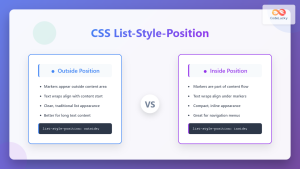
CSS List-Style-Position: Inside vs Outside List Marker Position
The list-style-position property in CSS determines where list markers (bullets, numbers, or custom markers) are positioned relative to the list...

HTML style Property: Element Style
HTML style Property: Element Style The HTML style property allows you to apply inline CSS styles directly to individual HTML...
HTML Ol type Property: Ordered List Type
HTML <ol> type Property: Ordered List Type Explained The type attribute of the HTML <ol> (ordered list) element specifies the...
CSS Style font Property: CSS Font
CSS font Property: A Comprehensive Guide The CSS font property is a shorthand property used to set several font-related styles...

CSS Attribute Selectors: Master Targeting Elements by Attribute Values
What Are CSS Attribute Selectors? CSS attribute selectors allow you to target HTML elements based on their attributes and attribute...
CSS Style fontStyle Property: CSS Font Style
CSS font-style Property: A Comprehensive Guide The font-style property in CSS is used to specify the style of a font....

CSS Style cssText Property: CSS Text
CSS Style cssText Property: Comprehensive Guide The CSS cssText property in JavaScript is a powerful way to get or set...





