
What is CSS Animation-Play-State?
The animation-play-state property is a powerful CSS feature that allows developers to control whether an animation is running or paused. This property provides dynamic control over CSS animations, enabling you to create interactive user experiences where animations can be started, stopped, and resumed based on user interactions or application states.
Unlike other animation properties that are typically set once, animation-play-state is designed to be changed dynamically, making it perfect for creating pause/play functionality, hover effects, and responsive animations that adapt to user behavior.
Syntax and Values
The animation-play-state property accepts two main values:
animation-play-state: running | paused;- running (default): The animation is currently playing
- paused: The animation is paused at its current position
You can also use the initial, inherit, and unset global values, though these are less commonly used in practice.
Basic Implementation Example
Let’s start with a simple example that demonstrates the fundamental concept:
HTML
<div class="animated-box"></div>
<button onclick="toggleAnimation()">Toggle Animation</button>
CSS
.animated-box {
  width: 100px;
  height: 100px;
  background: linear-gradient(45deg, #ff6b6b, #4ecdc4);
  animation: slideAcross 3s linear infinite;
  animation-play-state: running;
}

@keyframes slideAcross {
  0% { transform: translateX(0); }
  100% { transform: translateX(300px); }
}
JavaScript
function toggleAnimation() {
  const box = document.querySelector('.animated-box');
  const currentState = getComputedStyle(box).animationPlayState;
  box.style.animationPlayState = currentState === 'running' ? 'paused' : 'running';
}
Interactive Demo: Basic Animation Control
Advanced Techniques and Use Cases
1. Hover-Based Animation Control
One of the most common use cases is controlling animations based on hover states:
.hover-controlled {
  animation: spin 2s linear infinite;
  animation-play-state: paused;
}

.hover-controlled:hover {
  animation-play-state: running;
}

@keyframes spin {
  from { transform: rotate(0deg); }
  to { transform: rotate(360deg); }
}
Hover over the circle to start the animation
2. Multiple Animation Control
When dealing with multiple animations, you can control each one individually or all at once:
.multi-animated {
  animation:
    moveHorizontal 3s linear infinite,
    changeColor 2s ease-in-out infinite,
    scale 1.5s ease-in-out infinite alternate;
  animation-play-state: running, paused, running;
}

/* Individual control */
.multi-animated.pause-movement {
  animation-play-state: paused, running, running;
}

.multi-animated.pause-all {
  animation-play-state: paused;
}
3. Conditional Animation States
You can create sophisticated control systems using CSS classes and JavaScript:
.loading-spinner {
  animation: rotate 1s linear infinite;
}

.loading-spinner.paused {
  animation-play-state: paused;
}

.loading-spinner.complete {
  animation: none;
  transform: scale(1.2);
  background: #28a745;
}
Interactive Demo: Advanced Animation Control
Browser Support and Compatibility
The animation-play-state property enjoys excellent browser support:
- Chrome: 43+ (with -webkit- prefix for older versions)
- Firefox: 16+
- Safari: 9+ (with -webkit- prefix for older versions)
- Edge: 12+
- Opera: 30+
For maximum compatibility with older browsers, use vendor prefixes:
.compatible-animation {
  -webkit-animation-play-state: paused;
  -moz-animation-play-state: paused;
  animation-play-state: paused;
}
Performance Considerations
When working with animation-play-state, keep these performance tips in mind:
1. Use Transform and Opacity
Animations using transform and opacity are hardware-accelerated and perform better than animating layout properties:
/* Good - Hardware accelerated */
@keyframes optimized {
  from { transform: translateX(0) scale(1); opacity: 1; }
  to { transform: translateX(100px) scale(1.2); opacity: 0.8; }
}

/* Avoid - Causes layout recalculation */
@keyframes unoptimized {
  from { left: 0; width: 100px; }
  to { left: 100px; width: 120px; }
}
2. Minimize State Changes
Frequent toggling of animation-play-state can impact performance. Consider debouncing rapid state changes:
let animationTimeout;

function debounceAnimationToggle(element) {
  clearTimeout(animationTimeout);
  animationTimeout = setTimeout(() => {
    const currentState = getComputedStyle(element).animationPlayState;
    element.style.animationPlayState = currentState === 'running' ? 'paused' : 'running';
  }, 100);
}
Real-World Applications
1. Loading Indicators
Create loading spinners that can be paused when data loading is complete:
2. Interactive UI Elements
Create buttons and interactive elements that respond to user interaction:
Common Pitfalls and Solutions
1. Animation State Persistence
Problem: Animations don’t resume from the paused position when toggled.
Solution: Ensure you’re modifying animation-play-state rather than restarting the animation:
// Wrong - Restarts animation
element.style.animation = 'myAnimation 2s linear infinite';

// Correct - Resumes from paused position
element.style.animationPlayState = 'running';
2. Multiple Animation Synchronization
Problem: Multiple animations get out of sync when individually controlled.
Solution: Use a single control mechanism or carefully manage timing:
function synchronizeAnimations(elements) {
  const timestamp = performance.now();
  elements.forEach(el => {
    el.style.animationPlayState = 'paused';
    // Force reflow
    el.offsetHeight;
    el.style.animationPlayState = 'running';
  });
}
Accessibility Considerations
When implementing animation controls, consider users who may be sensitive to motion:
@media (prefers-reduced-motion: reduce) {
  .animated-element {
    animation-play-state: paused;
  }

  .animated-element.user-enabled {
    animation-play-state: running;
  }
}
Always provide users with the option to disable animations entirely, and respect the prefers-reduced-motion media query.
Conclusion
The animation-play-state property is a versatile tool that opens up countless possibilities for creating dynamic, interactive web experiences. From simple pause/play functionality to complex multi-animation control systems, mastering this property allows you to create animations that respond intelligently to user interactions and application states.
Key takeaways for using animation-play-state effectively:
- Use it for dynamic control of existing animations rather than starting new ones
- Consider performance implications, especially with frequent state changes
- Implement accessibility features for users sensitive to motion
- Combine with JavaScript for sophisticated interaction patterns
- Test across different browsers and devices for consistent behavior
By incorporating these techniques into your development workflow, you’ll be able to create more engaging and user-friendly animated interfaces that enhance rather than distract from the user experience.
Related Posts
CSS Style animationDuration Property: CSS Animation Duration
Understanding the animationDuration Property in CSS The animationDuration property in CSS specifies the length of time that an animation should...
CSS Animation-Delay: Master Timing Control for Perfect Web Animations
What is CSS Animation-Delay? The animation-delay property in CSS controls when an animation starts after it's been applied to an...
CSS Animation Property: Complete Guide to Keyframe-Based Animations
CSS animations bring life to web pages by allowing elements to transition smoothly between different states over time. The animation...
CSS Style animationDirection Property: CSS Animation Direction
CSS Style animation-direction Property: Controlling CSS Animation Direction The animation-direction property in CSS specifies the direction in which an animation...
CSS Style animationIterationCount Property: CSS Animation Iteration Count
CSS animation-iteration-count Property: Controlling Animation Loops The animation-iteration-count property in CSS specifies the number of times an animation should play....
CSS Transition-Duration: Complete Guide to Animation Timing Control
What is CSS Transition-Duration? The transition-duration property in CSS defines how long a transition animation should take to complete. It's...
CSS Style animation Property: CSS Animation
CSS animation Property: A Comprehensive Guide to CSS Animations The animation property in CSS is a shorthand property used to...
CSS Transition Property: Complete Guide to Smooth Animation Effects
CSS transitions enable smooth, visually appealing animations when element properties change, transforming abrupt state changes into fluid motion. This powerful...

HTML Video play() Method: Starting Video Playback
HTML Video play() Method: Starting Video Playback The HTML Video play() method initiates the playback of a video element in...
CSS Transition-Delay: Master Animation Timing and Sequencing
The transition-delay property in CSS is a powerful tool that allows you to control when a transition animation begins. Unlike...
CSS Style animationDelay Property: CSS Animation Delay
Understanding the CSS animationDelay Property The CSS animationDelay property specifies the amount of time to wait from when the element...
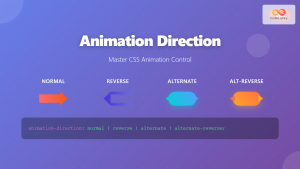
CSS Animation-Direction: Master Normal, Reverse, Alternate Animation Control
The animation-direction property in CSS gives you complete control over how your animations play, whether they run forward, backward, or...





